Your computer isn’t just a device, it’s also your productivity hub, entertainment centre, and sometimes even your lifeline. But have you noticed it slowing down, freezing at the worst possible moments, or struggling to run programs it once handled effortlessly? Most of the time, these problems aren’t because your computer is “old”, but rather because you have been neglecting the basic upkeep.
The good news? Regular upkeep isn’t just for tech experts. With a few easy habits, you can keep your system running smoothly, protect your data, and even extend your computer’s lifespan. In this guide, we’ll share practical, actionable tips that anyone can follow. By the end, your computer will feel faster, safer, and more reliable, saving you time, frustration, and even money.
Ready to get started? Let’s dive in.
1. Keep Your Hardware Clean
Dust, crumbs, and grime may seem harmless, but they can cause serious issues. Fans clogged with dust often lead to overheating, keyboards collect bacteria, resulting in hardware failure, and dirty screens affect visibility. And regular cleaning keeps your computer running efficiently.
Quick tips:
Keyboard & mouse: Use compressed air and a soft cloth to clean regularly.
Monitor: Wipe gently with a microfiber cloth or a screen-safe wipe and also avoid harsh cleaners.
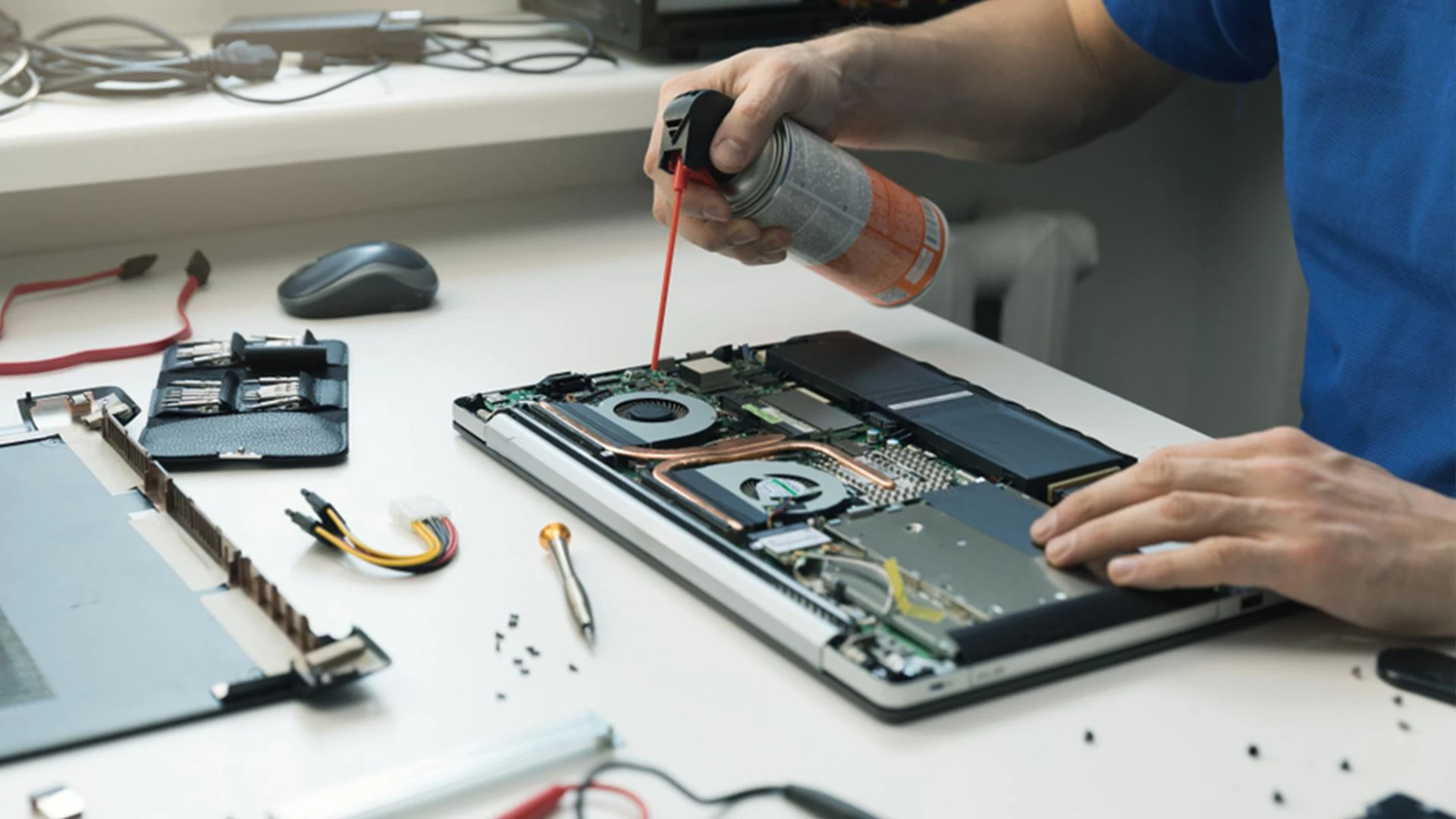
Internal cleaning: If you’re comfortable, open your case occasionally to remove dust with compressed air.
2. Update Software and Operating Systems
Software updates aren’t just annoying pop-ups, they patch security vulnerabilities, fix bugs, and improve performance.
Enable automatic updates for OS and apps.
Keep drivers, browsers, and antivirus software updated to protect your system against the latest threats.
Learn more about safe software updates at Microsoft Support or Apple Support.
3. Manage Startup Programs
Ever notice your computer taking forever to start? Too many programs launching at startup could be the culprit. So streamline them for faster boot times:
Windows: Open Task Manager → Startup tab → disable unnecessary apps.
Mac: System Preferences → Users & Groups → Login Items → remove non-essential apps.
Tip from experience: Removing programs you rarely use can improve daily performance and can significantly improve your overall performance.
4. Run Regular Antivirus Scans
Malware and viruses reduce performance and can compromise your data security (steal data, or even damage files)
Use trusted antivirus software (e.g., Norton, Bitdefender, Kaspersky).
Schedule weekly scans.
Keep your definitions updated to catch the latest threats.
5. Clear Cache and Temporary Files
Every click, download, and program leaves traces. Over time, cache and temporary files accumulate, eventually taking up storage and slowing your system.
Windows: Use Disk Cleanup or Storage Sense.
Mac: Locate cache files in Finder or use cleaning tools like CleanMyMac.
Regular cleaning can noticeably speed up your computer.
6. Defragment Your Hard Drive (HDD Only)
If your computer uses a traditional hard drive, defragmenting reorganises data for faster access.
Windows: Search “Defragment and Optimise Drives” → Optimise HDDs.
Note: SSDs don’t need defragmenting, and doing so can reduce their lifespan.
7. Back Up Your Data Regularly
Hardware failure, accidental deletion, or malware can cause unexpected data loss. You can avoid panic by backing up regularly, as it ensures security
Cloud Storage: Google Drive, OneDrive, Dropbox.
External Drives: Use external HDDs or SSDs for offline backups.
Schedule automated backups to make it effortless.
Tip: For business users, consider enterprise-grade cloud backups for extra reliability.
8. Optimise Power Settings
Adjusting power settings can improve performance and energy efficiency.
Windows: Control Panel → Power Options → choose "Balanced or High Performance".
Mac: System Preferences → Energy Saver → customise settings.
This simple adjustment can help extend battery life on laptops and reduce unnecessary power consumption.
9. Monitor System Performance
Regularly check your computer’s performance to spot potential issues early.
Windows: Task Manager → monitors CPU, memory, disk usage.
Mac: Activity Monitor → tracks system resources.
Pro tip: If you notice unusual and sudden spikes or slowdowns, it may indicate software issues or a need for upgrades. So acting early upon it can prevent bigger problems.
10. Seek Professional Help When Needed
Some issues are beyond basic maintenance. Don’t hesitate to consult a professional technician if:
Your computer keeps crashing.
You notice unusual noises or overheating.
You’re unsure how to clean internal components safely.
Professional check-ups can prevent small problems from becoming costly repairs.
Computer maintenance is about more than fixing problems; it’s about protecting your investment, keeping your data safe, and making everyday tasks faster and easier. And when issues do arise, you can count on us for expert computer repair services to get your system back up and running quickly. The sooner you start applying these simple tips, the sooner you’ll notice smoother performance, fewer frustrations, and a computer that lasts longer. Even small, consistent maintenance steps, combined with professional support when needed, can dramatically improve your computing experience and save you time, stress, and money.






























Sign in to leave a comment.