
Currently, there has been an upgrade in Windows and users have followed suit. But just like every other software, users still face problems with Windows 11 widgets. This might occur as a result of your graphic card not being currently updated or not having the best driver updater software. Most time, Windows 11 widgets not working are from the OS, when not updated.
Let’s look at the steps on how to fix Windows 11 widgets not working.
1. Allow Widgets on Windows 11
Most of the time, we tend not to be aware that software has been disabled in our system, and because of this, Windows software tends to malfunction. With that said, allowing widgets on Windows can fix Windows 11 widgets not working issues. This can be done manually or in your Windows taskbar. It’s a very easy and simple method to carry out.
Step 1. Locate your widgets in your Windows by right-clicking the Taskbar, Taskbar setting will appear, click the Taskbar Setting.
Step 2. Hover your cursor to the "Show widget" displayed on the screen and turn it ON.
Step 3. A Widget button will appear, signifying that you have made it work in your system. If you’re still having the same problem, you can try the next method below.
2. Stop and Restart Widget
This might be the next solution to fix the Windows 11 widget not working. In this method, stopping the widget from working and restarting again, can make widgets function properly.
To do this, simply follow these steps!
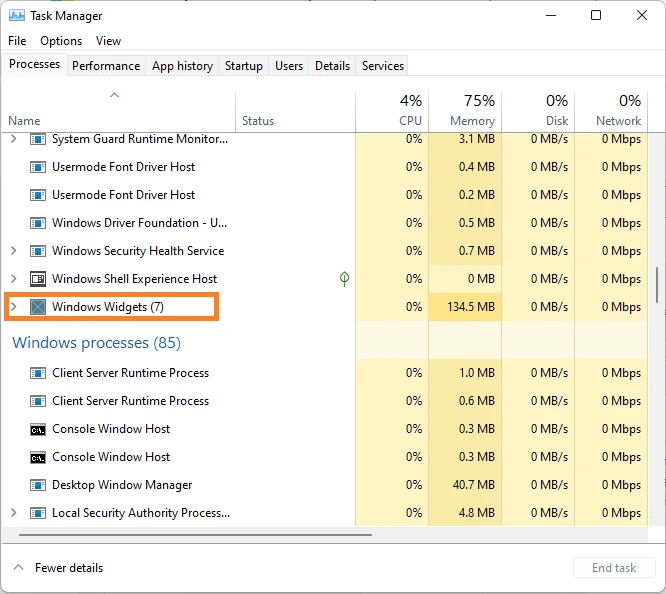
Step 1. Go to the Start menu and right-click on the Taskbar. After that, the Task Manager will be displayed, make sure to click the Task Manager.
Step 2. Scroll through to locate Windows widgets in your Task Manager and Right-click.
Step 3. Click the End Task and observe if the problem has been solved.
“Note: Alternatively, restarting Windows explorer can be of help in fixing Windows 11 widgets. Most Windows 11 users have tried it and found it effective.”
3. Microsoft Log-In
Of course, you have to log in to your Windows account before using widgets. It's very important to do so. Logging in to your Microsoft account in Windows is another efficient method to fix Windows 11 widgets not working. And before you do so, make sure to have a Microsoft account.
To do this, follow these steps!
Step 1. Click on the Start menu in your Windows, it'll direct you to your account menu to change your account setting.
Step 2. Right-click and select ‘Change Account Setting’ to log in to your Microsoft account.
Step 3. A local account administrator will appear, click on the "sign in with Microsoft account instead"
Input your credentials and wait to see it work.
“Note: To solve this problem, you can try to log out and log in again. Especially if you have an existing account logged in before and it’s still not functioning well. If the problem persists, follow precisely the steps available in the next method.”
4. Graphic Driver Update
Having an outdated or faulty driver can cause widgets to stop working in Windows 11. As a result, graphic drivers should be checked always if it's faulty or outdated. For the method of updating your driver, it can be done with two simple tricks which are, manually or with the use of a driver updater software for Windows.
Manual Update:
A Manual update can be stressful and requires much time, but still viable. Sometimes, Windows might delay notifying you of the latest graphic update. To combat this manually, search on the manufacturer's website and select the driver that fits the version of your Windows, and update it.
Using a Driver Updater Software:
Overcoming time, using Advanced Driver Updater has been credited as one of the best options for Windows 11. It's easy to use and very reliable to update missing, corrupt, and incompatible device drivers. It is able to take a proper backup before making any changes to the existing drivers so that you can always roll back drivers in case of any corruption.
With this software, you'll be able to detect all the latest updates and carry out an effective scan.
5. Refresh Your Driver (Graphic)
Refreshing your graphic driver even after updating it, might help fix the Windows 11 widget that is if updating your driver did not work. To do this, follow the following steps:
Step 1. Hover your cursor to the Start menu and right-click. Select 'Run' and click.
Step 2. Type the name "devmgmt.msc" and click OK.
Step 3. Expand the "Display Adapter", make a right-click on the Graphics card, and click disable.
After disabling, hold on for a minute or two and right-click your Graphics card again. Click "Enable Device" and check your widget. You can restart your computer once and check.
Still having a problem, you can try the last step.
6. Edge WebView2 Download
The absence of WebView2 in your Windows will cause widgets to malfunction. It helps Windows to display web content. It can help fix the Windows 11 widget not working.
All you have to do is download and Run Edge WebView2 on your Windows 11. Some users have proven it very effective.
Conclusion
All the methods listed above are the best and easy methods on how to fix Windows 11 widgets not working. You don't need to try all but one of these can help resolve it. The use of graphic driver updater software and the use of Microsoft log-in has proven very effective to fix the Windows widget.

























Sign in to leave a comment.