

The way we secure our digital lives is undergoing a massive transformation. For years, we have relied on complex passwords and two-factor authentication (2FA) codes to keep our accounts safe. However, as cyber threats become more sophisticated, these traditional methods are showing their age. Enter the passkey—a more secure, faster, and more convenient way to log into your favorite apps.
WhatsApp, one of the most popular messaging platforms globally, has embraced this shift by introducing passkey support for iOS users. This feature allows you to unlock and access your account using the same biometric data or passcode you use to unlock your device. By removing the need for traditional passwords or SMS verification codes, passkeys significantly reduce the risk of phishing attacks and unauthorized access.
Whether you are using the latest hardware or a high-quality second hand iphone in india, setting up a passkey is one of the most effective ways to bolster your privacy. This guide will walk you through everything you need to know about enabling and using this feature on your iPhone.
What is a WhatsApp Passkey and Why Does it Matter
A passkey is a digital credential that is tied to your user account and a specific device. Unlike a password, which is a string of characters you have to remember, a passkey uses cryptographic techniques to verify your identity. On an iPhone, this usually translates to using Face ID, Touch ID, or your device passcode.
The primary benefit of a passkey is that it is "unphishable." Since there is no actual password to type in or share, a hacker cannot trick you into giving it away on a fake website. Furthermore, because the passkey is stored securely in your iCloud Keychain, it is encrypted end-to-end and is not shared with WhatsApp or Apple.
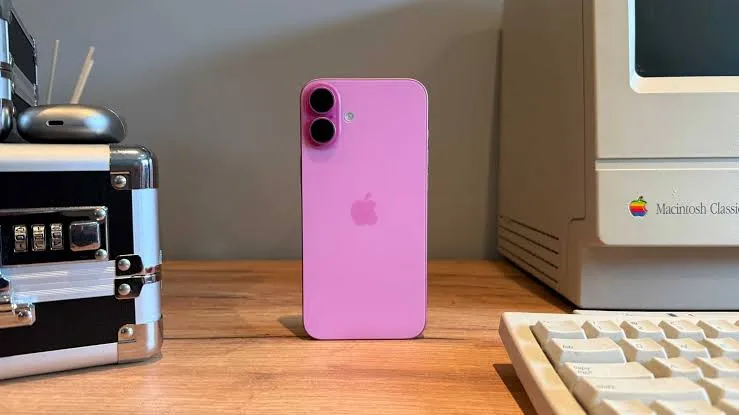
For professionals and casual users alike, this means a smoother login experience. If you ever need to reinstall the app or move to a different device, such as an iphone 16 refurbished, having a passkey enabled ensures that you can regain access to your chats instantly without waiting for a carrier-delayed SMS code.
Prerequisites for Enabling Passkeys on iOS
Before you can enable a passkey for WhatsApp, you need to ensure your iPhone and software are ready. Passkeys rely on the FIDO Alliance standards and Apple’s ecosystem integrations, so specific requirements must be met:
- iOS Version: Your iPhone must be running iOS 16 or later, as this is when Apple introduced native passkey support. However, for the best experience with WhatsApp’s specific implementation, keeping your device updated to the latest version of iOS 18 is highly recommended.
- iCloud Keychain: You must have iCloud Keychain enabled. This allows the passkey to be synced across your Apple devices and backed up securely. You can check this in Settings > [Your Name] > iCloud > Passwords and Keychain.
- Two-Factor Authentication: Your Apple ID must have two-factor authentication turned on.
- WhatsApp Update: Ensure you are running the latest version of WhatsApp available in the App Store.
Once these basics are in place, the hardware handles the rest. Even if you are using a premium iphone 16 pro refurbished, the setup process remains identical and highly efficient.
Step by Step Guide to Setting Up Your WhatsApp Passkey
Setting up the feature is a straightforward process that takes less than a minute. Follow these steps to secure your account:
Open WhatsApp on your iPhone and tap on the "Settings" tab located at the bottom right corner of the screen. Within the settings menu, locate and tap on the "Account" section. This area manages your security, privacy, and two-step verification settings.
Look for the option labeled "Passkeys." If you do not see it, ensure your app is fully updated. Tap on "Create Passkey." A prompt will appear explaining how passkeys work. Tap the "Continue" button. At this point, iOS will take over the process. A system popup will ask if you want to create a passkey for WhatsApp. It will prompt you to use Face ID, Touch ID, or your passcode to confirm.
Once the biometric scan is successful, your passkey is created and saved to your iCloud Keychain. You will see a confirmation screen in WhatsApp indicating that your passkey is active. From now on, whenever you need to verify your identity on WhatsApp, the app will default to this method.
How to Use Your Passkey for Login
Once enabled, using the passkey is remarkably simple. Imagine you have recently upgraded your device through EasyPhones and need to set up your account on your new handset. Instead of waiting for a 6-digit verification code to arrive via text message—which can be problematic if you have poor cellular reception or are traveling—you can simply use your passkey.
When you open WhatsApp on the new device and enter your phone number, the app will detect that a passkey exists in your iCloud Keychain. It will prompt you to "Use Passkey to Log In." After a quick Face ID or Touch ID scan, you are instantly granted access to your account. This "passwordless" workflow is not only faster but also removes the vulnerability of SMS interception.
EasyPhones specializes in providing high-quality, certified devices that support these modern security features, ensuring that even when buying refurbished, you aren't missing out on the latest safety protocols Apple and Meta have to offer.
Managing and Deleting Your Passkey
While passkeys are designed to be a permanent security solution, there may be instances where you want to manage or remove them. If you decide you no longer want to use a passkey for WhatsApp, you can revoke it at any time.
To delete it, return to WhatsApp Settings > Account > Passkeys. You will see an option to "Revoke" or delete the existing passkey. Confirming this action will remove the credential from WhatsApp's association. However, to fully remove the trace, you may also need to delete the entry from your iPhone’s Saved Passwords in the system Settings app.
It is important to note that revoking a passkey does not lock you out of your account. WhatsApp will simply fall back to the traditional SMS verification method. However, for the sake of long-term digital hygiene, keeping the passkey active is the recommended path for most users.
Final Thoughts on the Future of Device Security
The introduction of passkeys to WhatsApp represents a significant milestone in making the internet safer for everyone. By moving away from passwords, we eliminate the most common point of failure in personal security. For iPhone users, this integration is seamless, leveraging the hardware-level security that Apple is known for.
Whether you are a tech enthusiast or someone who simply wants their messages to stay private, enabling this feature is a proactive step. As you continue to use and enjoy your Apple devices, staying updated on these security trends ensures that your digital identity remains protected against the evolving landscape of online threats.
Sign in to leave a comment.