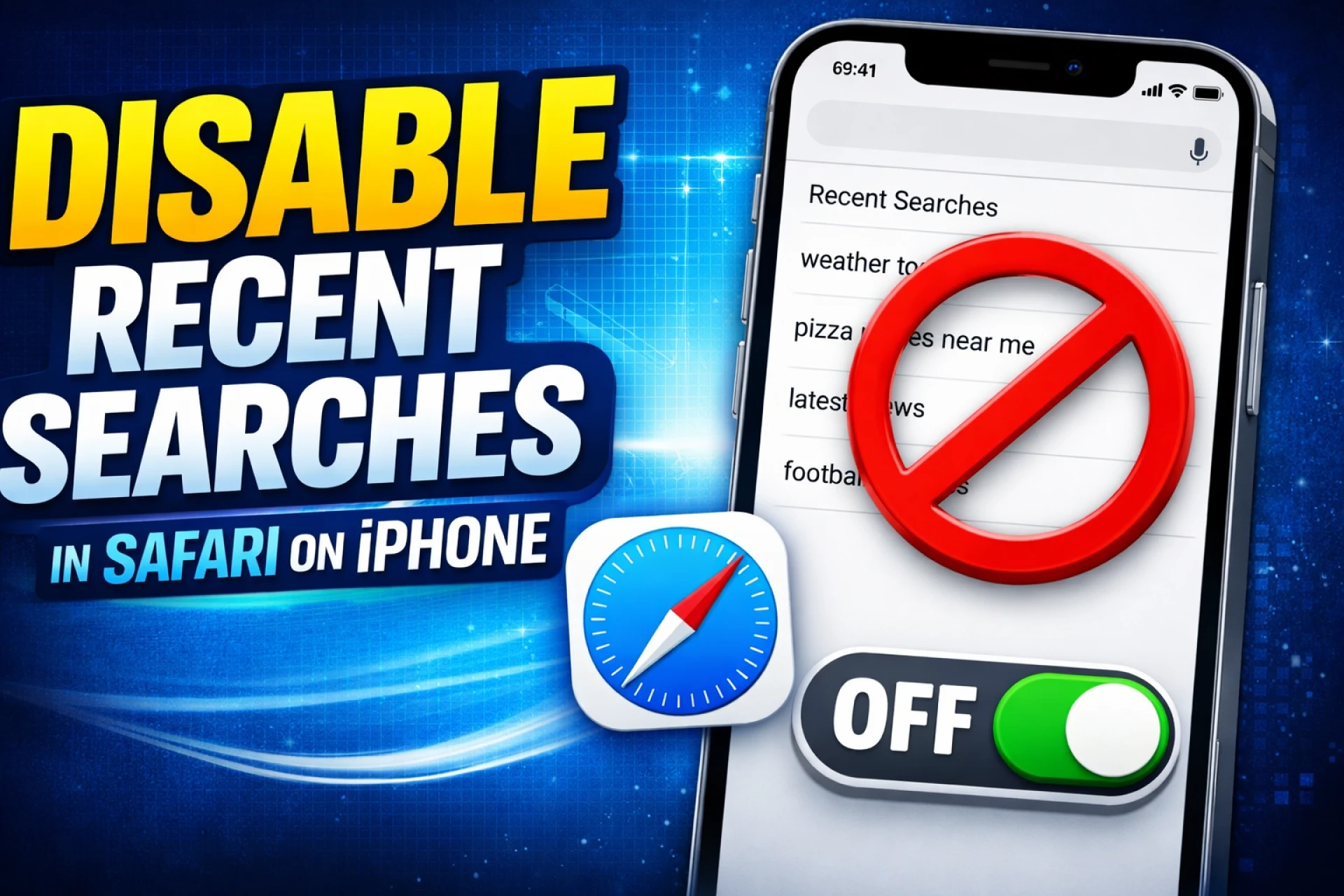

Understanding Safari Recent Searches on iPhone
Privacy is a top priority for smartphone users today. When you tap the address bar in Safari, a list of your most recent search queries often appears. While this feature is designed to save time by helping you revisit previous topics, it can be a nuisance if you share your device with others or simply prefer a cleaner browsing interface. For those who have recently upgraded to a second hand iphone in india, ensuring that your settings are tailored to your privacy needs is an essential first step.
The "Recent Searches" feature is different from your overall browsing history. While history tracks every website you visit, recent searches specifically display the terms you typed into the search bar. In the latest versions of iOS, including iOS 18 and the upcoming iOS 19, Apple has made it easier to toggle this feature on or off directly through the system settings.
How to Disable Recent Search Suggestions
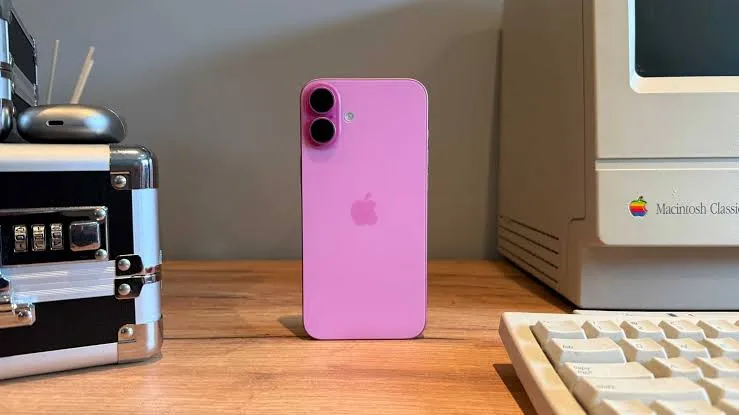
Disabling the recent search list is a straightforward process that takes less than a minute. By turning off this toggle, Safari will no longer suggest your past queries when you tap the search field on a new tab or an existing page. This is particularly useful for users of high-performance devices like a iphone 16 refurbished, where the interface is fluid and you want to minimize any unnecessary visual clutter.
To disable the feature, follow these steps:
- Open the Settings app on your iPhone.
- Scroll down and tap on Apps.
- Locate and select Safari from the list of applications.
- Under the Search section, look for the toggle labeled Show Recent Searches.
- Switch the toggle to the Off position.
Once this is done, you can return to Safari and tap the address bar to confirm that the list of previous searches has disappeared. At EasyPhones, we believe that personalizing these small details makes your premium device feel truly yours.
Clearing Your Existing Search History
It is important to note that disabling the "Show Recent Searches" toggle only hides future suggestions; it does not delete the data already stored in your browser's history. If you want to wipe the slate clean, you must manually clear your browsing data. This is a recommended practice for anyone who has just purchased a pre-owned device to ensure no leftover data remains from previous sessions.
To clear your history:
- In the Safari settings menu, scroll down to the History and Website Data section.
- Tap on Clear History and Website Data.
- Select the timeframe you wish to clear (e.g., Last Hour, Today, or All History).
- Tap Clear History to confirm.
This action will also close your open tabs and remove cookies, which can help improve the browsing speed on a iphone 16 pro refurbished by removing cached files that might be slowing down the application.
Using Private Browsing for Maximum Privacy
If you find yourself constantly clearing your history, you might prefer using Safari’s Private Browsing mode. When this mode is active, Safari does not remember the pages you visit, your search history, or your AutoFill information. This is the ultimate "set it and forget it" solution for privacy-conscious users.
To enter Private Browsing:
- Open Safari.
- Tap the Tabs icon (two overlapping squares) in the bottom right corner.
- Swipe the bar at the bottom to the left until you see Private.
- Tap the + (plus) icon to open a new private tab.
Using Private Browsing ensures that your search terms never enter the "Recent Searches" database in the first place. This allows you to enjoy the full power of your iPhone without worrying about leaving a digital trail behind.
Why Keeping Your Browser Clean Matters
Beyond privacy, managing your Safari settings helps maintain the device’s efficiency. Over time, accumulated website data and long lists of search suggestions can lead to minor lag or a disorganized user experience. By taking control of these settings, you ensure that your iPhone remains as fast and responsive as the day you unboxed it.
Whether you are a long-time Apple enthusiast or a newcomer looking for a great deal at EasyPhones, understanding these nuances allows you to get the most out of your hardware. A clean browser is not just about secrecy; it is about creating a streamlined, professional environment for your daily digital tasks.




























Sign in to leave a comment.