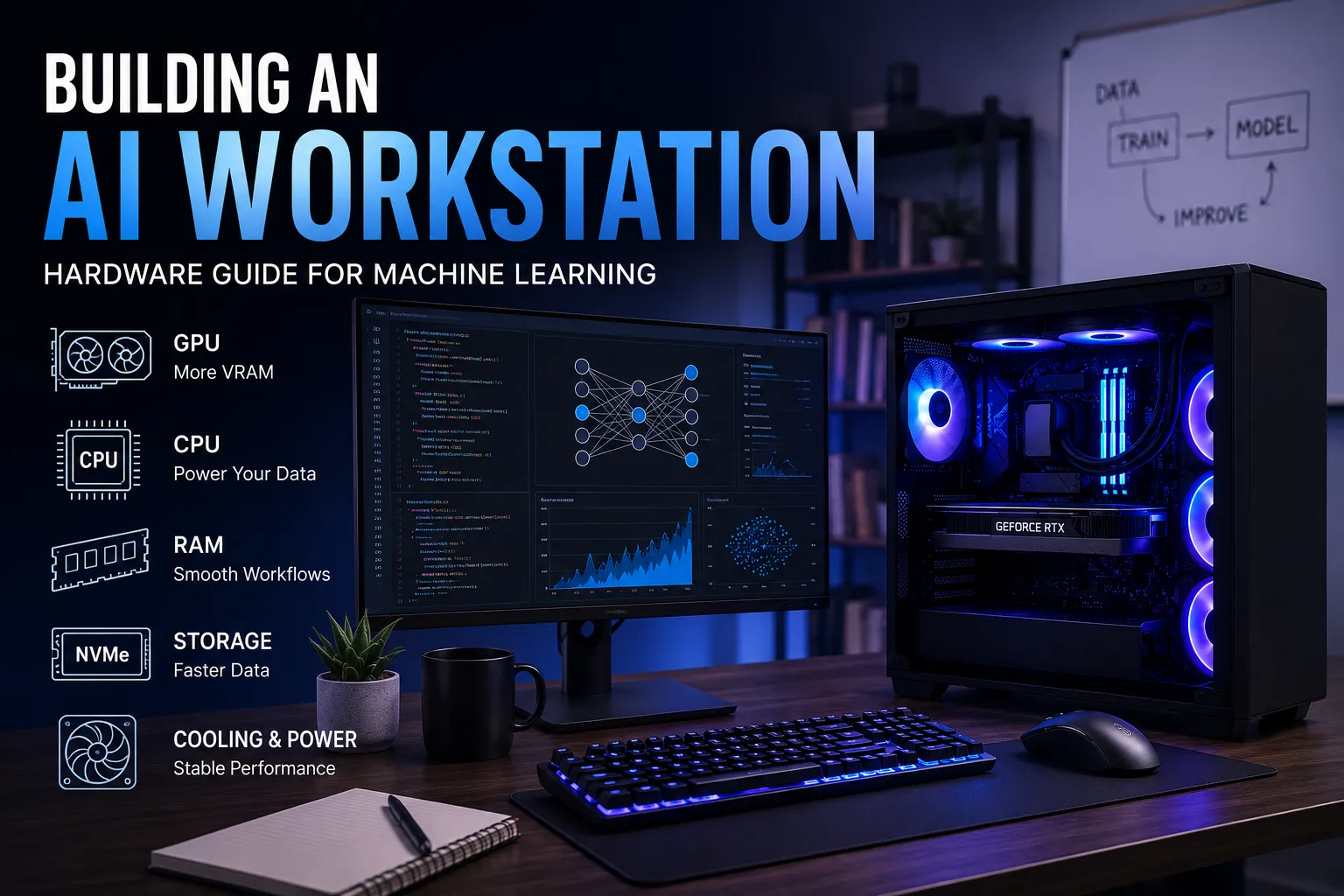

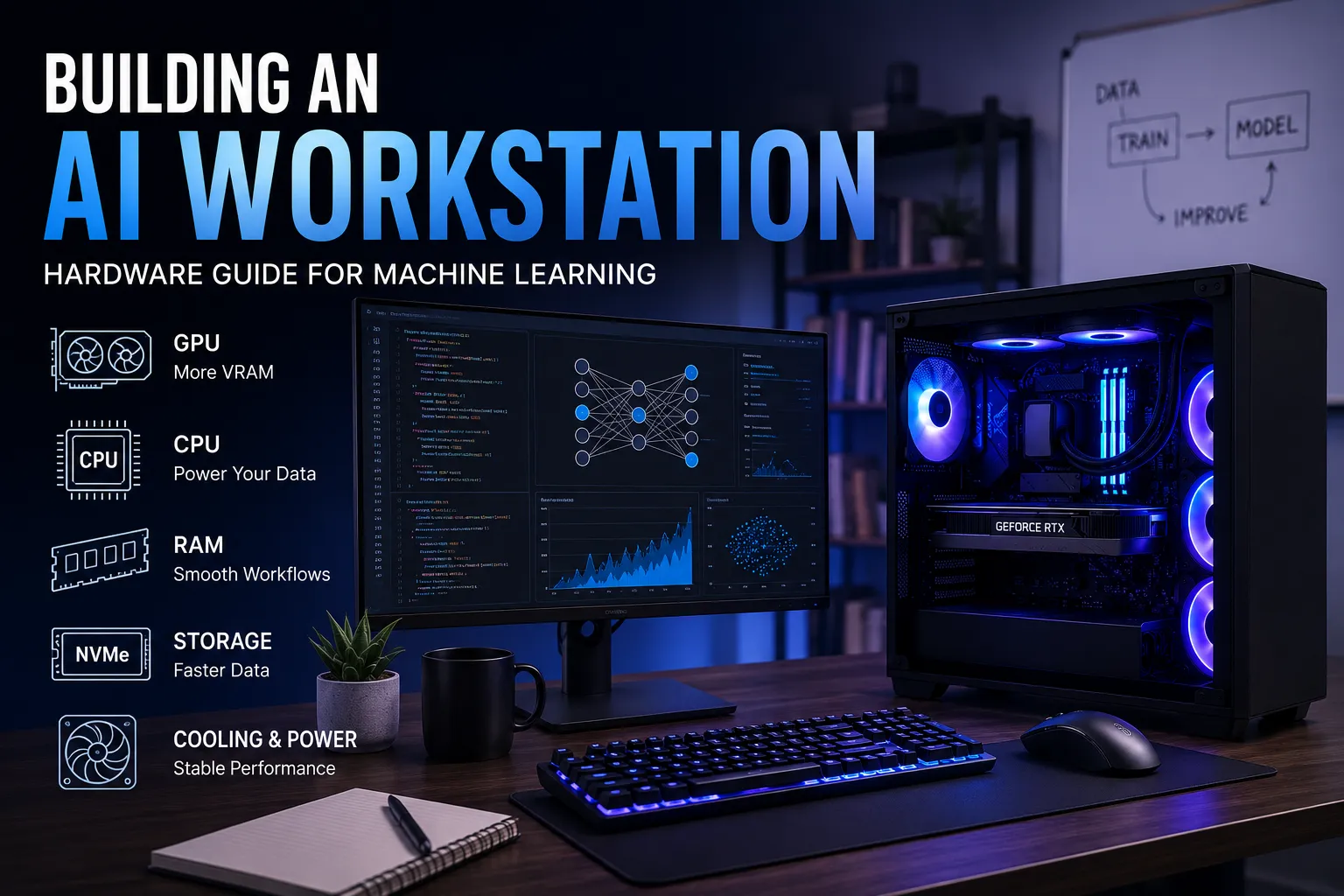
There is a specific kind of frustration that comes from spending $3,000 on a machine, sitting down to train your first model & watching the GPU sit at 35% utilization while the CPU struggles to feed it data. It happens more often than most guides admit - and it happens because people shop for AI hardware the same way they shop for a gaming PC: GPU first, everything else as an afterthought.
Building a proper machine learning workstation is a systems problem. Every component in the chain has to keep up with every other component, or the whole thing underperforms. This guide walks through each hardware layer in the order that actually matters.
Start With the GPU - But Think About VRAM First
The GPU drives your training runs, your inference speed & which models you can realistically run locally. Most people focus on clock speed and core count. The number that actually determines your day-to-day capability is VRAM.
VRAM is where your model lives during training and inference. Run out of it & the system starts offloading to system RAM - which is dramatically slower and turns a fast inference run into something painfully sluggish.
A rough working guide:
- 8 GB VRAM - Fine for learning and small models. Tight for anything serious in 2026.
- 16 GB VRAM - Comfortable for 7B–14B parameter models at 4-bit quantization. Solid starting point for most developers.
- 24 GB VRAM - The practical sweet spot for production work. Handles fine-tuning with room to breathe.
- 48 GB+ VRAM - Territory for 70B models, multi-GPU setups & serious research pipelines.
NVIDIA's Tensor Core architecture handles the mixed-precision math (FP16/BF16) that modern frameworks like PyTorch and TensorFlow rely on. Without Tensor Core support, training throughput drops significantly even on GPUs with otherwise comparable specs.
For most developers building their first dedicated ML machine, 16–24 GB VRAM is the practical target. Go below 16 GB and you will be hitting walls within six months as model sizes keep climbing.
The CPU: More Important Than Most AI Guides Admit
Here is the part that gets skipped in almost every "AI PC build" article: your CPU determines how fast your GPU actually runs in practice, not just in synthetic benchmarks.
Before every training step, your CPU is responsible for loading raw data, tokenizing it, applying augmentations, shuffling batches & handing everything off to the GPU. This is called the data preprocessing pipeline & if it cannot keep pace with the GPU's appetite, the GPU stalls and waits.
PyTorch's data loading documentation recommends setting num_workers equal to the number of CPU cores dedicated to data loading. On a 6-core CPU, you are limited to a handful of parallel workers. On a 16-core or 24-core processor, the pipeline stays ahead of even a high-throughput GPU.
Core count matters more than clock speed for ML work. A 16-core AMD Ryzen 9 9950X running at 4.3 GHz will outperform a 6-core high-clock CPU in sustained training runs because it can run more data workers simultaneously. This is not theoretical - it shows up in GPU utilization numbers during long training jobs.
For teams that need even more headroom, the AMD Threadripper WX AI PRO Workstation at Magic Micro runs a Threadripper PRO 9995WX - a processor with enough cores and memory bandwidth to feed the most demanding GPU pipelines without a single idle cycle.
System RAM: The Staging Ground Between Storage and GPU
System RAM is where datasets live while they wait to be pushed into VRAM. It is also where model layers land when they overflow VRAM during inference.
32 GB is the floor for any ML workstation today. In practice, large language model inference with offloaded layers, dataset preprocessing & OS overhead can chew through 32 GB faster than expected.
64 GB is the more comfortable working standard for developers who run multiple experiments simultaneously or work with large training datasets that cannot be re-loaded from disk for every epoch.
128 GB becomes relevant for Threadripper-class workstations handling very large datasets, multi-model pipelines, or virtual machine environments running alongside ML workloads.
Both the AMD Ryzen PRO Workstation and Intel 14th Gen PRO Workstation at Magic Micro ship with 64 GB DDR5 at 6000 MHz - a configuration chosen specifically because it keeps system RAM from becoming the bottleneck between your NVMe storage and the GPU.
Storage: NVMe Is Non-Negotiable
Datasets for serious ML work are large. ImageNet alone sits at around 150 GB. Medical imaging datasets, NLP corpora & video training sets push into the terabytes quickly.
A slow storage drive means every epoch starts with the CPU waiting for data rather than preprocessing it. Linus Tech Tips' NVMe vs SATA benchmark comparisons consistently show sequential read speed differences of 5–7x between budget SATA SSDs and high-end PCIe Gen 4/5 NVMe drives.
For AI workstations, the minimum spec is a PCIe Gen 4 NVMe SSD. The Samsung 990 PRO delivers sequential reads around 7,450 MB/s, which keeps dataset loading from dragging down training pipeline throughput.
Capacity targets:
- 1 TB minimum - tight for active research, fine for learning projects
- 2 TB - comfortable for most single-project workflows
- 4 TB+ - needed for multi-dataset environments or teams sharing a workstation
Motherboard and PCIe Bandwidth
This is the component most people skip over completely - and it quietly determines whether a multi-GPU or GPU + accelerator setup will work at its rated speed.
For single-GPU setups, any modern AM5 or LGA1700 board with PCIe 5.0 x16 handles current-generation NVIDIA GPUs without issue. Where motherboard selection gets consequential is in multi-GPU or accelerator configurations - the board needs enough PCIe lanes to feed both devices at full bandwidth simultaneously.
AnandTech's PCIe bandwidth analysis of Threadripper PRO platforms is one of the clearest explanations of why lane count matters for workstation-class AI builds - particularly when connecting NVMe storage directly to the CPU rather than routing through a chipset.
Cooling and Power: The Infrastructure Layer
A GPU running a 12-hour training job at 100% TDP generates serious heat. Thermal throttling mid-run does not just slow things down - it introduces inconsistency in training times that makes experiment tracking harder.
Cooling requirements by component:
- GPU: Ensure case airflow can handle sustained 300–450W TDP from high-end NVIDIA cards
- CPU: A 240mm or 360mm AIO cooler for any 16-core+ processor under sustained ML workloads
- Case: Full tower or large mid-tower with front intake and rear/top exhaust - cramped cases strangle sustained performance
Power supply: Add up the TDP of your GPU, CPU, RAM & drives, then add 20% headroom. A system with an RTX 5090 and a 16-core CPU typically needs a 850W–1000W PSU minimum.
Putting It Together: Recommended Tiers
Entry-Level ML Workstation (~$2,000–$2,500) 16-core CPU, 32 GB DDR5, 16 GB VRAM GPU, 1 TB NVMe. Handles learning projects, fine-tuning smaller open-source models & standard computer vision pipelines.
Mid-Range Production Workstation (~$4,000–$5,500) The AMD Ryzen PRO Workstation or Intel 14th Gen PRO Workstation from Magic Micro sit squarely in this range - 16-core CPUs, 64 GB DDR5, professional-grade GPU, 4 TB NVMe. Serious production work, local LLM inference up to 34B parameters, sustained training runs.
High-End Research Workstation ($10,000+) Threadripper-class platforms with 128 GB+ ECC RAM, 48 GB+ VRAM GPUs, multi-drive NVMe arrays. Purpose-built for large model training, multi-GPU configurations & team-shared workstations. The AMD Threadripper X PRO Workstation is the starting point at this tier.
Final Thought
The difference between a custom gaming PC and a proper AI workstation is not just the GPU. It is the deliberate balance between CPU core count, system RAM capacity, NVMe throughput & PCIe bandwidth - all sized so no single component holds the others back.
Magic Micro's full workstation catalog covers the full range from entry production builds to Threadripper research rigs, all fully customizable to match your specific workload. If your requirements fall outside standard configurations, the technical team works through custom specs directly - the same way they have been building machines for engineers, developers & researchers since 1997.
If budget is the only thing between you and the right hardware, financing options through Bread Pay and PayPal let you split the cost without putting the build on hold.



























Sign in to leave a comment.