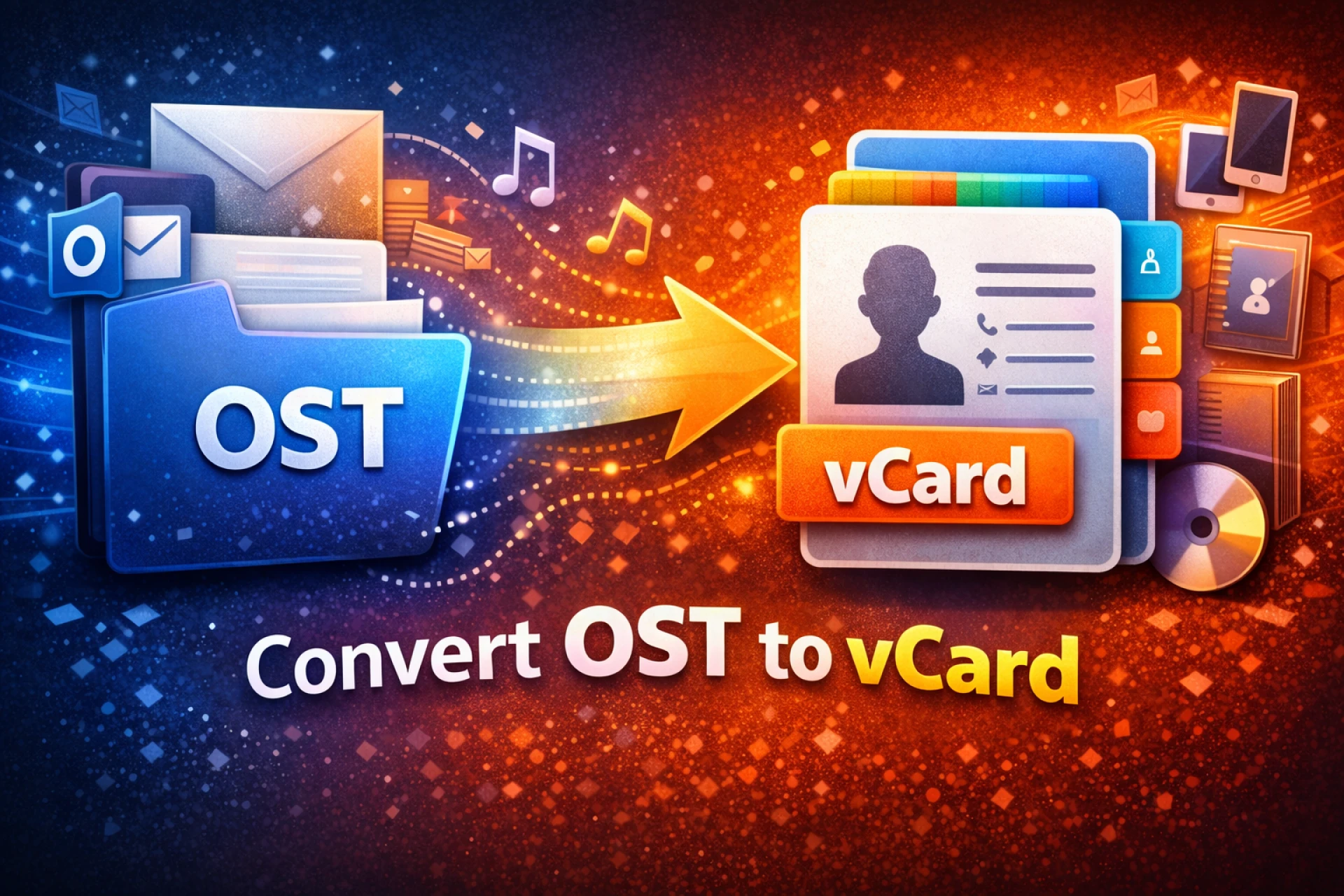

Usually, it is not easy to manage email data and contacts in Microsoft Outlook. There can be times when a person faces challenges in transferring or sharing their contacts on other platforms or devices as well. Outlook is known for storing mailbox data in an OST file, including all the emails, calendar, events, and contacts. One cannot access their contacts outside of Outlook as OST files is depended on a specific Outlook account for access. So, it causes a problem for many users, and to solve this issue, it is important to convert OST to vCard. As vCard is a common format for storing contacts, it can be used across multiple email clients or devices as well. So, to make you understand better, this article will walk you through why there is a need to convert, some simple conversion methods, and common mistakes to avoid.
Understanding OST and vCard
Before we come to the point of why there is a need for conversion, let's first understand some basic terms, i.e., OST and vCard. So, in simple words, to manage data, these two files are used for different purposes. An OST file, a short form for Offline Storage Table, stores copies of your mailbox data on your system and is created by Microsoft Outlook. Here, one can easily access their emails, contacts, and other items even when they are not connected to the internet and automatically syncs changes to the server whenever they’re online. However, since OST files are linked to Outlook, you cannot access contacts outside of Outlook. So that is why one needs to convert OST to vCard.
When we talk about vCard, it helps to store contact information like names, email addresses, phone numbers, or even profile pictures in a standard file format. As it is widely supported across many email clients, mobile phones, and different contact management platforms, it makes it easier to share or transfer contact information on different devices and platforms.
Reasons to Convert OST to vCard
When a user tries to access their contact information outside Outlook, they might face an issue, as OST files are connected to Microsoft Outlook. That is why it is suggested to convert OST to vCard so that the user can easily transfer, back up, or even share contacts whenever they need to. Let's understand it better with some reasons provided below:
- As a vCard can be accessed on multiple devices, the OST file relies on Outlook
- vCard can be shared and sent via email to friends, family, or even with workmates
- After converting contacts to vCard, you can safely back them up outside Outlook.
- Widely supported by many email clients and smartphones, which makes contacts accessible anywhere
- Can easily move contacts from Outlook to another email application
Author’s Suggestion: If you want to convert OST to PST, you can use this tool.
Different Ways to Convert OST to vCard
After understanding the need to change the format from OST to vCard, there are several procedures to do so. Here, one can use either Microsoft Outlook, which will export your contacts, or just use a trustworthy OST to vCard converter tool for faster and quicker results.
#1. Using an OST to vCard Converter Tool
Since many users want to convert OST to vCard easily without losing any data, they can simply use a professional software like the SysTools OST Converter Tool. Such a tool is designed in a way that even a new user can easily handle without technical knowledge. With just a few steps, the conversion will be completed with ease.
- Start by installing and launching a secure converter tool on your system.
- Then, add the OST file containing your Outlook contacts.
- After that, make sure to preview the contacts and then select the correct data.
- Choose vCard (.vcf) as the output format.
- Once chosen, select a destination folder and start the conversion process.
#2. Microsoft Outlook Export Method
A person having access to Microsoft Outlook, and if the OST file is connected to your account, then they can simply go for this Outlook’s built-in export feature. Though this method is free and trustworthy, before using this method, the OST file should be linked to Outlook. So, once the data has been exported, the user can now save the contacts and then simply convert OST to vCard without any hassle.
- Start by opening Microsoft Outlook on your system.
- Then, go to the File menu and select Open & Export.
- Click on the Import/Export to start the wizard.
- After that, choose export to a file and then click next.
- Select Comma-Separated Values (CSV) and click next.
- Then, select the Contacts folder and click Next.
- Select a location to save the file and complete the export process.
Mistakes to Avoid During Conversion
Making a mistake during conversion can cause data loss or an unsuccessful conversion. So, one must be very careful when they try to convert OST to vCard. Knowing what can cause an error and avoiding it can help a user convert it into a successful format. Some mistakes to avoid are:
- Before starting a conversion, make sure that the OST is not damaged or corrupted
- To stop any accidental data loss, always make a backup of your OST file
- Stay away from unknown or free online converters that may damage your files or put your privacy at risk
- Make sure there is no repeated data to have a clean and structured vCard file
- Ensure that the vCard can be opened on the email clients or devices you need.
End Note
To convert OST to vCard can help a user to easily make their Outlook contacts accessible anytime and anywhere, and also make it easily shareable among friends, family, or colleagues. Simply using the right methods according to one’s need or requirement can lead to hassle-free conversion. Try not to make any mistakes, as even a small error can lead to a failed conversion.

























Sign in to leave a comment.