Are you trying to download Cricut Design Space on your PC but are not sure how to start or what to check first? You’re not alone. Many Cricut users get stuck at this stage, especially when setting up the software on a new Windows or Mac system. The process is simple once you know the right steps.
In this guide, you will learn how to download and install Design Space on your computer step by step. Also, I will walk you through the basic system requirements you should check before you begin, along with steps to update the software after installation if you already use the app. By the end, you will be ready to use Design Space and start working on your DIY projects.
Basic System Requirements for PC
Design Space is the main app used to control your Cricut cutting machine on a computer. Before you download it, make sure your PC meets the system requirements for use.
Note: Design Space does not work on Chromebooks or Linux systems.
For Windows
- Windows 10 or later
- Intel Dual-Core or similar AMD processor
- 4GB RAM
- At least 2GB of free storage
- USB port or Bluetooth option
- Screen resolution 1024 × 768 or higher
- Internet connection
For Mac
- macOS 12 or later
- 1.83 GHz processor or higher
- 4GB RAM
- At least 2GB of free storage
- USB port or Bluetooth option
- Screen resolution 1024 × 768 or higher
- Internet connection
How to Download & Install Cricut Design Space on Your PC
Install the Design Space software on your computer by following a few simple steps on Windows or Mac systems.
- Open a web browser and go to design.cricut.com/setup.
- Enter your machine model and agree to the terms.
- Then, click Download to get the setup file on your PC.

- Wait for the file to finish downloading.
For Windows
- Go to your Downloads folder and double-click the setup file.
- If a security message appears, click Yes or Allow to continue.
- A setup window will open and show the installation progress. Wait until the process finishes.
- After that, open the app and sign in with your Cricut account ID.

- You can also pin the software to your taskbar for easy access.
For Mac
- Open the Downloads folder and double-click the .dmg file.

- A new window will appear. Drag the Design Space icon into the Applications folder.
- Once copied, open Applications and double-click the app.
- If a message appears, click Open to allow access.

- Now, sign in to your Cricut account using your email ID and password, then start using the software.
Updating Cricut Design Space
Keeping Design Space up to date helps your machine work better and adds new features, so it is important to check for updates regularly on your PC.
Note: The version number may change often, but the steps to check and update stay the same on Windows and Mac.
- First, open Design Space on your computer and make sure you are signed in to your account.
- Look at the top right corner of the screen and click on the Menu icon (three lines).
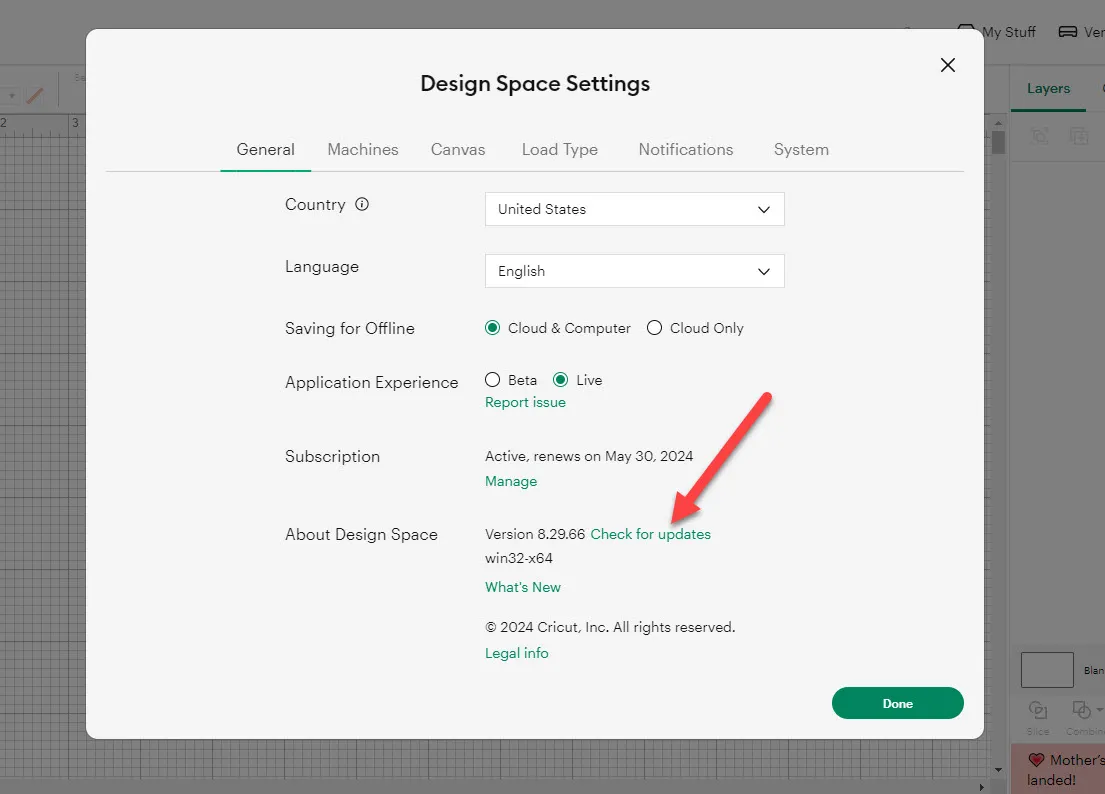
- From the menu list, select Settings, then go to the General section.

- Here, click on About Design Space to see the current version installed on your system.

- In the same section, look for the Check for updates option and click on it.

- The software will check if a new version is available. If an update is found, you will see a prompt to install it.
- Click on the update option and wait while the app downloads and installs the new version.
- On Windows, the app may close and reopen during the update. Let the process finish without closing your system. Once done, open Design Space again and sign in if required.
- On Mac, after you click to update, the app may ask for permission to install changes. Allow it and wait for the update to complete. Next, reopen the software from the Applications folder if needed and sign in again.
- After the update, go back to Settings > About Design Space to confirm that the latest version is installed.
FAQs
Why won’t Cricut Design Space install on my PC?
- Your computer may not meet the required system version.
- An antivirus or firewall may block the installation
- Old or broken files from a previous install
- Internet connection may be slow or unstable
- Windows S mode may prevent app installation
Can I use Cricut Design Space without internet?
Yes, but only with some limits on certain features.
- You need the internet first to install and sign in
- You can open saved projects while offline
- You cannot upload new images without the internet
- Some fonts and images may not be available offline
- Works best on desktop and iOS, not fully on Android
Which Windows versions support Design Space?
- Supports Windows 10 and 11 (64-bit systems)
- Not compatible with Windows 8, 7, or older versions
- It needs at least 4GB of RAM.
- It requires at least 2GB of free storage.
- Works better with a modern Intel or AMD processor
Visit: cricut.com/setup




























Sign in to leave a comment.