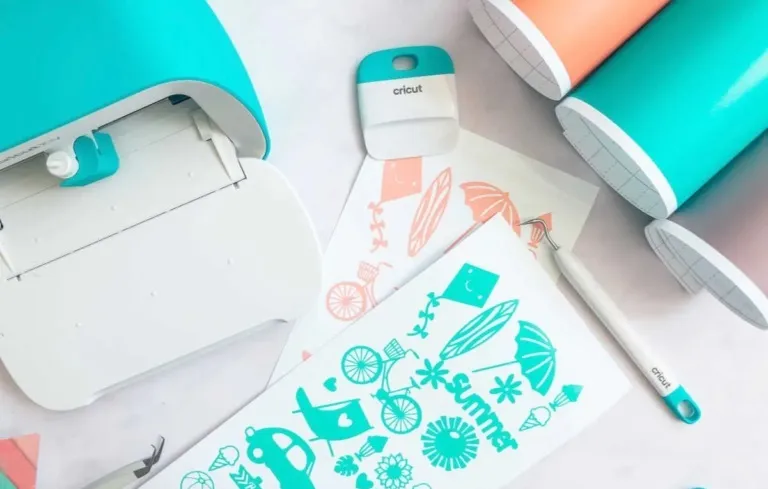
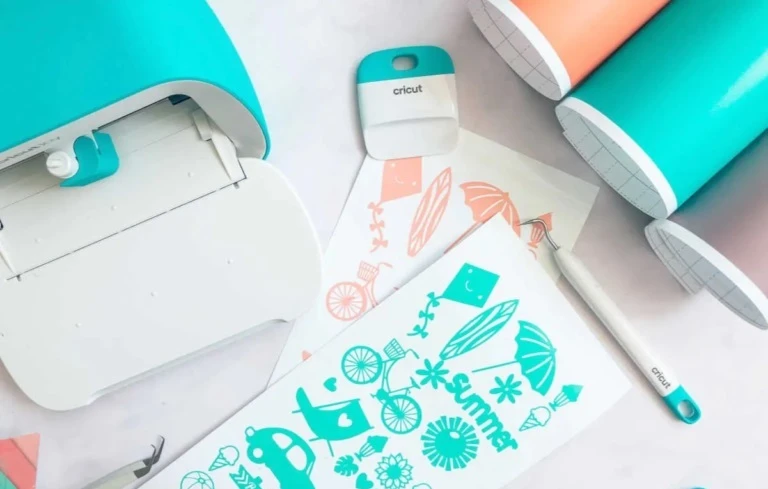
Cricut EasyPress Mini or Cricut Mini Press is a great product to add to your crafting tools. This small machine is powerful and durable, and it can improve your projects when used correctly.
Working with the ‘Cricut EasyPress Mini‘ is easy, but you need a few tips to set the correct temperature. Based on our research and experience, we have found the ideal process to set the heat on the Cricut EasyPress Mini, and before starting, take a look at these important preparation steps.
Preparation Tips Before Setting Temperature
A little preparation can ‘help avoid mistakes‘ and reduce material waste. Here’s what should be done before starting anything:
Check Material Type
Different materials require different heat levels. For example, if you are using fabrics like polyester, you need to set the press to lower temperatures. For thicker fabrics like cotton or denim, you need to set higher temperatures. Always confirm the recommended temperature for your project material before starting.
Use the Cricut Heat Guide
Cricut provides an official heat guide that you can access online. In this, you can learn the ideal temperature and pressing time for a particular material and transfer type. There is no need to guess when you have this guide.
Prepare a Heat-Resistant Surface
Place your project on a firm, flat, and heat-resistant surface. Avoid ironing boards, as they may not provide enough stability. A sturdy table with a pressing mat or towel underneath works best.
Cricut EasyPress Mini Temperature Settings
The machine comes with different heat levels, and the right setting depends on your material and project type. Choosing the ‘Correct Temperature‘ is very important for clean, long-lasting results. Let’s discuss the heat levels that the machine offers:
Level 1: Low Heat Setting
The low heat setting helps prevent burning, melting, or fabric damage. It is often used for delicate materials, such as:
- Thin fabrics (polyester blends, silk-like materials, etc.)
- Light heat transfer vinyl (HTV)
Level 2: Medium Heat Setting
For regular crafting, the ‘medium heat setting‘ is a good choice. You can set the press to this setting if you are using:
- Cotton fabrics
- Standard heat transfer vinyl (HTV)
- Basic iron-on designs
Level 3: High Heat Setting
The high heat setting works best for stronger materials and advanced projects like the following:
- Infusible Ink projects
- Thick cotton or denim
- Heavy-duty heat transfer materials
Note: This setting provides stronger heat for deeper and more permanent bonding.
Steps to Set Temperature on Cricut EasyPress Mini
Keep these essential steps in mind to get the right temperature set on your machine:
Step 1: Turn On the Press
- First, turn on the machine. Simply plug the press into the outlet and push the power button.
- Wait a few seconds for it to start properly.
- Carefully place the press on its heat-safe base or a protective mat. This will keep your table safe from damage.
Step 2: Set the Temperature
Now comes the most important step: Setting the right temperature on the machine.
- Press the temperature button to select the right heat level.
- Set it to “Low” if using delicate fabrics and light designs, or “Medium” for everyday materials like cotton and standard HTV. If you are working on advanced projects like Infusible Ink, select the “High” heat setting.
- Keep pressing until you reach the desired setting.
Step 3: Wait for It to Heat
Give the ‘Cricut EasyPress Mini machine‘ some time to heat up. You will see the indicator light blinking while it heats up and turn steady when it is ready to use.
Step 4: Prepare Your Material
Place your design or fabric over a flat surface. Preheat the material for a few seconds to remove moisture and wrinkles. Once you have set the correct temperature and done preheating, you can start pressing.
Final Words
Setting the right heat settings on your ‘Cricut EasyPress Mini‘ is not difficult. Remember the three settings and note the materials that work with each heat level. Just follow what you have learned, and you’ll be able to do everything yourself.
Don’t forget to check the material you are using, prepare your surface, or preheat the press before you start pressing. You can even refer to the ‘Cricut Heat Guide‘ for a better understanding.
Frequently Asked Questions (FAQs)
Can I use the Cricut EasyPress Mini on cotton fabric?
Yes, the Cricut machine works well on cotton fabric. The medium or high heat setting is usually recommended, depending on the transfer material.
Where can I find the Cricut Heat Guide?
You can access the Cricut Heat Guide through Cricut Design Space or on Cricut’s website for exact temperature and timing recommendations.
How Long Should I Press with the Cricut EasyPress Mini?
It depends on the material you are using. However, most projects require 10 to 30 seconds. If you want to learn the accurate timing, refer to the Cricut Heat Guide.
What’s the Right Setting for Infusible Ink?
Use the high setting for Infusible Ink projects, and keep the press moving to prevent scorching.
Cricut EasyPress Mini Temperature Settings? (Easy Fix)
Check the Heat Level Setting
The Cricut EasyPress Mini has three temperature levels:
- Low: for delicate fabrics and lightweight materials
- Medium: for standard heat-transfer vinyl (HTV)
- High: for heavier materials or Infusible Ink projects
Allow the Machine to Fully Preheat
Before using the machine, wait until the indicator light stops blinking. A blinking light means the EasyPress Mini is still heating up and may not provide consistent temperature.
Use Even Pressure While Pressing
Move the EasyPress Mini slowly and continuously over the design area. Uneven movement or pressure can cause patchy transfers or overheating in certain spots.
Test on a Small Fabric Area First
Different fabrics react differently to heat. Always test the temperature on a small hidden area before applying the final design to avoid burning, discoloration, or peeling issues.
Clean the Heat Plate Regularly
Dirt, adhesive residue, or burnt material on the heat plate can affect temperature performance. Allow the machine to cool completely, then gently clean the plate with a soft cloth to maintain proper heating.
Source: https://cricutmakermachines.com/cricut-easypress-mini-temperature-settings-full-guide/























Sign in to leave a comment.