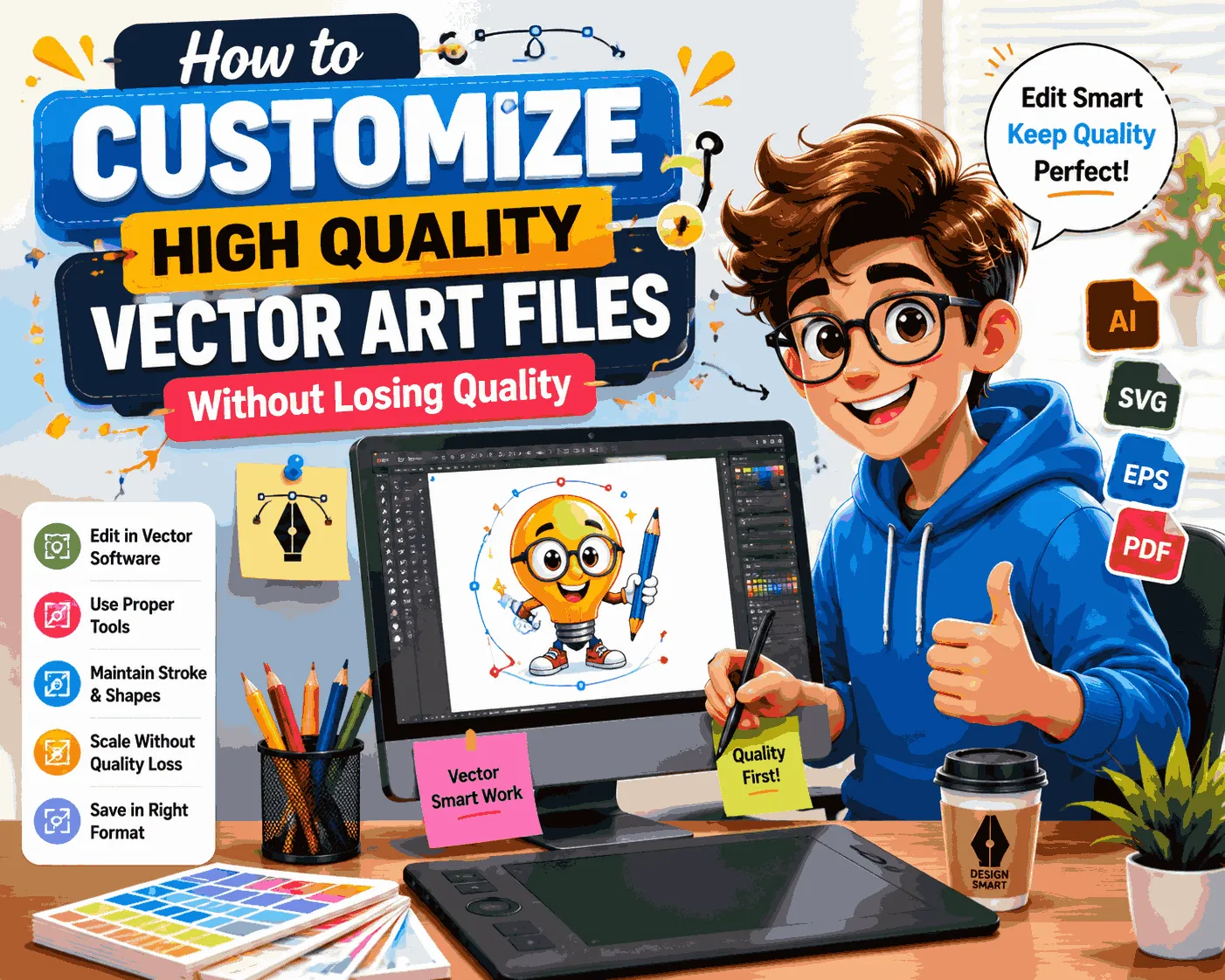

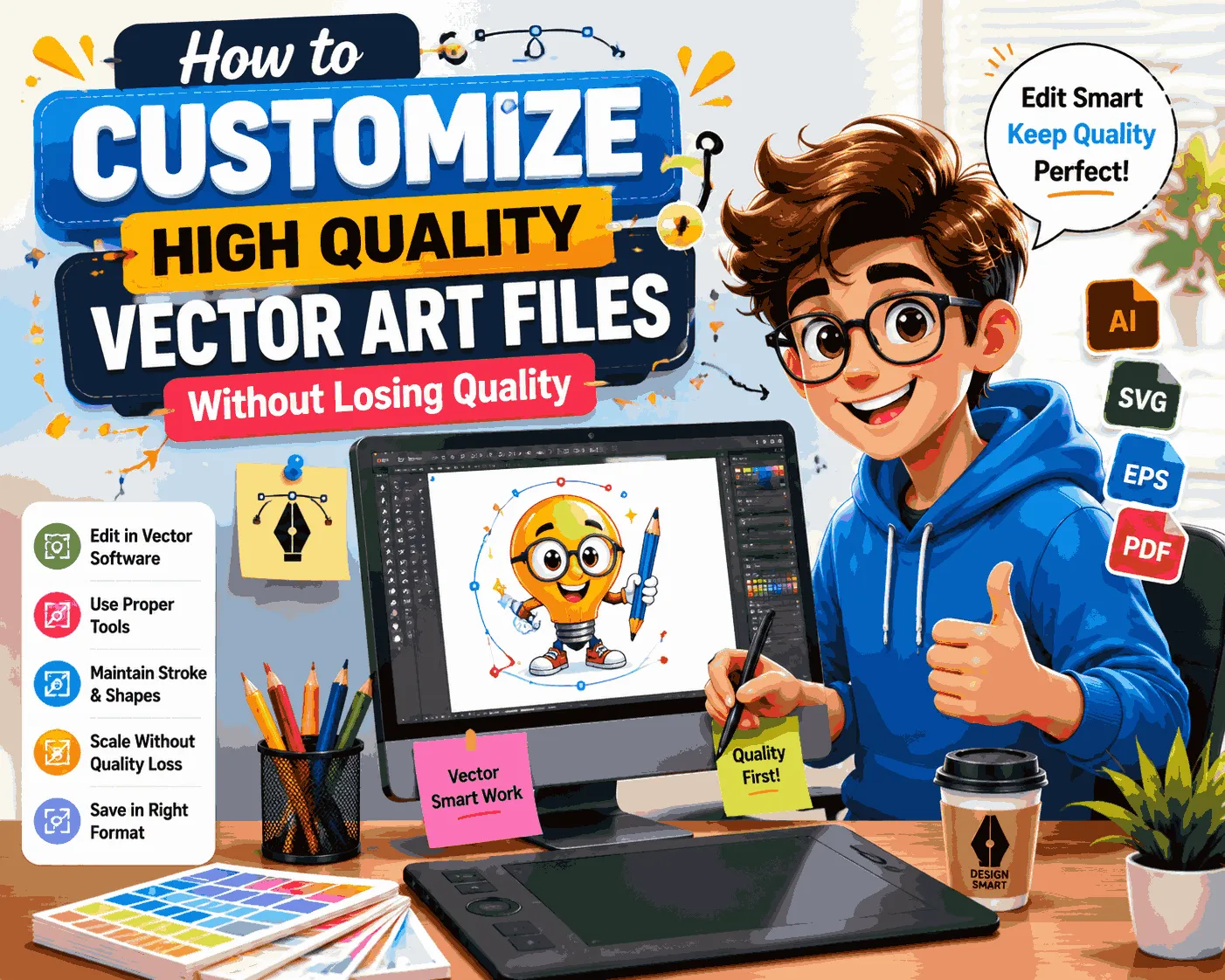
High quality vector art files are widely used in branding, printing, embroidery digitizing, packaging, and digital design because they remain sharp at any size. Unlike raster images, vector graphics are based on mathematical paths, which makes them scalable and editable.
However, many designers and businesses make mistakes when customizing vector files. Poor editing techniques can damage file structure, create messy paths, or reduce production quality.
This guide explains how to properly customize vector art files while maintaining their original quality and professional appearance.
What Makes Vector Files Different?
Vector graphics are built using points, curves, and paths instead of pixels. This means they do not lose quality when resized or edited.
Common vector formats include:
- AI (Adobe Illustrator)
- EPS
- SVG
- CDR
These formats are used for:
- Logo design
- Printing
- Embroidery digitizing
- Vinyl cutting
- Packaging design
Because vector files are flexible, they can be customized easily—but only if handled correctly.
Why Quality Loss Happens During Editing
Even though vector files do not lose resolution, they can still lose design quality when edited incorrectly.
Common causes include:
- Over-editing anchor points
- Flattening layers too early
- Converting text to outlines unnecessarily
- Using auto-tracing instead of manual adjustments
- Mixing raster elements inside vector files
These mistakes can make the design harder to edit and less suitable for production.
Start With a Clean Master File
Before making any changes, always keep a backup of the original vector file.
A clean master file ensures you can:
- Restore original design if needed
- Create multiple variations
- Avoid permanent structural damage
- Maintain professional consistency
Professional designers always work on duplicate files instead of editing the original artwork directly.
Use Proper Vector Editing Software
To maintain quality, always use professional vector software such as:
- Adobe Illustrator
- CorelDRAW
- Inkscape (for basic editing)
These tools are designed to preserve vector structure during customization.
Avoid editing vector files in raster-based software, as it can convert artwork into pixel-based images and reduce quality.
Edit Without Breaking Paths
One of the most important rules in vector customization is preserving path structure.
When adjusting shapes:
- Avoid unnecessary anchor points
- Keep curves smooth
- Do not distort proportions excessively
- Use direct selection tools carefully
Clean path structure ensures better results in printing and embroidery production.
Work With Layers Instead of Merging Everything
Layer management is essential for maintaining organized vector files.
Good layer structure helps you:
- Edit specific parts easily
- Avoid accidental design changes
- Maintain clarity in complex artwork
- Improve production workflow
Avoid flattening all layers unless the final output requires it.
Handle Text Properly
Typography is one of the most sensitive parts of vector design.
To avoid quality issues:
- Keep text editable whenever possible
- Only convert text to outlines when sending for production
- Check spacing and alignment after edits
- Avoid unnecessary font replacements
Once text is converted into shapes, it cannot be edited easily without redesigning it.
Maintain Color Accuracy
Color consistency is important for branding and printing.
When customizing vector files:
- Use correct color modes (CMYK for print, RGB for digital)
- Avoid random color conversions
- Keep brand color codes consistent
- Use swatches for accuracy
Incorrect color handling can lead to mismatched branding across products.
Avoid Over-Complex Designs
Adding too many details during customization can reduce production quality.
Excessively complex vectors may cause:
- Printing errors
- Slow cutting performance
- Embroidery digitizing issues
- File instability
Simple, clean adjustments usually produce better results.
Test Your File Before Production
After customizing a vector file, always test it before sending it for production.
You should check:
- Zoomed-in edges for smoothness
- Color accuracy
- Alignment of elements
- File compatibility with machines
Testing helps avoid costly production mistakes.
How Vector Customization Affects Embroidery and Printing
Customized vector files are often used in embroidery digitizing and printing workflows.
Clean vector artwork helps:
- Improve stitch accuracy in embroidery
- Reduce digitizing errors
- Enhance print sharpness
- Maintain logo consistency
Poorly edited files may require additional cleanup before production begins.
Common Mistakes to Avoid When Customizing Vector Files
Many beginners make similar mistakes during editing:
- Using auto-trace instead of manual editing
- Over-editing anchor points
- Flattening artwork too early
- Ignoring file structure
- Mixing raster images with vector graphics
Avoiding these mistakes ensures professional-quality output.
Why Clean Vector Customization Matters for Branding
Every edited vector file represents a brand’s visual identity.
Well-customized artwork helps businesses achieve:
- Consistent branding across platforms
- Professional product presentation
- Better customer perception
- Higher-quality merchandise output
Strong visual consistency improves brand trust and recognition.
Conclusion
Customizing high quality vector art files requires careful attention to structure, paths, layers, and color accuracy. While vector files are flexible by nature, poor editing can still reduce their production quality.
By using proper tools, maintaining clean file structure, and avoiding unnecessary modifications, businesses can ensure their vector artwork remains sharp and production-ready.
Well-customized vector files improve printing, embroidery digitizing, and overall branding quality, making them an essential part of professional design workflows.
FAQs
Can vector files lose quality when edited?
Vector files do not lose resolution, but poor editing can damage structure and reduce design quality.
What software is best for editing vector files?
Adobe Illustrator and CorelDRAW are the most reliable tools for professional vector editing.
Should I convert text to outlines?
Only convert text when preparing files for production. Keep editable text during design work.
Why is layer management important in vector files?
Layers help keep artwork organized and make editing easier without affecting other elements.
Can I use raster software to edit vector files?
No, raster software can reduce vector quality by converting artwork into pixel-based images.






















Sign in to leave a comment.