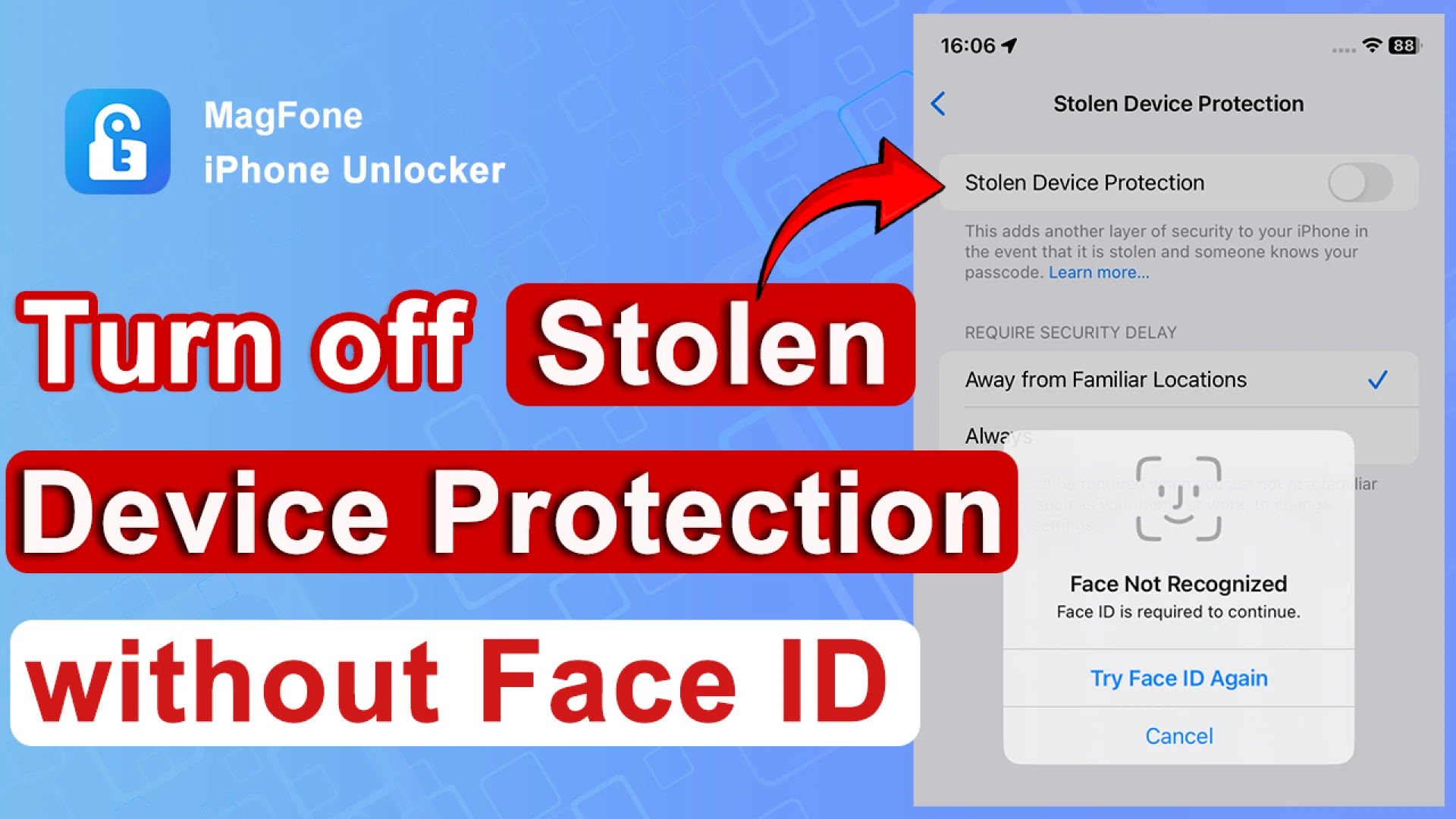

Apple introduced Stolen Device Protection to enhance iPhone security and protect user data in case of theft. While this feature is useful for preventing unauthorized access, there are situations when you may need to disable it — for example, before selling your device, troubleshooting account issues, or transferring ownership.
In this guide, we’ll explain how to turn off Stolen Device Protection on iPhone, when it’s safe to disable it, and what to do if you’re unable to turn it off the usual way.
What Is Stolen Device Protection on iPhone?
Stolen Device Protection is a security feature introduced in iOS 17.3 that prevents unauthorized changes to your Apple ID, passcode, or critical security settings. If your iPhone is stolen, this feature ensures thieves can’t erase your device, disable Find My, or access your account without biometric verification.
It requires Face ID or Touch ID authentication for sensitive actions, and in some cases, introduces a security delay if you’re not in a familiar location.
When Should You Turn Off Stolen Device Protection?
Although it’s designed to protect you, there are valid reasons why you might want to disable this feature:
- You’re selling or giving away your iPhone
- You’re switching to a new Apple ID
- You need to troubleshoot account-related issues
- You plan to reset your device to factory settings
- Turning it off ensures a smoother transfer of ownership and prevents future activation lock problems.
How to Turn Off Stolen Device Protection on iPhone
If you have full access to your iPhone and know your Apple ID credentials, disabling Stolen Device Protection is simple.
Open Settings on your iPhone. Tap Face ID & Passcode (or Touch ID & Passcode). Enter your device passcode to proceed. Scroll down and locate Stolen Device Protection. Toggle Stolen Device Protection off. Authenticate with Face ID or Touch ID when prompted.
Note: In some cases, if you’re not in a familiar location, you may have to wait for Apple’s security delay before changes take effect.
What If You Can’t Turn Off Stolen Device Protection?
There are situations where you might be unable to disable the feature, such as you forgot your Apple ID password, Face ID or Touch ID isn’t working, you bought a second-hand iPhone with Stolen Device Protection enabled, the previous owner didn’t turn it off. In these cases, bypassing Stolen Device Protection becomes more complicated — but not impossible.
Can You Bypass Stolen Device Protection on iPhone?
Officially, Apple requires the original Apple ID credentials to disable this feature. However, if you’re locked out or dealing with a second-hand device, you may need professional unlocking software.
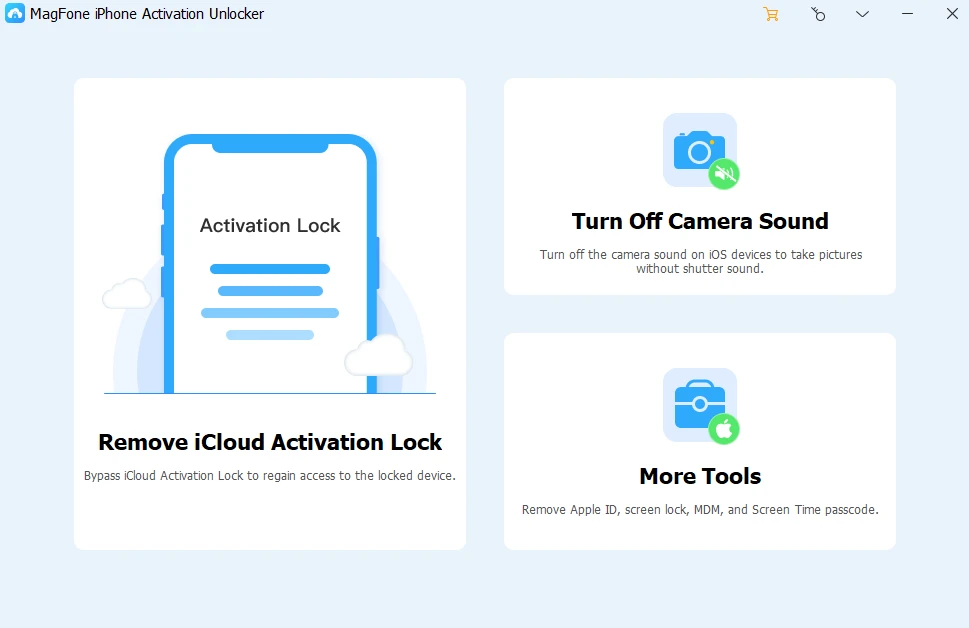
One effective method is to use a reliable iPhone unlocking tool designed to bypass Apple’s security features. MagFone iPhone Unlocker is a professional-grade unlocking tool that helps users bypass various iPhone security locks, including screen passcodes, MDM locks, and Activation Lock. Although Apple’s Stolen Device Protection is part of their latest security measures, using a specialized tool like MagFone gives you a chance to regain control of your device when conventional methods fail.
Key Features of MagFone iPhone Unlocker:
- Bypass various iPhone locks, including Activation Lock and screen passcodes
- Compatible with the latest iOS versions, including iOS 18
- Works on all iPhone models, including iPhone 16 series
- Simple, user-friendly interface designed for non-technical users
- No jailbreak required
Disclaimer: Always ensure you have the legal right to unlock a device. Using unlocking tools without authorization may violate Apple’s terms of service.
Important Things to Know Before Turning Off Stolen Device Protection
- You’ll need Face ID/Touch ID or your passcode to disable the feature.
- Disabling this protection makes your iPhone less secure if it falls into the wrong hands.
- Always ensure you back up your data before making significant security changes.
- If you’re buying a used iPhone, confirm that Stolen Device Protection is off before completing the purchase.
Frequently Asked Questions
1. Can I turn off Stolen Device Protection without Face ID or Touch ID?
No. You’ll need biometric authentication to disable it. If your Face ID or Touch ID isn’t working, you may have to contact Apple Support or use a professional unlocking tool like MagFone iPhone Unlocker if applicable.
2. How can I disable Stolen Device Protection on a used iPhone I bought?
Contact the previous owner and ask them to remove the device from their Apple ID. If that’s not possible, you may need a professional unlocking solution.
3. Is using MagFone iPhone Unlocker safe?
Yes. MagFone iPhone Unlocker is designed for legitimate use cases and provides a secure, user-friendly way to bypass certain iPhone locks.
4. Does turning off Stolen Device Protection remove Activation Lock?
No. Stolen Device Protection and Activation Lock are separate security features. You’ll need to disable Activation Lock separately by signing out of iCloud.
Conclusion
Knowing how to turn off Stolen Device Protection on iPhone is essential whether you’re switching devices, selling your phone, or troubleshooting security issues. While the standard method is straightforward for those with full access, complications can arise if you forget credentials or purchase a second-hand device.
When you find yourself locked out or unable to disable this feature, trusted tools like MagFone iPhone Unlocker can offer a practical solution — especially when contacting Apple Support isn’t an option. Always ensure you’re following Apple’s guidelines and using unlocking tools responsibly.























Sign in to leave a comment.