
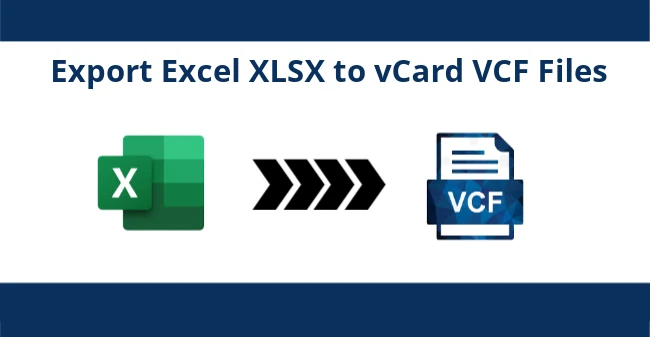
Overview: Discover the most efficient ways to export Excel file to VCF format in bulk without having to go through any hassle by reading this post. So, continue reading this post to convert Excel to VCF format.
We are aware that Microsoft Excel is among the most popular application tools for storing large amounts of hierarchical data. Excel sheets are commonly used to store contact information because they save in tabular format with specific fields. However, there is a problem with Excel files that is application-specific, meaning you can only open them with Microsoft Excel or other Excel-related programs.
Whereas, vCard file format is widely accepted and it stores a person's full information (First Name, Last Name, Email Address, Phone number, etc.) In addition, vCard file is supported by numerous email clients and is compatible with mobile devices. Therefore, sharing this file is very useful.
Numerous users have required the export of Excel files to VCF format. In this article, we will explain this topic in depth and provide you with the most effective strategies.
How to Export Excel Files to VCF Format?
You can find both manual and third-party Excel to VCF Converter Software on the internet to accomplish this task. The following section will go over both ways. Read them and select the method that best meets your needs.
Method 1 – How to Manually Convert Excel to VCF Format?
For this, you have to go through different phases.
Phase 1 – Convert Excel to CSV
Note: If your contacts are already contained within a CSV file, you may skip this step. Otherwise, please follow the steps below:
The initial step is to open your Excel file.Select Export, and then click Change File Types.Choose CSV (*.csv) type from the drop-down menu of available formats.After selecting the CSV format, you must navigate to a location to save the output CSV file.The final step is to save this file as a CSV (*.csv) format.The conversion to CSV format has completed.
Phase 2 – Import Your CSV into Windows Contacts
To complete the process of converting your Excel contacts to vCard, create a CSV file and then import it into Windows Contacts using the instructions provided below.
Initiate a search for "Contacts" in the Start menu. Select the People or the People Folder.Now you can import the contacts by selecting the Import button.To import to Windows, click the Comma Separated Values (CSV) radio button when the corresponding window appears.After creating a CSV file in Step 1, click the "Import" button and then "Browse" to locate it.Select the Next button and then map the fields as needed.To complete this process, just select the Finish option.All of your CSV contacts will be imported into Windows Contacts as vCards once the process is complete.If that doesn't work, you can always use Windows' People app to synchronize your contacts.
Step 3 – Export vCard Files from Windows Contacts
Follow the steps below to export vCard contacts from your Windows computer:
Open the Contacts window again.Press Ctrl and select all of the required contacts.Select VCF from the Windows Export Contacts wizard (folder of .VCF files).To export your contact information to a new location, select the Export button and then click OK.And that's it! All of your CSV contacts have been converted to VCF and are now accessible in Windows Contacts. After that, you can import these vCard files into an email client or other program that supports VCF and access their contents.
Limitations
We can see that above manual process is very lengthy as well as time consuming. It requires technical knowledge. Also, the manual process doesn’t support batch conversion from Excel to VCF format. To overcome them, it is suggested to go with the professional software.
Method 2 – Use the Professional Software
All of the limitations can be easily overcome with the help of suggested professional Excel to VCF Converter. It is the highly recommended and safe app to export unlimited Excel files to VCF format without facing hassle. With this app, it is possible to export Excel file to VCF along with all the properties. Furthermore, the software includes a plethora of advanced capabilities. So, download the app now and start exporting Excel files to VCF format without facing hassle.
Final Words
In the above content, we have provided the best methods to export Excel file to VCF format. The methods we have provided is safe and reliable.





Sign in to leave a comment.