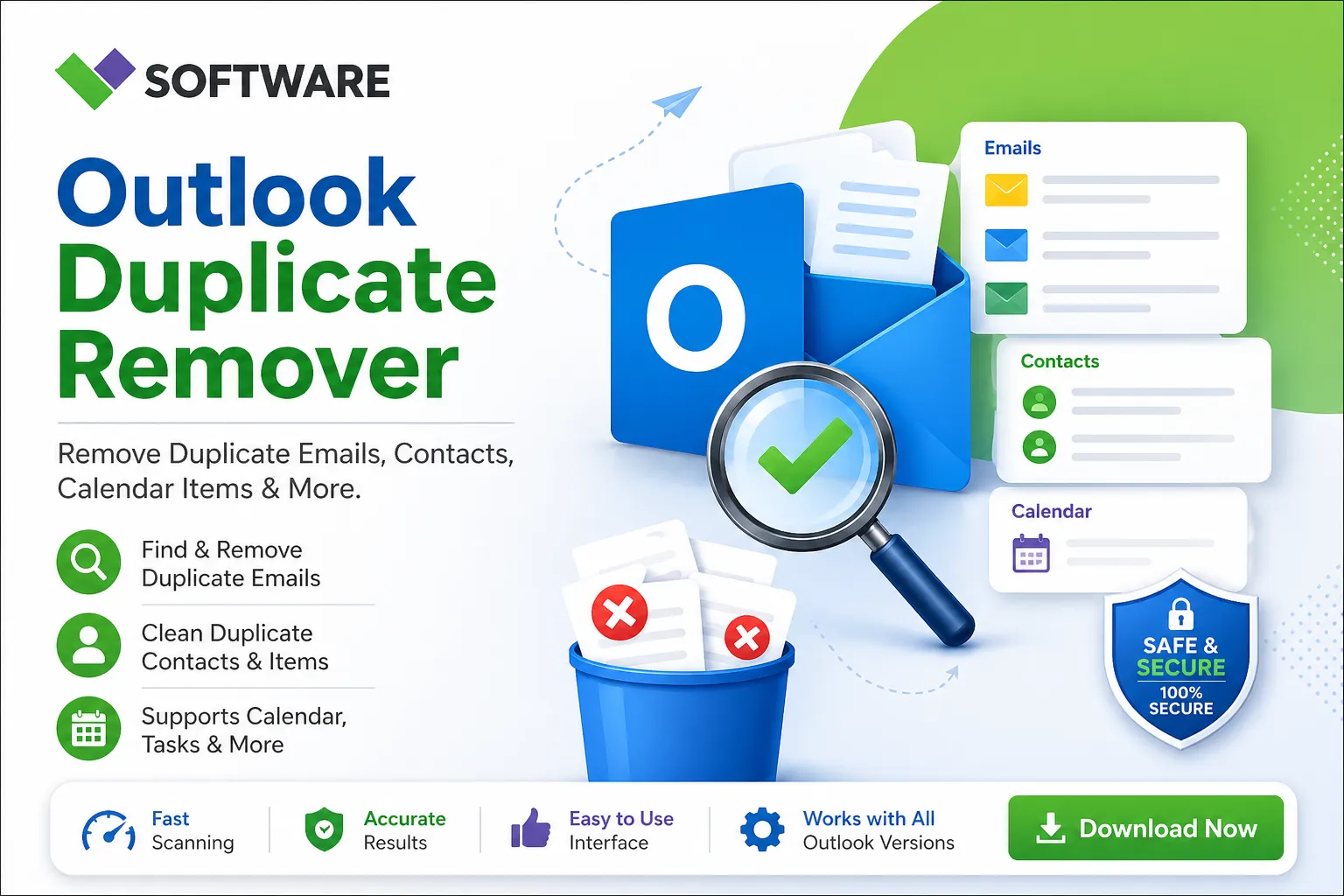

Introduction to Outlook Duplicate Emails
Are you tired of sifting through a cluttered inbox filled with duplicate emails? If you're an Outlook user, this frustration is all too familiar. Duplicate emails can sneak into your inbox and create chaos, making it difficult to find important messages. Whether it's due to syncing issues or a misconfigured email account, these pesky duplicates can pile up quickly.
But don't worry—you're not alone in this battle against redundancy. In the quest for a cleaner, more organized mailbox, many users face the same challenge. Luckily, there’s a solution that promises to declutter your inbox swiftly and efficiently: the VMail Tool. Ready to reclaim your email experience? Let’s dive in!
Why do we get duplicate emails in Outlook?
Duplicate emails in Outlook can occur for various reasons. One common culprit is syncing issues between your email client and the server. When you access your mail from multiple devices, inconsistencies might arise, leading to duplicates.
Another reason could be a misconfiguration in your email settings. For instance, if you have set up multiple accounts that fetch emails from the same source, they may inadvertently create copies.
Additionally, sometimes third-party add-ins or plugins can conflict with Outlook’s native functions. This interference may result in an influx of repeated messages cluttering your inbox.
Accidental actions like hitting "Reply All" when not necessary can generate duplicate threads as well. Understanding these causes helps users manage their inboxes better and prevents future occurrences of duplicate emails.
The Consequences of Having Duplicate Emails
Having duplicate emails in your Outlook can lead to a cascade of problems. First and foremost, it clutters your inbox, making it challenging to find important messages. This disorganization can cause stress and hinder productivity.
Moreover, dealing with duplicates often results in missed communications. You might overlook crucial responses or deadlines buried beneath repeated threads.
The frustration doesn't end there. Managing duplicated emails consumes valuable time that could be spent on more meaningful tasks. It’s not just an inconvenience; it's a significant drain on efficiency.
Additionally, having multiple copies of the same email may lead to confusion when responding or forwarding messages. You risk sending mixed signals to colleagues or clients due to uncertain context.
These issues highlight how duplicate emails can disrupt workflow and complicate daily operations within any organization.
Introducing VMail Tool - A Fast and Efficient Solution
When it comes to managing Outlook duplicate emails, the VMail Tool stands out as a top-tier solution. This software is designed specifically for users who want to streamline their inbox and eliminate redundancy quickly.
With its user-friendly interface, even those with minimal technical skills can navigate through the process effortlessly. You won't need hours of training or complicated instructions.
One of VMail’s standout features is its speed. It scans your mailbox thoroughly and identifies duplicates in moments, allowing you to reclaim your time efficiently.
Moreover, it offers customizable options tailored to your specific needs. Whether you're looking to remove all duplicates or just certain categories, this tool provides flexibility without sacrificing effectiveness.
Efficiency meets reliability with VMail Tool; it's an essential weapon in the fight against cluttered email boxes.
Step-by-Step Guide on How to Use VMail Tool
To get started with the VMail Tool, first, download and install it from the official website. The installation process is straightforward.
Once installed, launch the application. You’ll see an intuitive interface that makes navigation easy for everyone.
Next, connect your Outlook account to VMail by entering your credentials. This step ensures the tool can access your email data safely.
After connecting, select "Scan for Duplicates." The software will begin analyzing your inbox for duplicate emails within moments.
When scanning is complete, review the results displayed on-screen. Here you can choose which duplicates to remove based on criteria like date or subject line.
Hit “Remove Selected” to clear out those pesky duplicates swiftly. It’s that simple!
Tips to Avoid Duplicate Emails in the Future
To keep your inbox tidy, consider using a single email address for all subscriptions. This reduces the chances of signing up multiple times.
Enable filters and rules in Outlook. By sorting emails into designated folders, you can minimize clutter and spot duplicates more efficiently.
Regularly clean your inbox. Set aside time each week to review incoming messages and delete unnecessary ones immediately.
Be cautious when importing contacts or syncing with other applications. Always check for existing entries to avoid duplication from the start.
Educate yourself about potential phishing attempts that may lead to unintentional sign-ups on mailing lists. Awareness is key to prevention.
Utilizing cloud-based tools like Google Drive or Dropbox can help streamline the way files are shared, reducing reliance on email attachments that often lead to duplicate messages.
Conclusion
Duplicate emails can be a significant nuisance, cluttering your inbox and making it challenging to stay organized. The VMail Tool offers a straightforward solution for anyone looking to fix Outlook duplicate emails efficiently. By following the step-by-step guide provided, you can clean up your inbox quickly and regain control over your email correspondence.
Taking proactive measures to prevent duplicates in the future will help maintain an orderly workspace. Whether it's through proper settings or mindful habits while managing emails, staying on top of this issue is crucial for productivity.
With these strategies at hand, you are now equipped to tackle any duplicate email problems that may arise in Outlook effectively. Embrace these tools and tips to foster a more efficient emailing experience moving forward.





















Sign in to leave a comment.