

Summary: In this article, I will explain how to fix recovery pending SQL Server. I will highlight the issues related to the SQL database and other possible reasons. And the reasons why it happened, and different ways of recovering it.
If the SQL Server database is in a recovery pending state, it means the database has not started the recovery process, either due to forgetting or corrupt files. To fix this issue, we need to check if the database files are accessible. We can use the \'ALTER DATABASE\' command to bring the database online and run the DBCC CHECKDB command to identify and repair any corruption issues. If these problems continue, it might be necessary to restore from the recent backup.
Reasons to Fix an SQL Server Database Stuck in Recovery Pending State
The SQL Server database is unable to be accessed due to several reasons, resulting in a pending state. Simply put, users cannot utilize it, often due to offline database issues, with three primary causes.
- The user has been trying to handle an SQL Server error that concerns the modes of recovering databases: log backups, full backups, and differential backups, keeping none of the recovery in mind.
- Transaction logs frequently overflow the database during database recovery. As a result, all active transaction logs are released, and the database terminates.
- When space is allocated for the desired database, the desired database fails.
- SQL Server Management Studio unexpectedly shut down.
- Now we need to perform the recovery operation on the corrupted backup file.
Quick Glimpse of How to Fix Pending State Issue
To fix this issue, the user will need to download an automated tool. For example, with an MDF file, they can scan and easily remove corruption from the file. Now, we will describe three methods of fix recovery pending SQL server in this section, including two manual solutions and one automated tool. We will use inbuilt commands to fix corruption in SQL Server Management Studio. Your main task is to solve the query safely. So, let\'s discuss the solutions.
MySQL Repair in Recovery Mode for SQL Server From a Technical Perspective
In this, We will clarify that in the event the user\'s database becomes stuck, the commands to exit recovery mode are supplied below
Here are the steps to follow :
Step 1: T-SQL Command Restore the Database
RESTORE DATABASE Database_Name With Recovery ;
In this case, if the user has uncommitted transactions, this command will roll back all of them and then bring the database online from recovery mode.
Step 2: Microsoft Troubleshooting Apply
If there are numerous virtual log files in the SQL database, the user will face significant difficulties, and the process will become slow. By using KB2455009 to fix the issue, the user will get better output.
Step 3: Identify the Corrupted Data
If there is any problem, fix recovery pending SQL server the user can run the command to check for any corruption or other issues.
Recovery Pending State How do I check if the database is stuck?
In SQL Server, we have three states: the file is either equal to or more than one and in an irregular state. This could mean that the database is either corrupted or damaged. We will explain more about corrupt data below.
- Online State
- Suspect State
- Recovery Pending State
- 1. Online State: Online Status: You know the database must stay online in a way that guarantees intact and open files even when requests are ongoing. Although this stage may pose no significant problem, there are various aspects to keep in mind. These involve carrying out regular backups, watching out for any indications of data corruption or inconsistency on the database files, as well as taking immediate correctional action when necessary to keep up with the integrity of databases and reduce disturbances.
- Suspect State: This is a level up from the online state and requires much more attention.
- Recovery Pending State: Now, it is stating that the server is deciding it is necessary to restore the database, but currently, errors are acting as a barrier and the recovery process itself is not yet complete.
Apart from this, there are other states as well.
- Offline State
- Emergency State
- Recovering State
- Copying State
- Restoring State
- Recovering State
- Offline_ Secondary State
So, these are all the steps present in the current SQL Server database that the user understands.
How to Verify the State Of SQL Server Database
Below Are the steps to fix recovery pending SQL server
SELECT name, state_desc from sys. databases
GO
Now see the output on the screen
How to Resolve SQL Server Database By Using SSMS
Now, we will use SQL Server Management Studio to fix the SQL Server. Just remember, it is crucial to have the latest backup when using SSMS. Fixing the issue quickly from the latest backup is essential.
Steps to follow the process :
1. Launch and install the software on your system, and click on the restore option.
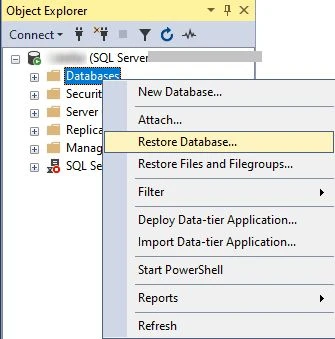
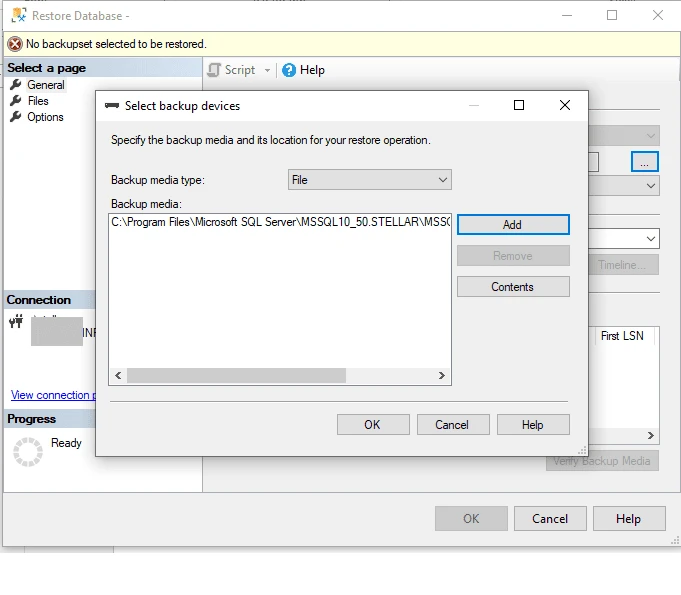
2. Now in the restore database, move to the source, choose the device, and on the right side, click on the three dots.
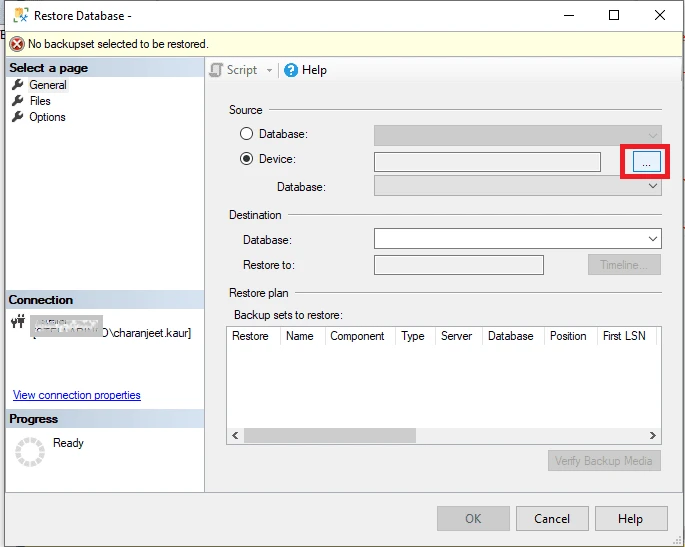
3. After that, click on the Add button to proceed.
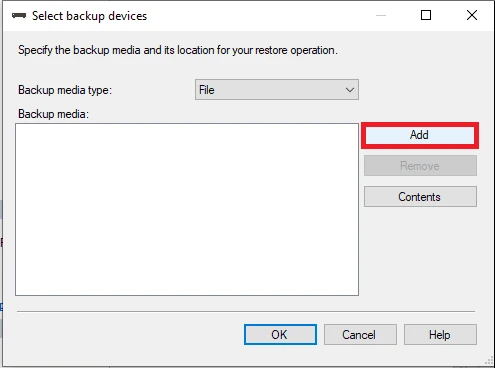
4. Now, browse and select the backup file that you want to restore, then press the OK button.
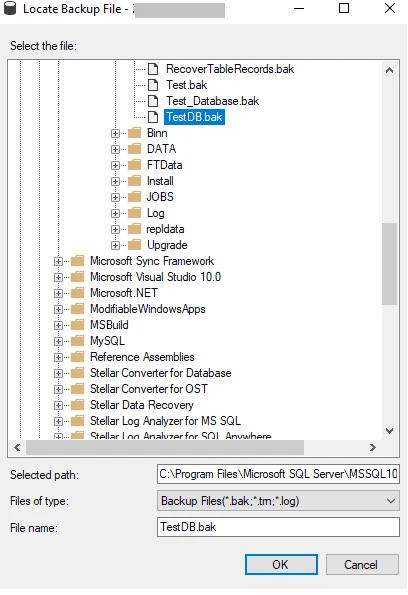
5. Again, click on the OK button to move forward.
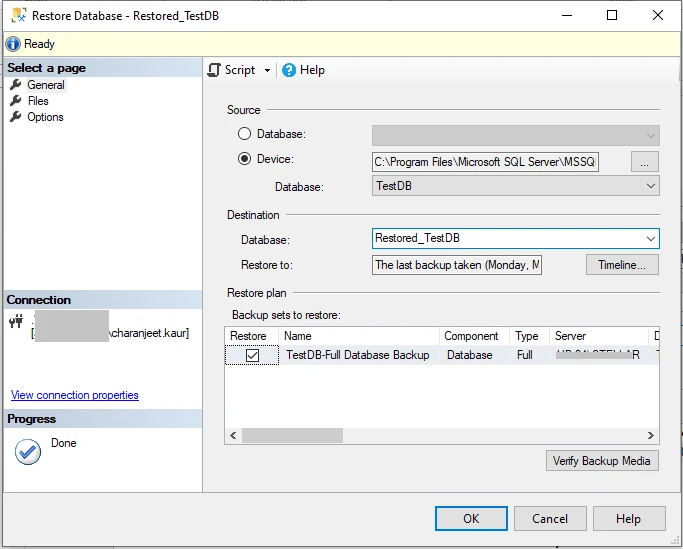
6. Now in the window to restore the database, type the database name and click OK.
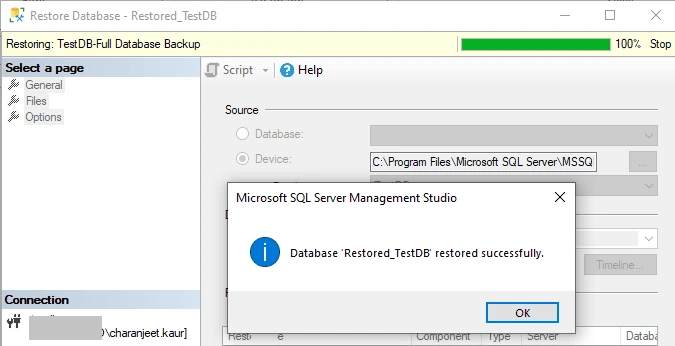
7. See the database successfully back online from the recovery process.
These manual methods are not always successful, especially for large data, as they can be slow. users may not trust this method.
# Method 1. With Set, Emergency Mode, Remove Recovery Pending State
Step 1. Firstly, organize the database in emergency mode.
ALTER DATABASE [db_name] SET EMERGENCY
Step 2. Multi-user mode arranges the SQL database to continue the pending task.
ALTER DATABASE [db_name] SET MULTI_user
Step 3: Time to disconnect the database.
EXEC sp_disconnect_db ‘[db_name]’
Step 4. Connect the MDF file to solve the recovery pending issue.
EXEC sp_attach _single_file_db @db_name = ‘[db_name]’ ,
@physname = N ‘[mdf_path]
# Method 2. Resolve Recovery Pading Issue via DBCC CHECKDB
In case the aforementioned manual solutions fail to fix the issue, users can seek help with this method, which is easier and involves using the SQL Server DBCC CHECKDB query to resolve the pending issue.
ALTER DATABASE (db_name) SET EMERGENCY;
GO
ALTER DATABASE (db_name) SET SINGLE_USER;
GO
DBCC CHECKDB ([db_name] , REAPAIR_ALLOW_DATA_LOSS) WITH ALL_ERRORMSGS;
GO
ALTER DATABASE (db_name) SET_MUTLI USER;
GO
Method 3. Using Professional Solution For Recovering Pending Mode
Method 3. Using Professional Solution For Recovering Pending Mode
In some situations, MDF files become corrupted, and the database goes into a pending state. To fix this issue, we have the software SysTools SQL Recovery Tool. This tool is the best and will recover your data without any hassle, providing you with a healthy database.
- Firstly, install the automated software and click to add the files.
- Now for corrupted files, choose the option quick scan / advanced scan.
- After the scanning is complete, check the data files again.
- The export option enters the target of SQL Server details to fix the pending issue.
- At last, click on the export button to fix the recovery pending SQL Server.
Involves Elements of Professional Software to Fix Recovery pending SQ
- It has auto-detective features for SQL Server and supports various versions of MDF data files.
- There are file export options available for SQL Server files, such as CSV files and SQL-compatible scripts.
- It fixes and recovers triggers, tables, views, indexes, and other items.
- Verify and recover deleted data without any difficulty.
- It is compatible with Windows 11, 10, 8.1, etc., and Windows Server 2012 and 2016.
Conclusion:
Now, I am concluding my article. In this article, I explain how to fix a recovery pending state in SQL Server. Then I discussed in depth how to fix the recovery pending state in SQL Server, providing a detailed explanation and resolution for the recovery mode state. I also outlined three methods to fix this issue: two manual methods and one automated method. The manual methods do not support large data files and often fail, so users should opt for the automated tool. It is time-efficient and stores data without any difficulty. I hope this article will help you.










Sign in to leave a comment.