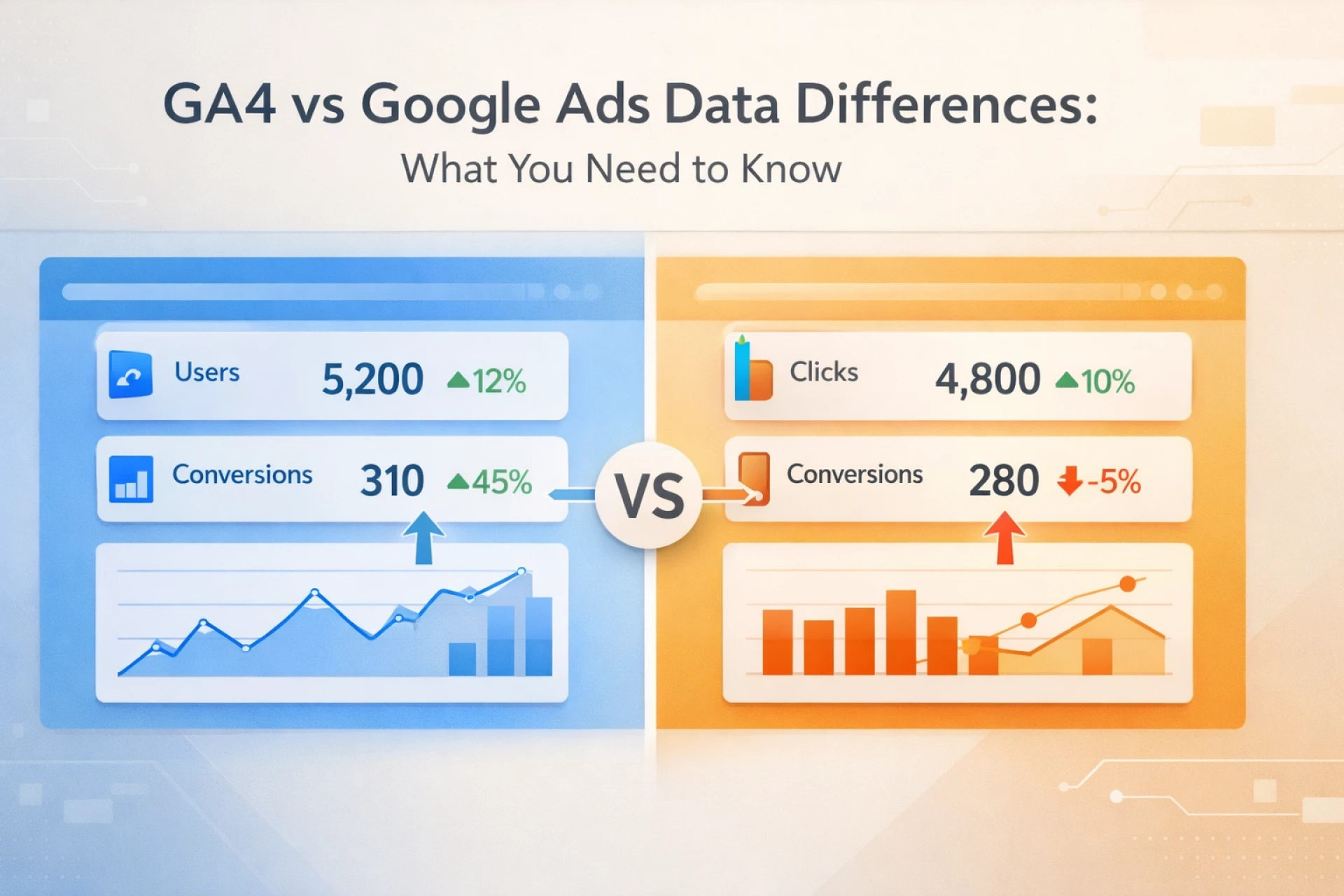

You pull three reports from three platforms and walk away with three different conversion totals. GA4 says one thing, Google Ads says another, and the CRM contradicts both. For marketers trying to justify spend or plan the next campaign, this kind of disagreement is more than an inconvenience. It leads directly to wrong decisions.
The good news is that this is a solvable problem. The gaps between platforms follow predictable patterns and most of them trace back to specific, fixable configuration issues. For teams that want a thorough diagnosis rather than a surface-level review, a dedicated GA4 audit service will surface the exact points where data is breaking down.
Understanding the Root Cause of Data Mismatch
Before trying to reconcile the numbers, it helps to understand what each platform is actually designed to measure. GA4, Google Ads, and your CRM are not doing the same job. They are each observing the same user activity through a completely different lens.
| Platform | Primary Focus | Attribution Logic |
| GA4 | On-site behaviour and event tracking | Data-driven or last non-direct click |
| Google Ads | Paid click performance and ROAS | Last Google Ads click by default |
| CRM | Qualified leads and actual sales | Manual entry or verified form submission |
Because each platform applies its own attribution rules and tracks different points in the user journey, a gap between them will always exist. The goal is to close the gap that should not be there. Knowing which differences are structural and which ones signal a broken setup is precisely what a GA4 audit guide and checklist is designed to help you work out.
Technical Reasons Behind GA4 vs Google Ads Data Differences
Attribution Model Differences
Google Ads defaults to giving all conversion credit to the last ad click. GA4 splits credit across the full journey using a data-driven model. A single conversion can show up in both platforms and be credited to two entirely different campaigns or channels.
Conversion Window Mismatches
Google Ads can reach back up to 90 days after a click to count a conversion. GA4 works within much shorter session windows. If a user clicks a paid ad today and returns to convert three weeks later, Google Ads captures it. GA4 often does not.
Auto-Tagging Failures and Cross-Device Tracking Gaps
GA4 depends on the GCLID appended by auto-tagging to link a session back to a Google Ads click. If that parameter is missing or gets stripped during a redirect, GA4 classifies the session as direct traffic and the attribution is lost. Without User-ID or Google Signals, mobile and desktop visits from the same person are counted separately. These are some of the most damaging GA4 configuration errors that quietly distort performance data over time.
Conversion Deduplication Issues
Running GA4-imported goals alongside native Google Ads conversion tags for the same event creates double-counting inside Google Ads. Every verified conversion gets recorded twice, inflating Google Ads totals and making any direct comparison with GA4 unreliable.
Why Your CRM Data Tells a Different Story
The CRM tends to show the lowest number because it only counts contacts that actually arrived and met qualification criteria. The gap between GA4 and the CRM opens up for several overlapping reasons:
- GA4 fires a form event when the page containing the form loads, not when submission is confirmed
- Automated bot traffic fills in forms and registers conversion events that the CRM never receives
- Reloading a confirmation page or navigating back generates repeat conversion events in GA4
- Phone enquiries, walk-in visits, and referrals from partners all reach the CRM but never touch GA4
- Consent-declined users who later convert exist only in the CRM and are invisible to GA4
Put simply, GA4 counts intent signals. The CRM counts real outcomes. Aligning the two requires fixing the tracking setup so that GA4 gets closer to what the CRM already knows.
GA4 Reporting Issues You Should Never Ignore
Some patterns inside GA4 reporting are early warnings of deeper configuration problems. Catching them early prevents compounding data quality issues down the line:
- Unexplained session volume spikes with no matching traffic source change, usually a tag firing repeatedly
- A bounce rate fixed at exactly 0% or 100% almost always points to a tag being loaded twice
- Your own site domains showing in referral reports indicate missing or incomplete cross-domain tracking
- Conversion totals that change significantly overnight with no corresponding campaign activity
- Disproportionately large direct traffic share from UTM parameters lost during redirect sequences
These issues rarely appear in isolation. When multiple warning signs are present together, the data quality problem is usually significant. Teams planning ahead should also review how GA4 attribution is evolving through 2026 to understand how platform-level changes will affect measurement going forward.
How to Fix GA4 and Google Ads Data Mismatch: A Step-by-Step Audit
Step 1: Audit Your GA4 Configuration Fundamentals
- Verify the GA4 property is connected to the correct Google Ads account
- Check auto-tagging is enabled within Google Ads account settings
- Confirm the GA4 tag is present and firing on every page type, including order and thank-you pages
- Review Data Stream configuration and ensure enhanced measurement is not generating duplicate events
Step 2: Align Attribution Models
- Adopt data-driven attribution in both GA4 and Google Ads as a shared baseline
- Set matching lookback windows in both platforms, such as 30-day click and 1-day view
- Review the impact inside GA4 Attribution Settings before making the change permanent
Step 3: Eliminate Duplicate Conversion Counting
- Audit every active conversion action inside Google Ads and identify any overlapping events
- Consolidate to a single tracking method per conversion event: GA4-imported or native tag, not both
- Move any supporting or secondary conversion actions to Observation only status
Step 4: Fix CRM Data Alignment
- Use server-side tracking or a webhook to push CRM-confirmed conversions back into GA4
- Enable User-ID in GA4 and pass the CRM user identifier to reconnect fragmented cross-device sessions
- Import offline conversions from the CRM into Google Ads by matching lead IDs against stored GCLIDs
- Apply UTM parameters consistently to every outbound CRM communication
Step 5: Validate with a Reporting Reconciliation
- Compare a 30-day report across GA4, Google Ads, and the CRM in a single view
- Treat a 10 to 15 percent cross-platform variance as normal and expected
- Treat anything above 30 percent as evidence of a tracking configuration problem
- Keep a written record of all known exclusions so the team can explain the remaining variance
When to Get a Professional GA4 Audit
A self-managed review will catch many common issues. These situations typically call for deeper external expertise:
- Conversion totals in GA4 and Google Ads are more than 20 percent apart on a consistent basis
- CRM lead counts are regularly and significantly below GA4 form submission figures
- The current GA4 setup was never independently verified following a migration from Universal Analytics
- Automated bidding strategies depend on conversion data that the team is not fully confident
- Stakeholder reporting, investor presentations, or annual budget planning relies on platform attribution data
If you are still working through foundational setup questions, the GA4 frequently asked questions resource covers common issues that arise after initial implementation. The full technical explanation of how all three platforms interact and diverge is laid out in the GA4 vs Google Ads vs CRM data mismatch guide.
Don’t Let Bad Data Drive Good Budget Decisions
When the numbers across GA4, Google Ads, and the CRM do not agree, the problem is not that the platforms are unreliable. It is that specific gaps in configuration are letting data fall through.
Fixing those gaps brings the numbers into a range where comparisons are meaningful and decisions are grounded. That is the difference between reporting that informs strategy and reporting that just fills a slide.





























Sign in to leave a comment.