

It’s one thing to snap dozens of great photos on your iPhone. It’s another to show them to your family or colleagues without everyone crowding around a five-inch screen. Whether it’s a vacation slideshow, a birthday celebration, or a quick recap from an event, photos are meant to be seen—clearly, and together.
Mirroring or casting those images to a TV should be easy. But for many users, it turns into a guessing game. Wrong input. Wrong protocol. Wi-Fi errors. Or worse, needing a cable that’s nowhere to be found.
Let’s fix that.
Why Casting Photos Beats Scrolling Through a Phone
Sure, you can hand your phone to someone. But that’s not the same as casting your photos onto a 55-inch TV for everyone to enjoy at once.
There’s more room to breathe. Every detail is visible. And whether you're sharing a moment with your partner, family, or a small team at work, it feels like a shared experience—not just you narrating what happened while swiping through the camera roll.
The catch? Not every TV is built for Apple devices. And even if you have a smart TV, the default casting options may not cut it.
What You’ll Need (It’s Not a Lot)
Before you start, make sure you have:
- An iPhone or iPad running iOS 13 or later
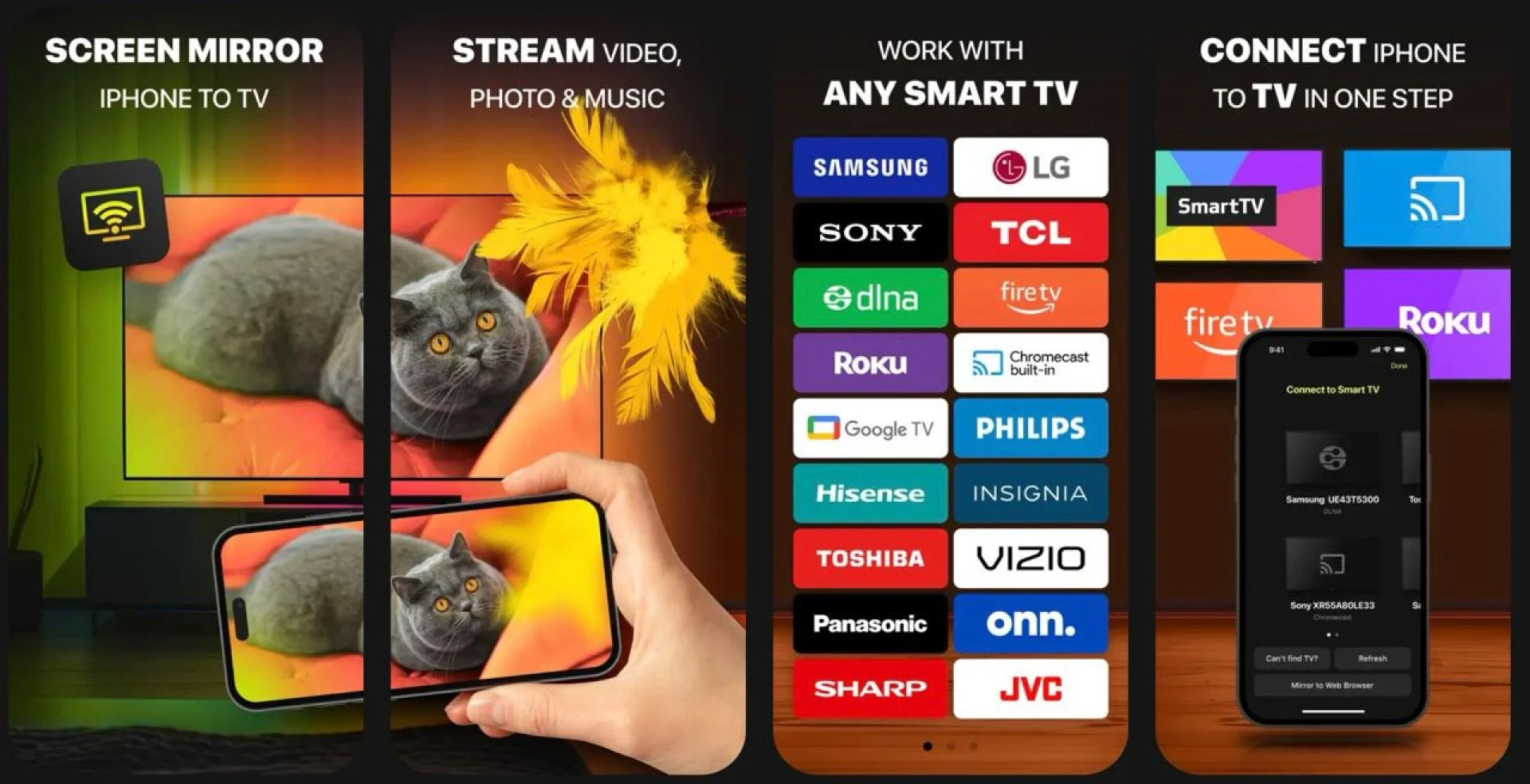
- A smart TV or streaming device like Roku, Chromecast, Fire TV, or an AirPlay-enabled display
- A shared Wi-Fi connection (this part is critical—same network for both devices)
- A tool that bridges the gap between your iOS device and your TV
That last one is often the missing piece. AirPlay works well with Apple TVs and some newer smart TVs. But if your setup includes Roku, Chromecast, or a DLNA-compatible screen, you’ll need something else.
How to Cast iPhone Photos to Your TV in a Few Taps
You don’t need a cable. You don’t need a dongle. You just need a clean, wireless connection—and the right app.
The DoCast screen mirroring tool is built exactly for this. It connects your iPhone or iPad to a wide range of TVs and streaming platforms without wires, adapters, or complicated setup. Just launch the app, select your device, and start casting.
Here’s what the basic process looks like:
- Install the app on your iPhone or iPad
- Connect your TV and iPhone to the same Wi-Fi
- Open the app and choose your TV or streaming device
- Grant permission to access your photos (if prompted)
- Select the album or image you want to cast and tap
It’s fast, smooth, and doesn’t compress the quality of your photos. You can flip through albums, pause between shots, or even use slideshow mode—all while everyone watches on the big screen.
Tips for a Smooth Casting Experience
A few small adjustments can make the difference between a glitchy mess and a perfect stream.
- Stable Wi-Fi matters
- If your network is slow or overloaded, expect lag or connection drops. Try restarting your router or reducing traffic on the network before casting.
- Keep devices updated
- Make sure your iPhone and any apps you're using are running the latest version. Many connectivity bugs come from outdated software.
- Stay close to the router
- If you’re too far from the signal source, casting performance can dip. Don’t rely on a weak Wi-Fi connection and expect perfect results.
- Give permissions when prompted
- iOS now asks for a lot of things explicitly—local network access, screen recording, photo access. These aren’t optional if you want things to work.
What If You Hit a Wall?
If you run into issues, try this checklist:
- TV doesn’t appear in device list? Restart both the phone and the TV. Double-check that you’re on the same Wi-Fi.
- Connection drops often? Reduce interference. Avoid casting while large downloads or video calls are happening on the same network.
- Photos not displaying correctly? Switch from live photo mode or try casting from a different album. Also, some third-party apps work better with standard formats like JPEG over HEIC.
- Still no luck? Restart the casting app, force-close other background apps, and try again.
It’s rarely a hardware issue—it’s usually a mismatch between Wi-Fi, permissions, or compatibility. And once you fix it, it typically stays fixed.
Final Thoughts: Show, Don’t Scroll
You took those photos for a reason—to remember, to share, to tell a story. So give them the screen space they deserve.
Casting from iPhone to TV shouldn’t feel like a chore. Once you’ve got a setup that works—ideally one that doesn’t rely on cords or technical workarounds—you’ll use it far more often than you expect. Sharing a memory turns into a real-time event, not a handoff from one person to the next.
All it takes is the right tool, a shared Wi-Fi connection, and a few taps. From that point on, your iPhone isn’t just a phone. It’s a photo gallery everyone can enjoy—together, on a screen that does your moments justice.




















Sign in to leave a comment.