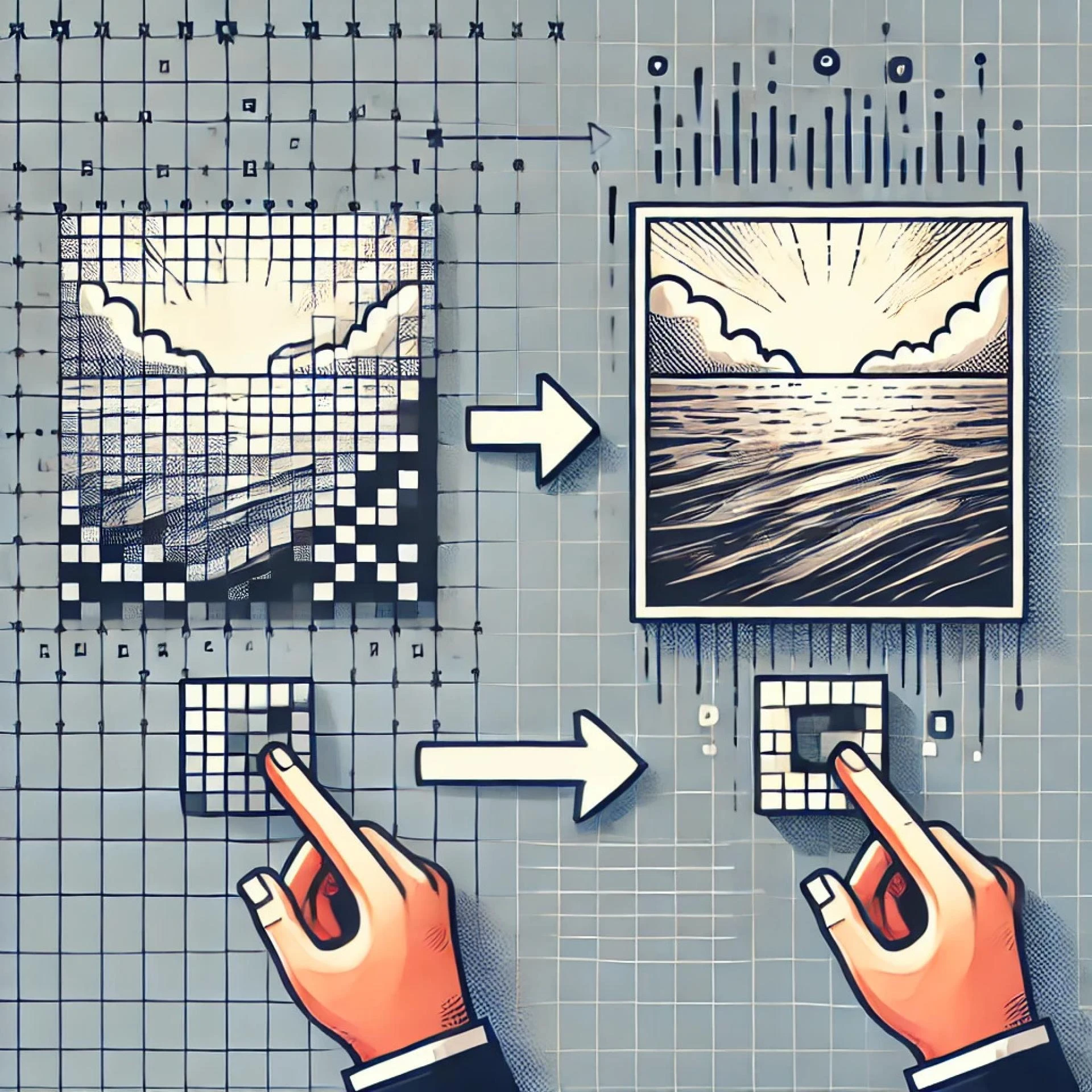
Because they preserve their quality and scalability, they are crucial for converting raster images into vector formats in many CAD (Computer-aided Design) applications. Raster images, like JPEGs or PNGs, are made up of pixels that can be blurry when scaled. Whereas vector images use mathematical equations to represent the shape and lines and are kept crisp and clear at every size, input files can be imported into CAD, or if raster images exist within the CAD layout, we can convert raster images to vectors in CAD; let me show you a simple step-by-step guide.
Prepare Your Raster Image
But before you start converting, make sure your image is of high quality and in the correct size to accomplish your goal. Converting low-resolution images into vectors may not convert well and yield a less exact vector representation.
Steps:
Select a high-resolution image: Make sure there's sufficient detail to convert the image. Up the Image: If possible (with raster image), remove any noise or unnecessary elements from the image using image editing software (Adobe Photoshop or GIMP, Gimp to be precise)
Raster Image is imported into CAD Software
First, you'll import your jpeg to vector, making it natively supported by CAD software. Popular ones with this capability are AutoCAD, SolidWorks, Draftsight, etc.
Steps:
Open Your CAD Software: Open your CAD program launch, launch it, and create a new project or open one.
Import the Raster Image: You can always use the import function to bring the image to your CAD workspace. The default location to look for this is underneath the "Insert" or "Import" menu.
Vectorization function or Trace Function
Most of the CAD software includes built-in tools to vectorize raster images. These are raster image tracing tools, with which they trace the raster image and convert it to vector paths.
AutoCAD Example:
Use the "Raster Design" Tool: The Raster Design tool in AutoCAD includes ones that do raster to vector. From the "Raster Design" tab, you have access to this.
Select the Image: Once imported, click the "Vectorize" option.
Adjust Settings: Use set parameters like the threshold and detail level to finetune the vectorization process.
Trace the Image: The image is processed by AutoCAD, which creates vector lines and shapes.
SolidWorks Example:
Use "Sketch Picture": Use the "Sketch Picture" tool to import the raster image.
Trace Manually: Manually trace over the image using sketching tools and create vector lines to create shapes.
Refine the Vector Paths
After rastering the image, you may have to edit the vector paths to make them more precise and transparent.
Steps:
Edit Vector Paths: To adjust, delete or smooth out vector paths, use CAD tools. However, ensure that the vector lines match the appearance of the original raster image.
Simplify Shapes: Simplify complex shapes and reduce the number of points to make it easier to manage with your vector file.
Scale and Adjust as Needed
The main advantage of vector images is scalability. Scale up your vector drawing; you can make it as big as you like without losing quality.
Steps:
Scale the Image: To fit your project, you'll want to use CAD tools to resize the vector image.
Check for Distortion: Check that no detail is lost or distorted by some form of 'scaling'.
Export the Vector File
When you're done with your vector image, you can export it as a vector file for your CAD projects.
Common Formats:
DXF (Drawing Exchange Format): Widely used for CADD applications, it can be inserted into most CAD programs.
SVG (Scalable Vector Graphics): Applicable for web and graphic design purposes.
DWG (Drawing): CAD software commonly uses another format.
Steps:
Select Export Option: Instead, you must select that export function in your CAD software.
Choose File Format: You select the desired vector format from a list of available options.
Save and Name the File: Naming the vector file clearly and meaningfully for easy identification.
Conclusion
Raster to Vector in CAD software is a process broken down into a few steps: preparation, import, vectorization, refinement and export. Following these steps, you can get high-quality vector graphics scaled anywhere and used for any application. Raster to vector conversion is well suited for people working on architectural designs, engineering projects, or Graphic Design. Still, mastering raster-to-vector conversion will add to a better quality workflow process and design.
























Sign in to leave a comment.