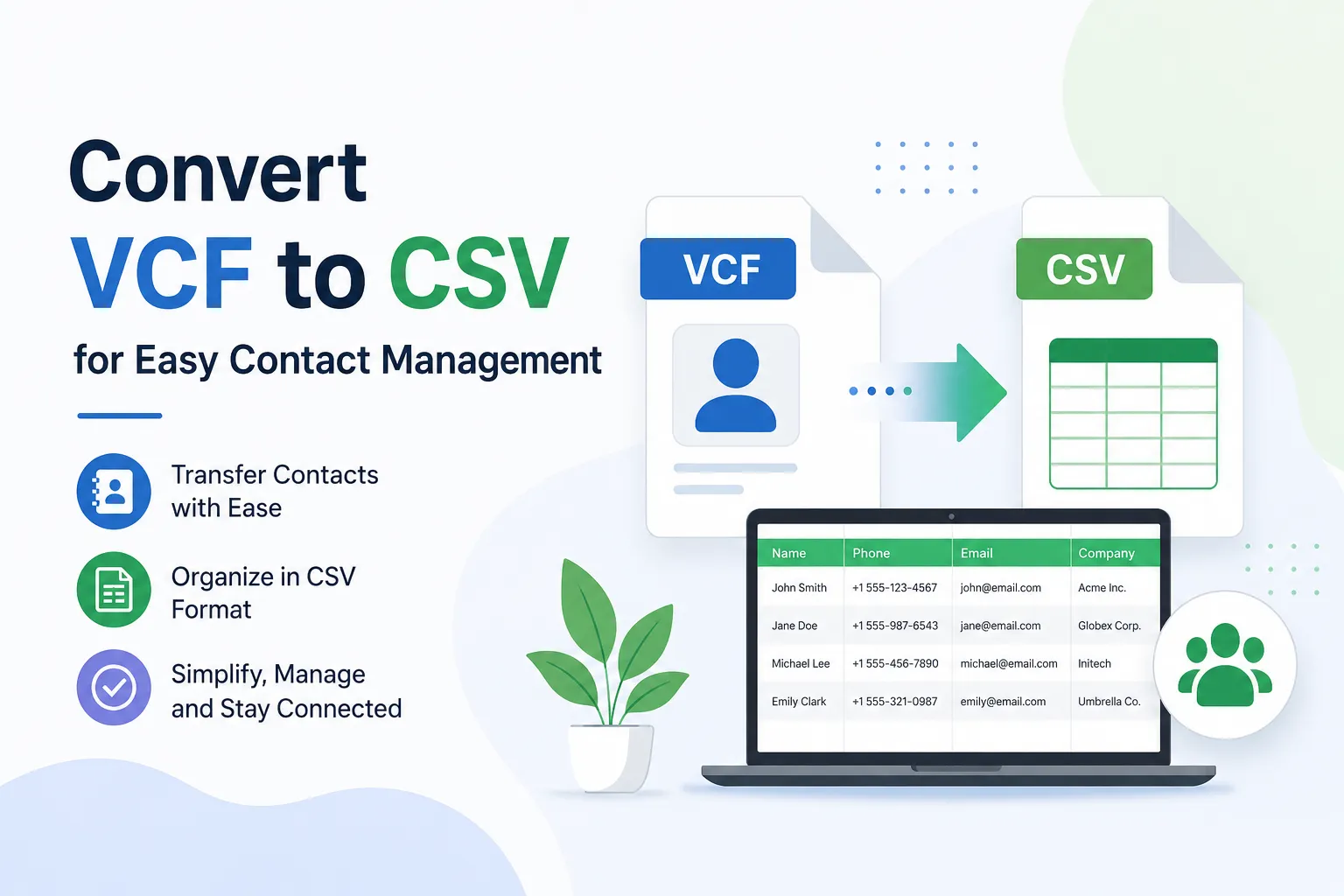

In today's data-driven technology world contacts are the important aspects of businesses containing information about clients, friends, family and other individuals. However, managing them across platforms is difficult and presents a challenge for many users. As a result, some are likely to convert VCF to CSV for easier integration, contact migration, or analysis.
Whether you're optimizing processes or conducting forensic-grade data migration, this post will show you how to convert VCF to CSV without losing any information.
Understanding VCF and CSV Formats
VCF Format
VCF (Virtual Contact File) often known as vCard is a contact management standard that originated in the 1990s. It stores all of the important information such as name, phone number, address and other facts exactly like a business card. Its hierarchical structure may accommodate many values and is widely compatible with Google Contacts, Apple Contacts and Microsoft Outlook.
CSV Format
CSV (Comma Separated Values) files on the other hand are straightforward, flat, tabular Excel files with rows and columns containing data separated by a comma delimiter. It provides universal support for all major databases, spreadsheets, CRMs and analytical tools. It is an ideal format for organizing data and may be used for mass processing, data cleaning, and easy migration.
Why Do Organizations Convert VCF Contacts to CSV?
This conversion necessity arises in various major contexts, such as:
- Moving to new CRM solutions such as Salesforce, HubSpot, Zoho, etc.
- VCF imports are not supported by legacy systems or bespoke databases.
- Effective contact sorting, cleaning, deduplication, analysis, and review.
- Effectively manage and synchronize contacts from fifferent sources.
Converting VCF to CSV: Common Challenges
Although it appears simple to convert contact files, there are some underlying challenges:
- VCF has hierarchical and labelled fields but CSV has flat tables that need adequate data mapping.
- VCF data comprises several contacts and fields, while CSV requires column separation or concatenation for efficiency.
- Mishandling UTF-8-character encoding can lead to corrupted non-Latin scripts.
- Transferring photos and information incorrectly can result in version mismatches and data loss.
- Automation is necessary for handling errors and scalability of large VCF files.
Dilemma of Manual vCard to CSV Conversion
Many users choose to manually convert contact files, either with Excel, Windows Contact, or Google. However, these are not the most reliable ways because they frequently fail at scale.
Other issues with manual conversion include:
- Data transfers are inefficient and time-consuming.
- Inconsistent and typographical errors.
- Lacks scalability and flexibility for selective conversion.
- Removed notes and photos with version discrepancies.
Large organizations with large amounts of VCF files or thousands of contacts demand intelligent solutions that minimize risk and downtime.
Trusted Solution for Converting VCF to CSV for Enterprises
Softaken VCF to CSV Converter is an enterprise-level, reliable offline solution that overcomes the limits of manual techniques. It helps to avoid converting issues and offers an easy, risk-free and 100% accurate conversion. The tool is designed for durability and scalability making it an ideal choice for millions of users globally.
Key Features of the vCard to CSV Converter Tool
- Convert thousands of vCard files into a single CSV file.
- Supports all vCard versions (2.1, 3.0 and 4.0) without corruption.
- Automatically map fields and preserve relationships with multiple values.
- Preserve all vCard features, including anniversaries, assistants, phone numbers, and names, with extraction options.
- Select desired fields for customized CRM-ready deliverables.
- Review results before completing.
- Offline processing provides the highest level of data security.
- Excellent compatibility with all Windows versions.
- Demo Version: Save a few contacts per VCF for free in CSV or other formats.
Quick Guide for Converting VCF to CSV
- Install, launch and use the VCF to CSV Converter Tool.
- Use the 'Add File' or 'Add Folder' options to add vCard contacts.
- Use the preview to check the integrity of your files.
- Select the files you want to convert and then tap Next.
- Select CSV as the output format.
- Finally, select your destination and click Convert to generate a spreadsheet-ready file.
This is how simple the five-step conversion procedure is.
Conclusion
Don't let legacy formats limit your growth convert VCF to CSV to improve contact management. It all boils down to being able to access, search for, and act on your contacts as needed, without the need for complicated software or programs. Use the VCF to CSV Converter to move contacts fast, safely and accurately.
FAQ
1. Is it safe to convert VCF to CSV?
It is completely safe to convert vCard to CSV using a trusted offline VCF to CSV converter. One that runs locally on your operating system allows for batch processing and guarantees data security.
2. Is it possible to convert VCF to CSV with Excel or Google Sheets?
Technically, sure but neither Excel nor Google Sheets were built to handle VCF files. Because there is insufficient and necessitates a significant amount of manual method. It is also not ideal for batch conversions or massive contact exports, as opposed to the converter tools.
3. Can I combine numerous VCF files into a single huge CSV?
Yes! Use the VCF to CSV Converter Tool to convert thousands of individual .vcf files into a .csv format.




























Sign in to leave a comment.