
A large number of Outlook users have reported experiencing the error - “Your Outlook data file cannot be configured”, while working on the application or configuring the data file (PST). This error can occur due to varied reasons as there is no specific reason behind it. In this guide, we will look into the probable reasons that can cause this Outlook error and see how to fix this error with the help of some easy to follow methods.
Understanding the Causes of the Error - Your Outlook Data File cannot be Configured
Here are some possible causes that may lead to this error in Outlook:
· Corrupted or Damaged PST File
· Damaged or Misconfigured Outlook Profile
· Insufficient PST File Permissions
· Incorrect File Location
· Damaged or Corrupted Outlook/Office Program Files
· Faulty Add-ins
· Incorrect Account Configuration
Solutions to Fix the Error - Your Outlook Data File cannot be Configured
Follow the given solutions to resolve the error and restore access to your Outlook data file (PST).
1. Verify PST File Path
You might have moved your PST file to another location due to which Outlook is unable to find the file and is throwing the error. So, go to the default location and check if the PST file is there or not. The location is: C:\Users\<username>\Documents\Outlook Files\. If the file is not there, search for it on your system. When found, move it to the default location.
2. Check PST File Permissions
Make sure your account has been assigned with the proper permissions to read/write and access the PST file. Here’s how to check the permissions and assign them:
· Right-click the PST file and select "Properties."
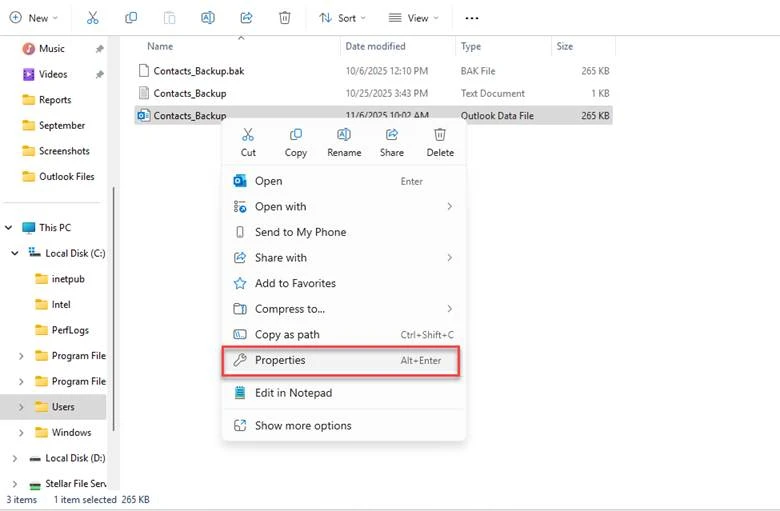
· In Properties window, go to "Security" tab and click "Advanced".
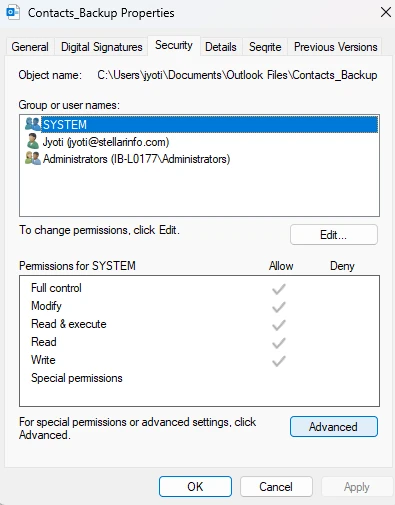
· In the Security tab, click "Edit" and select your user account.
· Check "Full control" under the Allow column.
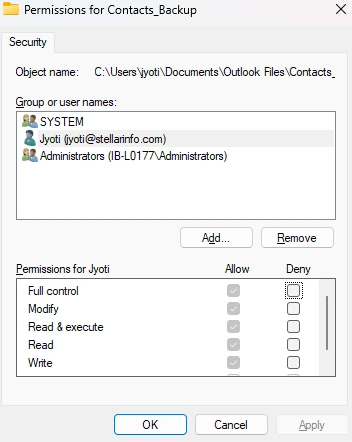
· Click "Apply" then click "OK".
· Close all windows and restart Outlook.
3. Temporarily Disable the Antivirus Software
Antivirus application, if outdated or incompatible with Outlook, can interfere with the Outlook’s process or may even block the PST file, cause such errors. To find out if the antivirus application has caused the error, temporarily disable it.
If you are using Windows Defender,
· Click on Start and type Windows Security.
· Launch the application.
· Go to Virus & Threat protection.
· Click on Manage settings.
· Turn off Real-time protection.
If you are using any third-party antivirus program, then follow the steps given below:
· Open your antivirus application.
· Go to Settings.
· Find the option Disable protection temporarily or exclude Outlook from scanning and enable it.
4. Repair the Office Installation
If the Outlook program files - such as driver files or DLLs - are corrupted or damaged, then you may face the error “Your Outlook data file is not configured”. The solution in this case is to repair or reinstall the Outlook (MS Office) program. Follow the steps below to do so:
· Close Microsoft Outlook completely.
· Click on the Start menu and select Settings.
· Go to Apps and click on Installed apps.
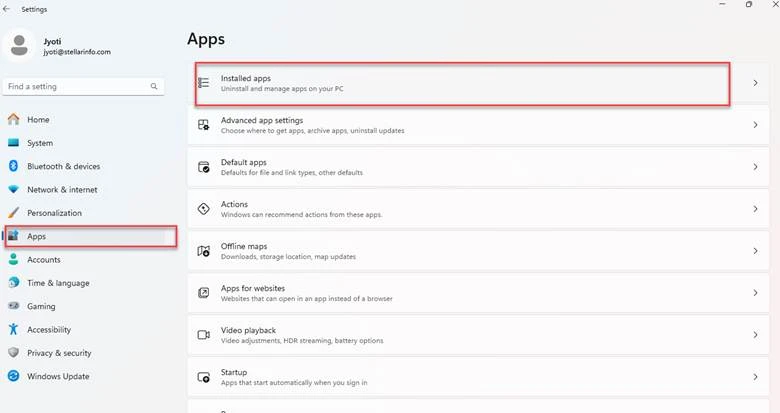
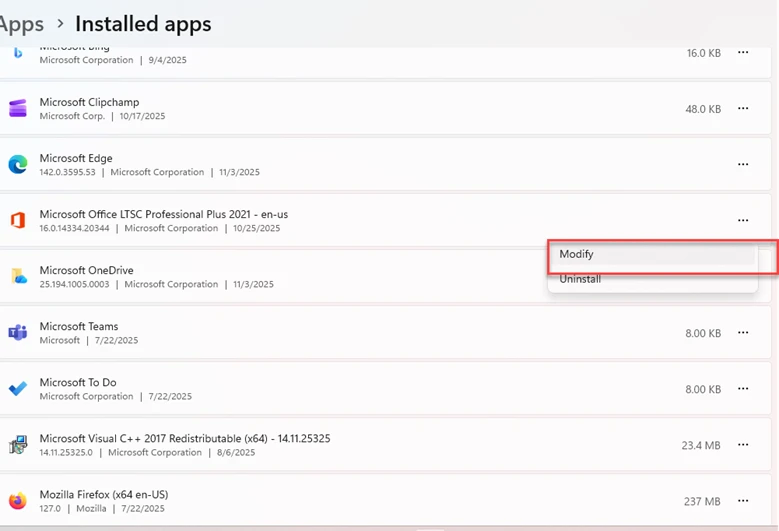
· Locate Microsoft 365 Apps or Microsoft Office.
· Click on the three dots (…) and click Modify.
· You will see two options: Quick Repair and Online Repair.
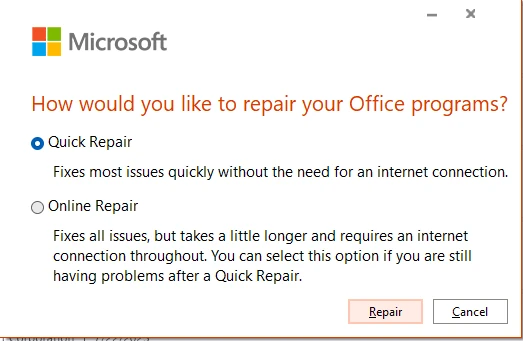
· Select Quick Repair.
· Then, click on Repair.
If repair doesn’t work, then you can reinstall the MS Office program.
5. Check and Disable Faulty/Incompatible Add-ins
Third-party add-ins in Outlook, if faulty or incompatible, might interfere with its normal functionality, causing such errors. You can confirm this by launching your Outlook in safe mode. For this,
· Press Windows + R keys.
· Type Outlook.exe /safe in Run window.
· Press Enter or click OK.
If your Outlook application doesn’t throw any error, then it is apparent - a problematic add-in was causing the error. In this case, disable the add-ins by following these instructions:
· Go to File and click on Options.
· Click on Add-in in the left-hand menu. Choose COM add-ins and click on Go.
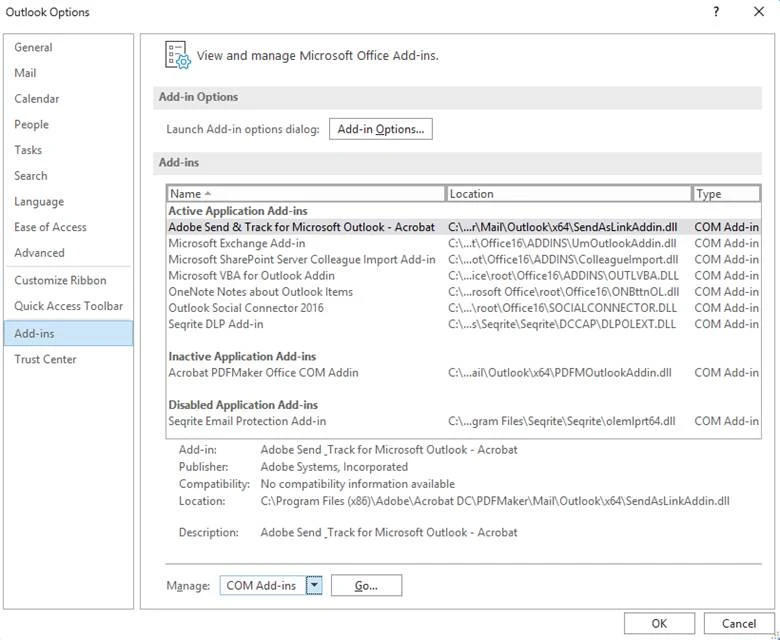
· Now, uncheck all the add-ins and click OK.
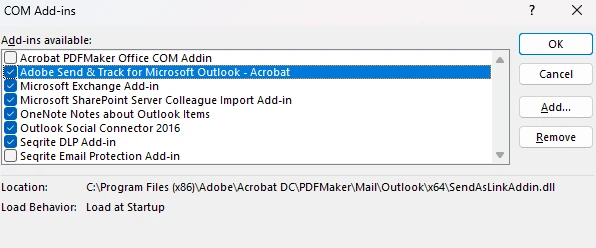
· Now, restart Outlook.
· Enable one add-in at a time and restart Outlook. This will help to identify the problematic one.
· Once you find the faulty add-in, remove it.
6. Create a New Outlook Profile
You may also get this error if your Outlook profile is corrupted or damaged. In this situation, creating a new Outlook profile can assist in resolving the issue. Use the steps below to create a new profile:
· Make sure Outlook is closed.
· Open Control Panel.
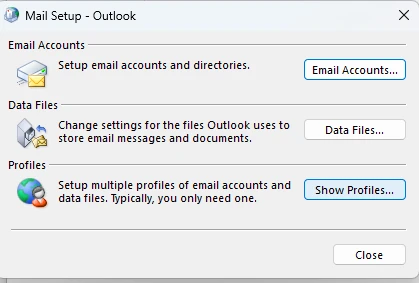
· Click on the Programs > User Accounts > Mail.
· Click the "Show Profiles" button, click on “Add” and enter a new profile name.
· After entering your name, confirm your email address.
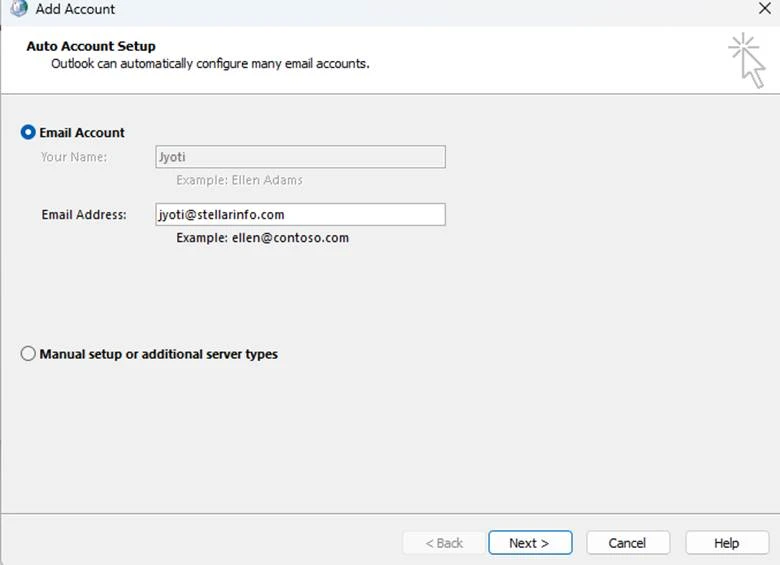
· Click on Next and click Finish.
· Make the new Outlook profile as your default profile by choosing the option - Always use this profile.
· Click OK.
7. Repair Outlook Data File (PST)
As the error message indicates Outlook cannot configure the PST file, then corruption in the file might be the likely cause. You can repair such a corrupt file by using the Microsoft Outlook’s built in utility – ScanPST - meant for this purpose. The steps to repair PST file with SCANPST include:
· Close Outlook completely, if it is open.
· Next, find the ScanPST on your system. By default, it is situated in C:\Program Files (x86)\Microsoft Office\root\OfficeXX or C:\Program Files\Microsoft Office\OfficeXX folder.
· When found, double-click on ScanPST to launch it.

· Click on Browse and choose your PST file.
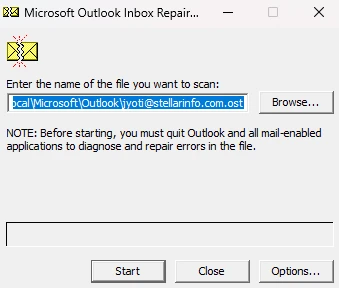
· Click on Start to begin the scanning process.
· After the scan completion, the utility displays the errors found. Click on Repair.
· Once the utility is done repairing the file, restart Outlook.
If, due to any chance, this Inbox repair tool fails to provide the desired outcome or not able to repair the file, then you can go for a more powerful PST repair tool, such as Stellar Repair for Outlook. This is a DIY tool that can repair your PST file with complete integrity and consistency. It also repairs severely corrupt, oversized, or encrypted PST files. After repairing, it saves all your recovered mailbox data in a PST file that you can import into your Outlook profile to access your mailbox data. You can also save your recovered mailbox items in multiple formats, like EML, PST, PDF, HTML, etc.
Conclusion
The error “Your Outlook data file cannot be configured” can occur due to several reasons, as mentioned above. However, you can resolve this issue by following the solutions mentioned in this guide. In case there is a problem with PST file, then an easy way is to repair the file with Stellar Repair for Outlook - an advanced PST repair tool. It can smoothly repair large, encrypted, or severely damaged PST file while preserving the original folder structure and hierarchy.

































Sign in to leave a comment.