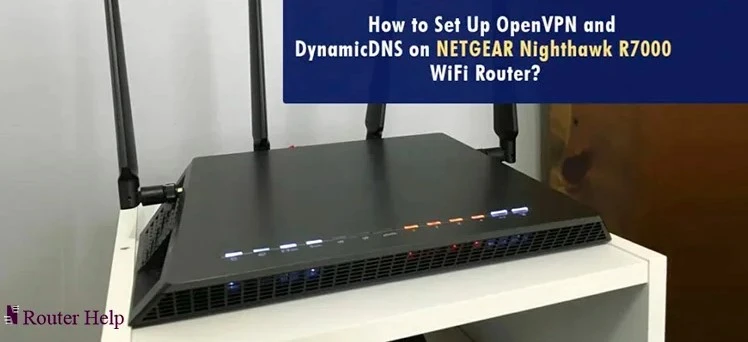

Experiencing frequent WiFi disconnections can be frustrating, especially when you rely on a stable internet connection.
If you have a Netgear router that keeps dropping the WiFi connection, there are several troubleshooting steps you can take to resolve the issue.
This article provides a detailed guide on fixing a Nighthawk router keeps dropping wifi, addressing common causes and offering solutions to ensure a stable and reliable wireless network.
Troubleshooting Steps
Here are some troubleshooting steps you can follow to fix a Netgear router that keeps dropping the WiFi connection:
1. Check Router Placement and Interference
H3: Router Placement
Ensure that your Netgear router is placed in a central location, away from obstructions and interference-causing objects. Place it on a higher shelf or mount it on a wall for optimal signal distribution.
H3: Interference
Keep the router away from devices that can interfere with the WiFi signal, such as cordless phones, microwave ovens, baby monitors, and neighboring WiFi networks. These devices can cause signal degradation and intermittent disconnections.
2. Update Firmware
Check for Firmware Updates
Visit the Netgear support website and check for the latest firmware updates for your router model. Outdated firmware can cause stability issues, including WiFi drops.
If an update is available, download and install it following the instructions provided by Netgear.
3. Restart and Reset Router
Restart Router
Power cycle your Netgear router by turning it off, unplugging it from the power source, and waiting for a few minutes. Then, plug it back in and turn it on. This simple step can often resolve temporary issues and restore a stable WiFi connection.
Reset Router
If restarting the router doesn’t solve the problem, you can perform a factory reset.
Note that a factory reset will erase all custom settings and configurations, so make sure to backup any important information beforehand.
To reset the router, locate the reset button (usually a small hole) on the back of the device.
Use a paperclip or a similar object to press and hold the reset button for about 10 seconds. The router will reboot and return to its default settings.
4. Adjust Channel Settings
Change WiFi Channel
Interference from neighboring WiFi networks operating on the same channel can cause connectivity issues.
Access your router’s configuration settings through a web browser by entering the router’s IP address (e.g., 192.168.1.1).
Navigate to the wireless settings section and change the WiFi channel to a less crowded one.
Experiment with different channels to find the one that provides the most stable connection.
5. Update Network Drivers
Update Network Adapter Drivers
Outdated or incompatible network adapter drivers on your devices can lead to WiFi drops.
Visit the manufacturer’s website of your computer or device and check for the latest network adapter drivers.
Download and install the updated drivers to ensure compatibility and optimal performance.
6. Contact Netgear Support
Reach Out to Netgear Support
If the issue persists after following the troubleshooting steps above, it’s recommended to contact Netgear support for further assistance.
They can provide specific guidance based on your router model and help diagnose and resolve the WiFi connection drop issue.
Conclusion
Dealing with a Netgear Nighthawk keeps dropping internet can be frustrating, but by following the troubleshooting steps outlined above, you can resolve the issue and enjoy a stable and reliable wireless network.
From optimizing router placement to updating firmware and adjusting channel settings, these solutions address common causes of WiFi drops.
Remember to perform these steps systematically and reach out to Netgear support if needed.
With a little effort and troubleshooting, you can restore a consistent and uninterrupted WiFi connection.

























Sign in to leave a comment.