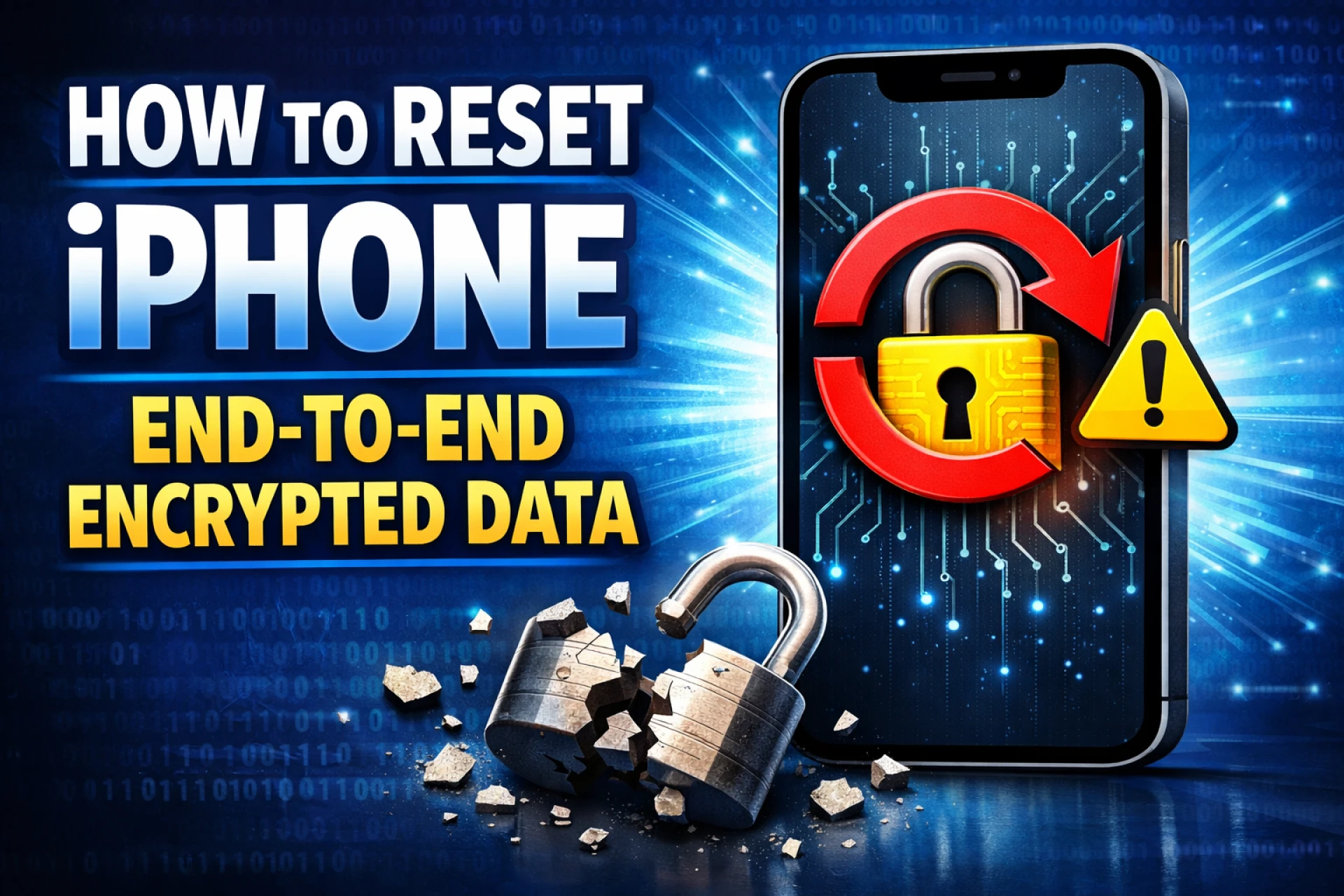

Safely managing your personal information is a top priority for any smartphone user. When you encounter a prompt to reset end-to-end encrypted data, it can feel like a high-stakes decision. This process specifically relates to the most sensitive information synced with iCloud, such as your Keychain passwords, Health data, and HomeKit configurations. Understanding how to navigate this reset without losing your essential files is key to maintaining a seamless digital experience.
Understanding End-to-End Encryption on iPhone
End-to-end encryption is a security architecture where only the sender and the receiver (or in Apple's case, your authorized devices) can access the data. Apple does not hold the keys to this information; instead, the keys are derived from your device passcode and linked to your Apple ID. This ensures that even if a server breach occurred, your most private details remain unreadable to outsiders.
When you set up a second hand iphone in india, you might see a notification asking you to "Approve this iPhone" or "Reset Encrypted Data." This usually happens if you cannot access another trusted device to verify your identity or if you have forgotten your previous device's passcode. In such cases, the system requires a reset of the encryption keys to allow the new device to start syncing sensitive data again.
What Happens During a Data Reset
It is a common misconception that "Resetting Encrypted Data" wipes your entire phone. In reality, this action is surgical. It clears the specific data categories protected by the highest level of encryption because the keys required to unlock them are missing.
The data typically affected by this reset includes:
- iCloud Keychain (saved passwords and credit card info)
- Health and Fitness data
- Home app configurations
- Siri learned vocabulary and Memoji settings
- Apple Card transaction history
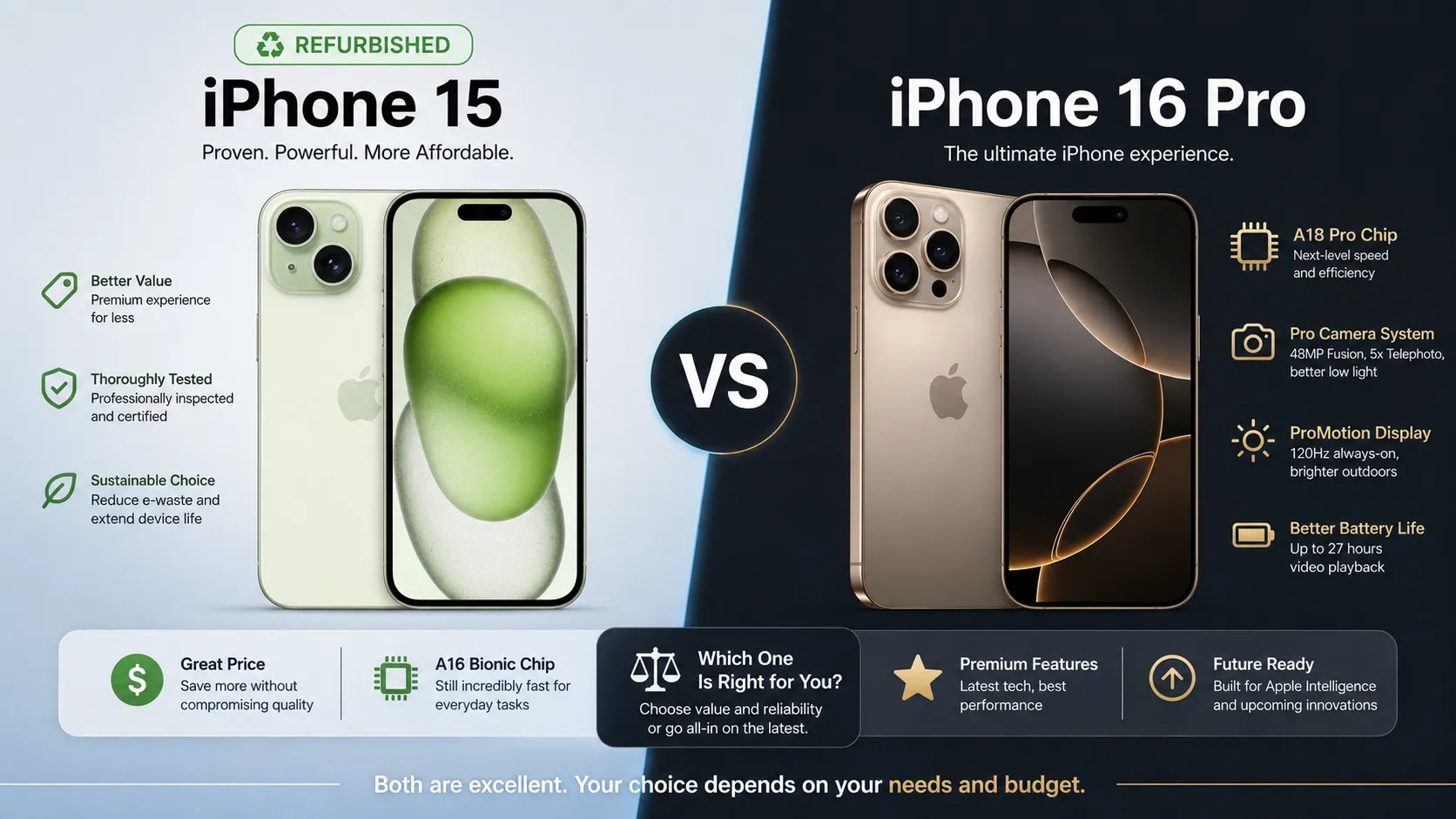
Crucially, your photos, contacts, reminders, and documents stored in iCloud Drive are generally not part of this specific reset unless you have explicitly enabled Advanced Data Protection. If you are using a high-quality iphone 16 refurbished device from a trusted source like EasyPhones, you can rest assured that the hardware supports the latest security protocols to keep the rest of your data safe during these transitions.
Pre-Reset Checklist for Data Safety
Before you trigger a reset, there are several steps you should take to minimize the impact. First, try to locate any old device—an iPad, a Mac, or an older iPhone—that might still be signed into your iCloud account. Approving the request from a secondary device is always safer than a reset.
If no other device is available, manually back up what you can. Since Keychain is often the biggest loss, consider writing down essential passwords or using a third-party password manager temporarily. At EasyPhones, we always recommend that users perform a full iCloud backup before making any significant changes to account settings. This ensures that even if specific encrypted categories are cleared, your apps and settings remain ready for restoration.
Step-by-Step Guide to Resetting Encrypted Data
If you have exhausted all recovery options and must proceed, follow these steps to perform the reset safely:
- Navigate to Settings: Open the Settings app on your iPhone.
- Access Transfer or Reset: Go to "General" and scroll down to "Transfer or Reset iPhone."
- Choose Reset Options: Tap "Reset" at the bottom of the screen.
- Select Reset All Settings: This is the safest way to trigger a re-sync prompt. Note that this will not delete your apps or photos but will reset Wi-Fi passwords and system preferences.
- Confirm and Re-sync: Once the phone reboots, go back to your iCloud settings. When the prompt for encrypted data appears, select "Reset Encrypted Data."
For users who have recently upgraded to an iphone 16 pro refurbished, the processing power of the A-series chips makes this transition nearly instantaneous. Once the reset is complete, your new device will generate a new set of keys and begin backing up your current Health and Keychain data moving forward.
Managing Advanced Data Protection
If you have turned on "Advanced Data Protection," the reset process becomes more rigid. This feature extends end-to-end encryption to iCloud Backups and Photos. In this mode, if you lose your passcode and don't have a Recovery Contact or Recovery Key, Apple cannot help you reset the data.
To manage this safely, always ensure your Recovery Key is stored in a physical location or a secure digital vault. If you are moving to a newer model from EasyPhones, verify that your recovery methods are up to date before trade-in or setup. This proactive approach prevents the "death spiral" of being locked out of your own encrypted backups.
Maintaining Your Device Security Post-Reset
After successfully resetting your data, it is vital to re-establish your security layers. Re-enter your Wi-Fi passwords, set up your Apple Pay cards again, and ensure that two-factor authentication is active. This is also a great time to audit which apps have access to your sensitive data.
Choosing a reliable device is the foundation of digital safety. EasyPhones provides meticulously tested iPhones that undergo rigorous checks, ensuring that security features like Face ID and Secure Enclave function perfectly. By combining premium hardware with informed data management, you can enjoy the full benefits of the Apple ecosystem without fear of data loss.



























Sign in to leave a comment.