
Setting up an iCloud Mail account is one of the best ways to integrate your communication into the Apple ecosystem. Unlike third-party providers, iCloud Mail offers a seamless experience that syncs across all your devices, providing a clean, ad-free interface and robust privacy features. When you create an iCloud email address, you aren't just getting a way to send messages; you are unlocking a suite of tools like "Hide My Email," which allows you to create burner addresses to keep your personal inbox private.
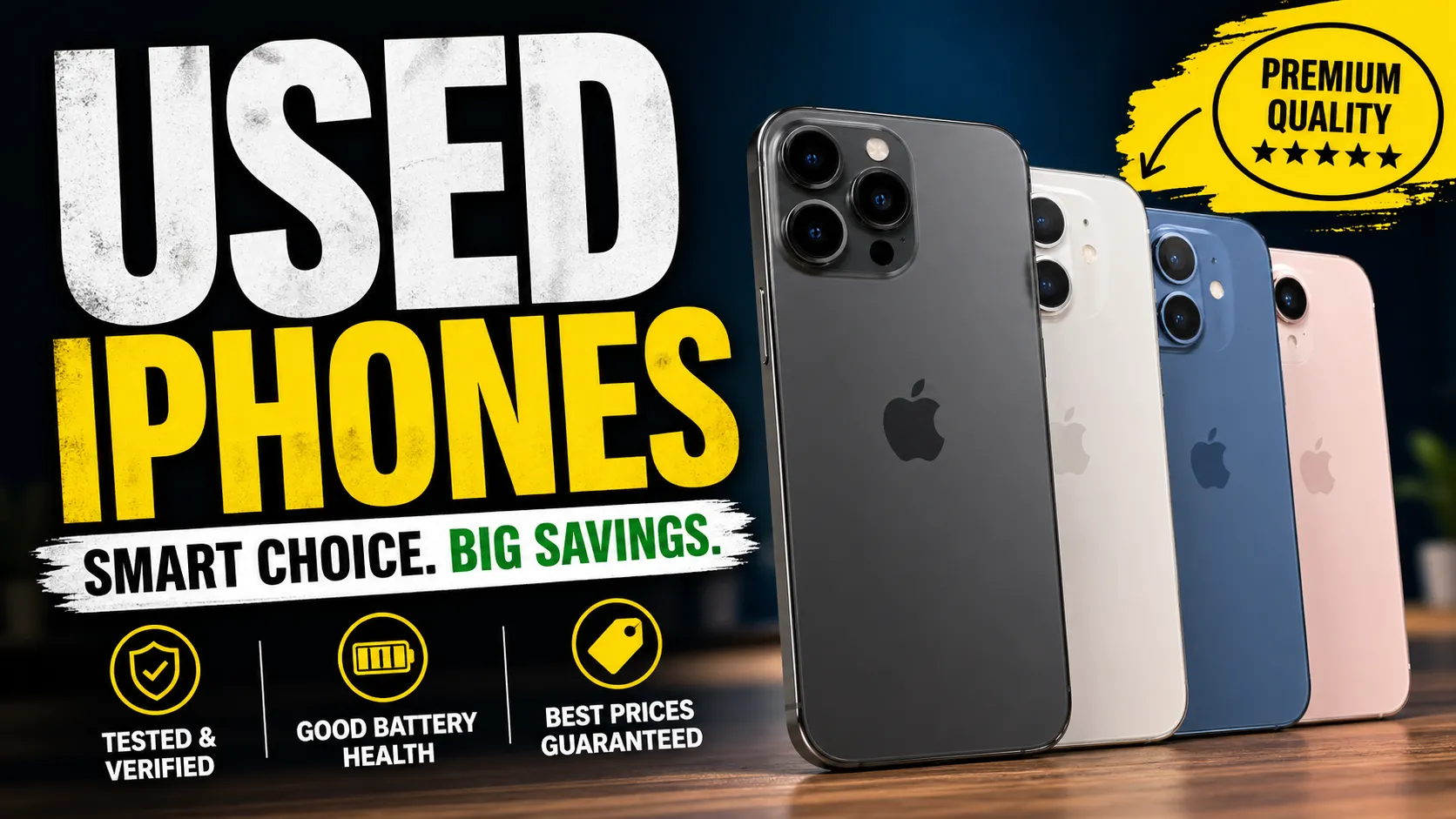
For those who have recently invested in a high-quality second hand iphone in india from EasyPhones, setting up iCloud Mail is often the first step in personalizing the device. It ensures that your contacts, calendars, and notes stay updated regardless of whether you are using your phone, an iPad, or a Mac. Because Apple prioritizes security, every iCloud account comes with two-factor authentication, making it one of the most secure free email services available today.
Preparing Your iPhone for Setup
Before you dive into the settings, ensure your device is ready. First, you must be signed in to your iPhone with an Apple Account (formerly known as Apple ID). If you haven't created one yet, you will be prompted to do so during the initial device setup or within the Settings app. It is also highly recommended to be connected to a stable Wi-Fi network, as the activation process requires a brief communication with Apple’s servers to provision your new mailbox.
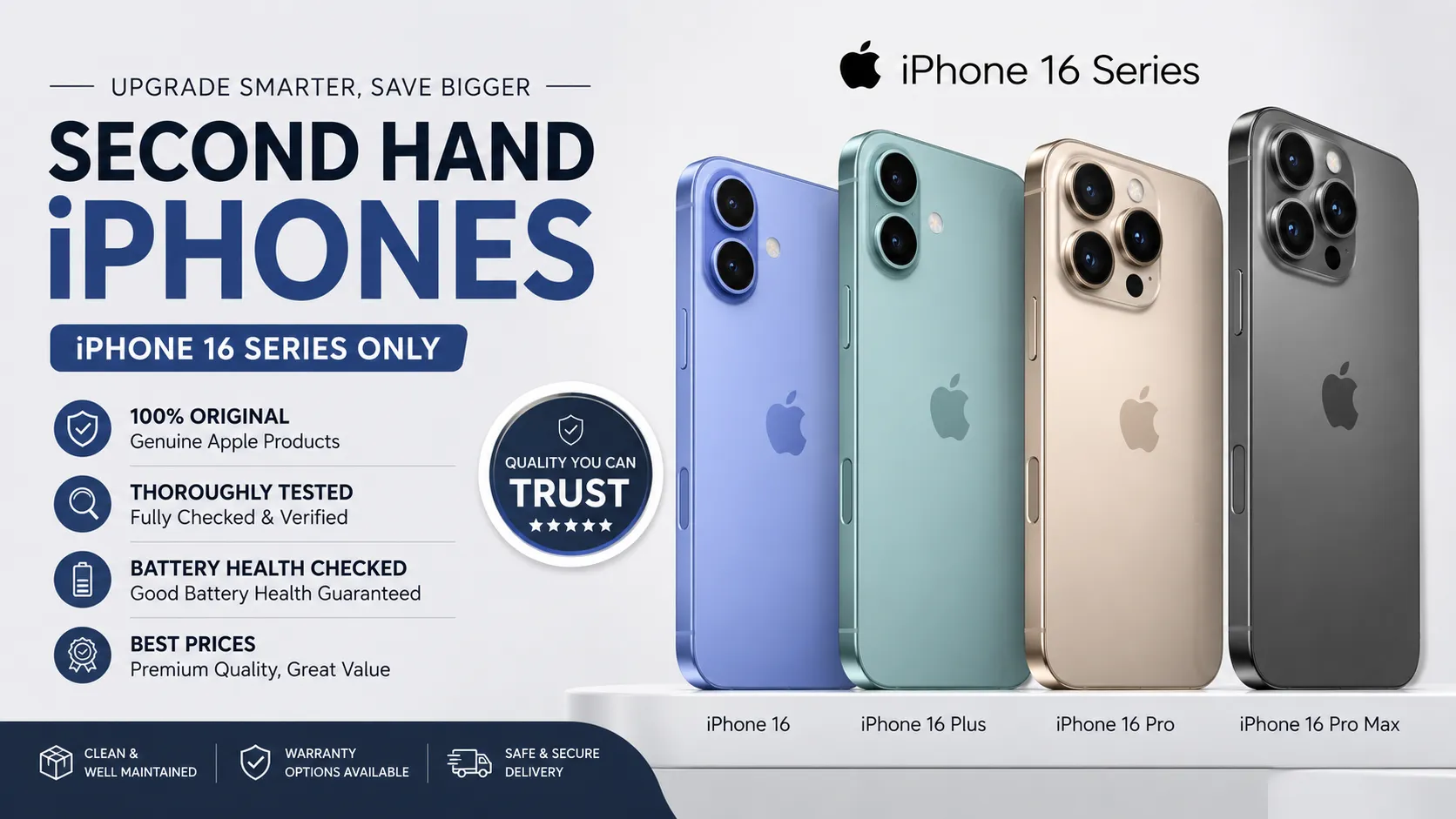
The setup process is remarkably smooth on modern hardware. If you are using a premium device like an iphone 16 refurbished model from EasyPhones, you will find that the latest iOS versions make the transition nearly instantaneous. Keeping your software updated to the latest version of iOS is also a crucial step, as it ensures all the newest security protocols and Mail app features are active before you create your account.
How to Create Your iCloud Email Address
If you do not already have an @icloud.com address, you can create one directly from your iPhone. This address will serve as your primary identity for Apple’s mail services. Follow these steps to get started:
- Open the Settings app on your iPhone.
- Tap on your name at the very top of the menu to access your account settings.
- Select iCloud.
- Scroll down and tap on iCloud Mail (or just "Mail" in older iOS versions).
- Toggle the switch for Use on this iPhone to the ON position.
- A pop-up will appear asking you to "Create" an email address. Tap Create.
- Choose your desired username (the part before @icloud.com). If the name is taken, the system will suggest alternatives.
- Once you are satisfied, tap Next, review the details, and tap Done.
Enabling iCloud Mail in the Settings App
Once your address is created, you need to ensure the Mail app is configured to fetch and send data correctly. Even if the account is created, the sync settings must be active for you to receive notifications. Within the same iCloud settings menu, ensure that the "Sync this iPhone" option remains enabled.
EasyPhones recommends checking your "Fetch New Data" settings to ensure you receive emails in real-time. To do this, go to Settings > Apps > Mail > Mail Accounts > Fetch New Data. Ensure that Push is turned on at the top. This allows the iCloud server to send new messages to your phone the moment they arrive, rather than waiting for the app to check manually.
Navigating the Mail App Interface
After the backend setup is complete, it’s time to open the Mail app. You will notice that your new iCloud inbox is automatically added to the "Mailboxes" list. Apple’s Mail app is designed for simplicity, featuring a "VIP" folder for important contacts and smart filtering to separate junk mail from your primary correspondence.
If you are a multitasker, you can add other accounts like Gmail or Outlook to the same app, but keeping your iCloud Mail as the primary account ensures the best integration with Siri and Calendar. For example, if you receive a flight confirmation or a dinner reservation on your iCloud email, Siri can automatically add those events to your schedule, a feature that works most reliably within Apple’s own service.
Managing iCloud Storage for Mail
It is important to remember that your iCloud Mail uses the same storage pool as your Photos, iCloud Drive, and Device Backups. Every user starts with 5GB of free storage. If your inbox starts filling up with large attachments, you might see a notification that your storage is full, which can prevent you from receiving new emails.
To manage this, you can go back to the iCloud settings and tap "Manage Account Storage." Here, you can see exactly how much space your mail is occupying. If you find yourself running out of room, you can upgrade to iCloud+ for more space and additional features like Custom Email Domains, which allow you to use a professional-looking address with your own domain name while still using the iCloud interface.
Troubleshooting Common Setup Issues
Occasionally, you might encounter an error message stating "iCloud Mail is currently unavailable" or "Account cannot be created at this time." Most of the time, these issues are temporary and related to Apple’s server status. If you run into trouble, try signing out of your Apple Account and signing back in, or simply restarting your device.
Another common hurdle is the "Address Already Taken" error. Since millions of people use iCloud, common names are often unavailable. Try adding a middle initial or a significant year to your username to make it unique. Once your account is live, it cannot be changed, so choose a name that you will be happy with for years to come.
Finalizing Your Professional Mobile Setup
Setting up iCloud Mail is a vital step in making your iPhone truly yours. It provides a reliable, secure, and integrated way to manage your digital life. Whether you are using a brand-new device or a certified pre-owned one from EasyPhones, having a dedicated iCloud email ensures that your data is backed up and your communication is streamlined.
With your new email address active, you can now explore other iCloud features like Find My, Shared Photo Libraries, and Keychain. By taking the time to set up your mail correctly for the first time, you set the foundation for a productive and organized mobile experience.





















Sign in to leave a comment.