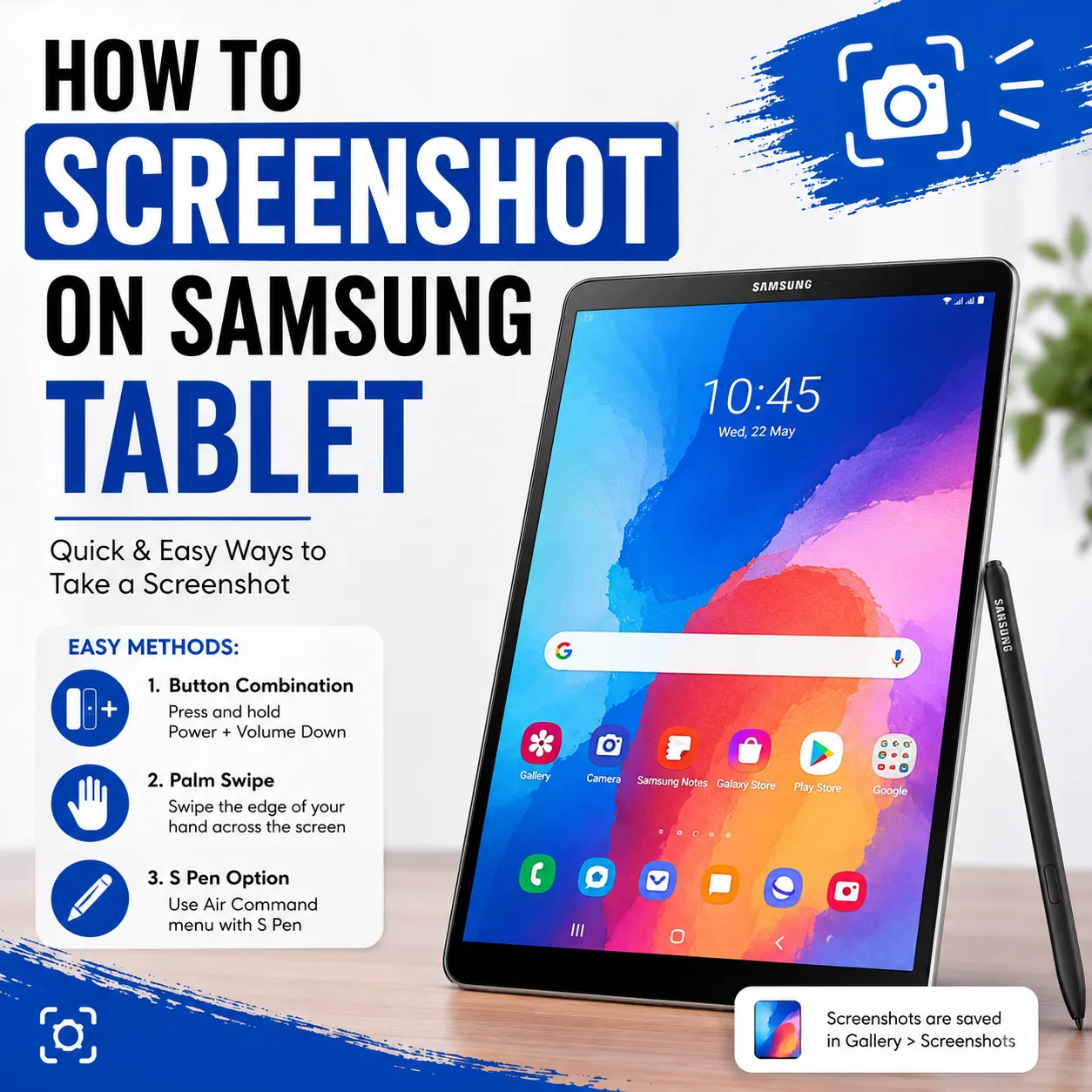

If you've recently purchased a Samsung tablet or simply want to learn more about its features, you may be wondering how to screenshot on samsung tablet. Taking screenshots is one of the most useful functions on any device, allowing you to save important information, capture memorable moments, or share content with others. Fortunately, Samsung tablets offer several easy methods for capturing your screen, giving users the flexibility to choose the option that best suits their preferences.
Why Screenshots Are Useful
Screenshots can help in many everyday situations. Whether you're saving an online receipt, recording an error message, capturing a conversation, or preserving an interesting article, screenshots provide a quick way to store information without downloading files.
Some common uses include:
- Saving important documents
- Sharing app settings
- Capturing online recipes
- Recording game achievements
- Keeping copies of payment confirmations
- Saving educational materials
Knowing different screenshot methods ensures you can capture your screen efficiently whenever needed.
How to Screenshot on Samsung Tablet Using Hardware Buttons
The most common and reliable way to capture a screenshot is by using the physical buttons on your Samsung tablet.
Step 1: Open the Desired Screen
Navigate to the webpage, app, image, or document you want to capture.
Step 2: Press the Buttons
Simultaneously press the Power button and the Volume Down button for about one second.
Step 3: Release the Buttons
The screen will briefly flash, indicating that the screenshot has been successfully captured.
Step 4: Access the Screenshot
Your screenshot is automatically saved in the Gallery or Photos application, usually inside the Screenshots folder.
This method works on most modern Samsung Galaxy tablets.
Using Palm Swipe (Supported Models)
Some Samsung tablets support gesture-based screenshots.
Enable the Feature
Open Settings, navigate to Advanced Features, and then select Motions and Gestures.
Activate Palm Swipe
Turn on the Palm Swipe option if available on your device.
Capture the Screen
Place the side of your hand on one edge of the display and swipe across the screen. If supported, the tablet will capture the current display automatically.
Gesture controls provide a convenient alternative when physical buttons are difficult to use.
Using the S Pen
Many premium Samsung tablets include the S Pen, making screenshots even easier.
Open Air Command
Remove the S Pen or launch the Air Command menu.
Choose Screen Write
Select the Screen Write option to instantly capture the current screen.
Annotate the Screenshot
You can immediately write notes, highlight important information, draw diagrams, or crop the image before saving it.
This feature is especially useful for students, professionals, and designers.
Tips for How to Screenshot on Samsung Tablet
Learning how to screenshot on samsung tablet becomes even more useful when you know how to manage your screenshots efficiently.
Edit Immediately
After capturing a screenshot, Samsung usually displays editing tools that allow you to crop, draw, highlight, or add text.
Share Quickly
Use the built-in Share button to send screenshots through messaging apps, email, or cloud storage.
Organize Screenshots
Create folders within your Gallery to keep work-related, educational, and personal screenshots separated for easier access.
Delete Unnecessary Images
Removing unwanted screenshots regularly helps free up storage space and keeps your Gallery organized.
Conclusion
Understanding how to screenshot on samsung tablet allows you to capture important information quickly and efficiently. Whether you prefer using hardware buttons, gesture controls, or the S Pen, Samsung provides multiple convenient methods to suit different users. By learning these techniques and organizing your screenshots effectively, you can improve your productivity and make better use of your tablet's built-in features. With just a few simple steps, capturing and sharing your screen becomes a fast and effortless part of your daily digital experience.




























Sign in to leave a comment.