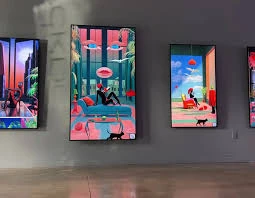

The Samsung Blackdove Digital Canvas is a cutting-edge digital art display that brings unparalleled quality and versatility to your home. Whether you\'re a seasoned art enthusiast or a tech-savvy homeowner, setting up and optimizing your Samsung Blackdove Digital Canvas can transform your living space into a dynamic and engaging art gallery. This guide will walk you through the process of setting up and optimizing your digital canvas to ensure you get the best possible experience.
Setting Up Your Samsung Blackdove Digital Canvas
Unboxing and Initial Setup
Unbox Carefully
- Start by unboxing your Samsung Blackdove Digital Canvas carefully. Ensure you have all the components, including the display, power cable, remote control, mounting brackets, and any included accessories.
Select the Perfect Location
- Choose a location that is central and easily visible, such as above a fireplace, in the living room, or a dedicated gallery space. Ensure the location has minimal glare and reflections to maintain the integrity of the displayed art.
Mounting Options
- You have two primary mounting options:
- Wall Mounting: For a sleek, integrated look, use the included wall mounting brackets. Ensure the wall can support the weight of the display and mount it at eye level for optimal viewing.
- Stand Mounting: If you prefer flexibility in placement, use a sturdy stand. This allows you to move the display as needed and adjust its height and angle.
- You have two primary mounting options:
Connect to Power
- Plug the power cable into the display and an electrical outlet. Ensure the cable is neatly tucked away to maintain a clean look.
Turn On the Display
- Use the remote control to power on the display. Follow the on-screen instructions to complete the initial setup.
Connecting to Wi-Fi and Setting Up Your Account
Connect to Wi-Fi
- Navigate to the settings menu using the remote control. Select the Wi-Fi option and connect to your home network. A stable internet connection is essential for accessing online art collections and updates.
Create or Sign In to Your Blackdove Account
- If you don\'t already have a Blackdove account, create one through the display or by visiting the Blackdove website. Sign in to your account to access your art library and subscription services.
Configuring Display Settings
Adjust Brightness and Contrast
- Navigate to the display settings and adjust the brightness and contrast to suit your environment. Proper adjustment ensures the artwork is displayed in its best light, with accurate colors and sharp details.
Select Display Mode
- Choose from various display modes optimized for different types of art, such as photographs, paintings, or illustrations. These modes automatically adjust settings to enhance the viewing experience.
Customize Frames
- If your Samsung Blackdove Digital Canvas offers customizable frames, select a frame that complements your home décor. This adds an extra touch of elegance to your display.
Optimizing Your Samsung Blackdove Digital Canvas
Curating Your Digital Art Collection
Accessing Art Collections
- Explore the extensive library of digital art available through Blackdove’s subscription service. Browse various categories and select artworks that resonate with your personal taste.
Creating Playlists
- Organize your favorite artworks into playlists. This allows you to create themed collections that can rotate throughout the day, providing a dynamic and engaging display.
Uploading Personal Art
- Personalize your digital canvas by uploading your own photographs, digital illustrations, or family portraits. This feature adds a personal touch to your home gallery.
Enhancing the Viewing Experience
Optimal Lighting
- Ensure your digital canvas is well-lit with soft, ambient lighting. Avoid direct sunlight, which can cause glare and reflections. Adjustable track lighting can highlight the display and create a gallery-like atmosphere.
Using Interactive Features
- Explore the interactive features of your Samsung Blackdove Digital Canvas, such as touch screens or motion sensors. These features allow viewers to interact with the art and learn more about each piece, enhancing the overall experience.
Regular Maintenance and Updates
Regular Cleaning
- Keep your display clean and free of dust. Use a soft, microfiber cloth to gently wipe the screen. Avoid using harsh chemicals or abrasive materials that can damage the surface.
Software Updates
- Regularly check for software updates to ensure your display operates smoothly and has the latest features. Updates can also provide access to new art collections and improved display settings.
Technical Support
- Familiarize yourself with the manufacturer’s support options. In case of any technical issues, having access to reliable customer support can help you resolve problems quickly and efficiently.
Conclusion
Setting up and optimizing your Samsung Blackdove Digital Canvas can transform your living space into a vibrant and ever-changing art gallery. By carefully selecting and curating your digital art collection, optimizing display settings, and enhancing the viewing environment, you can create a captivating and immersive art experience in your home. Embrace the future of art display with the Samsung Blackdove Digital Canvas and elevate your home décor to new heights.




























Sign in to leave a comment.