Have you recently bought a Cricut Expression and feel unsure about how to set it up? It’s a great machine to have, and many users think it works like modern Cricut machines, which often leads to confusion. Since the Cricut Expression is an older model, it has a different setup process that works in its own way. For instance, it’s cartridge-based and doesn’t need Design Space to work, which makes it very different from newer machines. This also means you won’t use any app, software, or computer connection to set up this machine, which can feel unusual at first. Does that sound unusual? That’s exactly what makes the Cricut Expression unique. If you are wondering about the setup, then read this blog till the end and follow the steps to set up your machine easily.
Step 1: Place the Machine

Place your machine in a safe, cool area. A table is a suitable surface for placement. Ensure there is at least 12 inches of space from the table edge for safety. There should also be 12–24 inches of free space for the smooth movement of the cutting mat.
Step 2: Prepare Your Cricut Expression

Once you have installed the machine, it’s time to prepare it. Lift the machine’s lid and remove any packaging material from inside. You can now see the machine’s interior, including the slot for installing the blade.
Step 3: Install the Blade Assembly

When you open the machine’s lid, you’ll notice a cradle where you need to insert the blade assembly. Loosen the screw to open the blade holder. Insert the blade with the black arrow facing you. Tighten the screw, and you’re all set with installing the blade.
Step 4: Connect the Machine to Power

Your machine comes with a power cord that connects to the device and a wall outlet. Connect the power cord to the back of the machine and to the wall outlet.
Step 5: Place the Keypad Overlay

In this step, you need to lift the machine’s display upwards to access the control panel. Then, place the keypad overlay on the control panel. It allows you to enter characters, select images, and control the machine without using any external device. Since it works standalone, the keypad allows you to choose colors, set shapes, adjust other settings, and perform cuts.
Step 6: Insert the Cartridges

Make sure your Cricut machine is turned on, and gently slide the cartridge into the slot on the top left side. Now, the machine will recognize the cartridges, and you’re ready to select images and start cutting your projects.
Step 7: Press the Mat Against the Roller Bar

After installing the cartridge, take off the plastic covers and packaging from the cutting mat, and place a paper onto the mat’s surface gently. Now, press the mat against the roller bar. The mat should sit below the roller bar and move freely.
Step 8: Load the Paper and Select Settings

The machine’s control panel has a “Load Paper” key that you need to press to load paper. Then, you can select the paper size using the Size Dial. There is also a Pressure Dial to adjust the cutting pressure for your material.
Step 9: Cut Your Design

Once you’re satisfied with the paper settings, press the “CUT” button to start cutting. The machine will now start cutting your design onto the paper.
Step 10: Unload the Paper

Once the cutting part is done, press the “Unload Paper” key. Now, the machine will unload the paper, and you can collect the cut images from the mat. That’s it for setting up your ‘Cricut Expression machine‘ and cutting your first project.
Frequently Asked Questions (FAQs)
How Do I Connect My Cricut Expression to Cricut Design Space?
Cricut Expression is an older Cricut machine that was released before Cricut Design Space existed. It is an independent Cricut machine that has its own functions. It doesn’t connect to any app or device via Bluetooth.
How Do I Connect My Cricut Expression to My Computer?
You cannot connect the Cricut Expression to a computer for cutting projects. It is a standalone, cartridge-based Cricut machine and does not work with Cricut Design Space or computer software.
How to Calibrate Cricut Expression?
You can’t calibrate your Cricut Expression because it doesn’t support Cricut Design Space or any other digital calibration app. Calibration in this machine means manually adjusting its normal settings, such as blade depth and pressure.
How to Download Cricut Software on a Mobile Device?
Here are the steps to download the software on a mobile device:
- Go to the App Store or Play Store from the home screen.
- Search for the “Cricut Design Space” in the search bar.
- Select it from the results, and download it.
- Sign in with your username and password, or create a new account Cricut Design Space if you are new.
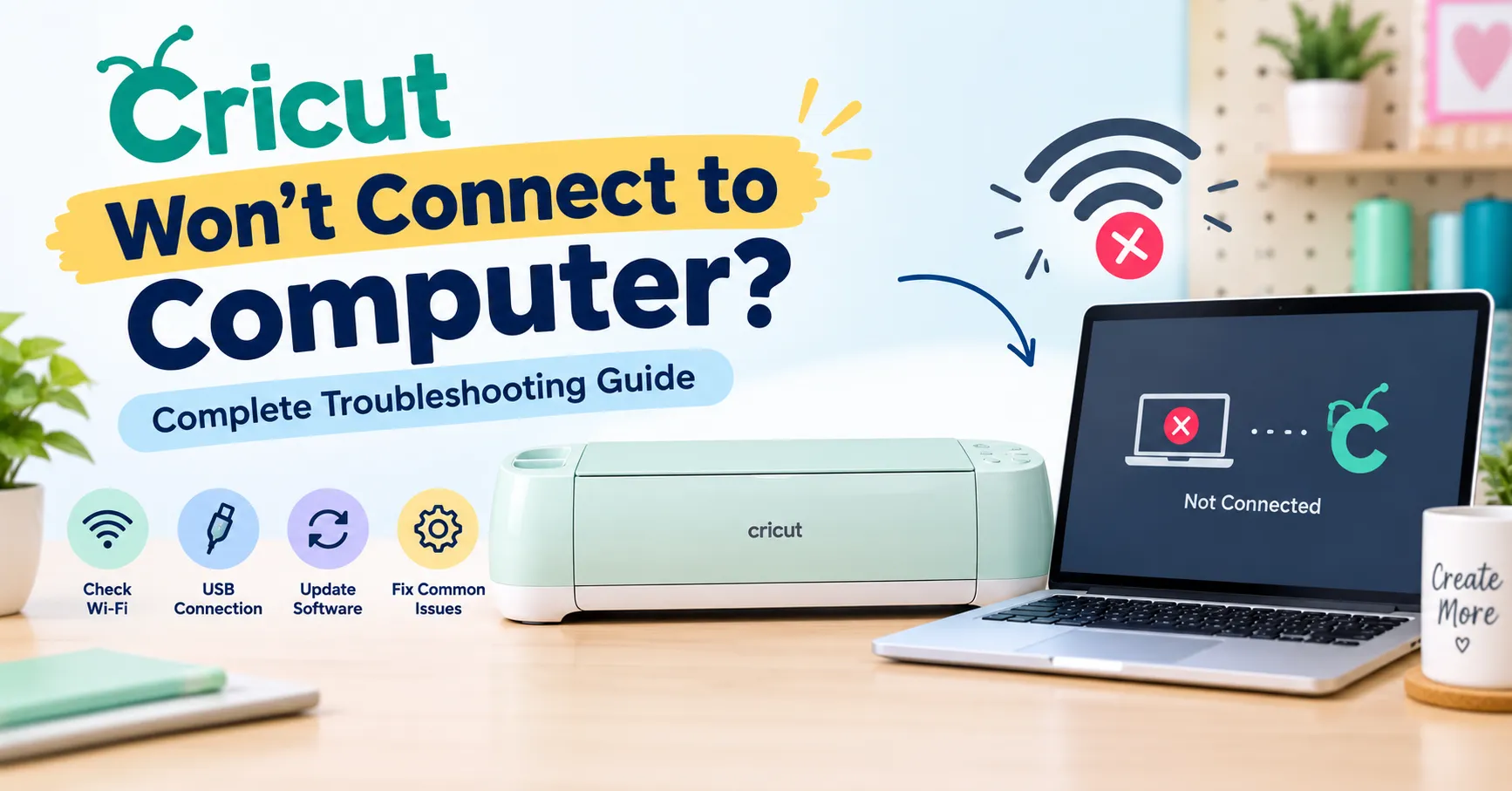
Why Won’t My Cricut Machine to Connecting to My Computer?
If you’re not able to connect your Cricut machine to your computer, follow these steps carefully:
- Power cycling both the Cricut machine and your computer can resolve temporary glitches.
- Ensure the Cricut machine is within the recommended range of 15 feet of the computer.
- If Bluetooth constantly fails, try using a USB cable connection as a reliable alternative.
- Make sure Cricut Design Space is updated to the latest version.
- Ensure your computer is fulfilling the basic system requirements for Cricut Design Space.
- Verify that Windows Firewall isn’t blocking the crafting machine or Cricut Design Space.
Visit: cricut.com/setup
Source: https://online-cricut.com/how-to-setup-cricut-expression-tutorial-steps/




















Sign in to leave a comment.