

How to Switch from Windows to Linux
Switching from Windows to Linux can be a rewarding experience, offering greater customization, enhanced security, and often better performance. This guide provides a step-by-step process to How to switch from Windows to Linux smoothly, covering everything from preparation to installation and post-installation setup.
Introduction
Linux is an open-source operating system that provides a free and versatile alternative to Windows. With various distributions (distros) tailored to different needs and preferences, Linux has something for everyone. Whether you’re a casual user, a developer, or an IT professional, switching to Linux can open up a world of possibilities.
Preparing for the Switch
Research and Choose a Linux Distribution
There are numerous Linux distributions, each with its own set of features and user interfaces. Some of the most popular ones include:
- Ubuntu: Known for its user-friendliness and extensive community support.
- Fedora: A cutting-edge distro featuring the latest software.
- Linux Mint: Ideal for users transitioning from Windows due to its familiar interface.
- Debian: Known for its stability and reliability.
Research these options to find the one that best suits your needs.
Backup Your Data
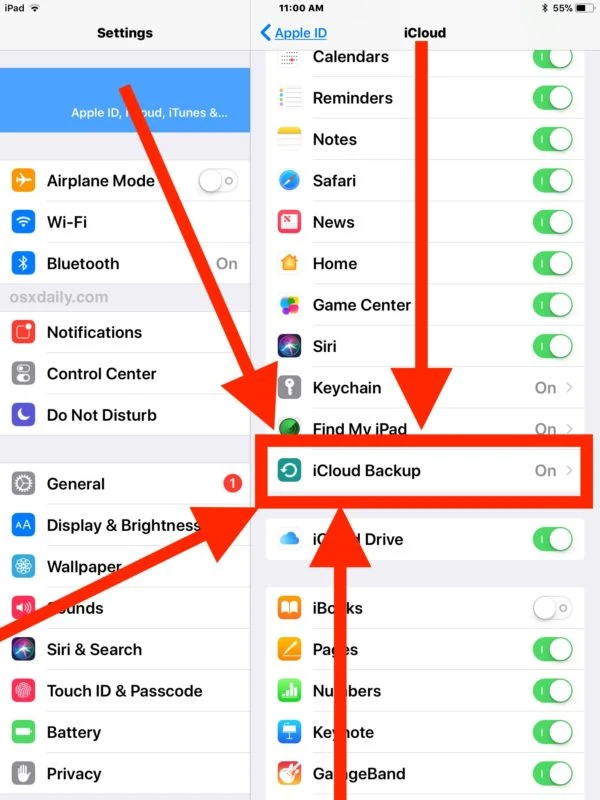
Before making any major changes to your system, it\'s crucial to back up all your important data. This ensures that you won\'t lose any files during the transition. Use external hard drives, cloud storage, or other backup solutions to save your data.
Create a Live USB
A Live USB allows you to run Linux directly from a USB stick without installing it on your hard drive. This is a great way to test out a Linux distribution and ensure it works well with your hardware.
To create a Live USB:
- Download the ISO File: Visit the official website of the Linux distribution you’ve chosen and download the ISO file.
- Use a USB Creator Tool: Use tools like Rufus (Windows) or Etcher (cross-platform) to create a bootable USB drive with the downloaded ISO file.
Installing Linux
Boot from the Live USB
Insert the Live USB into your computer and reboot. You may need to change the boot order in your BIOS/UEFI settings to boot from the USB drive. This typically involves pressing a key (like F2, F12, ESC, or DEL) during startup to access the BIOS/UEFI menu.
Explore the Live Environment
Most Linux distributions allow you to try the operating system in a live environment before installing. This lets you get a feel for the desktop environment and check hardware compatibility.
Start the Installation Process
When you\'re ready to install:
- Double-click the "Install" icon on the desktop.
- Follow the Installation Wizard: The installer will guide you through the process. Here are some key steps:
- Select Language and Region: Choose your preferred language and time zone.
- Partitioning: You can choose to install Linux alongside Windows (dual-boot) or replace Windows entirely. For dual-boot, select the option to install Linux alongside Windows, and the installer will handle the partitioning.
- User Details: Enter your username, password, and computer name.
Complete the Installation
Once you’ve configured your settings, the installation process will begin. This can take some time, so be patient. After the installation is complete, you will be prompted to restart your computer and remove the USB drive.
Post-Installation Setup
Update the System
After your first boot into Linux, it’s important to update the system to ensure you have the latest software and security patches. Most Linux distributions have a software update tool that you can access through the system settings or application menu.
Install Essential Software
Linux distributions come with a variety of pre-installed applications, but you may need additional software. Here are some common categories and suggestions:
- Web Browsers: Firefox, Chrome
- Office Suites: LibreOffice, OnlyOffice
- Media Players: VLC, Rhythmbox
- Code Editors: VS Code, Sublime Text
Most Linux distributions have a software center where you can easily search for and install applications.
Configure Drivers
Linux is quite good at detecting and installing drivers automatically. However, for proprietary drivers (like NVIDIA graphics drivers), you might need to install them manually. Most distributions have a "Drivers" or "Additional Drivers" section in the settings where you can manage this.
Customize Your Desktop Environment
One of the advantages of Linux is the ability to customize your desktop environment. You can change themes, icons, and layout to match your preferences. Tools like GNOME Tweak Tool or KDE System Settings make customization straightforward.
Getting Comfortable with Linux
Learn Basic Commands
While most tasks can be accomplished through the graphical user interface (GUI), learning basic terminal commands can be very useful. Commands like navigating directories, copying and moving files, and checking system status can enhance your efficiency.
Join the Community
Linux has a vibrant community of users and developers who are eager to help newcomers. Join forums, subreddits, and local user groups to get support and advice. Websites like Stack Exchange, Reddit, and the official forums for your distribution are excellent resources.
Explore Documentation and Tutorials
There are numerous online resources to help you learn Linux. The official documentation for your chosen distribution is a great place to start. Additionally, websites like Linux.org, HowtoForge, and YouTube offer tutorials and guides on various topics.
Conclusion
Switching from Windows to Linux can be a rewarding experience, offering greater control over your system, enhanced security, and often better performance. By choosing the right distribution, backing up your data, and following the installation and post-installation steps outlined in this guide, you can make a smooth transition. Embrace the learning curve, join the community, and explore the endless possibilities that Linux offers. Welcome to the world of open-source computing!






Sign in to leave a comment.