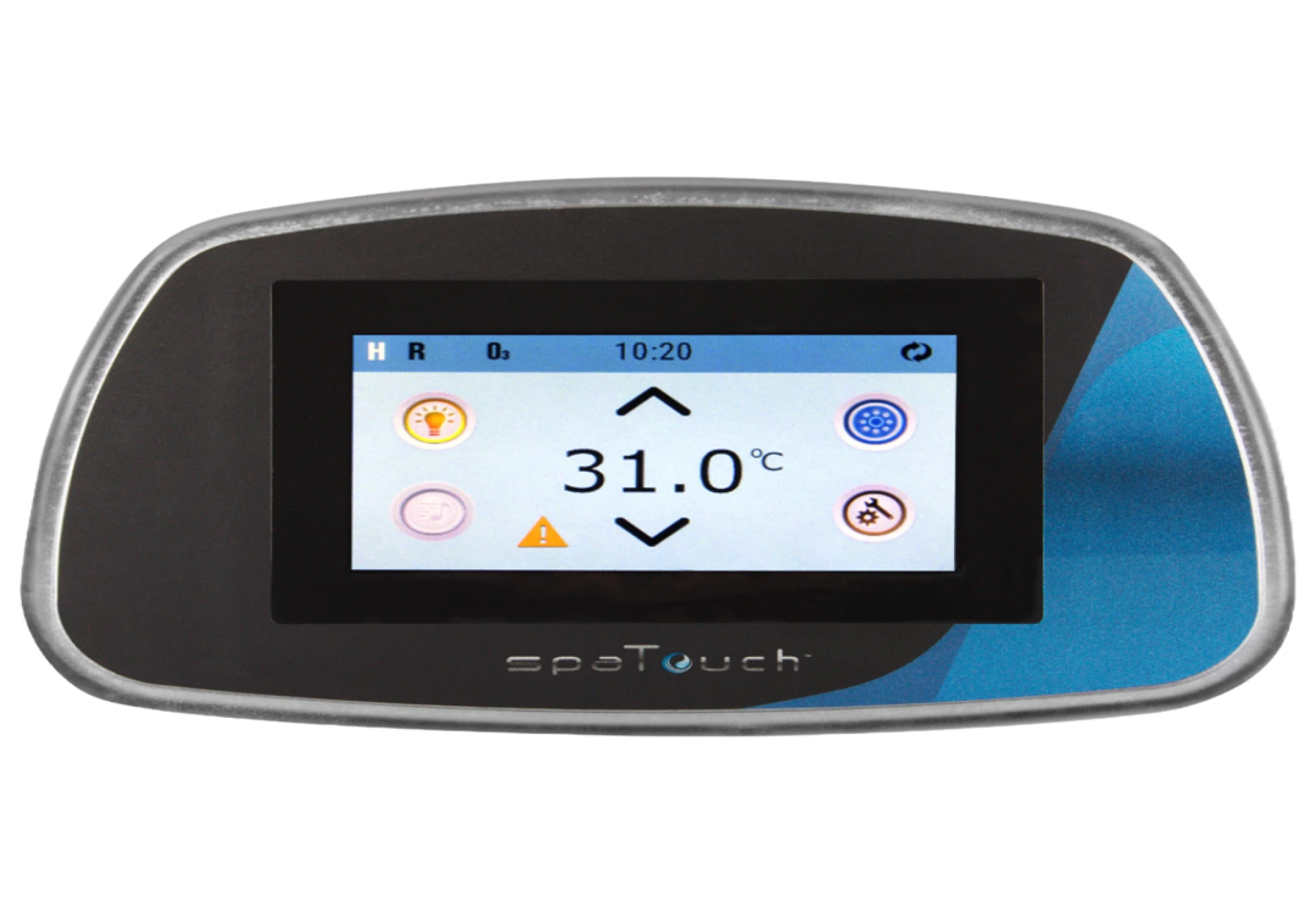

Keeping your Balboa Spa Touch Panel updated is essential for ensuring smooth performance, access to the latest features, and improved compatibility with your spa’s control systems. Firmware updates often include bug fixes, enhanced functionality, and improved user interfaces that make managing your spa easier and more efficient. In this guide, we’ll walk you through the process of updating your Balboa Spa Touch Panel firmware safely and effectively.
Why Update the Firmware?
Just like a smartphone or a computer, your spa’s touch panel runs on software—known as firmware—that controls how the system operates. Over time, manufacturers release updates to improve performance, fix glitches, and sometimes add new features. By keeping your panel’s firmware up to date, you ensure:
- Optimal system performance
- Bug fixes and security enhancements
- Compatibility with newer spa components
- Improved touchscreen responsiveness and display quality
Neglecting updates can lead to system errors, unresponsive controls, or outdated interfaces that might not function well with newer spa components.
Before You Begin
Before performing a firmware update, make sure you’re prepared:
- Check your model: Confirm the exact model of your Balboa touch panel (e.g., TP800, SpaTouch3, or SpaTouch2). Different models may have slightly different update methods.
- Power supply: Ensure your spa has a stable power connection. Interrupting power during the update can cause firmware corruption.
- Backup settings: Some updates may reset your preferences, so it’s a good idea to note down your temperature, filter cycles, and other custom settings.
- Get the correct firmware file: You’ll need the latest firmware version specific to your panel and control system. These are typically available through the manufacturer’s support section or provided by your spa dealer.
Step-by-Step Firmware Update Process
Step 1: Prepare a USB Drive
Use a clean USB flash drive formatted to FAT32. Avoid using drives with additional files or folders to prevent confusion during the update.
Step 2: Load the Firmware File
Download the appropriate firmware file to your computer, then copy it to the root directory of your USB drive (not inside any folder). Safely eject the USB drive once the file has been transferred.
Step 3: Power Off Your Spa
Completely power down your spa system by turning off the breaker or disconnecting it from the main power source. Wait at least 30 seconds to ensure the system fully powers off.
Step 4: Insert the USB Drive
Locate the USB port on the back or underside of your Balboa Spa Touch Panel. Insert the USB flash drive containing the firmware file.
Step 5: Power On and Begin Update
Restore power to the spa. The touch panel should automatically detect the firmware file and prompt you to begin the update. Follow the on-screen instructions carefully.
During the update, the screen may go blank or restart several times—this is normal. Do not remove the USB drive or power off the spa until the process completes.
Step 6: Verify the Update
Once the update is finished, the panel will restart and display the main home screen. Navigate to the settings menu to confirm that the firmware version has been updated successfully.
After the Update
After the firmware installation:
- Re-enter your spa settings if they were reset.
- Test all touch functions to ensure responsiveness.
- Verify that the temperature, lighting, and pump controls work correctly.
If any issues occur, perform a system reboot or a factory reset through the settings menu. In rare cases where the update fails, you may need to repeat the process with a freshly formatted USB drive.
Conclusion
Updating your Balboa Spa Touch Panel firmware is a straightforward but important task that enhances your spa experience. With regular updates, you’ll enjoy better reliability, faster response times, and access to the latest performance improvements. Always follow the correct update procedure, avoid interrupting power during installation, and verify that you’re using the proper firmware version for your specific model.
A little maintenance like this ensures your spa’s digital control system remains as relaxing and effortless as the soak itself.

























Sign in to leave a comment.