
Are you moving from Zimbra to Office 365 environment? Having important Zimbra briefcases on the system that you need to upload in Office 365? Wondering how to upload Zimbra briefcase in Office 365? Looking for an efficient technique to upload Zimbra briefcase in Office 365? No worries because in the section we will be providing a trouble-free support that will quickly upload Zimbra briefcase in Office 365 with emails, calendars, contacts, and other items.
In today’s world, every business requires the set-up of email service provider. And without a doubt, it is one of the most important necessity for organizations these days. So, those who frequently use email services makes sure to adapt the application that is affordable, resilient, secure, and easy to use.
What is Zimbra?
Zimbra or ZCS i.e. Zimbra Collaboration Suite is an open-source collaboration software suite that offers email, calendar, and contact management facility. The main aim of Zimbra is to work with different operating systems. It is known for delivering multiple email management services to users such as Zimbra Desktop, Zimbra Email Server and Zimbra Web Client. However, Zimbra Desktop is now discontinued but Zimbra Email Server and Zimbra Web Client are still in use by people across the globe. It has several features and some of them are written below:
Zimbra offers robust email platform that provides features like conversation view, tags, and email filters.Includes calendar that helps to schedule appointments, setting reminders, and allows to share calendars with others.Allow users to manage their large contacts, including importing/exporting contact information and sharing contact lists with others.Provides collaboration features like shared folders, document management, and task management.Designed to work seamlessly on mobile devices, with support for mobile-specific features such as push email and calendar notifications.Offers advanced security features like SSL/TLS encryption, anti-spam, anti-virus protection as well as two-factor authentication.Zimbra is available in both open-source and commercial versions. The open-source is completely free whereas the commercial version offers additional features and support options.
What is Zimbra Briefcase?
Briefcase manages the essential documents that are created in Briefcase as well as documents and images uploaded by users. With Briefcase, one can save files in your account and access them from any computer by logging in to your account.
Moreover, users can upload crucial documents, images, presentations, images, PDF files, etc. from the computer or through computer network. Users can even save attachments that are sent with the email messages to a briefcase folder. You can also create multiple briefcase folders to properly organize the files.
Why to Upload Zimbra Briefcase in Office 365?
Microsoft Office 365 is a Microsoft subscription-based productivity suite. It is a cloud version of Microsoft Office suite for desktop. So, users who are not using desktop version can utilize the cloud version and manage their data in an organized way on cloud. It holds the same applications that are available in MS Office i.e. Word, Spreadsheet, OneNote, etc. It has plenty of benefits and is suitable for all types of businesses. Therefore, organizations are moving to Office 365 from desktop-supported email programs. Some of its advantages are:
Stores files on cloud and thus users can access them from any location at any time.Provides secure environment by offering robust security measures such as two-factor authentication.Offers tools like Teams, Yammer, Outlook, etc. to keep up the communication direct and centralised.It is subscription-based and so users and organizations can purchase the suitable license.Equipped with collaborative tools that helps to share mailboxes, calendars, contacts, and edit documents in real time.How to Upload Zimbra Briefcase in Office 365?
With the help of CubexSoft Zimbra to Office 365 Migration Tool, users can directly upload Zimbra briefcase in Office 365 in a bulk at once. The software working is easy-to-use, simple, and cost-effective. Not only this, provides secure migration without affecting the data originality. Anyone can effortlessly operate the software and perform the migration without asking expert’s helps.
Moreover, the advanced and solid features of the tool will help users to access Zimbra briefcases in Office 365 according to their requirements. However, the software has a free version as well that allow users to test the process to upload Zimbra briefcase in Office 365 for free.
Working Steps to Upload Zimbra Briefcase in Office 365 -
Step 1. Launch and open Zimbra to Office 365 Migration Tool on Windows. Choose the required option from the given options i.e. Zimbra On-Premise Mailboxes & Zimbra Cloud Hosted Mailboxes and hit Next button.
Note. If you have chosen first option, then the tool will allow to migrate Zimbra TGZ files/folders into Office 365. But, if you have chosen second option, then you need to provide the login details of Zimbra Webmail and then you can perform the migration.
However, we have selected the first option and will migrate Zimbra briefcases of TGZ folders.
Step 2. Click Add File(S) button appearing on the top left of the menu bar.
Step 3. Another window will appear showing options i.e. Add TGZ Files, Add TGZ Folders and Add Extracted TGZ Items. You can select the required option and load TGZ files on the tool.
Step 4. The application will scan the selected files and list them on the software.
Step 5. You can even click on the required item and view its related files in a Preview window.
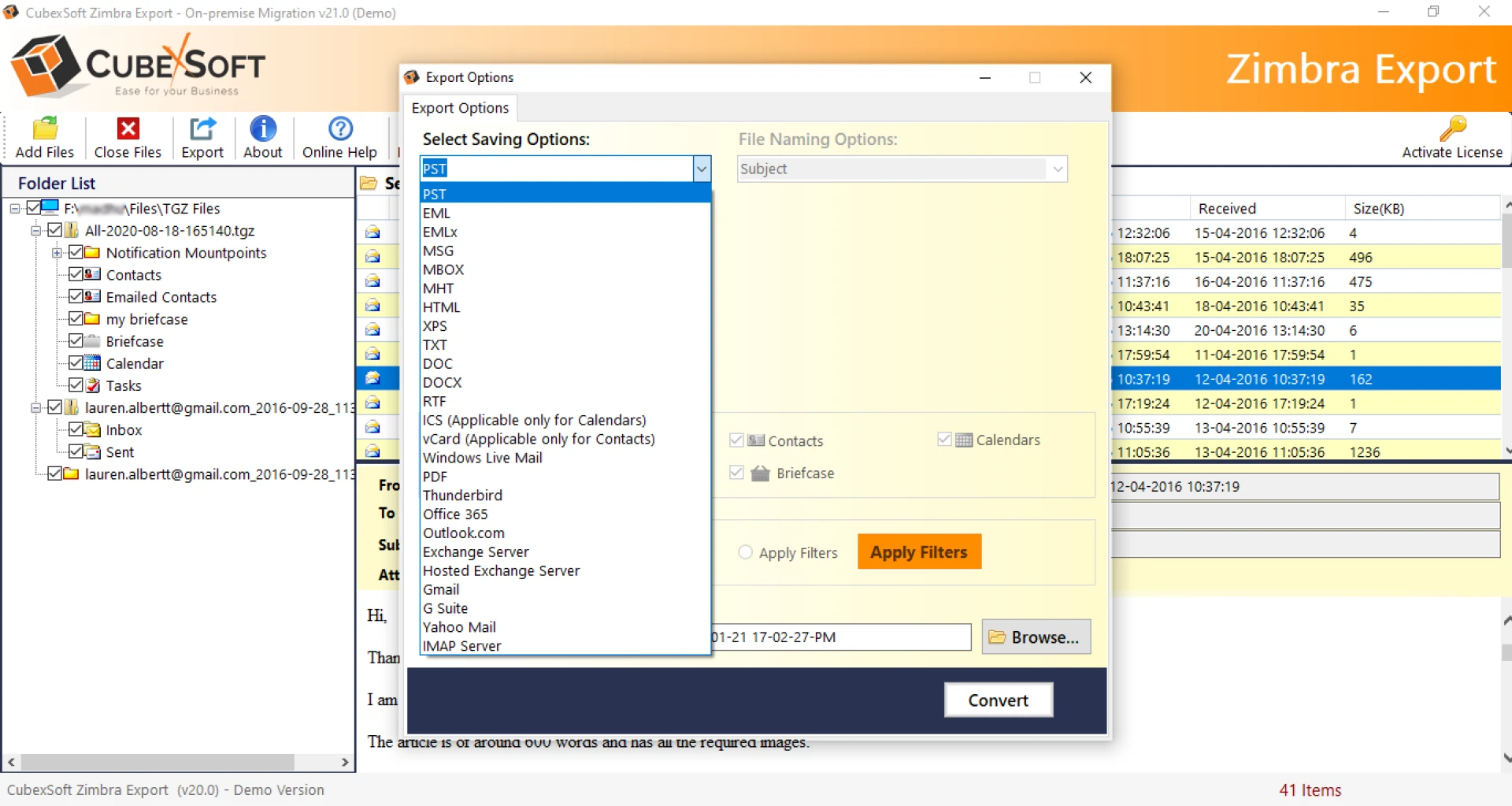
Step 6. Navigate to Export button and choose Office 365 as a saving type.
Step 7. Specify M365 email address in the required field. You can also select I am Admin option if you have administrator account.
Step 8. Set the other options of Office 365 as per your necessity and hit Connect button.
Step 9. The tool will open Microsoft login screen in which you need to provide the password of specified account.
Note. If single user details are provided, then the tool will right away start the migration. But, if admin details are provided, then the app will open Mailbox Mapping window in which you need to upload the CSV file of multiple users to implement the batch migration. The tool will read and list them on the software. Click Export and continue.
Step 10. The process will be live and when the migration is done, tool will show Conversion Successfully Completed message on the screen.
Click on OK after message appears and then go to Office 365 account to check the results. However, you will see that the content of all the files is accurate and even the data integrity will appear without modification.
Conclusion
The write-up here offered a solution to upload Zimbra briefcase in Office 365 environment. The CubexSoft Zimbra Converter is a safe procedure for transferring Zimbra briefcases into M365 account directly. The tool is easy to use and manage. Anyone can utilize it and perform the migration without wasting a single second. It has a free demo with the help of which users can test the entire procedure for free. They can even upload first 25 files from Zimbra to Office 365 free of cost.







![How To Upload A Font To Cricut [For All Devices]](https://writeupcafe.com/data/post/288783/7559db93a4f95d97d7547726ded50682.jpg.webp)

Sign in to leave a comment.