

When your HP printer suddenly stops printing and Windows displays an error message, it can be difficult to know where to start. The problem may come from the printer connection, driver, print queue, paper, ink, or Windows settings. In many cases, you can solve the issue with a few simple checks instead of replacing the printer. This guide explains the common causes and practical steps you can follow to get your printer working again.

What Does an HP Printer Error State Mean?
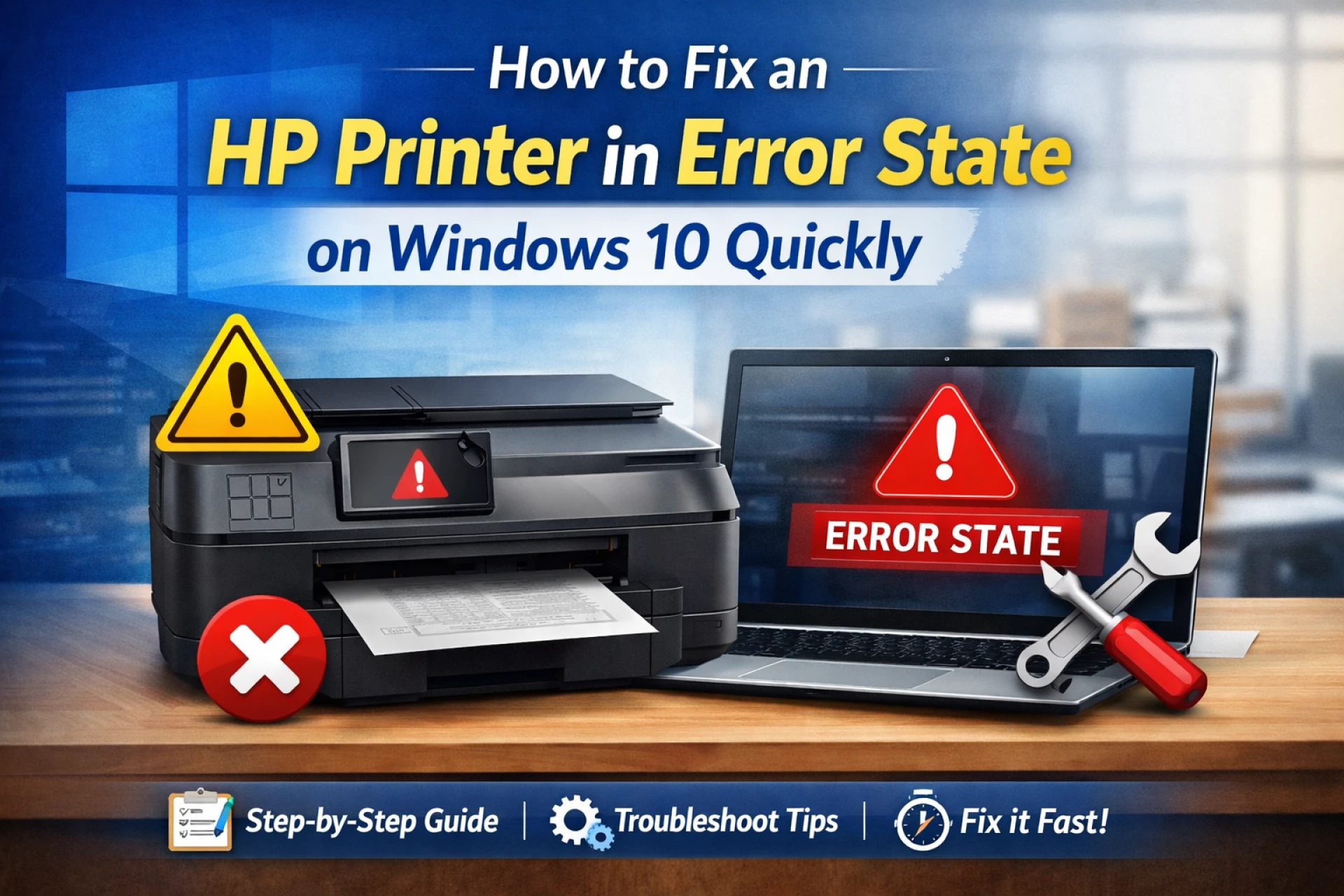
An HP printer in error state message generally means Windows cannot communicate properly with the printer or has detected a problem that prevents printing. The printer may appear online but still refuse to print, or it may show an error status in Windows.
Common causes include a loose USB connection, wireless network problems, outdated drivers, paper jams, low supplies, incorrect printer settings, or a stuck print job. Windows updates can also sometimes affect printer drivers or communication between the computer and printer.
Before changing advanced settings, check the printer itself. Make sure it is switched on, has paper, and doesn't display a physical error on its control panel.
Check the Printer Connection
First, check how your HP printer connects to your computer.
For a USB printer, disconnect the USB cable and reconnect it firmly. If possible, try another USB port on the computer. Avoid using a damaged cable or an unreliable USB hub.
For a wireless printer, confirm that the printer and computer are connected to the same Wi-Fi network. Restart the printer and router, then wait a few minutes for the wireless connection to become available.
If the printer was recently moved to another location or the Wi-Fi password changed, you may need to reconnect it to your network.
Restart the Printer and Computer
A simple restart can clear temporary communication problems. Turn off the printer and unplug it from the power outlet. Wait about 30 seconds before plugging it back in.
Restart your Windows computer as well. After both devices start again, try printing a test page.
If the printer works after restarting, the problem may have been caused by a temporary Windows service or communication issue.
Remove Stuck Print Jobs
A blocked print queue can prevent new documents from printing. Open Settings in Windows and go to Devices > Printers & scanners. Select your HP printer and open the print queue.
Cancel documents that are stuck in the queue. Wait until the list becomes empty and then send a new document to the printer.
If a document refuses to disappear, restart the Print Spooler service. Press Windows + R, type services.msc, and press Enter. Find Print Spooler, right-click it, and choose Restart.
This service manages print jobs in Windows, so restarting it can resolve many queue-related problems.
Run the Windows Printer Troubleshooter
Windows includes troubleshooting features that can identify common printer problems.
Open Settings, select Update & Security, and choose Troubleshoot. Depending on your Windows 10 version, you may find a printer troubleshooter under the available troubleshooting options.
Follow the instructions displayed on the screen. Windows may check printer settings, services, drivers, and communication problems.
After the troubleshooting process finishes, try printing again.
Check the Default Printer
Windows may send your document to the wrong printer if multiple printers are installed.
Go to Settings > Devices > Printers & scanners and select your HP printer. Choose Manage and check the available printer settings.
Make sure the correct HP printer is selected as the default device. Also check that Windows has not selected another printer, virtual printer, or old printer installation.
If you have replaced an older HP printer with a new model, removing the unused printer can also reduce confusion.
Update or Reinstall the HP Printer Driver
A damaged or outdated driver can stop Windows from communicating correctly with your printer. Drivers allow Windows to send printing instructions to the hardware.
Open Device Manager and look under Printers, Print queues, or Universal Serial Bus controllers, depending on how your printer is connected.
You can also remove the existing printer from Windows and add it again. If the problem continues, install the correct driver for your exact HP printer model and Windows version.
Avoid installing drivers from unknown websites. Using the correct software for your printer model helps prevent compatibility problems.
What About Windows 11?
Although this article focuses on Windows 10, similar problems can occur after upgrading to a newer operating system. Users searching for an HP printer in error state on Windows 11 should also check the connection, print queue, default printer, and driver compatibility.
Windows 11 uses different settings and menus, but the basic troubleshooting process remains similar. If the printer worked correctly before a Windows upgrade, reinstalling the appropriate driver may help restore communication.
Check for Paper and Hardware Problems
Software troubleshooting will not solve a physical printer problem. Open the printer carefully and check for small pieces of paper around the paper path.
Look at the printer display for messages about paper, ink, toner, covers, cartridges, or other hardware conditions.
Make sure the paper tray is loaded correctly and that the paper guides are positioned properly. Remove overloaded or damaged paper and try again.
If your HP printer uses cartridges, make sure they are installed correctly. For laser printers, check that the toner cartridge is seated properly.
Reset the Printer Connection
If a wireless printer continues showing an error, removing and adding the printer again may help.
In Windows 10, open Settings > Devices > Printers & scanners. Select the affected printer and choose Remove device. Restart the computer and then add the printer again.
For a wireless setup, follow the printer's network setup instructions carefully. The printer should connect to the same network used by the computer.
This process can create a fresh connection and remove an outdated printer configuration.
How to Fix the Problem on Windows 11
If you are using Windows 11 and searching for how to fix a printer in an error state in Windows 11, start with the same basic checks: restart both devices, verify the connection, clear the queue, and check the printer driver.
You can open Settings > Bluetooth & devices > Printers & scanners to manage your printer. Select the device and review its status and available options.
If the printer was recently updated or reinstalled, make sure the correct model is selected rather than an older printer entry.
Troubleshooting on a Mac
Mac users can experience similar printer communication problems. If you see HP Printer in Error State on Mac, first check the printer's power and network connection.
Open System Settings > Printers & Scanners and select your HP printer. Review its status and remove the printer if necessary. You can then add it again using the available printer setup options.
For wireless printing, confirm that the Mac and printer are connected to the same network.
When Basic Troubleshooting Does Not Work
If the error continues after checking connections, clearing the queue, reinstalling the printer, and updating the driver, the issue may require additional troubleshooting.
The phrase hp printer in error state how to fix can cover several different problems, so there is no single solution for every printer. The exact HP model, connection method, Windows version, and error message can help identify the cause.
You should also check whether the printer works from another computer. If it prints successfully from another device, the problem may be related to the original computer's settings or drivers.
Final Thoughts
Printer errors can often be resolved by following a logical troubleshooting process. Start with simple checks such as power, paper, cables, Wi-Fi, and the print queue. Then move to Windows settings, printer drivers, and reinstalling the printer if necessary.
If your HP Printer in error state on Windows 10 and the problem continues after these steps, check the exact error displayed by the printer or computer. Recording the printer model and error message can make further troubleshooting much easier.
For additional printer setup, connection, driver, and troubleshooting assistance, you can also visit Printer IT Help for practical support and guidance.



























Sign in to leave a comment.