

A Complete Guide for Businesses
iPads are widely used in retail stores, restaurants, schools, healthcare facilities, hotels, events, and businesses. However, when an iPad is shared with customers, employees, or visitors, unrestricted access can create security and productivity problems.
iPad kiosk software helps solve this problem by turning an iPad into a dedicated-purpose device. Instead of allowing users to access every setting, application, or website, businesses can control exactly what the iPad can do.
With the right iPad kiosk solution, organizations can restrict unwanted apps, control web access, lock the device to a specific application, remotely manage settings, and improve overall device security.
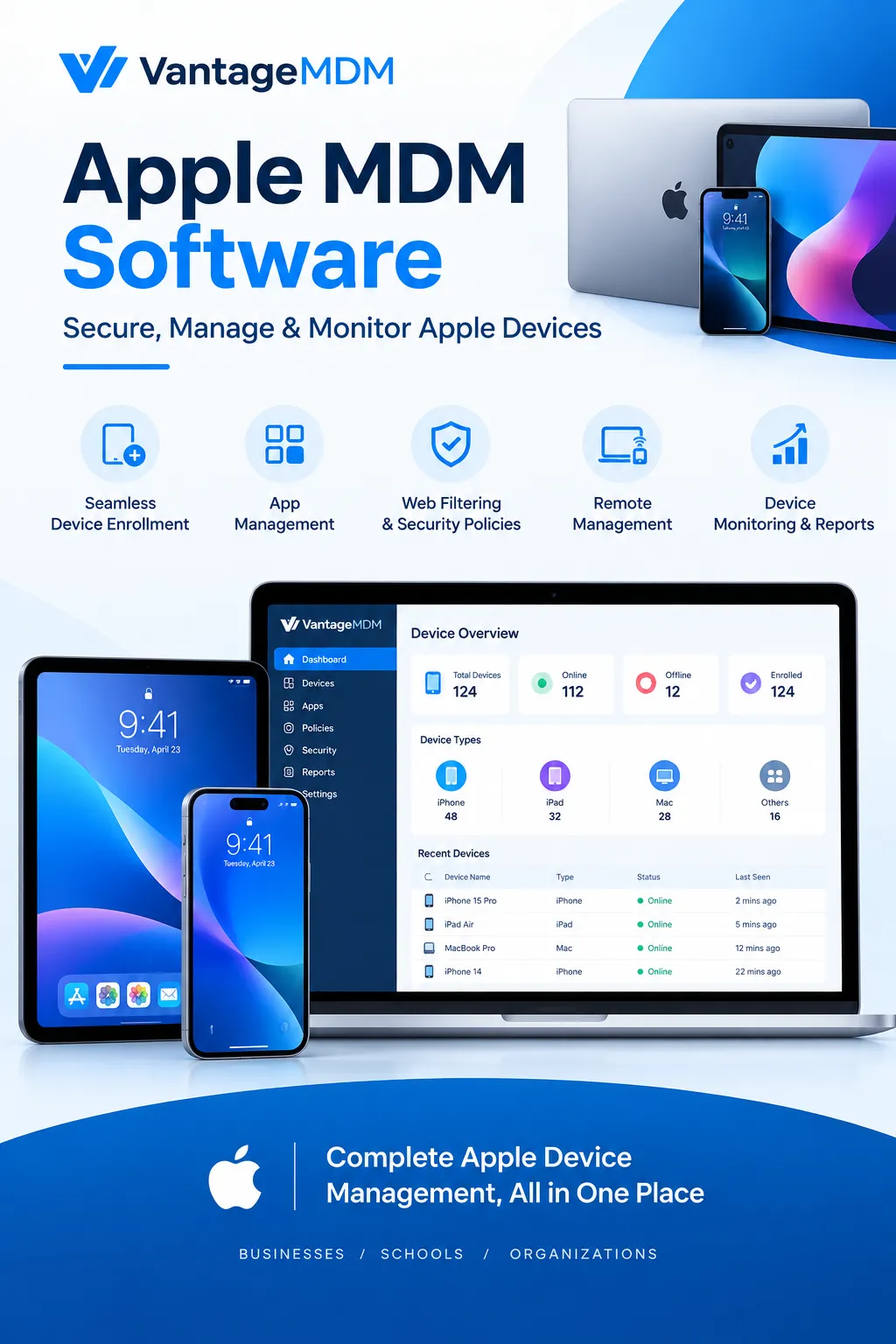
What is iPad Kiosk Software?
iPad kiosk software is a device management solution that allows businesses to lock an iPad into a specific application, website, or set of approved functions.
For example, a restaurant can use an iPad as a self-service ordering kiosk. A retail store can use an iPad for product browsing, while a school can provide students with devices that only allow access to approved educational applications.
Without kiosk software, users may be able to change settings, install applications, browse unrelated websites, or access personal information. Kiosk mode limits these activities and keeps the device focused on its intended purpose.
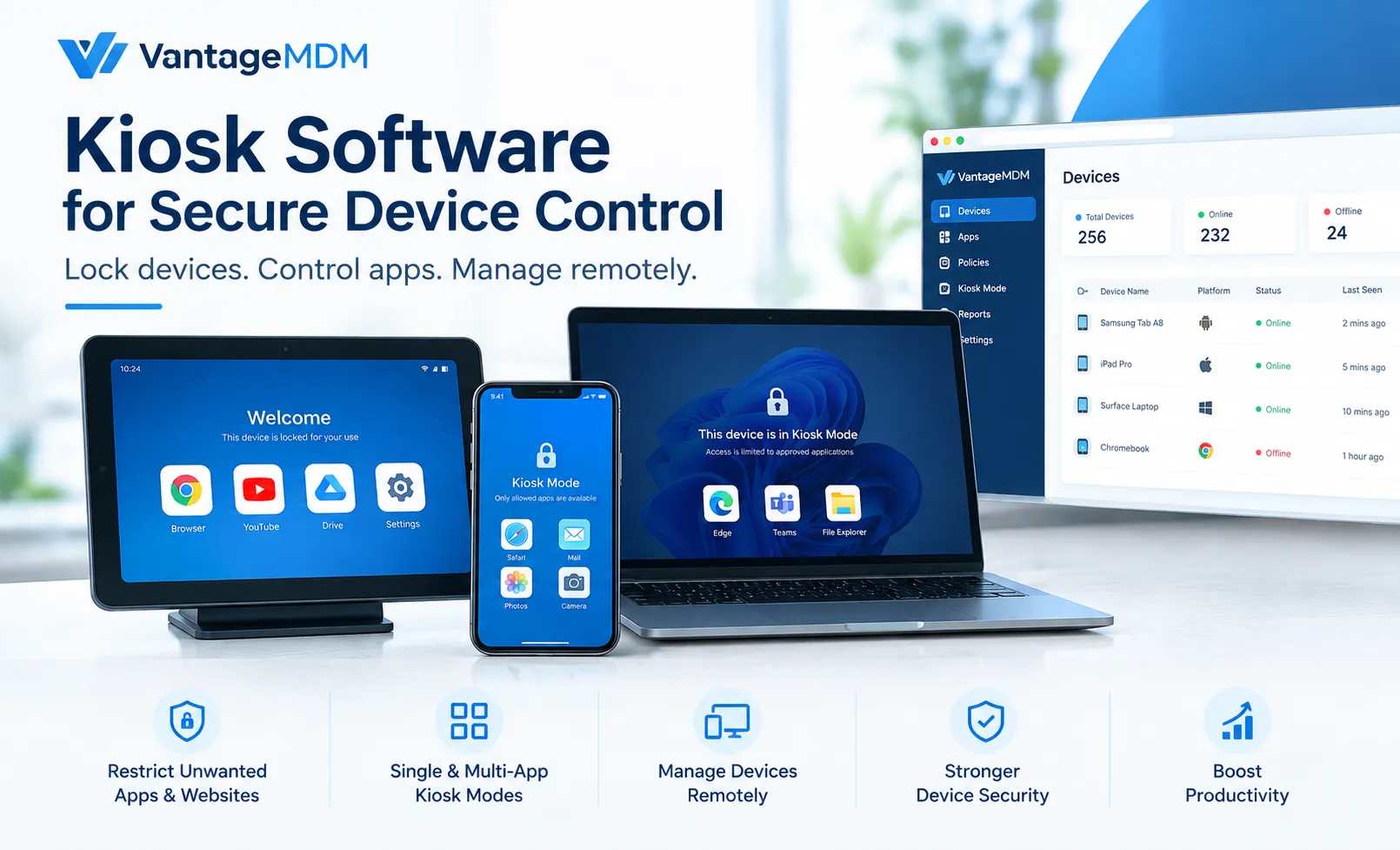
Depending on the solution, businesses can use single-app kiosk mode or multi-app kiosk mode.
- Single-app kiosk mode: Locks the iPad to one approved application.
- Multi-app kiosk mode: Allows users to access several selected applications while restricting everything else.
- Web kiosk mode: Limits the device to specific websites or web-based applications.
An iPad kiosk can therefore become a secure, purpose-built device rather than a general-purpose tablet.
Key Features of iPad Kiosk Software
The features available can vary between kiosk management solutions, but a reliable platform should provide several important controls.
Single-App and Multi-App Kiosk Mode
Single-app mode is useful when an iPad has one specific purpose. For example, an organization may want a device to run only a check-in application.
Multi-app mode provides more flexibility. Businesses can allow access to several approved applications while blocking everything else.
Application Management
Administrators can control which applications are available on managed iPads. Unapproved or unnecessary applications can be restricted to reduce distractions and security risks.
Application management is especially useful for schools, retail businesses, healthcare organizations, and companies managing shared devices.
Website Restrictions
A kiosk solution can restrict access to websites that are not required for the device's purpose.
For example, a business using an iPad for customer surveys can allow access only to the survey platform instead of providing unrestricted internet access.
Remote Device Management
Managing hundreds of iPads manually can take considerable time. Remote management allows administrators to apply configurations, update settings, monitor devices, and troubleshoot problems from a centralized dashboard.
This is particularly valuable for organizations with devices distributed across multiple locations.
Security Policies
iPad kiosk software can help enforce security policies across managed devices. Administrators can control settings and restrict actions that could compromise the device.
Centralized policies also help organizations maintain consistent configurations across a large fleet of iPads.
Device Monitoring
Administrators may need to know whether devices are online, properly configured, or experiencing issues.
Device monitoring provides visibility into managed iPads and helps IT teams identify problems without physically checking every device.
Benefits of Using iPad Kiosk Software
Using an iPad as a kiosk provides more than just restricted access. It can improve security, simplify administration, and create a better user experience.
1. Better Device Security
One of the biggest advantages of kiosk software is improved security.
Users cannot freely access system settings, install unauthorized applications, or use features that have been disabled by the administrator. This reduces the possibility of accidental or unauthorized changes.
2. Improved Productivity
When an iPad is used by employees, limiting access to unnecessary applications and websites can help keep users focused on their assigned tasks.
For example, an employee using an iPad for inventory management can access the inventory application without being distracted by unrelated services.
3. Easier Device Management
Managing devices individually becomes difficult as an organization grows. A centralized iPad management solution allows administrators to manage multiple devices from one location.
Policies can be configured once and applied to multiple managed devices.
4. Reduced IT Workload
Remote management reduces the need for IT staff to physically visit each device.
Administrators can make changes remotely, monitor device status, and manage configurations through a centralized platform.
5. Consistent User Experience
A kiosk environment ensures that users see the same approved applications and interface each time they use the device.
This consistency is important for customer-facing kiosks, self-service systems, check-in stations, and digital signage.
6. Protection Against Unauthorized Changes
Shared devices can be vulnerable to unwanted changes. A user might accidentally modify settings or remove an important application.
Kiosk restrictions help prevent these situations by limiting what users can access.
7. Better Customer Engagement
Businesses can use iPad kiosks for surveys, product catalogs, ordering, registration, check-in, feedback forms, and interactive experiences.
The device becomes easier for customers to understand because only the necessary functions are available.
Top iPad Kiosk Software Solutions in 2023
In 2023, organizations had several options for managing iPads and deploying kiosk environments. The right choice depended on device requirements, business size, security needs, and the applications being used.
Popular categories included Apple-focused MDM platforms, enterprise device management solutions, and kiosk management software.
When evaluating an iPad kiosk software solution, businesses should look beyond the basic ability to lock an application. Important considerations include remote management, application control, web filtering, security policies, reporting, scalability, and ease of deployment.
Organizations should also consider whether they need to manage other platforms alongside iPads. A company with Android, Windows, macOS, and Chromebook devices may benefit from a cross-platform MDM solution rather than using separate management systems.
VantageMDM provides centralized device management capabilities designed to help organizations manage different types of devices from one platform. Businesses can use its management features to control applications, enforce policies, manage devices remotely, and deploy kiosk environments.
Because software capabilities and product offerings change over time, businesses should evaluate the current features, compatibility, pricing, and support available before selecting a solution.
How to Choose the Right iPad Kiosk Software for Your Business
Choosing the right kiosk software depends on how your organization plans to use its iPads.
Start by identifying the primary purpose of the device. Is it being used for customer check-in, digital signage, education, point-of-sale activities, surveys, product browsing, or another task?
Once the use case is clear, compare solutions based on the following factors.
Device Compatibility
Make sure the software supports the iPad models and iOS or iPadOS versions used by your organization.
Kiosk Mode Options
Check whether the platform supports single-app, multi-app, and web kiosk configurations if these features are important to your business.
Remote Management
Look for centralized management capabilities that allow administrators to manage devices without physically accessing them.
Application Control
The software should provide sufficient control over approved and restricted applications.
Web Filtering
If users need internet access, website filtering can help ensure that they only visit appropriate or business-related websites.
Security
Review the available security policies and administrative controls. A good kiosk solution should help prevent unauthorized access and unwanted device changes.
Scalability
A solution that works for five devices may not be suitable for 500 devices. Consider how easily the platform can scale as your organization adds more iPads.
Reporting and Monitoring
Device status, activity information, and management reports can help IT teams maintain visibility across their device fleet.
Ease of Use
A complicated management system can increase the workload for administrators. Choose a platform with a clear interface and straightforward device management workflows.
Setting Up Your iPad Kiosk: A Step-by-Step Guide
The exact setup process depends on the kiosk software and Apple's device management capabilities. However, the general process usually follows these steps.
Step 1: Identify the Kiosk Purpose
Decide exactly what the iPad should be used for.
For example:
- Customer check-in
- Self-service ordering
- Digital signage
- Employee applications
- Product catalogs
- Surveys
- Education
- Event registration
A clear purpose makes it easier to determine which restrictions are required.
Step 2: Prepare the iPad
Update the device and make sure it is ready for enrollment into your device management platform.
Remove unnecessary data and configure the device according to your organization's deployment requirements.
Step 3: Enroll the Device
Enroll the iPad into your selected MDM software. Enrollment allows administrators to manage the device remotely and apply centralized policies.
Step 4: Configure Kiosk Mode
Select the appropriate kiosk configuration.
If the iPad only needs one application, choose a single-app configuration. If users need access to multiple approved applications, configure multi-app kiosk mode.
Step 5: Configure Restrictions
Apply restrictions for settings, applications, websites, and other device functions.
Only provide users with access to features required for the kiosk's purpose.
Step 6: Test the Device
Before deploying the iPad, test the kiosk configuration.
Check whether:
- The correct application opens.
- Restricted applications remain inaccessible.
- Users cannot change important settings.
- Required websites work properly.
- The device reconnects correctly after restarting.
Step 7: Deploy the Kiosk
Once testing is complete, place the iPad in its intended location.
For public-facing kiosks, consider using a secure stand or enclosure to protect the device from accidental damage or unauthorized removal.
Step 8: Monitor Remotely
Continue monitoring the device after deployment. Remote management can make it easier to identify problems and update configurations when required.
Best Practices for iPad Kiosk Deployment
A successful kiosk deployment requires more than installing software. Following a few best practices can improve security and reliability.
Use the Principle of Least Access
Only provide users with the applications and features they actually need.
The fewer unnecessary functions available, the easier it is to maintain a secure kiosk environment.
Keep iPadOS Updated
Software updates can provide security improvements, bug fixes, and compatibility enhancements. Establish a process for testing and deploying updates.
Use Strong Administrative Controls
Protect administrator accounts and limit management access to authorized IT personnel.
Test Before Large-Scale Deployment
If you are managing hundreds of iPads, test the configuration on a small group of devices before applying it across the entire fleet.
Monitor Device Health
Regular monitoring can help identify offline devices, configuration problems, or other issues before they affect users.
Plan for Lost or Damaged Devices
Organizations should have a procedure for handling lost, stolen, or damaged devices. Remote management can help administrators respond quickly when a managed device is no longer under normal control.
Review Kiosk Policies Regularly
Business requirements change over time. Review applications, websites, restrictions, and security policies periodically to ensure the kiosk configuration remains appropriate.
Future Trends in iPad Kiosk Software
The use of tablets as dedicated business devices is expected to continue evolving as organizations adopt more self-service and digital workflows.
One important trend is the increasing use of cloud-based device management. Cloud management allows administrators to control devices from centralized dashboards without relying on local infrastructure.
Another trend is the growing demand for remote device management. Businesses with devices distributed across multiple locations need tools that allow IT teams to troubleshoot and manage devices without being physically present.
Automation is also becoming increasingly important. Organizations want to reduce repetitive administrative tasks such as device enrollment, application deployment, configuration, and policy management.
Businesses are also combining kiosk devices with technologies such as digital signage, self-service applications, customer check-in systems, payment solutions, and interactive displays.
As these use cases grow, iPad kiosk software will continue to focus on three major areas: security, centralized management, and user experience.
Final Thoughts
iPad kiosk software provides businesses with an effective way to turn standard iPads into secure, purpose-built devices. Instead of giving users unrestricted access, organizations can control applications, websites, settings, and device functionality.
Whether you need an iPad for customer check-in, self-service ordering, digital signage, education, retail, healthcare, or employee workflows, kiosk management can make deployment easier and more secure.
For organizations managing multiple device types, a centralized MDM solution such as VantageMDM can provide broader device management capabilities alongside kiosk functionality. The best solution ultimately depends on your device fleet, business requirements, security policies, and deployment scale.
By choosing the right kiosk software and following proper deployment practices, businesses can improve device security, reduce administrative work, and create a more reliable experience for employees and customers.
Frequently Asked Questions
What is iPad kiosk software?
iPad kiosk software allows organizations to restrict an iPad to specific applications, websites, or functions. It is commonly used for self-service, check-in, education, retail, and customer-facing applications.
Can I lock an iPad to one application?
Yes. A suitable MDM or kiosk management solution can configure an iPad for single-app kiosk use, depending on the supported Apple management capabilities.
Can iPad kiosk software block websites?
Yes. Many device management solutions provide web filtering and restriction capabilities that can help limit access to unwanted or unauthorized websites.
Can I manage iPads remotely?
Yes. MDM software allows administrators to manage enrolled devices remotely, including applying policies, managing applications, and monitoring device status.
Is iPad kiosk software useful for businesses?
Yes. Businesses can use iPad kiosks for customer check-in, surveys, product browsing, ordering, digital signage, employee workflows, and many other dedicated tasks.
What is the difference between MDM and kiosk software?
MDM focuses on centralized device management, security, applications, policies, and monitoring. Kiosk software focuses specifically on restricting a device so it can perform a dedicated purpose. Many modern MDM platforms include kiosk management features.
Can one MDM platform manage different device types?
Some MDM platforms support multiple operating systems from a centralized dashboard. This can be useful for organizations managing combinations of iPads, iPhones, Android devices, Windows PCs, Macs, and Chromebooks.
















Sign in to leave a comment.