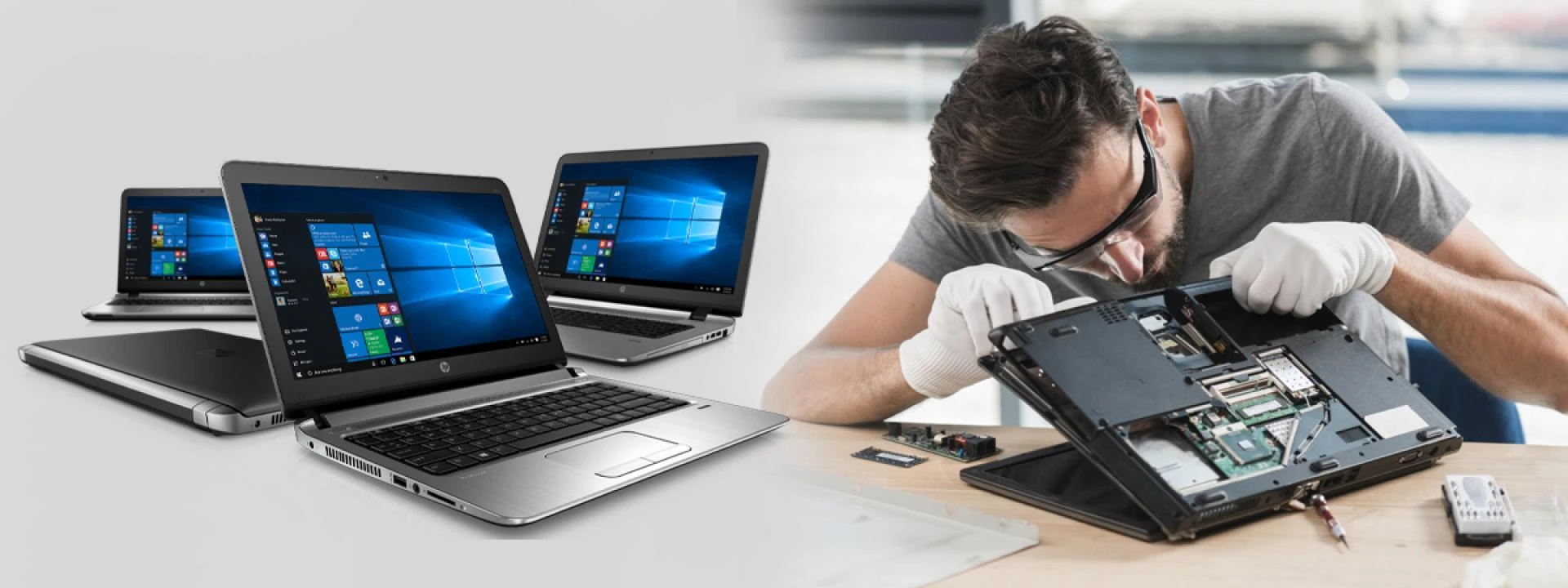

With the age of the computer today, laptops are employed for work, study, and entertainment. As with any technology, they will soon be subject to having problems. Software issues, hardware failures, or simple wear and tear can happen. Knowing how to fix these problems can save you both money and time. Here are common laptop problems and solutions to keep your computer running well.
1. Slow Performance
Symptoms:
• Programs take longer to open.
• System takes a long time to change between programs.
• Booting and shutdown is slower than usual.
Causes:
• Packed junk files or redundant software cached.
• Insufficient disk space or RAM.
• Malware infections.
Solutions:
• Clean Your Drive: Get rid of unwanted files, uninstall software you don’t use, and empty the recycle bin. Disk cleanup software like CCleaner may come in handy.
• Hardware Upgrade: Upgrade your hard disk to an SSD for better performance. Also, consider adding more RAM if your laptop allows it.
• Malware Scan: Use a trusted antivirus to run a full system scan. This helps remove unwanted programs that slow your system down.
2. Overheating
Symptoms:
• Laptop extremely hot while operating.
• Loud fans or continuously running at maximum speed.
• Random device shutdown.
Causes:
• Dust in cooling system.
• Jammed air vents from a lack of air flow.
• Failing fans or thermal paste.
Repairs:
- Clean Internal Parts: Remove the laptop casing. Use compressed air to blow dust from fans and vents. Be careful not to damage delicate parts.
• Improve Ventilation: Position your laptop on a flat, hard surface for proper airflow. You may want to purchase a cooling pad.
- Thermal Paste Replacement: If overheating keeps happening, change the thermal paste between the heat sink and CPU/GPU. It's a tricky job best done by pros, unless you have some hardware repair experience.
3. Battery Issues:
Symptoms:
• Laptop cannot hold charge for long.
• Battery gauge drops quickly or hangs.
• Device runs only when it is plugged in.
Causes:
• Battery wear or overuse with age.
• Faulty charging adapter or port.
• Malfunction of communication between battery and operating system due to software.
Solutions:
- Calibrate the Battery: Fully charge and drain your battery. Then, let it run out to zero two or three times. This helps restore power management.
- Replace the Battery: Swap out the battery for a new one from the laptop or dealer if calibration fails.
• Test Charging Cables: Inspect charging port and charging adapter for damage. Laptop repair Dubai or replace damaged components when necessary.
4. Unresponsive Keyboard:
Symptoms:
• No input keys or incorrect input keys.
• Entire keyboard no response. Causes:
• Spilling or debris physical damage.
• Conflict software or drivers.
• Hardware in connections problems. Solutions
• Clean the Keyboard: Canned air may be employed to remove crumbs or debris stuck between keys. If liquid spills on your laptop, turn it off right away. Remove the battery if you can. Let it dry completely before using it again.
- Update or reinstall drivers. Look for driver updates in Device Manager on Windows or System Preferences on macOS. You can also reinstall the keyboard driver.
• Keyboard Replacement: Keyboard replacement when it fails may be required. This should be readily available at relatively low cost.
5. Screen Issues:
Symptoms:
• Screen flickers or displays unusual color.
• Black screen though laptop is in on position.
• Cracks and visible damage to the screen.
Causes:
• Loose or damaged screen connectors.
• Failure of graphics hardware or driver.
• Physical damage caused by drops or shocks. Solutions:
• Test Connections: Disconnect and test loose component connections.
• Update Drivers: Outdated or corrupted drivers can lead to display problems. Update them from the manufacturer’s site.
• Replace the Screen: If your screen is cracked or broken beyond repair, get a replacement panel that fits exactly. If in doubt, have a professional do it.
6. Wi-Fi Connection Problems:
Symptoms
• Unable to connect to Wi-Fi networks.
• Frequent disconnections or sluggish internet speed.
Causes:
• Outdated wireless drivers.
• Network settings improperly set.
• Damaged hardware with the antenna or Wi-Fi card.
Solutions
- Update Network Drivers: Download the latest drivers from your laptop's Device Manager or the maker's website.
- Reset Network Settings: Use Command Prompt on Windows or Terminal on macOS. This will restore TCP/IP settings and clear the DNS cache.
• Check the Wi-Fi Card: If you think there’s a hardware issue, take apart the laptop. Look at the Wi-Fi card and antenna connection.
7. Crashes and Software Errors:
Symptoms:
• System program crashes or freezes continuously.
• Blue Screen of Death (BSOD) on Windows.
• System won’t start.
Causes:
• Outdated or defective software.
• Program incompatibility.
• Faulty storage devices or memory.
Solutions
- Update Software: Keep your operating system and apps up to date. This helps fix bugs and vulnerabilities.
• Reinstall Faulty Apps: Reinstall any buggy apps that constantly crash.
- Run Diagnostics: Use tools like Windows Memory Diagnostic or Disk Utility on a Mac to check for hardware issues.
8. Touchpad failure:
Symptoms:
• The cursor fails to move or act erratically.
• Multi-touch gesture fail.
Causes:
• grime or residue on the touchpad.
• Outdated or damaged touch drivers.
• Hardware issues with the touch plate itself. Solutions:
• Clean the touch plate: Use a microfiber cloth and a little isopropyl alcohol to wipe the surface.
• Update drivers: You can update drivers through system settings or the manufacturer’s website.
• External mouse: If the problem continues, try using an external mouse. This can be a quick fix while you troubleshoot.
9. Sound problems:
Symptoms:
• No sound from speakers or headphones.
• distorted sound or low quality.
Causes:
• Sound drivers are outdated or broken.
• Error speakers or headphone contact.
• Incorrect audio settings.
Solutions:
• Check Settings: Ensure the right audio device is set as default in system settings.
• Update drivers: Visit the manufacturer’s website to download the latest audio drivers.
- Test hardware: Connect external speakers or headphones. This helps find out if the issue is with the laptop’s internal hardware.
When to Hire a Professional:
Most laptop issues can be fixed at home. However, here are cases where you need a professional's help:
• Hardware repair that requires special tools or expertise.
• Situations that involve critical data recovery.
• Recurring problems that need constant troubleshooting attempts.
Never equate the cost of repair to the value of the laptop. Replacing the laptop may be more economical than fixing it.
Conclusion:
Fixing common laptop issues early can help your device last longer and work better. Keep in mind that a little goes a long way in keeping your laptop healthy.

























Sign in to leave a comment.