
Android devices are powerful tools that can be tailored to a variety of use cases, from personal use to business operations. One of the most specialized and useful configurations for businesses is the Kiosk Mode. This mode restricts Android devices to a single application or a set of specific functionalities, making it ideal for point-of-sale systems, digital signage, self-service kiosks, and more. With the right tools, such as Vantage MDM, setting up and managing Kiosk Mode on Android becomes straightforward and effective.
What is Kiosk Mode on Android?
Kiosk Mode on Android locks the device into a single app or restricted set of features, effectively turning the device into a dedicated tool for a specific purpose. It eliminates distractions, prevents unauthorized access, and ensures that the device remains focused on its intended function. Businesses across industries, from retail to healthcare, use Kiosk Mode to improve productivity and streamline operations.
Benefits of Kiosk Mode
- 🔒 Enhanced Security: By restricting access to a single app or predefined set of apps, Kiosk Mode minimizes the risk of unauthorized usage.
- 🕹️ Improved User Experience: Simplifies the interface by removing unnecessary apps and distractions.
- ⚙️ Device Management: Ensures that devices are used solely for their intended purpose, reducing maintenance and support needs.
- ⏳ Increased Productivity: Limits activities to mission-critical applications, ensuring that users stay focused.
- 💰 Cost Efficiency: Reduces the likelihood of misuse, damage, or software issues, cutting down on repair and replacement expenses.
Use Cases for Kiosk Mode
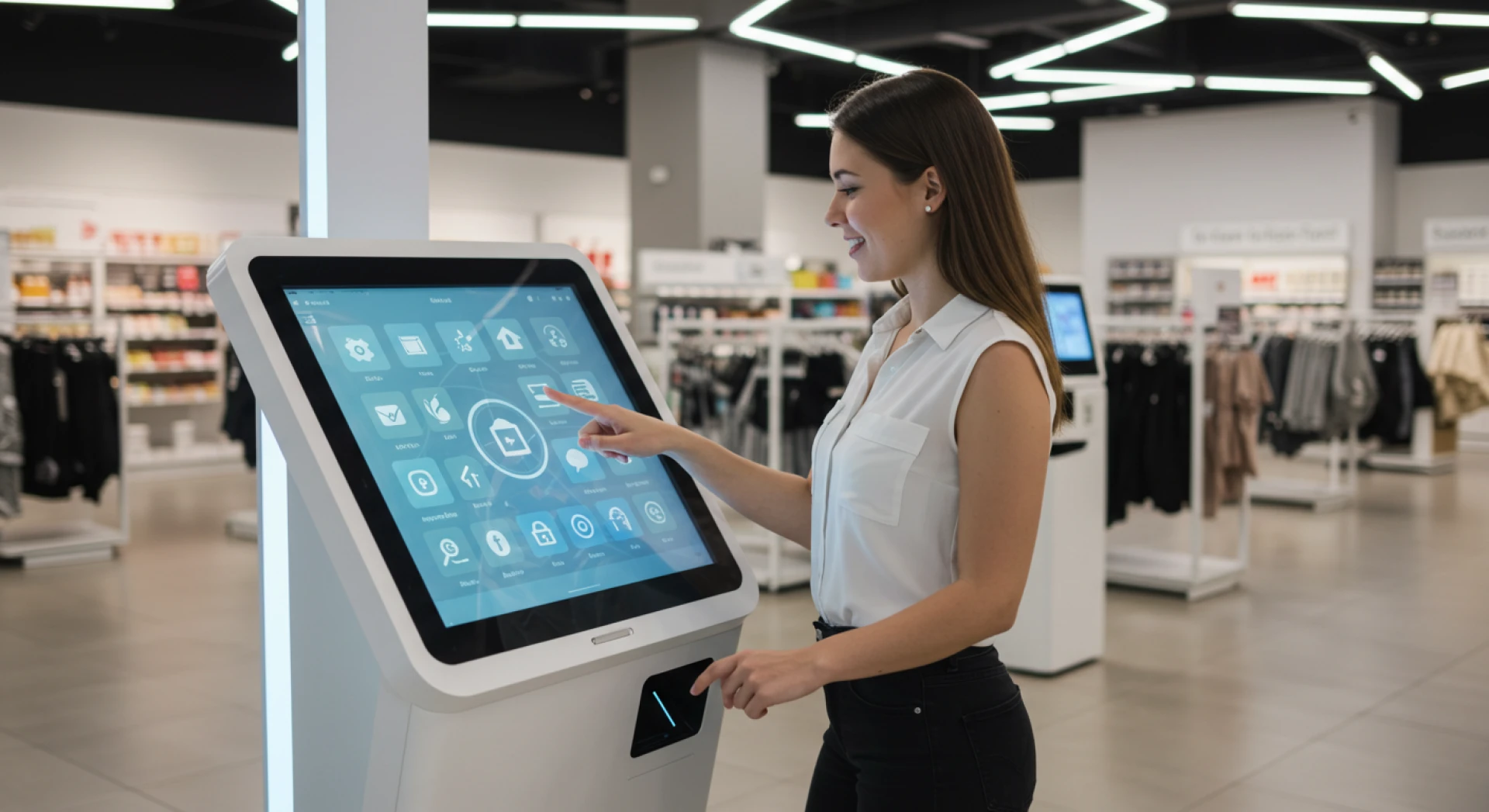
- Retail: Point-of-sale systems, interactive catalogs, and customer feedback stations.
- Healthcare: Patient check-in systems and information kiosks.
- Education: E-learning terminals and test-taking stations.
- Logistics: Barcode scanners and inventory management tools.
- Hospitality: Self-check-in/check-out kiosks and guest feedback terminals.
Setting Up Kiosk Mode on Android Using Vantage MDM
The process of configuring Kiosk Mode on Android devices varies slightly depending on the tools used. With Vantage MDM, the setup is seamless and ensures robust management capabilities. Follow these steps to get started:
Step 1: 🔑 Enroll Your Device
Before configuring Kiosk Mode, enroll the Android device into the Vantage MDM platform. This ensures that the device can be managed remotely and that the necessary policies can be applied.
- Download the Vantage MDM app from the Google Play Store.
- Install the app and sign in with your administrator credentials.
- Follow the on-screen instructions to enroll the device into the Vantage MDM platform.
Step 2: ⚙️ Configure Kiosk Mode Settings
Once the device is enrolled, you can configure Kiosk Mode:
- Log in to the Vantage MDM dashboard.
- Navigate to the "Device Policies" section and select "Kiosk Mode."
- Choose the type of Kiosk Mode:
- Single-App Mode: Restricts the device to a single application.
- Multi-App Mode: Allows access to a specific set of apps.
- Specify the app(s) to be enabled in Kiosk Mode.
- Customize additional settings, such as:
- Blocking notifications.
- Disabling hardware buttons (e.g., volume, power).
- Setting a custom home screen layout.
Step 3: ➡️ Deploy the Configuration
After finalizing the settings, deploy the configuration to the enrolled device:
- Select the target device(s) from your device list in the Vantage MDM dashboard.
- Apply the Kiosk Mode policy.
- The device will automatically restart or refresh to apply the new settings.
Step 4: 🔄 Test and Optimize
Once Kiosk Mode is active:
- Test the device to ensure that the selected apps and features work as intended.
- Verify that all restricted functions (e.g., app switching, notifications) are disabled.
- Make adjustments in the Vantage MDM dashboard if needed.
Advanced Features and Tips

To make the most of Kiosk Mode on Android, consider leveraging the advanced features provided by Vantage MDM:
1. 🔄 Remote Monitoring and Support
Monitor the device status and usage remotely. Vantage MDM allows administrators to view real-time data and provide support if users encounter issues.
2. 🎨 Custom Branding
Enhance user experience by customizing the device interface with your brand's logo and colors. This is especially useful for customer-facing kiosks.
3. ⏳ Scheduled Updates
Keep your devices secure and up-to-date by scheduling automatic updates for apps and system software during off-hours.
4. 🏢 Geofencing
Restrict Kiosk Mode functionality to specific locations using geofencing. This ensures that devices are only operational within designated areas.
5. ⚡ Battery Management
Optimize device performance by monitoring battery usage and setting power-saving configurations.
Troubleshooting Common Issues
Device Not Entering Kiosk Mode
- Ensure that the device is properly enrolled in Vantage MDM.
- Verify that the Kiosk Mode policy has been applied to the correct device.
- Check for software updates and ensure the device firmware is compatible.
User Exiting Kiosk Mode
- Disable hardware buttons to prevent manual exits.
- Use a secure password or PIN to access admin settings.
- Ensure the Vantage MDM app is updated to the latest version.
App Malfunctions in Kiosk Mode
- Confirm that the app is compatible with the device’s Android version.
- Restart the device and reapply the Kiosk Mode policy.
- Test the app on a non-Kiosk device to rule out inherent issues.
Frequently Asked Questions (FAQs)
1. 🔐 Can users exit Kiosk Mode without administrator access?
No, Kiosk Mode is designed to prevent unauthorized access. Only administrators with the correct credentials can exit the mode.
2. 🔹 What types of devices support Kiosk Mode?
Most Android devices running version 5.0 or later support Kiosk Mode. Ensure that your device is compatible with the Vantage MDM platform.
3. 🌍 Can Kiosk Mode be used offline?
Yes, once configured, devices in Kiosk Mode can function offline. However, remote management and updates require an internet connection.
4. ⏳ How quickly can I switch between Single-App and Multi-App Modes?
You can switch modes almost instantly using the Vantage MDM dashboard. The changes will reflect on the device after syncing.
5. ⚙️ What happens if the app in Single-App Mode crashes?
Configure a restart policy in Vantage MDM to automatically relaunch the app in case of a crash, ensuring minimal downtime.
Conclusion
Setting up Kiosk Mode on Android devices doesn’t have to be complicated. By using a robust management tool like Vantage MDM, you can quickly configure and manage devices to meet your business’s unique needs. Whether you’re deploying a single digital signage unit or hundreds of point-of-sale systems, Kiosk Mode ensures security, efficiency, and a streamlined user experience. Start mastering Kiosk Mode today and transform the way your business operates.



















Sign in to leave a comment.