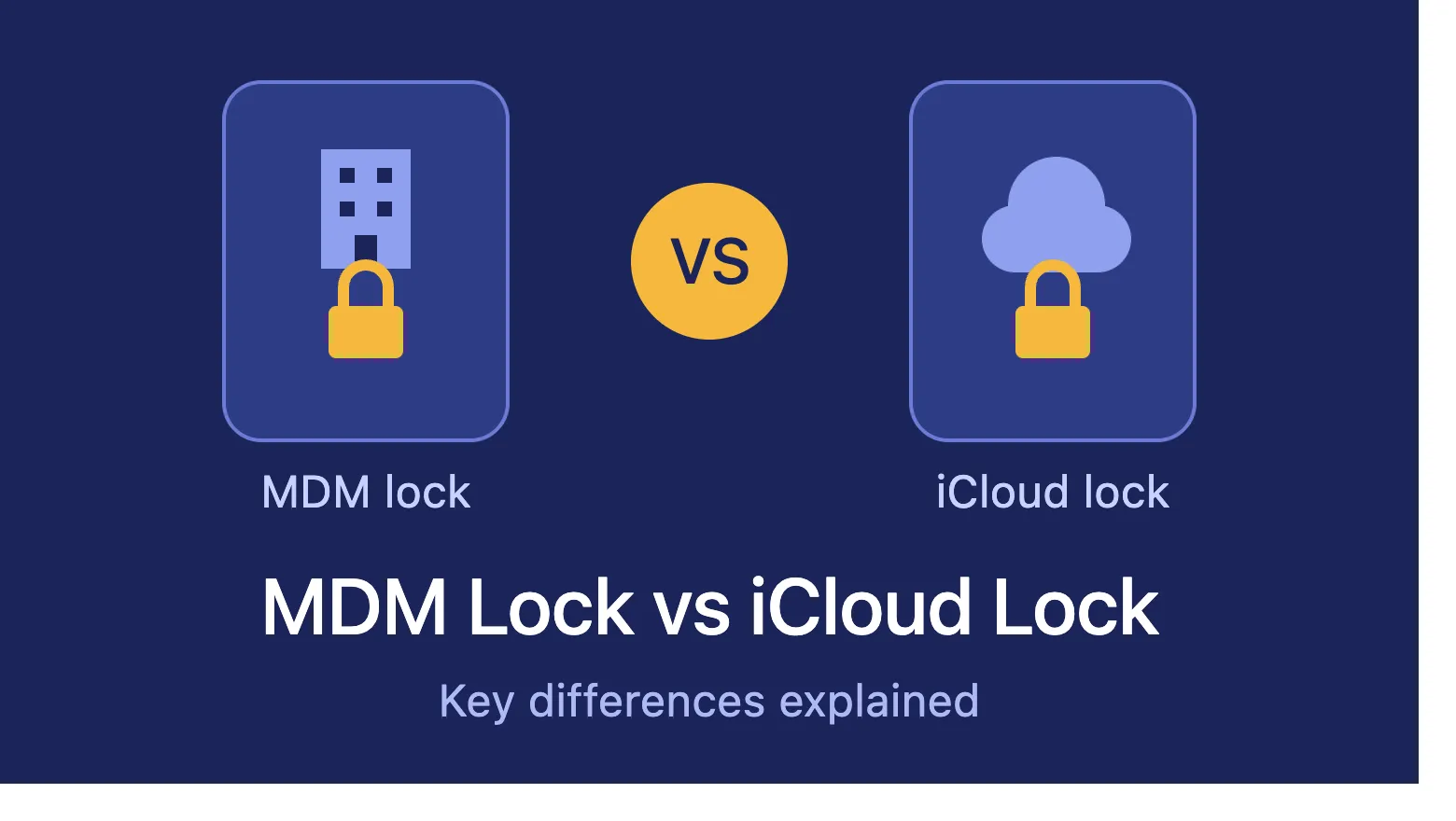

Buying a used iPhone or iPad can save you a lot of money, but it can also land you with a locked device. Two of the most common locks are the MDM lock and the iCloud lock. Many people confuse them because both can stop you from using your device fully. They are very different, though, and so are the ways to fix them.
This guide explains what each lock is, how they differ, and what you can do if you run into one.
What Is an MDM Lock?
MDM stands for Mobile Device Management. It is software that companies, schools and other organizations use to control and secure large numbers of devices from one central dashboard.
When a device is enrolled in MDM, an administrator can:
- Install or block specific apps
- Restrict features like the camera, AirDrop or the App Store
- Enforce passcode and security policies
- Track the device’s location
Remotely lock or wipe the device
On an iPhone or iPad, an MDM-locked device often shows a message such as “This iPhone is managed by EasyControl” during setup or in Settings. The device still belongs to a person, but the organization decides what that person can do with it.
MDM is not a bad thing. It is a legitimate tool for business and education. The problem starts when an MDM-enrolled device is sold or passed on without being released from the organization’s control.
What Is an iCloud Lock?
An iCloud lock, officially called Activation Lock, is a security feature from Apple. It turns on automatically when Find My iPhone is enabled on a device signed in with an Apple ID.
Its purpose is to protect you if your device is lost or stolen. Even if someone erases the device, they cannot set it up again without the original Apple ID and password. During setup, the device shows a screen saying “Activation Lock” and asks for the owner’s credentials.
In short, Activation Lock ties a device to one individual’s Apple ID, not to an organization.
The Key Differences
1. Who Controls the Device
With an MDM lock, the controlling party is an organization such as a company, school or institution. With an iCloud lock, the controlling party is an individual whose Apple ID is linked to the device.
2. Purpose
MDM exists for management and policy enforcement. Activation Lock exists for theft protection and privacy. One manages a device, the other protects it.
3. Level of Restriction
An MDM-locked device can often be used, but with restrictions: some apps may be blocked, some settings greyed out, and the device may be monitored. An iCloud-locked device is usually completely unusable after a reset, because you cannot get past the activation screen without the owner’s Apple ID.
4. Where It Appears
MDM usually shows up in the Remote Management screen during setup or under Settings > General > VPN & Device Management. Activation Lock appears on the Activation Lock screen, which asks for an Apple ID and password.
5. How to Remove It
For an MDM lock, the organization’s IT administrator must release the device from their MDM server. For an iCloud lock, the original owner must remove the device from their Apple ID, either on the device itself or through iCloud.com.
6. Typical Risk When Buying Second-Hand
An MDM-locked device may work but be restricted or remotely wiped later. An iCloud-locked device may be an unusable brick, and in the worst case it may have been stolen.
Quick Comparison
| Feature | MDM Lock | iCloud Lock (Activation Lock) |
|---|---|---|
| Controlled by | Organization | Individual Apple ID owner |
| Main purpose | Device management | Theft protection |
| Usability | Restricted | Often fully blocked |
| Removed by | IT administrator | Original Apple ID owner |
| Common source | Company or school devices | Lost, stolen or resold personal devices |
How to Check Before You Buy
Whether you are buying from a shop or an individual, do these checks first:
- Ask the seller to erase the device (Settings > General > Transfer or Reset iPhone > Erase All Content and Settings) in front of you.
- Go through the setup screens. If you see a Remote Management or Activation Lock screen, do not buy it.
- Check Settings > General > VPN & Device Management for any management profile.
- Confirm Find My is turned off and the seller has signed out of their Apple ID.
- Use Apple’s official support tools to check a device’s status where available.
If a seller refuses to let you do these checks, treat that as a red flag.
What If You Already Have a Locked Device?
For an iCloud lock: Contact the previous owner and ask them to remove the device from their account. If you bought it from a shop, ask for a refund or replacement. If you are the original owner and forgot your credentials, use Apple’s account recovery and contact Apple Support with your proof of purchase.
For an MDM lock: Contact the organization that enrolled the device and ask them to release it. If you bought the device second-hand, the seller should be able to tell you who the previous owner was. Apple Support may also help if you can prove you legally own the device.
You will find many websites and videos offering “bypass” or “removal” tools for both locks. Be careful. Many of these are scams, and some carry malware that can steal your data. Bypassing a lock on a device you do not own may also be illegal, and bypassed devices often remain restricted or break after a software update. The safest solution is always the official one.
Final Thoughts
The main difference is simple: an MDM lock is about organizational control, while an iCloud lock is about personal security. One restricts what you can do, the other can stop you from using the device at all. Both can be avoided with a few careful checks before buying and by choosing trusted sellers.
If your device is locked, always go through the rightful owner or the managing organization. It may take a little more time, but it is safe, legal and permanent.
Ye article around 1,000 words ka hai. Agar chaho to main ise Word doc ya HTML file mein bana dun, ya meta description aur SEO keywords bhi add kar dun.























Sign in to leave a comment.