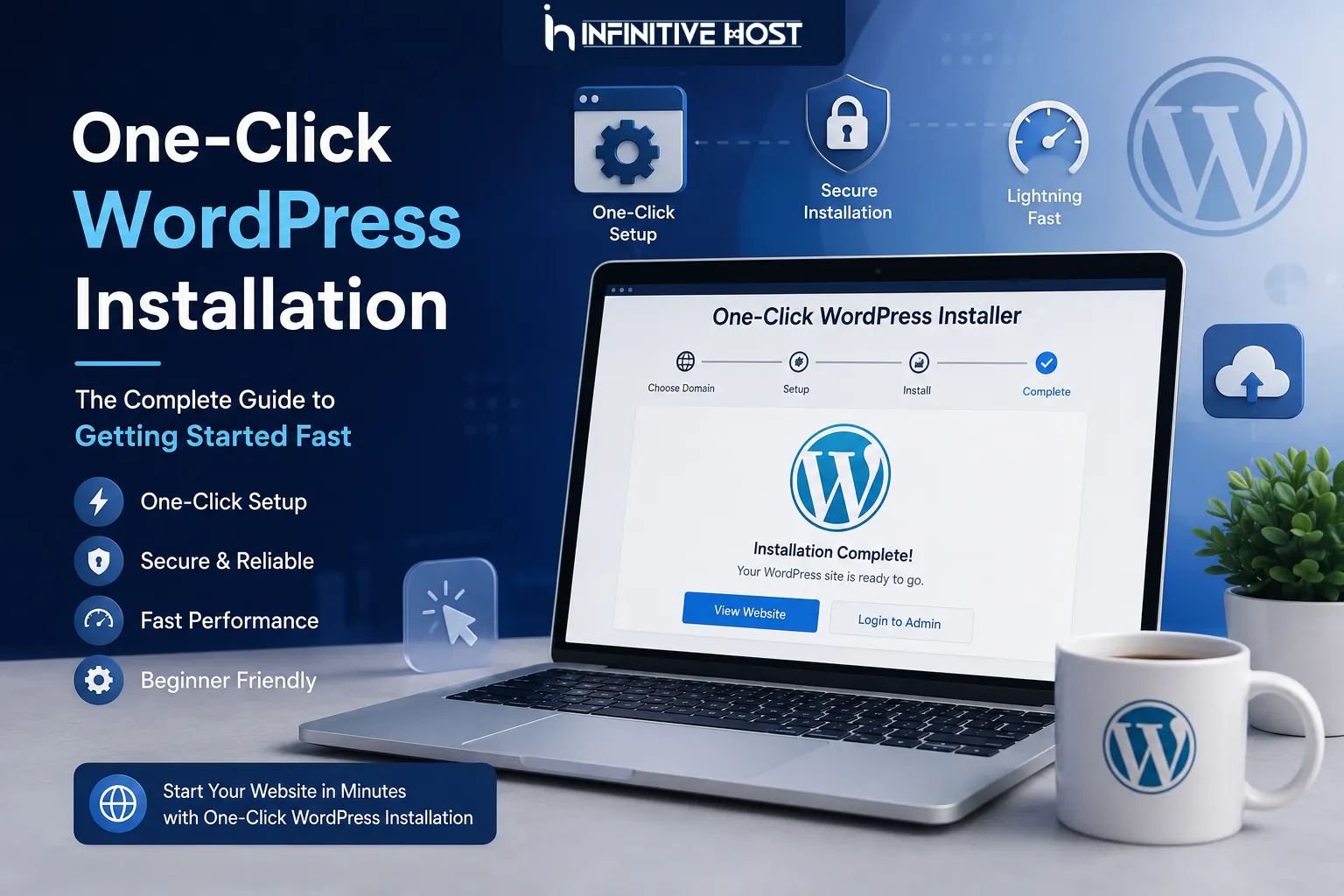

Setting up a website used to take hours. Configuring databases, editing configuration files—and that was before you'd even seen a single page of your site. For anyone who went through it, the memory probably involves at least one error message that made no sense at 11 PM.
One-click installation through your hosting control panel takes most people less than five minutes from login to a live WordPress site. But knowing what you're doing—and what decisions actually matter during setup—is what separates a website that performs well from one that needs rebuilding six months later.
What One-Click WordPress Installation Actually Does
Before walking through the process, it helps to understand what automatic WordPress installation handles so you know what you're not setting up manually.
A one-click installer—typically Softaculous, Installatron, or a proprietary tool built into your WordPress hosting control panel—does the following automatically:
Creates a MySQL database and database user with the correct permissions. Download the latest version of WordPress. Uploads and extracts the WordPress files to your chosen directory. Generates and configures the wp-config.php file with your database credentials. Creates the initial admin user account with the credentials you specify. Runs the WordPress setup routine that initialises the database tables.
Everything that used to require manual configuration—the part that caused hours of troubleshooting for beginners—is handled by the installer in under a minute. Automatic WordPress installation exists because the manual process was genuinely painful, and there's no benefit to doing it the hard way.
Step-by-Step: WordPress Installation via Your Hosting Control Panel
Step 1: Log Into Your Hosting Control Panel
Access your WordPress hosting control panel—typically cPanel, Plesk, or a custom panel depending on your hosting provider. Infinitive Host provides a clean control panel interface with one-click WordPress installation accessible from the main dashboard without needing to navigate through multiple menus.
Step 2: Locate the WordPress Installer
Look for a "WordPress" icon or an "Auto Installers" / "Softaculous Apps Installer" section. Most WordPress hosting control panel setups surface the WordPress installer prominently—it's the most commonly used feature, so good hosting providers make it easy to find.
Step 3: Configure Your Installation Settings
This is where most beginner WordPress setup mistakes happen—not in the technical configuration, but in the decisions that shape your site from the start.
Choose your domain. Select the domain you want WordPress installation on. If you have multiple domains on your account, make sure you select the correct one.
Set the directory. If you want WordPress to run at yourdomain.com, leave the directory field empty. If you want it at yourdomain.com/blog, enter "blog" in the directory field. Most people building a primary website leave this blank.
Set your admin credentials. Choose a strong username—not "admin," which is the first username automated attacks try. Choose a strong password and use an email address you actually monitor, as WordPress sends important notifications there.
Set your site title and description. These can be changed later, but setting them correctly from the start saves time.
Step 4: Run the Installer
Click Install. The automatic WordPress installation process typically completes in 30–60 seconds. The installer will provide your site URL and your admin login URL—usually yourdomain.com/wp-admin—when it finishes.
After WordPress Installation: The Setup Steps That Actually Matter
WordPress installation is step one. What you do in the first hour after installation determines how the site performs, stays secure, and scales. Most beginner guides stop at the installer. This one doesn't.
Update Everything Immediately
The version of WordPress installed by automatic WordPress installation may not be the absolute latest release. Go to Dashboard → Updates immediately after WordPress installation and update WordPress core, any bundled themes, and any default plugins. Running outdated software is the most common reason WordPress sites get compromised—and it takes 30 seconds to prevent.
Delete What You Don't Need
Default WordPress installations include themes and plugins you won't use. Delete the inactive themes (keep one as a backup, delete the rest) and deactivate and delete any plugins you haven't chosen to use. Unused plugins are an attack surface. Clean installs stay secure longer.
Configure Your Permalink Structure
Go to Settings → Permalinks and change from the default numeric structure to "Post name"—which creates readable URLs like yourdomain.com/your-post-title rather than yourdomain.com/?p=123. This matters for SEO and for human readability. Do this before you publish anything, as changing it later can break existing links.
Install an SSL Certificate
Infinitive Host includes automatic SSL certificates on all hosting plans. After WordPress installation, confirm your SSL is active and go to Settings → General to update both the WordPress Address and Site Address fields from http:// to https://. Install a redirect plugin or configure server-level redirects to force all http:// traffic to https:// automatically.
Install a Caching Plugin
A caching plugin dramatically improves your site's page load speed by serving pre-built static pages rather than generating them dynamically for every visitor. On Infinitive Host's LiteSpeed server infrastructure, LiteSpeed Cache integrates natively and is the best-performing option. Install and configure it immediately after WordPress installation for maximum performance from day one.
Choose and Configure a Security Plugin
Install a security plugin that provides brute-force login protection, file change monitoring, and malware scanning. Wordfence and Solid Security (formerly iThemes Security) are the most established options. Configure login attempt limits and enable two-factor authentication for the admin account.
Common WordPress Installation Mistakes to Avoid
Even with one-click WordPress installation, a few mistakes consistently create problems:
Using "admin" as your username. Automated brute-force attacks try this first. Choose something unique during the initial beginner WordPress setup—it's much harder to change later than it sounds.
Installing on the wrong directory. Double-check the installation path. A WordPress installation in the wrong subdirectory means your site doesn't appear where you expect it, and fixing it requires database updates and file moves.
Skipping the permalink update. Changing permalink structure after publishing content creates broken links that require redirects to fix. Set it during initial beginner WordPress setup.
Ignoring email configuration. WordPress sends important notifications to the admin email. Verify this address during WordPress installation and confirm it receives test emails from your WordPress dashboard.
Why Your Hosting Choice Matters for WordPress
Infinitive Host provides WordPress hosting built for how WordPress actually works—LiteSpeed server infrastructure with native caching, SSD storage for fast database queries, automatic SSL management, and WordPress hosting control panel access that makes one-click WordPress installation a genuinely five-minute process rather than a feature that sounds simple but hides complexity.
The automatic WordPress installation is the beginning. The hosting environment determines how everything after it performs. Choose infrastructure that's optimised for WordPress from the start, and the site you build on top of it has a foundation that supports performance rather than constraining it.
Conclusion
WordPress installation via a one-click installer has removed the technical barrier that used to make building a website genuinely difficult. The process is fast, reliable, and accessible to anyone with a hosting account—regardless of technical background.
What matters is what comes after: the configuration decisions during beginner WordPress setup, the security steps that protect your site from day one, and the performance optimisation that turns a working WordPress install into a site that loads fast and stays up.













Sign in to leave a comment.