
Introduction: If you are trying to import EML files into Outlook but facing errors, incomplete imports, broken format, etc, then you are not alone. It is a common problem faced while migrating emails from various mail clients. This informational blog is going to explain the reasons why Outlook cannot import EML and how to fix it.
Why can’t Outlook import EML? Root Cause
- Outlook does not support the EML format. It only uses PST, OST, and MSG file formats, as EML is not part of Outlook, it often fails to preserve the headers, metadata, images, links, attachments, etc.
- Most of the EML files are generated via Thunderbird, eM Client, Zoho, and many other email clients, which makes it difficult for Outlook to read and recognize them.
- When EML files are damaged or corrupted, Outlook is unable to read and understand them without the proper attachments, formatting, etc.
- Large files and long HTML content lead to the crashing of the EML files in Outlook, as it is not specially designed to import large EML files.
How Outlook Can Import EML Files? Quick Answer
The main reason Outlook does not import EML files is that it uses PST and OST, not EML. This causes Outlook to misread or reject the EML files while migrating. You can fix this issue and import EML using Outlook manually by setting .eml as the default file type, drag & drop method, adding a mail account via IMAP, or you can directly use an automated software, which will import your EMLs in bulk into Outlook in one go. Let’s discover both approaches briefly in the article below.
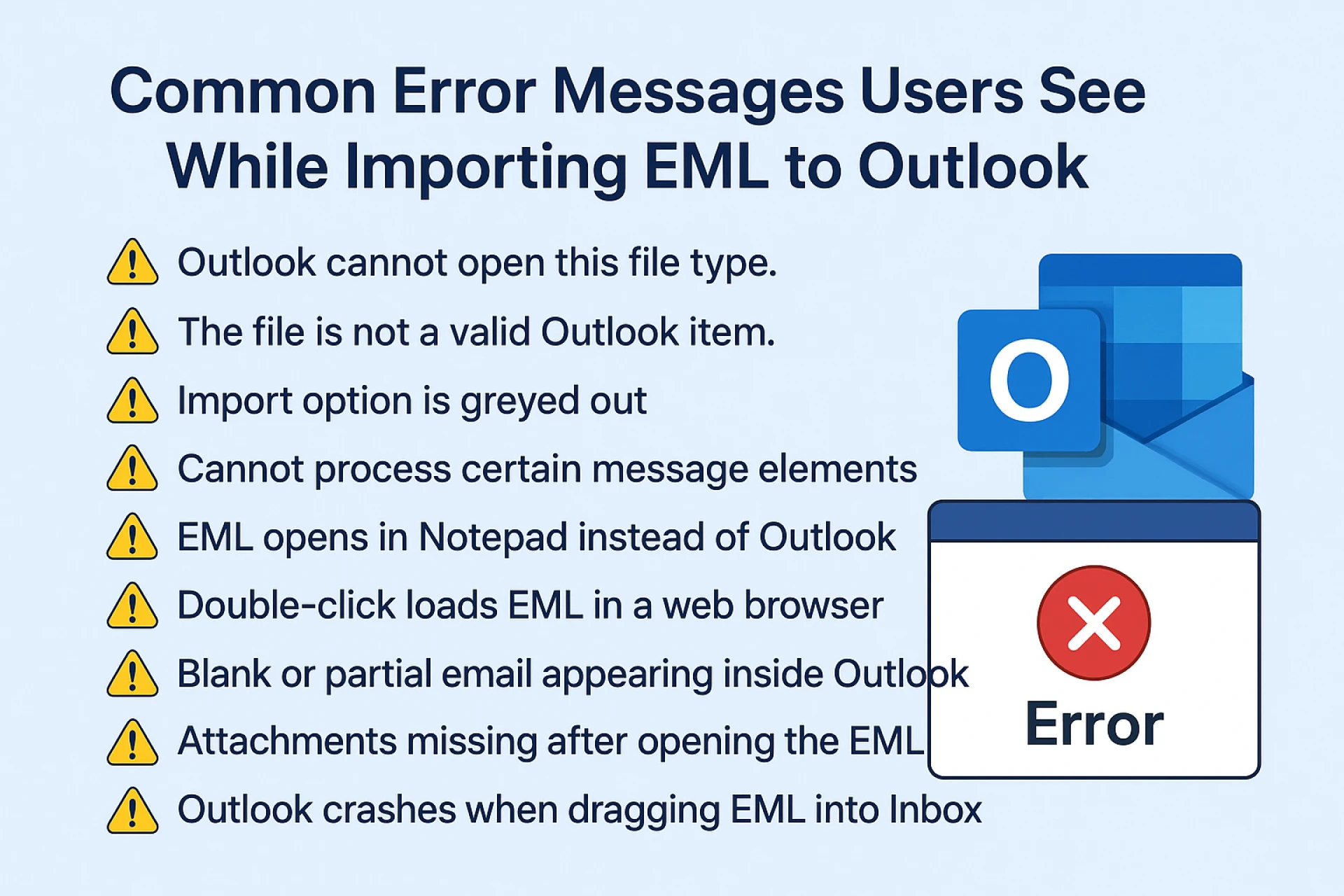
Checklist Before Fixing Importing Issues
- Make sure your EML files are not damaged.
- Outlook should be installed, and you should have its subscription, as it is a paid application.
- Set .eml as a default file format.
- Disable the add-ins to open Outlook safely: Copy Code- outlook.exe /safe
Manual Ways to Import EML Into Outlook
You can import EMLs via the drag & drop method or by adding a mail account in Thunderbird. Let’s discuss the top two manual methods to fix the “Outlook cannot import EML” issue.
Manual Method 1: Using the Drag & Drop Method
- Open your local folder on one side and Outlook on the other.
- Now, one by one, select your EML files and drag & drop them into your desired folder in Outlook.
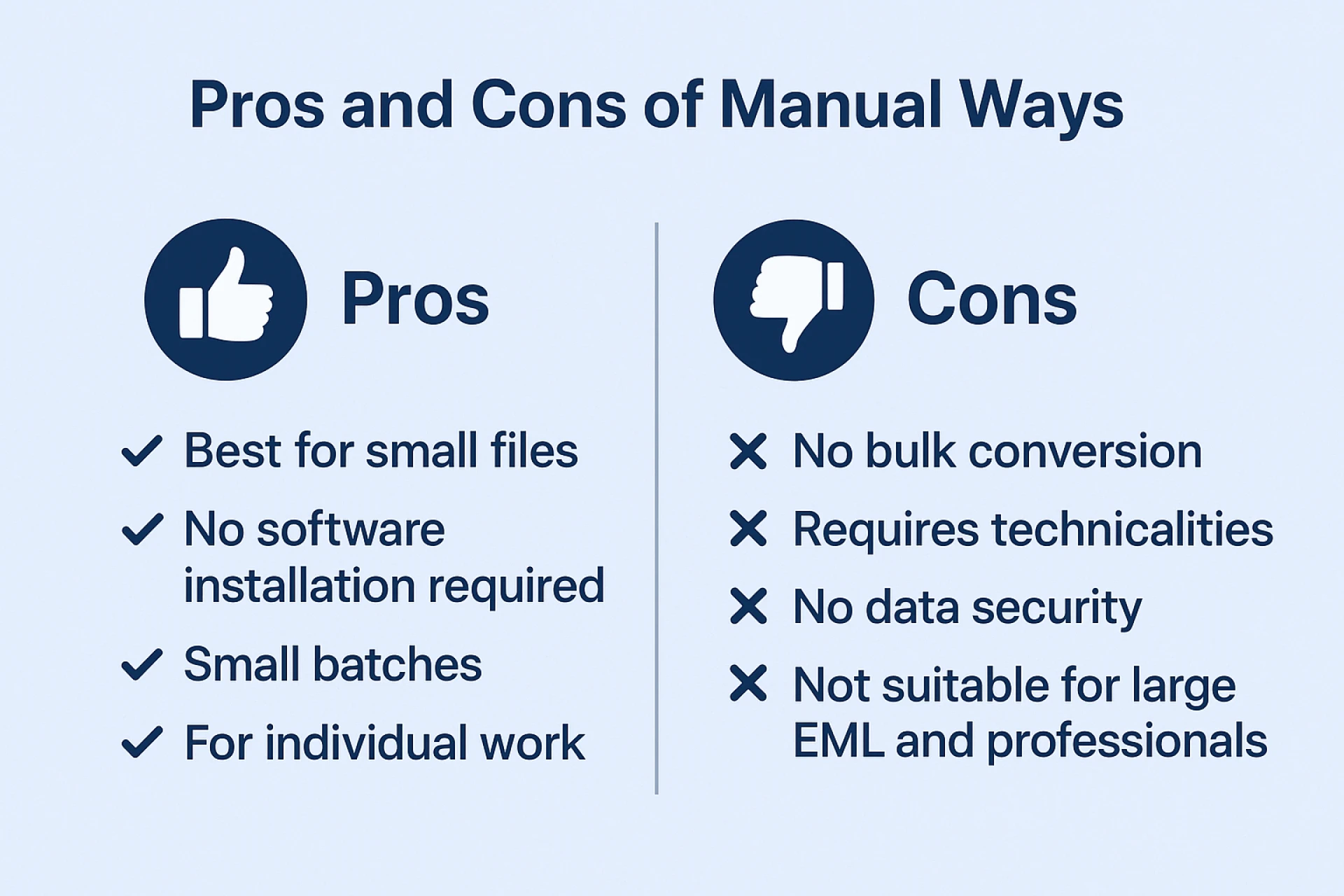
Note: You don’t need any configuration. It is best for small files, but it fails to maintain the hierarchy and attachments.
Manual Method 2: Via Adding an IMAP Account
- Open any other email client like Thunderbird and add your IMAP account there.
- Go to tools > account settings and click on New account to add your mail account. It will automatically sync all the folders.
- Now, you will have to install the ImportExportTools NG add-on by going to the add-ons and themes option and searching “ImportExportTools NG”.
- Then, go to the main page, select a specific folder, and right-click > ImportExportTools NG > import EML messages > all messages from directory and subdirectories.
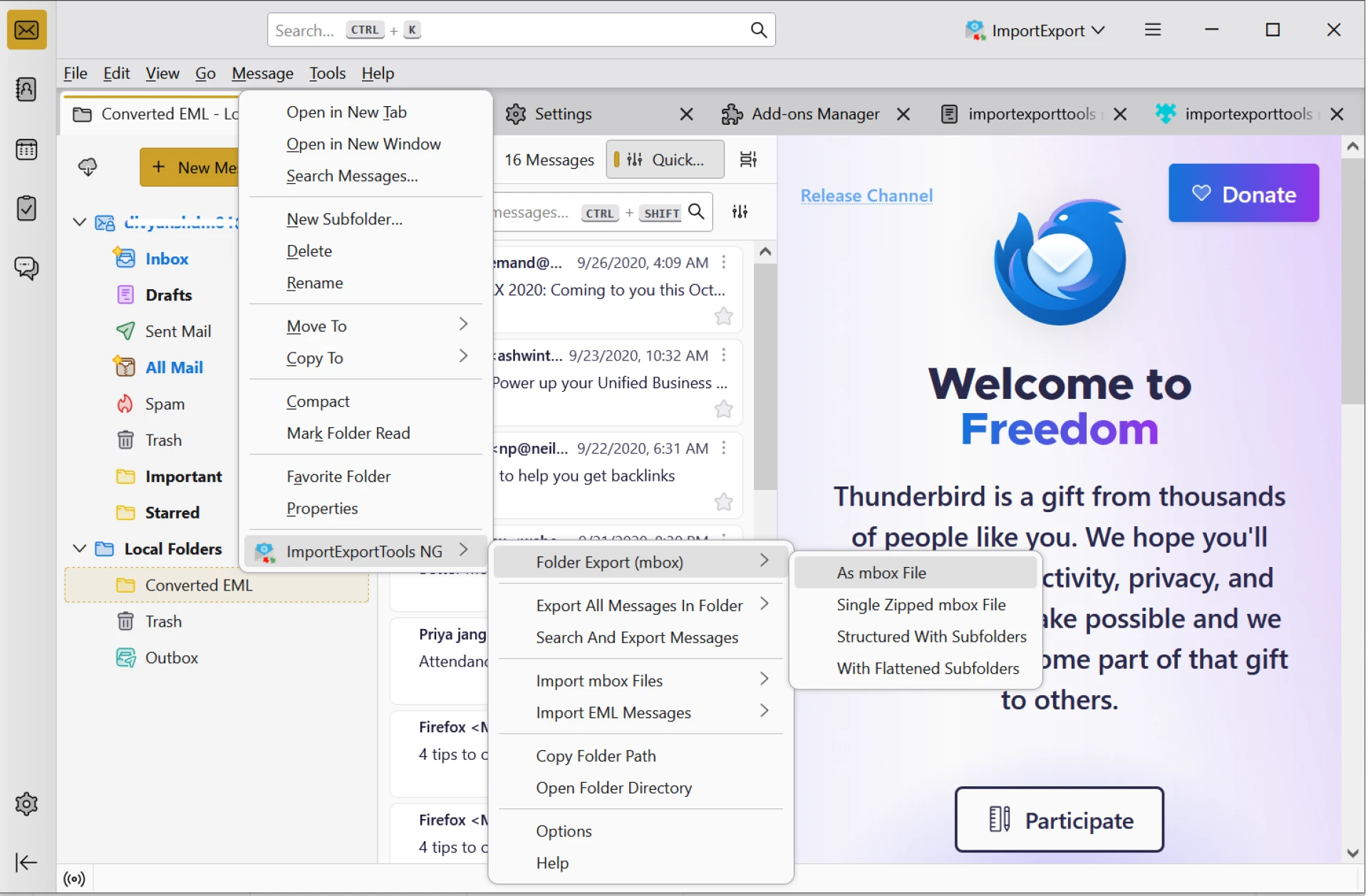
- From there, you can select your desired EML files and add to that specific folder of that mail account.
- Now, open Outlook and go to File > Info > Add Account.
- Add that exact IMAP account in which you uploaded the EML files in Thunderbird, and Outlook will load the entire mailbox with the EML files imported earlier using Thunderbird.
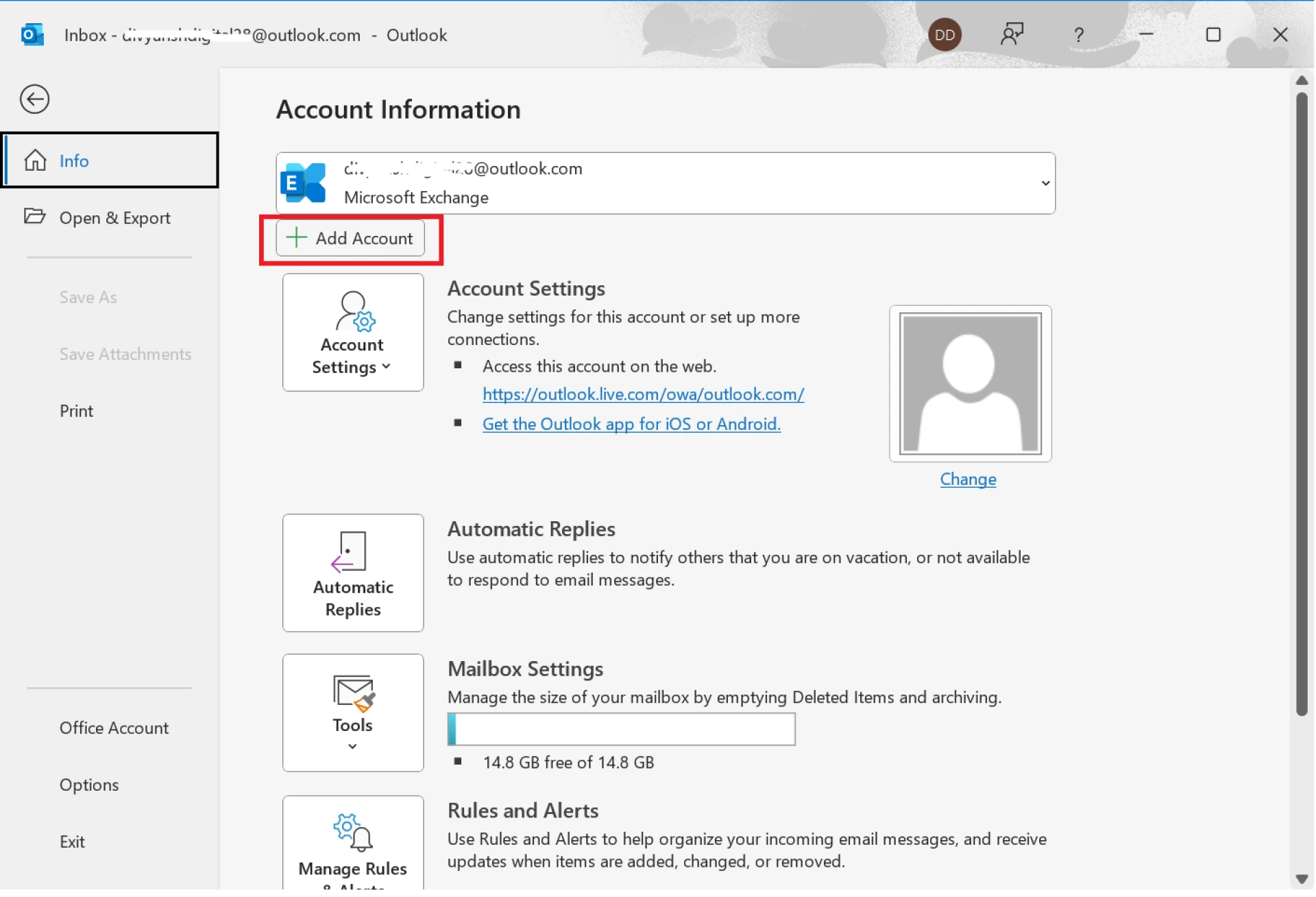
Note: You can view the EML files as long as your account is configured. Once you remove the account, it will not show the file,s as you didn’t import the data files into Outlook after configuring the mail account.
Limitations of the Manual Approach
- Both of these manual methods are risky and not advisable if you have crucial data to import. These methods can result in data corruption and loss if you try to import large files in bulk.
- Manual ways cannot handle bulk conversion and may lose the originality of the files.
- It does not maintain the hierarchy and structure of the data. Outlook often disturbs the folder hierarchy while dragging & dropping.
- Not suitable for professional work as it doesn’t guarantee data security and bulk conversion.
Alternative Solution
Instead of manually importing EML files to fix the issue, you can simply use the Best RecoveryTools EML converter, which will easily import EML to Outlook in bulk without any size limitations. This software helps to overcome the issue that Outlook cannot import EML in just a few clicks.
- Install the tool and choose your EML files by clicking on the “choose folders” or “choose files” option.
- Then, after choosing, it will display all the folders, sub-folders, and files in the same hierarchy.
- Choose your saving option as PST, destination path, and file naming options.
- Hit the Next button, and it's completed.
Major Features of the Expert Tool
- This professional tool imports in bulk without limitations. You can transfer thousands of EMLs into Outlook in one go without any hassle or errors.
- It guarantees 100% data security & integrity and works completely without internet and doesn’t host the data on its server or on the cloud. The files are kept safe and unedited.
- The tool maintains the original formatting and hierarchy while importing in bulk.
- It keeps the attachments, links, images, HTML, and other elements intact.
- It supports all the Outlook versions and never skips any email. There is no data loss or corruption.
- Provides a dual-mode to select data in bulk and an easy-to-use interface for non-technical users to process in just a few steps.
Use cases- which method to use for which individual or professional?
- Individual home users: Use the drag & drop way, but there is no data security.
- Students/Professionals who have EML from Thunderbird or Gmail: You can use the Thunderbird manual way.
- IT admin, organization data, confidential forensic emails, or having thousands of files: You should opt for the automated software for better security and accuracy.
Conclusion
Outlook cannot import EML. The issue has been fixed in this blog, as we have provided you with 3 ways to fix this issue. You can import your EML files into Outlook PST manually and automatically, whichever suits you best, as per your requirements.

























Sign in to leave a comment.