
Building or upgrading a PC is exciting, but it can quickly become frustrating when performance doesn’t match expectations. You might have a powerful graphics card, yet games still stutter. Or maybe your CPU is modern and fast, but rendering feels slow. In many cases, the issue isn’t your entire system — it’s a bottleneck.
A PC bottleneck happens when one component limits the performance of others. Identifying this imbalance early can save you money, improve FPS, and extend the lifespan of your hardware. That’s exactly where a PC Bottleneck Calculator becomes useful.
What Is a PC Bottleneck?
A bottleneck occurs when one hardware component restricts the overall performance of your system. The most common types include:
- CPU bottleneck
- GPU bottleneck
- RAM bottleneck
- Storage bottleneck
- Thermal or power limitations
In gaming, CPU and GPU bottlenecks are the most noticeable. If your processor can’t keep up with your graphics card, the GPU sits idle waiting for instructions. On the other hand, if your GPU is too weak, it can’t render frames fast enough even if the CPU is ready.
The result?
Low FPS, stuttering, uneven frame pacing, and inconsistent performance.
How a PC Bottleneck Calculator Works
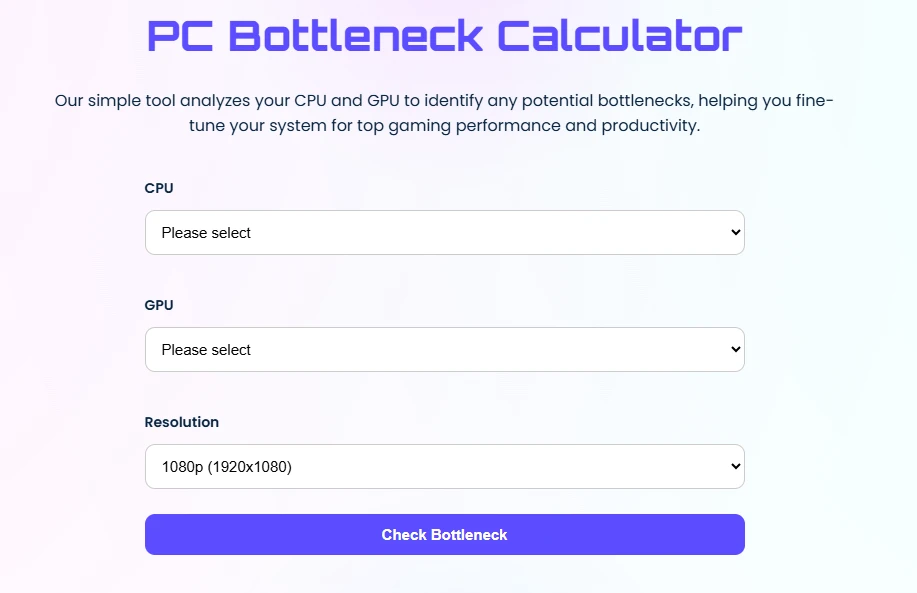
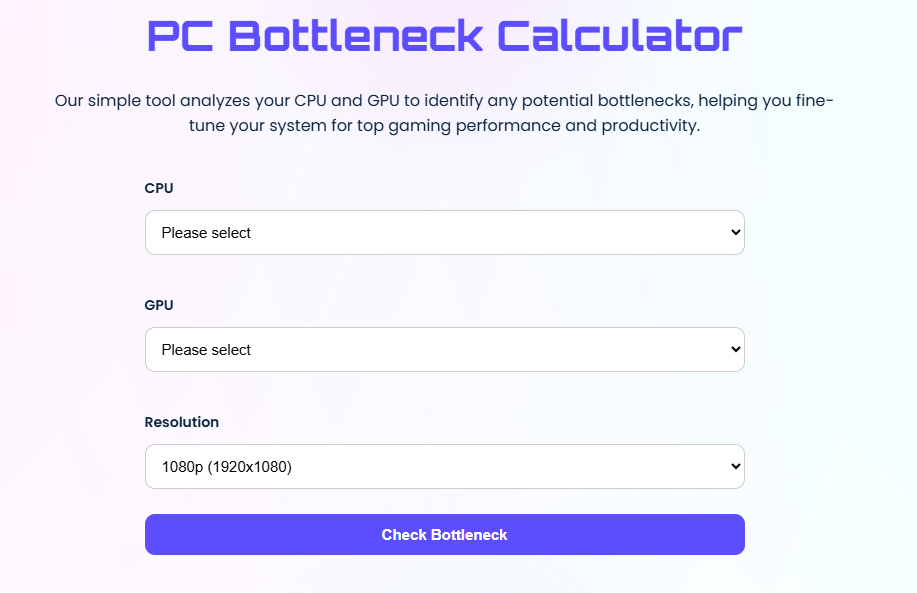
A bottleneck calculator compares your selected CPU, GPU, RAM, and resolution to estimate system balance. Instead of guessing, the tool provides:
- A bottleneck percentage score
- Clear indication of CPU-bound or GPU-bound status
- Compatibility insights
- Upgrade suggestions
You simply:
- Select your CPU
- Choose your GPU
- Pick your resolution (1080p, 1440p, or 4K)
- Click “Check Bottleneck”
Within seconds, you get a result that shows whether your system is balanced or limited by a specific component.
Understanding Bottleneck Percentage
The percentage score indicates severity.
- 0–5%: Perfectly balanced
- 5–10%: Normal and acceptable
- 20%+: Noticeable imbalance
- 50%+: Severe bottleneck
For example:
- A 75% CPU bottleneck means your processor is significantly limiting performance.
- A 65% GPU bottleneck means your graphics card is underpowered for your setup.
Small bottlenecks are normal. Every system has slight imbalances. The key is identifying whether it’s large enough to impact real-world performance.
Common CPU vs GPU Bottleneck Scenarios
Low CPU Usage & High GPU Usage
This is often ideal for gaming. The GPU is fully utilized, meaning you’re getting maximum graphical performance.
High CPU Usage & Low GPU Usage
Clear CPU bottleneck. The processor can’t feed frames fast enough to the GPU.
Both CPU and GPU at 100%
Your system is fully stressed. Performance depends on cooling and stability.
Low CPU & Low GPU Usage
The workload is light. No bottleneck — just low demand.
Resolution plays a major role:
- 1080p → More CPU-bound
- 1440p → Balanced
- 4K → More GPU-bound
Higher resolutions increase GPU workload significantly.
Real-World Bottleneck Examples
Example 1: High-End GPU with Weak CPU
Pairing an RTX 3080 with an older quad-core CPU often results in:
- GPU usage around 60–70%
- CPU at 100%
- Frame drops and stuttering
Upgrading to a modern multi-core processor unlocks full GPU performance.
Example 2: Strong CPU/GPU but Only 8GB RAM
Modern games frequently use 12–16GB RAM.
Low memory causes:
- Stuttering
- Slow alt-tab
- Heavy disk usage
Upgrading to 16GB dual-channel RAM improves stability immediately.
Example 3: Thermal Throttling
Even powerful builds can underperform if:
- Cooling is insufficient
- Airflow is poor
- CPU or GPU hits 90–100°C
Better cooling restores full clock speeds and smooth performance.
Beyond CPU and GPU: Other Hidden Bottlenecks
RAM Bottleneck
Signs:
- RAM usage near 100%
- FPS drops despite low CPU/GPU usage
- Heavy disk activity
Solution:
- Upgrade to 16GB or 32GB
- Enable XMP/DOCP
- Use dual-channel configuration
Storage Bottleneck
HDDs can severely slow:
- Boot times
- Game load screens
- File transfers
Switching to SATA SSD or NVMe dramatically improves responsiveness.
Power Supply Issues
Insufficient wattage or poor-quality PSU may:
- Limit component boost clocks
- Cause shutdowns
- Create instability
Always ensure your PSU supports your hardware’s full load.
Bottleneck Calculator vs Manual Analysis
A bottleneck calculator provides a quick snapshot.
Manual analysis gives deeper insights.
Use Calculator When:
- Planning a new build
- Comparing CPU/GPU combinations
- Estimating upgrade impact
Use Manual Tools When:
- Diagnosing real-time issues
- Monitoring thermals
- Testing per-game performance
Tools like MSI Afterburner, HWMonitor, and 3DMark provide detailed live tracking.
Best practice? Use both methods for maximum accuracy.
How to Fix Bottlenecks Without Overspending
- Upgrade only the limiting component
- Match parts within the same performance tier
- Improve cooling before replacing hardware
- Close background processes
- Update BIOS and drivers
Balance matters more than buying the most expensive parts.
Balanced Build Examples
Entry-Level (1080p Gaming)
- Ryzen 5 5600
- RTX 4060
- 16GB DDR4
- 1TB NVMe
Balanced and efficient.
Mid-Range (1440p Gaming & Streaming)
- Intel i5-13600K
- RTX 4070 Super
- 16GB–32GB RAM
Strong multitasking performance.
High-End (4K & Content Creation)
- Ryzen 7 7800X3D
- RTX 4080 Super
- 32GB DDR5
Minimal bottleneck at high resolutions.
Why Identifying Bottlenecks Matters
Many users assume slow performance means their entire PC is outdated. In reality, a single mismatched component often causes the issue.
Using a bottleneck calculator helps you:
- Avoid unnecessary upgrades
- Increase FPS efficiently
- Improve system stability
- Extend hardware lifespan
- Save money
Instead of replacing everything, you focus on what actually limits performance.
Final Thoughts
PC performance is all about balance. A powerful GPU paired with a weak CPU creates instability. High-end hardware with poor cooling reduces performance. Low RAM or slow storage can make strong systems feel outdated.
A PC Bottleneck Calculator removes guesswork. It shows whether you’re CPU-bound or GPU-bound, gives a clear percentage score, and provides upgrade direction. Combined with manual monitoring tools, it becomes a smart way to plan builds and optimize performance.
Before upgrading your system, always check for bottlenecks first. A balanced PC doesn’t just deliver higher FPS — it runs smoother, lasts longer, and performs exactly as you expect.

























Sign in to leave a comment.