QuickBooks Desktop Troubleshooting Made Simple


QuickBooks Desktop remains a useful accounting solution for businesses that need an organized way to manage income, expenses, invoices, payroll, company files, and other financial records. However, like any desktop-based software, users may occasionally experience technical problems that interrupt their daily accounting work. From installation difficulties and network errors to company-file issues and unexpected application crashes, even a small QuickBooks problem can affect productivity.
The good news is that many common QuickBooks Desktop problems can be approached systematically. Instead of repeatedly trying random fixes, users can identify the type of issue, check the most likely causes, and follow practical troubleshooting steps. Businesses looking for additional guidance can also explore QuickBooks Desktop help Denver CO for information related to QuickBooks Desktop troubleshooting and support.
Understanding Common QuickBooks Desktop Problems
QuickBooks Desktop problems can occur for different reasons. Sometimes the software itself needs an update, while in other situations the problem may be related to Windows settings, damaged company files, network configuration, or insufficient permissions.
Some common issues include:
- QuickBooks Desktop not opening
- Company files failing to open
- Slow QuickBooks performance
- Multi-user mode connection problems
- Network errors
- Installation or update difficulties
- Printing and PDF-related issues
- Login or authentication problems
- Missing or damaged company-file data
- Unexpected freezing or application crashes
Identifying the exact problem is the first important step. For example, a company file that refuses to open may require a different troubleshooting approach than a QuickBooks installation that will not start.
Check Your QuickBooks Desktop Version
One of the simplest troubleshooting steps is checking whether QuickBooks Desktop is running the latest available update for the installed version. Software updates can include bug fixes, security improvements, and compatibility changes.
Before troubleshooting a complicated issue, users should check the QuickBooks update settings and install available updates when appropriate. After updating, restart QuickBooks and Windows to determine whether the problem has been resolved.
Keeping related Windows components and device drivers updated can also help prevent compatibility issues. However, users should avoid installing unknown third-party software simply because it claims to repair QuickBooks automatically.
QuickBooks Desktop Is Not Opening
When QuickBooks Desktop does not open, the problem may be caused by a temporary Windows process, damaged installation components, or an issue with the company file.
A basic troubleshooting approach is to close QuickBooks completely and restart the computer. Users can then try opening the application again. If QuickBooks still does not launch, they can check whether the issue affects the application itself or only one particular company file.
If QuickBooks opens normally without opening the company file, the problem may be associated with that specific file rather than the entire program.
Users should also avoid repeatedly clicking the QuickBooks icon when the application appears frozen. Multiple launch attempts can create additional processes and make troubleshooting more difficult.
Company File Problems
Company files contain important accounting information, so users should be careful when troubleshooting file-related problems. A file may become difficult to open because of corruption, an incorrect file path, permissions, or network-related issues.
Before making major changes to a company file, maintaining a recent backup is a sensible precaution. A backup provides an additional recovery option if troubleshooting does not produce the expected result.
When a company file is stored on a network, users should also verify that the file location is accessible and that the computer has the required permissions.
Troubleshooting Multi-User Mode
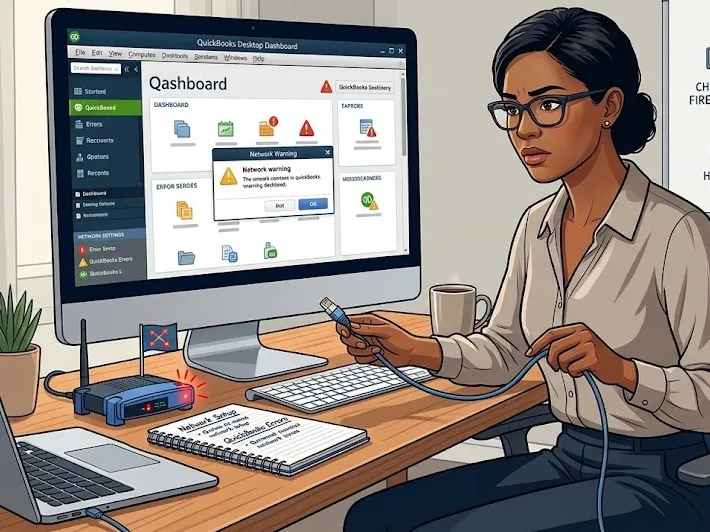
Multi-user mode allows multiple people to work with QuickBooks Desktop company data from connected computers. Because it depends on network communication, problems can occur if the network configuration or hosting settings are incorrect.
When multi-user access stops working, users can begin with basic checks:
- Confirm that the computers are connected to the same network.
- Check whether the company file is stored in the correct shared location.
- Verify the hosting configuration.
- Make sure the required permissions are available.
- Restart the relevant QuickBooks and Windows processes.
- Check whether firewall or security settings are blocking communication.
If only one workstation cannot connect while others work correctly, the problem may be specific to that workstation. If every workstation has the same problem, the network or hosting configuration deserves closer attention.
Businesses that depend heavily on multi-user accounting should address these problems carefully because incorrect configuration can interrupt access to essential financial records.
Dealing With QuickBooks Desktop Performance Issues
Slow performance is another common complaint among desktop accounting users. QuickBooks may become slower when company files grow significantly, computers have limited resources, or several applications are running simultaneously.
Start by closing unnecessary applications and checking available disk space. Restarting the computer can also clear temporary processes that may be consuming system resources.
Users should also avoid keeping unnecessary programs active while performing demanding accounting tasks. Regularly maintaining the Windows environment and keeping QuickBooks updated can contribute to a smoother experience.
For businesses with larger company files, performance should be monitored regularly rather than waiting until the software becomes extremely slow.
Printing and PDF Problems
QuickBooks Desktop is frequently used to create invoices, reports, checks, and other documents. Printing or PDF problems can therefore become disruptive.
If QuickBooks cannot print correctly, first determine whether the issue occurs only inside QuickBooks or with other Windows applications as well. If other programs also have printing problems, the printer or Windows configuration may need attention.
For PDF-related issues, users can check the selected printer or PDF option, verify that the printer is available, and restart QuickBooks after making configuration changes.
Testing with a simple document can help determine whether the problem is related to QuickBooks or to the printer environment.
Keep Backups Before Major Changes
One of the most important habits for QuickBooks Desktop users is maintaining reliable backups. Troubleshooting can sometimes involve changes to settings, files, or installations, so having a recent backup provides an extra layer of protection.
Businesses should establish a consistent backup routine instead of creating backups only after an error occurs. Depending on the organization's requirements, multiple backup copies may be appropriate.
A backup should also be stored separately from the primary company file whenever possible. This helps reduce the risk of losing both the working file and its backup because of the same hardware or storage problem.
Security and Firewall Considerations
Security software and firewall settings are important for protecting business computers, but they can occasionally interfere with legitimate QuickBooks communication.
If QuickBooks works normally on one computer but cannot communicate correctly across a network, security settings may be worth checking. Users should not disable security software permanently just to solve a QuickBooks issue.
Instead, they should identify the specific application or communication requirement and follow trusted configuration instructions. Business environments should be especially careful because accounting systems contain sensitive financial information.
When Professional Help May Be Useful
Some QuickBooks Desktop problems can be resolved through basic troubleshooting, while others may require more specialized assistance. Professional help can be useful when an issue involves repeated company-file errors, complicated network configurations, persistent installation problems, or business-critical accounting data.
A professional can help narrow down the cause instead of applying unrelated fixes. This can save time and reduce the possibility of making the situation worse.
For Denver-area users searching for specialized guidance, Denver QuickBooks Desktop expert support can be a useful resource to explore for QuickBooks Desktop-related information.
Create a Simple Troubleshooting Routine
Having a standard troubleshooting routine makes it easier to respond when an accounting application stops working. A useful routine can include the following steps:
Identify the problem: Determine exactly what is happening and when it started.
Check for updates: Make sure QuickBooks and the operating environment are appropriately updated.
Restart: Close QuickBooks and restart the computer when necessary.
Test the scope: Determine whether the problem affects one company file, one workstation, or multiple computers.
Check the network: For multi-user problems, verify connectivity, hosting, permissions, and shared-file access.
Protect the data: Confirm that a recent backup exists before making major changes.
Document the error: Record error messages and the steps that were already attempted.
Seek assistance when necessary: If the problem remains unresolved, consider professional troubleshooting rather than repeatedly applying random fixes.
Preventing Future QuickBooks Desktop Issues
Troubleshooting is important, but prevention can reduce the frequency of technical problems. Businesses should keep their computers maintained, use reliable backup practices, update software appropriately, and avoid making unnecessary changes to network or security configurations.
Employees who use QuickBooks should also understand basic file-management practices. Company files should be stored in appropriate locations, and users should avoid moving or renaming important files without understanding how those changes affect QuickBooks.
For multi-user environments, network settings should be documented so that future changes can be made consistently. Businesses can also maintain a simple record of QuickBooks versions, workstations, hosting settings, and backup procedures.
Final Thoughts
QuickBooks Desktop troubleshooting does not always have to be complicated. By identifying the specific problem, checking basic software and network conditions, protecting company data with backups, and making changes carefully, users can resolve many everyday issues more efficiently.
Problems involving company files, multi-user access, performance, printing, installation, and networking should be approached methodically. When an issue becomes persistent or involves important accounting information, getting appropriate technical assistance can help businesses avoid unnecessary downtime.
For users who want additional information about QuickBooks Desktop troubleshooting and support in Denver, QuickBooks Desktop help Denver CO provides a relevant resource. With good maintenance practices and a structured troubleshooting approach, businesses can keep their accounting workflow more dependable and reduce interruptions caused by common desktop software problems.







Sign in to leave a comment.