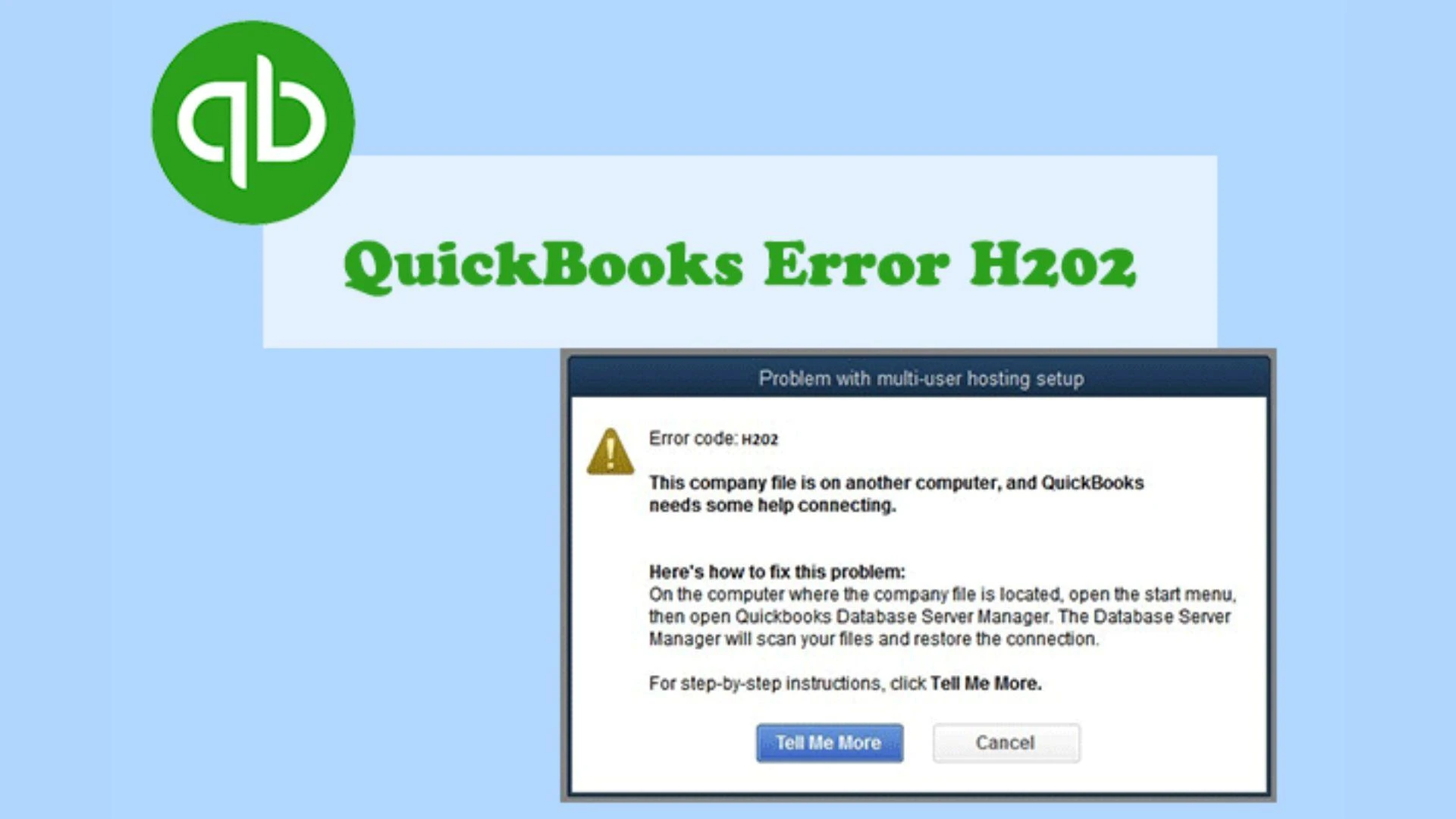

QuickBooks is one of the most popular accounting software used by small and medium businesses. It helps manage accounting, payroll, inventory, and financial reports efficiently. However, like any software, QuickBooks can sometimes show errors. One common multi-user error is QuickBooks Error H202, especially for users working on Windows 11.
In this article, we will explain what QuickBooks Error H202 is, why it occurs, its symptoms, and step-by-step solutions to fix it easily.
What Is QuickBooks Error H202?
QuickBooks Error H202 usually appears when a user tries to access a company file stored on another computer (server) in multi-user mode, but QuickBooks cannot connect to that server.
In simple words, when system is unable to communicate with the computer where the QuickBooks company file is hosted, it reflects Quickbooks Error H202.
Common Error Message
You may see a message like:
“This company file is on another computer, and QuickBooks needs help connecting.”
Error Code: H202
This error is related to network issues, firewall settings, or QuickBooks services not running properly.
Why QuickBooks Error H202 Occurs on Windows 11
There are several reasons why Error H202 may appear on Windows 11:
- Incorrect hosting configuration
- Firewall or antivirus blocking QuickBooks
- QuickBooks services not running on the server
- Damaged or incorrect .ND file
- Wrong DNS or IP address issues
- Network connection problems
- Windows 11 security settings interfering with QuickBooks
Symptoms of QuickBooks Error H202
When this error occurs, you may notice the following symptoms:
- Unable to open company file in multi-user mode
- QuickBooks crashes or freezes
- Slow system performance
- Error H202 message appears repeatedly
- Network connection drops while using QuickBooks
Important Things to Check Before Fixing Error H202
Before applying solutions, make sure:
- All systems are connected to the same network
- QuickBooks is updated to the latest version
- You have admin rights on the system
- Windows 11 is fully updated
These basic checks can sometimes resolve the issue quickly.
Solution 1: Use QuickBooks Database Server Manager
QuickBooks Database Server Manager helps manage multi-user access and network communication.
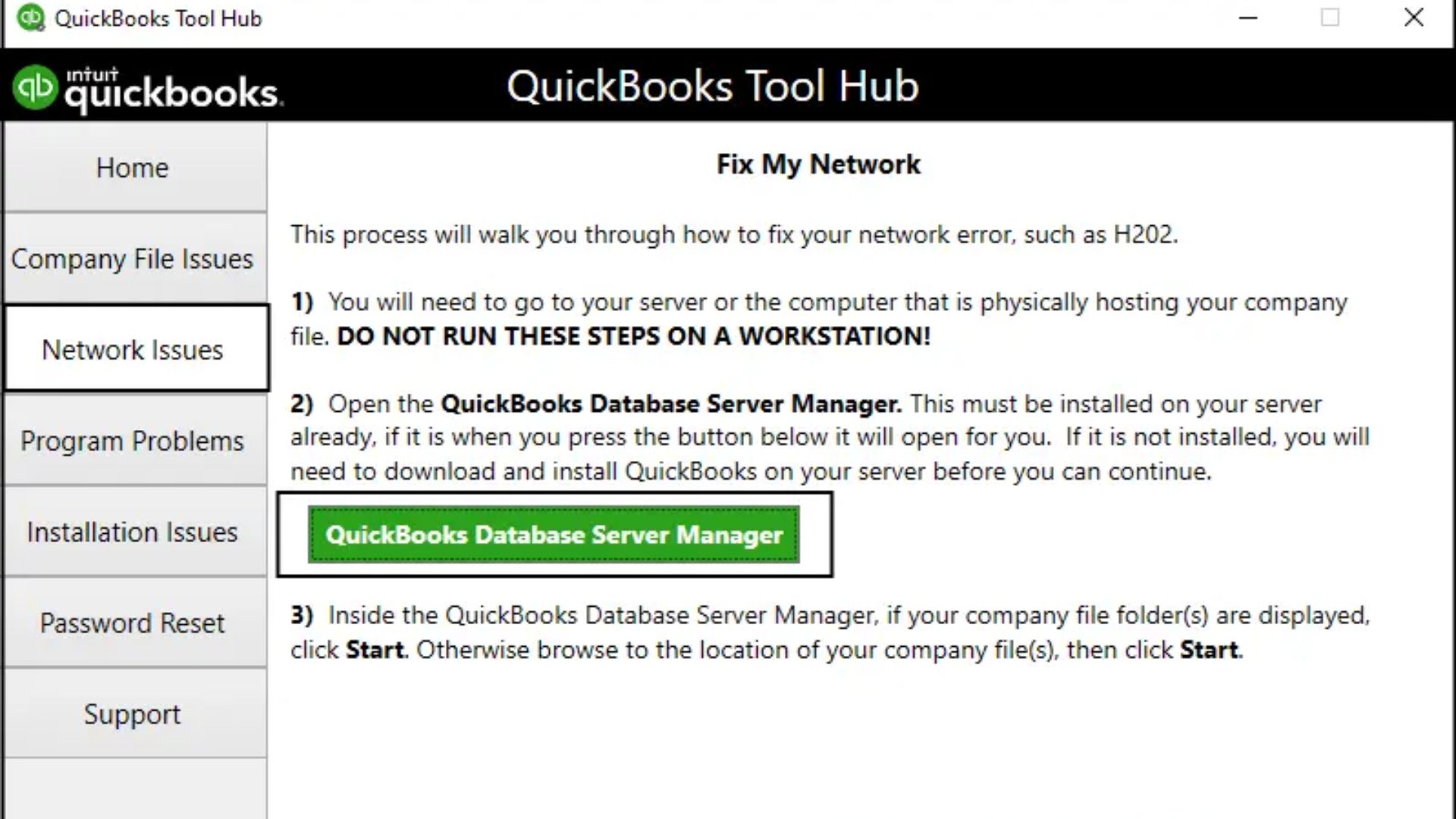
Steps:
- Go to Start Menu
- Open QuickBooks Tool Hub
- Click on Network Issues
- Select QuickBooks Database Server Manager
- Click Scan Folders
- Add the folder where your company file is stored
- Click Start Scan
After the scan is complete, restart QuickBooks and try opening the company file.
Solution 2: Check Hosting Settings on All Computers
Incorrect hosting settings can cause Error H202.
Steps:
- Open QuickBooks on each computer
- Go to File > Utilities
- If you see Host Multi-User Access, click it
- If you see Stop Hosting Multi-User Access, do NOT click it (this means hosting is already disabled)
👉 Only the server computer should host the company file, not the workstations.
Solution 3: Restart QuickBooks Services on Server
QuickBooks uses certain services to run in multi-user mode.
Steps:
- Press Windows + R
- Type services.msc and press Enter
- Restart the following services:
- QuickBooksDBXX (XX depends on your version)
- QBCFMonitorService
- Set both services to Automatic
Restart your system and check if the error is fixed.
Solution 4: Configure Firewall Settings on Windows 11
Windows 11 firewall may block QuickBooks communication.
Steps:
- Open Windows Security
- Go to Firewall & Network Protection
- Click Allow an app through firewall
- Add QuickBooks and allow it on Private and Public networks
Required Ports (Example):
- QuickBooks 2024: 8019, 56728, 55378–55382
Allow these ports manually if needed.
Solution 5: Rename the .ND File
The .ND file stores network data. If it is damaged, Error H202 can occur.
Steps:
- Go to the folder where company file is saved
- Locate the file with .ND extension
- Right-click and rename it to filename.ND.old
- Restart QuickBooks Database Server Manager
- Open QuickBooks again
QuickBooks will recreate a new .ND file automatically.
Solution 6: Check Network Connectivity Using Ping Test
This ensures your system can communicate with the server.
Steps:
- Press Windows + R
- Type cmd
- Type ping servername and press Enter
If you get replies, the network is working fine. If not, contact your network administrator.
Solution 7: Add Server IP to Windows Host File
Sometimes DNS issues cause H202 error.
Steps:
- Open Notepad as Administrator
Open the Hosts file from:
C:\Windows\System32\drivers\etc\hosts
Add:
Server IP Server Name
- Save the file and restart the system
Solution 8: Turn Off Antivirus Temporarily
Some antivirus programs block QuickBooks processes.
- Temporarily disable antivirus
- Try opening the company file
- If it works, add QuickBooks as an exceptio
Preventing QuickBooks Error H202 in the Future
To avoid this error in the future:
- Always use QuickBooks Database Server Manager
- Keep QuickBooks and Windows 11 updated
- Use a stable and secure network
- Avoid using VPN while running QuickBooks
- Regularly scan company file folders
When to Contact QuickBooks Support
If none of the solutions work, it may be a serious network or file issue. You should contact QuickBooks technical support if:
- Error H202 appears frequently
- Company file is corrupted
- Multiple users are affected
- You are not comfortable with network settings
Conclusion
QuickBooks Error H202 on Windows 11 is mainly a network-related issue that prevents users from accessing company files in multi-user mode. By checking hosting settings, firewall rules, QuickBooks services, and network connectivity, you can easily resolve this problem.
Follow the solutions step by step, and your QuickBooks should work smoothly again. Regular maintenance and correct configuration can help prevent this error in the future.




























Sign in to leave a comment.