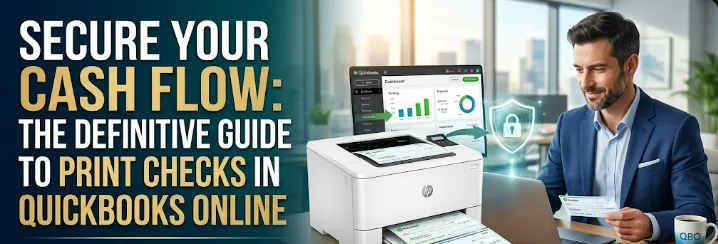

In an era of digital transfers and instant wire payments, you might wonder if paper checks are relics of the past. However, for millions of business owners, the ability to Print Checks in QuickBooks Online remains a vital part of professional financial management. Whether you are paying a traditional vendor, handling a refund, or managing a landlord who prefers physical mail, a check is more than just paper-it is a formal record of your business’s integrity.
Mastering the check-printing process within QuickBooks doesn’t just save you from the "clutch" of manual handwriting; it ensures that your accounting stays perfectly synced with your bank balance. Let’s walk through how to turn your printer into a high-security financial hub.
Why Printing from QuickBooks Beats Handwriting
Handwriting checks is not just slow; it is risky. When you write a check by hand, you have to remember to manually record that transaction into your books later. This double-entry system is where human error thrives. By choosing to print checks directly from QuickBooks Online, the act of creating the check is the act of recording the expense.
This automation ensures that your "Check Number" field always matches your bank statement, and your "Payee" details are consistent every time. It eliminates the dreaded "mystery check" at the end of the month that leaves you scratching your head during reconciliation.
Choosing the Right Check Stock
Before you hit the print button, you need the right hardware. QuickBooks Online is designed to work with specific check formats, and using the wrong one can lead to embarrassing alignment issues. The most common format is the Voucher Check, which features the check at the top and two stubs below-one for your records and one for the vendor.
Alternatively, you can use Standard Checks, which feature three checks to a page. While these are more cost-effective for high-volume runs, they lack the detailed breakdown of what the payment covers. For most professional services, the voucher style is preferred because it clearly lists the invoice numbers being paid, reducing "where is my payment?" phone calls from your suppliers.
Setting Up Your Printer Alignment
The biggest hurdle most users face is the dreaded alignment issue. There is nothing more frustrating than wasting expensive check stock because the "Amount" printed inside the "Date" box. QuickBooks Online addresses this with a built-in alignment tool.
When you first navigate to the print checks screen, the system will prompt you to print a sample on plain white paper. Once printed, you can lay that sample over your actual check stock and hold it up to the light. If the numbers don't line up, QuickBooks allows you to adjust the vertical and horizontal offsets until the alignment is pixel-perfect. Always perform this test before running a large batch of payments.
The Step-by-Step Printing Workflow
The process begins by recording an expense or a bill payment. Within the transaction window, ensure the "Print Later" checkbox is selected. This adds the transaction to a "Print Queue," allowing you to print all your weekly payments in one single batch rather than feeding paper into the printer one by one.
When you are ready, you navigate to the "Print Checks" utility under the "Plus New" menu. Here, you will see a list of all pending payments. You can select the specific bank account you are paying from, enter the starting check number, and review the list. This is your final chance to verify that the amounts and payees are correct before the ink hits the paper.
Managing High-Security and Micr Ink
For businesses concerned about fraud, it is worth considering high-security check stock. These checks often include watermarks, heat-sensitive icons, and "void" pantographs that appear if someone tries to photocopy the check. Additionally, while most modern banks use optical scanning, some still rely on Magnetic Ink Character Recognition (MICR).
If you are printing the entire check-including the routing and account numbers-on blank paper, you will need a specialized MICR toner cartridge. However, most QuickBooks users buy "pre-printed" stock that already has their bank info, meaning a standard laser or inkjet printer will work perfectly fine for filling in the payee and amount details.
Troubleshooting Common Printing Errors
Even with a perfect setup, technical glitches can occur. If your checks are printing upside down or on the wrong side of the paper, the issue usually lies in your printer's "Tray Settings." Most printers require checks to be face-down or face-up depending on the model.
Another common issue is the "PDF Viewer" settings. QuickBooks generates a PDF of your checks to send to the printer. If your PDF software is set to "Fit to Page" or "Shrink Oversized Pages," it will distort the alignment. Always ensure your print settings are set to "Actual Size" or "100% Scale" to maintain the integrity of the layout.
Security and Best Practices
Printing checks comes with a responsibility to maintain security. Never leave your check stock sitting in the printer tray overnight. It should be treated like cash and stored in a locked cabinet. Within QuickBooks Online, you should also utilize the "Audit Log" to see who printed which checks and when. This creates a digital paper trail that protects the business from internal fraud.
If you ever ruin a check during the printing process-perhaps the paper jammed or the ink smeared-be sure to use the "Void" feature in QuickBooks. This keeps the check number in your sequence but zeroes out the financial impact, providing a clean history for your CPA at year-end.
Conclusion: Professionalism in Every Envelope
While the world moves toward digital, the ability to print checks in QuickBooks Online remains a hallmark of a well-organized business. It demonstrates to your vendors that you have a formal, reliable accounting system in place. By automating the data entry, perfecting your alignment, and following secure printing protocols, you turn a chore into a streamlined five-minute task.
Effective financial management is about having options. By mastering both digital payments and physical check printing, you ensure that your business can pay anyone, anywhere, at any time-all while keeping your books perfectly balanced and ready for growth.























Sign in to leave a comment.