
You can recover deleted photos from your iPhone whether you have a backup or not; this article explains how to recover deleted photos from your iPhone.
Photos are often the most critical data stored on an iPhone; losing them can be disastrous. Losing any data on your iPhone is a highly unpleasant experience, especially if the data is critical. Because photos contain priceless memories, they are among the most regularly lost data. Users will try every trick in the book to recover deleted photos from iPhones for free when crucial photos are gone. The good news is that there are a few options from which you can recover deleted photos from your iPhone if you mistakenly delete some (or all) of them. We will go through those approaches and some precautions you can take to keep your images safe. The methods to recover deleted photos from iPhone depend on whether you have a backup or not. It can be simple or complicated.
How to Recover Deleted Photos from iPhone?
Here are a few methods you can use to recover deleted photos from your iPhone. First, let’s look at the details.
Recover Deleted iOS Photos from recently deleted folder
You can recover deleted photos from your iPhone by using this method. iOS includes a tool that allows you to recover images that have been deleted. A Recently Deleted album exists in the Photos app. This keeps track of your deleted images for 30 days, providing you with enough time to recover them before they are permanently lost. If you deleted a photo in the recent 30 days and want to recover deleted photos from your iPhone, take these steps:
To Recover iOS photos from a recently deleted folder, open the Photos appThen tap an album. The folder will open.Tap Recently Deleted after scrolling down to the Other Albums section.
All the images you have deleted in the last 30 days will be listed here.Tap Recover to recover the snapshot you want. Your picture will be stored in your Photo Library.
This is the easiest method to recover deleted photos from iPhone before 30 days. After 30 days, these photos will be permanently removed from your iPhone. Then you have to use the backup to recover deleted photos from your iPhone. Or, if you don’t have a backup, you can get help from a third-party app.
Recover Deleted photos from iPhone via Backup
Backups are the next best option for recovering deleted images from an iPhone. We present three alternative solutions because there are various ways to backup photos on iPhone, and it is up to you to choose which one is ideal for you. You can recover iOS photos from iPhone via
iCloud backupiTunes backupmacOS catalina’s FinderRecover Deleted photos from iPhone using iTunes backup
You will not discover the photos in the 'Recently Deleted' folder if you have permanently deleted them or if it has been more than 30 days since they were deleted. If you have an iTunes backup, you can recover iOS Photos that have been permanently deleted. Follow these methods to recover deleted images from an iTunes backup:
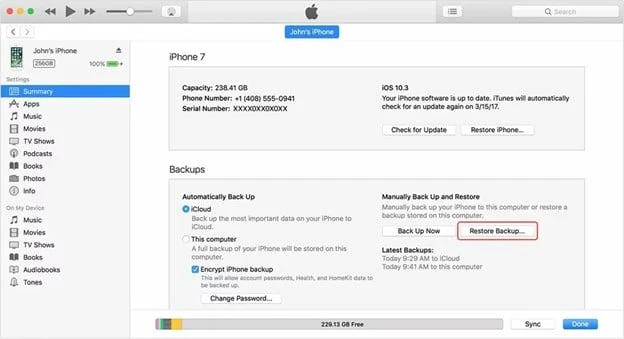
Open iTunes on your computer.Connect your iPhone to your PC using an original Apple cable.You will see the device icon on top. Click on the iPhone icon, then tap Summary.
Select Restore Backup from the drop-down menu. Choose the most appropriate backup.
By using this method you will be able to get back your iOS Photos that have been deleted permanently.Wait for the restore process to complete after clicking Restore.
Recover Deleted Photos from iPhone via iCloud backup
Recover iOS photos that have been deleted permanently via iCloud backup. You can recover your images on iPhone from an iCloud backup in the same way you can from an iTunes backup. Your iPhone makes iCloud backup files for your whole device without you having to do anything. To retrieve the missing photo, restore one of your backups. Back up your device to iCloud so that if something goes wrong, or if you do not like the data of the earlier backup and are prepared to give up the images, you can revert to your previous settings.
Wait for the backup to complete and then reset your iPhone; this is a disadvantage of using this method.
Open Settings, then tap on General > Reset.Then click on Erase all content and Settings. Then, the option will come to Restore iCloud Backup. Click on it.Then, you will be asked for your Apple ID. Sign in to your iCloud by entering your password.Then select the iCloud Backup according to your need.There are some plus points of using this method. You can Recover videos if they are mistakenly deleted. If you have deleted a person's contact and you want it back, you can Recover contacts via iCloud backup. You can also Recover messages. All the files you have deleted in the past will be recovered automatically using iCloud backup.
Recover Deleted Photos from iPhone via Finder
The Finder has been in control of iPhone backups and restores since macOS Catalina. If this is your first time using Finder to restore data from an iPhone backup, do not fear; Apple has made the process as simple as possible. To Recover iOS images from this method, follow these steps :
Set up, Finder.Connect your iPhone to your computer using the USB cable provided.You will see a list of options on the left; choose your iPhone from this option.Before restoring your iPhone, make a backup with Finder.Then, on the General page, click the Restore iPhone button.To restore your iPhone from a backup, click the Restore button to indicate that you are ready.Recover Deleted Photos from iPhone using Third-party app(without backup)
A variety of software is available from which you can recover iOS photos. Here’s the list of software you can use to recover deleted photos from the iPhone.
1-Tenorshare UltData
Tenorshare UltData is an iOS recovery app that lets you recover deleted images from your iPhone, even if they have been permanently deleted. This recovery program can recover a variety of file types and formats, including iTunes backup files and iCloud backup files, in addition to photographs. This is, without a doubt, the simplest and most effective method for retrieving completely deleted iPhone images. Without a backup, recover deleted photos from your iPhone:
Install and run Tenorshare UltData.Connect your iPhone to your computer and choose 'Recover from iOS Device.'Click 'Start Scan' after selecting 'Photos.'Choose the photographs you wish to recover and hit the 'Recover' The photos you have chosen will be sent to your iPhone.2-Disk Drill
To recover deleted photos from iPhone, use Disk Drill iPhone Recovery. Disk Drill is a free app that can recover iOS images, videos, and other data from iPhones using advanced algorithms and an easy-to-use interface.
Download this softwareConnect your iPhone to your computer using the USB cable.If Disk Drill prompts you, enter your iPhone's encryption password.To restore the photos, choose the ones you want to recover.In Disk Drill's "Recover to" box at the top, select the directory where we wish to recover the images. The user's "Documents" directory will be the default location.Tap the recover button. The photographs will be restored to the specified directory due to this action.3-EaseUS MobiSaver
EaseUS MobiSaver is a secure and reliable iPhone data recovery tool. It can recover contacts, photos, videos, movies, messages, and other data from iPhone/iPad without a backup as a professional data recovery tool. Unlike typical recovery methods (iTunes and iCloud), this powerful program allows you to restore only the photos you want to your iPhone. It can also convert data that has been lost without the need for a backup.
Start and run EaseUS MobiSaver. It will show three options from which you have to select one. First, choose "Recover from iCloud." Then, put your Apple ID and password in the appropriate fields.The scanning of your device will then initiate. Then, all of the located files will be shown on the left side. Select the "Photos/Videos" category to find iCloud photos quickly. Then, one by one, look over the recoverable photos > Choose "Recover" and a location on your computer to save the files..FAQs
How to recover deleted contacts from iPhone?
You can attempt a few things to restore contacts on an iPhone device. The problem could be as simple as turning off and on iCloud contacts or restoring from an iCloud and iTunes backup. On the other hand, it could be more involved, such as requiring the use of a third-party file recovery application to recover deleted contacts from iPhone memory.
Is it possible to ask Apple iCloud to recover photos that have been permanently deleted?
No, that is what happens when you remove items, and your device informs you about them, which you must recognize, so they can not happen by accident. Apple also encrypts everything in iCloud with your information for your protection, so you can not ask Apple to do anything with your data no matter where it is because it does not know how to access it.
How to hide photos on iPhone?
To get started, tap the Photos app. Find and tap the photo you would like to hide. Select Action from the menu bar. Tap Hide. Select Hide Photo from the confirmation screen. The image fades away.
How to delete duplicate photos from your iPhone?
Open the Photos app, go to Albums, and choose and remove the photos you wish. Tap the Trash Can symbol once you have selected it. Alternatively, you can use a third-party tool such as Gemini Photographs: Gallery Cleaner to eliminate duplicate photos automatically.
Conclusion
If you use the right approach, iPhone photo recovery could be simple. There are numerous methods for recovering deleted images on iPhone, as discussed in this article. Always begin by looking through the Recently Deleted album, which contains all deleted images for the next 30 days. But if they are permanently deleted, then go for backups. As you may already be aware, backing up your crucial data is critical to avoid data loss. As a result, do not be afraid to make it a habit to back up your device frequently. If you want to recover deleted photos from your iPhone without backup, you will have to rely on third-party software.
0







Sign in to leave a comment.