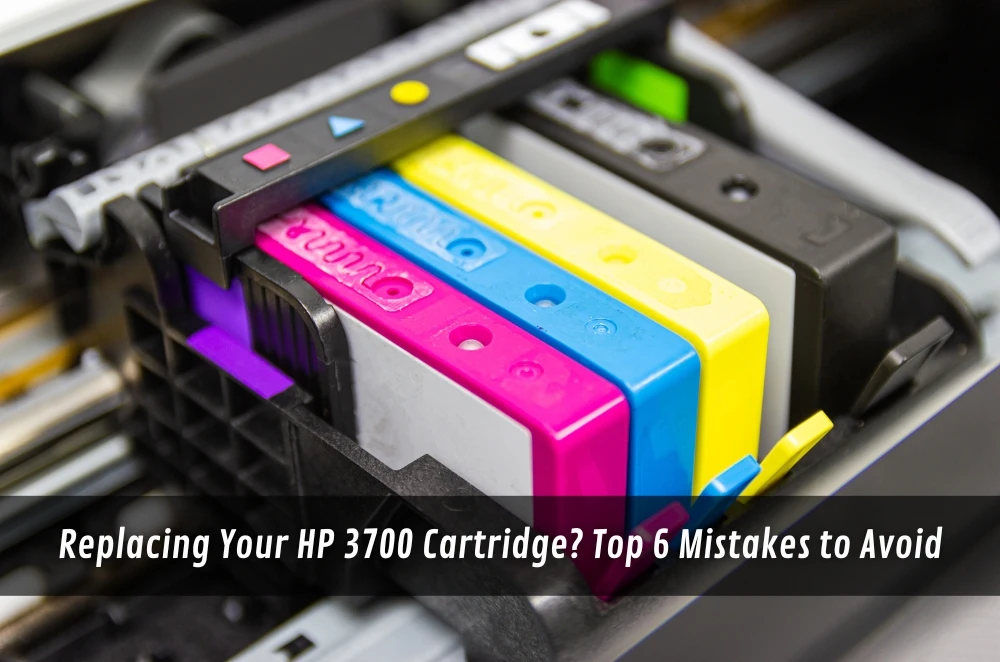

Running an HP 3700-series printer (including regional variants) should be easy. Yet most cartridge swaps go sideways for simple, avoidable reasons—messy installs, wrong codes, or firmware gremlins. If you want clean, streak-free pages and fewer midnight runs to the office supply store, start with a solid source for HP printer 3700 accessories and then avoid the traps below. I’ve included quick fixes and a couple of “I learned the hard way” notes from real-life print crunches.
1) Guessing the cartridge code (and region) from memory
Many HP 3700-series devices share a compact frame but don’t always share the same cartridge code across regions. Swapping on autopilot is the fastest way to buy the wrong pack.
Fix it:
- Print a supplies status report from the printer/app to confirm the recognised code.
- Check your activation region (Australia vs overseas imports can differ).
- Match the entire part number on the old cartridge label—one wrong digit can be a different region/yield.
Pro tip: Keep a phone photo of your last working cartridge box in your notes app. It beats rummaging in the recycling bin.
2) Touching the copper contacts and nozzles
Smudged contacts = poor recognition; contaminated nozzles = banding or missing lines. It’s an easy mistake when you’re rushing.
Fix it:
- Open the foil, peel the tape, and hold the cartridge by the sides only.
- If you see residue, use a lint-free cloth to gently dab the contacts—never the nozzle plate.
- Insert at the correct angle and press until it clicks. If it doesn’t seat smoothly, don’t force it—re-check the orientation.
Anecdote: I once “helped” a mate install at 11 pm before a school project deadline. One thumbprint on the contacts later, the printer pretended the cartridge didn’t exist. Ten minutes of careful reseating (and a soft wipe) solved it—but we lost valuable time.
3) Skipping alignment and cleaning routines
New cartridges aren’t fully “dialled in” until the printer aligns them. Skipping that page might save two minutes now and cost you a full reprint later.
Fix it:
- Run the alignment immediately after installation.
- If text looks fuzzy or colours break up, run a nozzle clean and print a test grid.
- Use plain A4 for these steps; fancy paper can mask problems.
Why it matters: The 3700’s micro-nozzles are tiny; a quick alignment reduces waste across your next 50–100 pages.
4) Using the wrong paper mode (and blaming the ink)
Washed-out colours or rough edges aren’t always ink issues. If your driver/app is set to the wrong paper stock (e.g., “plain” for a coated sheet), you’ll get flat, greyish output.
Fix it:
- In the HP app/driver, match paper type (plain, matte, photo) and quality (draft/normal/best) to what’s in the tray.
- For everyday docs, “Normal on plain” looks crisp and costs less ink; reserve “Best” for final hand-ins.
- Keep 80–90 gsm white for standard work; heavier stock for covers; photo media only for true photo tasks.
Reality check: Half the “bad ink” returns I see are actually “wrong paper mode” problems. Set it once, save it as a preset.
5) Treating XL vs standard yield as a price tag, not a plan
Standard yield looks cheaper at the checkout, but your cents per page can be worse—especially if you print batches (assignments, invoices, labels).
Fix it:
- Estimate your next 2–3 months of pages. If you’ll print regularly, go XL black and standard colour (a balanced combo for everyday use).
- If you print rarely, standard yield can be safer—ink lasts, but idle heads don’t love long gaps.
- Store unopened cartridges in a cool, dry cupboard, upright. Use the opened ones within a few months.
6) Throwing empties in the bin (and missing free drop-offs)
Cartridges aren’t general waste. Recycling is widely available across Australia, and many councils and retailers accept it.
Fix it:
- Keep a small box for empties near your printer.
- Find local drop-off options via state resources like HP inkjet cartridge recycling.
- If you manage a small office, set a monthly drop reminder—batching keeps desks tidy and habits sticky.
Why it matters: It’s good for the planet and keeps materials in circulation. Also, fewer guilt trips when you print the next school project.
Bonus pitfalls (that sabotage good cartridges)
- Firmware procrastination: Update before installing new cartridges to reduce recognition hiccups with newer chips.
- Mixed-age sets: Running a fresh black with a near-empty colour can confuse colour balance in composite blacks.
- Rattly paper trays: If paper feeds at an angle, even perfect cartridges will look streaky. Square your stack; don’t overfill.
- No airflow: Printing in a humid, closed cupboard invites smearing. Give the printer breathing room.
Set up, alignment, and wireless—your quick-start refresher
If your priority is a clean install and stable pairing (especially after a router change), bookmark a how-to like HP inkjet printer setup. At a minimum, it should cover:
- Adding the device via the HP app,
- Updating firmware,
- Running alignment and a test grid,
- What to check if the printer drops off Wi-Fi (channel crowding, 2.4 GHz preference, etc.).
Genuine vs compatible vs remanufactured—what’s smart for 3700 users?
You’ll see three broad categories on Australian retail sites:
- Genuine (OEM) HP: Most predictable recognition and colour fidelity. Great for critical docs and when you can’t afford a reprint.
- Compatible (new-build) third-party: Cheaper, quality varies by brand and batch. Buy from sellers with transparent return policies and page-yield disclosure.
- Remanufactured (refilled OEM shells): Lower environmental impact; depends on cleaning and chip condition. Look for a warranty and consistent reviews.
A practical mix:
- Lots of black text? OEM or a top-tier compatible XL black is worth it for crisp edges and fewer reprints.
- Occasional colour? A reputable compatible/reman colour can save money—test on plain paper before a final submission.
When an inkjet isn’t the right tool (and how to decide)
If you’re mostly printing high-volume black-and-white (quotes, invoices, draft docs), a laser device can be cheaper per page. For a neutral comparison of tech trade-offs—duty cycle, cost per page, idle behaviour—grab an explainer like HP inkjet vs laserjet. It’ll help you decide whether to stick with the 3700 family or pivot for your workload.
Quick checklist before you hit “Print”
- Cartridge code and region match your device.
- Contacts/nozzles untouched; tape removed cleanly; firm click-in.
- Alignment and (if needed) nozzle clean completed.
- Paper type & quality set correctly in driver/app.
- Firmware current; Wi-Fi stable.
- Empties dropped into your recycling box—not the bin.
Bottom line
Most cartridge headaches aren’t hardware failures—they’re tiny, human errors. Confirm the code, install with clean hands, align immediately, and match paper settings to your job. Plan yield to your next few months (not just today’s price tag), and recycle empties through Australian programs to keep materials in the loop. If you need new supplies, begin with inkjet cartridges for HP and build from there. A few careful habits turn your HP 3700 from “temperamental” to “dependable”—and keep your late-night print jobs beautifully boring.

























Sign in to leave a comment.