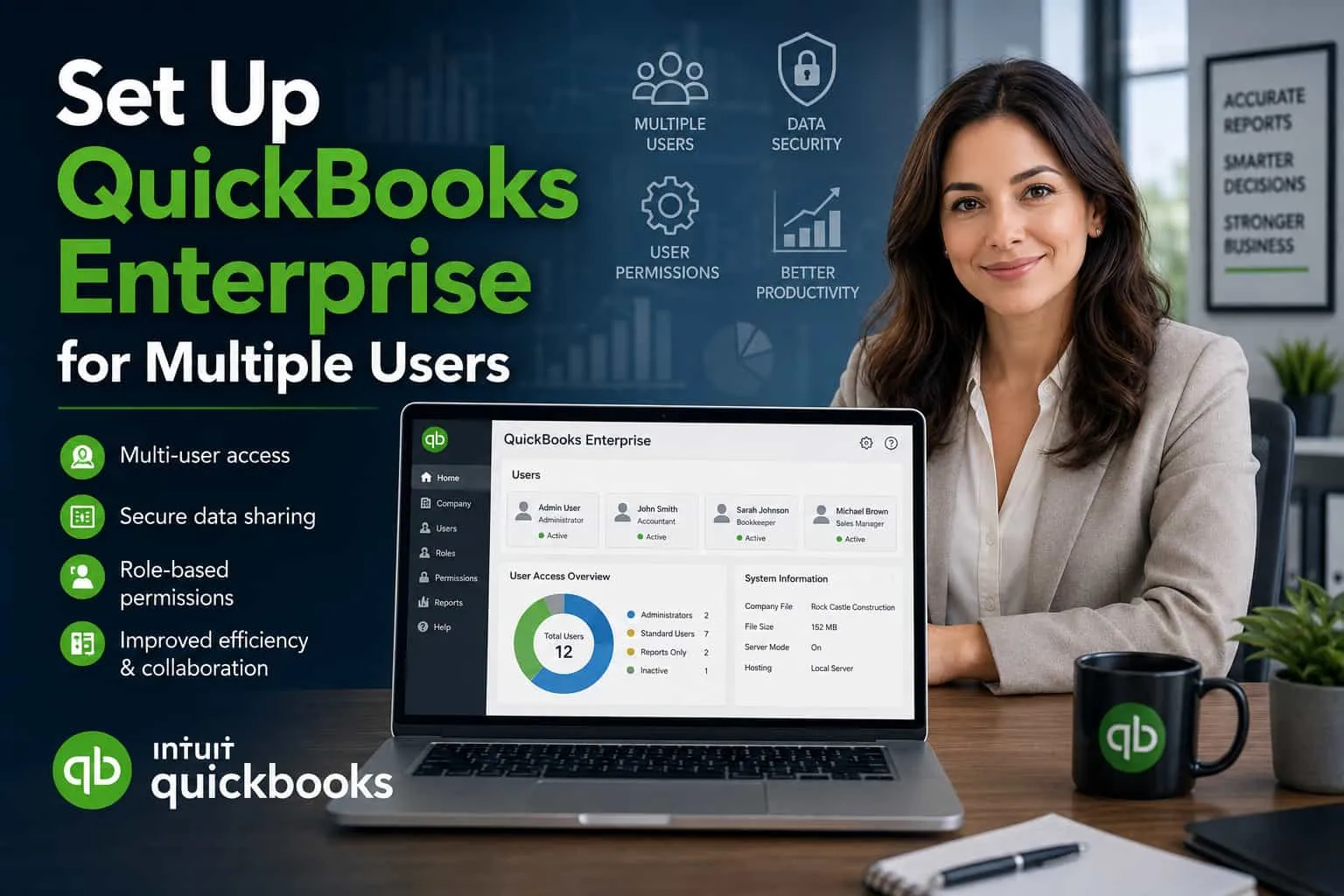

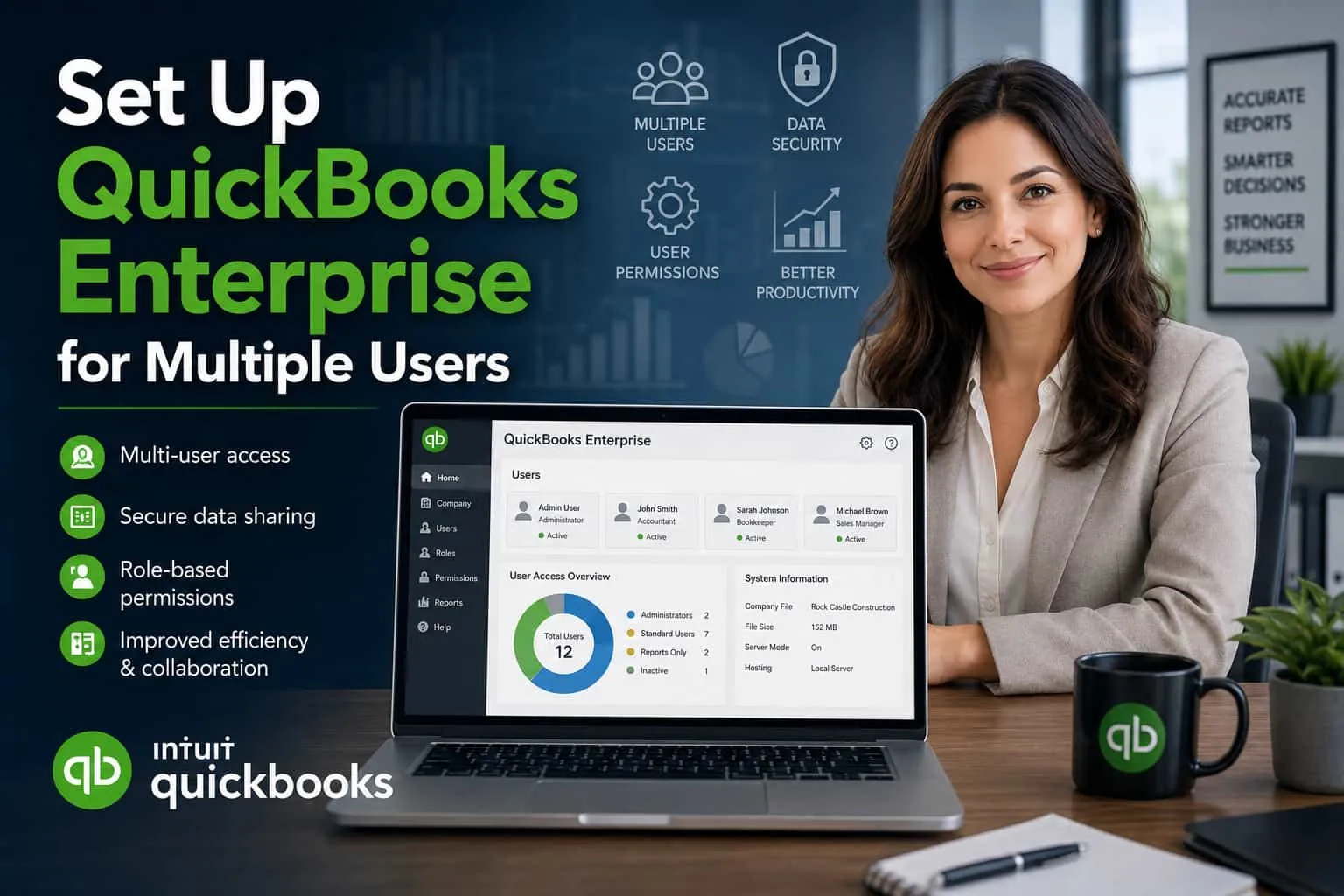
Managing business finances becomes more efficient when multiple team members can access the same accounting system. For growing companies, this is where learning how to set up QuickBooks Enterprise for multiple users becomes important. Whether you have an accountant, office manager, or inventory team that needs simultaneous access, the multi-user feature in QuickBooks Enterprise makes collaboration smoother.
This guide explains the full setup process in plain language. You will learn system requirements, configuration steps, common errors, and practical tips to improve performance.
Why Businesses Use Multi-User Access in QuickBooks Enterprise
Many businesses outgrow single-user accounting systems quickly. Once multiple departments need to create invoices, check reports, and manage expenses, using one computer or login slows everything down.
Multi-user mode solves this by allowing several authorized users to work in the same company file at the same time.
Benefits include:
- Real-time collaboration
- Faster accounting workflow
- Controlled user permissions
- Better team productivity
- Centralized financial records
For example, a sales employee can create invoices while the finance team reconciles bank statements. At the same time, management can review reports.
Understanding How Multi-User Mode Works
Before you set up QuickBooks Enterprise for multiple users, it helps to understand the basic structure.
QuickBooks Enterprise uses:
- One host computer (server)
- Shared company file
- Connected workstations
- Network communication
- User permissions
The host stores the company file. Other computers connect through the network to access that file.
This means setup is not only about installing software. It also includes folder sharing, database service, firewall settings, and permissions.
System Requirements Before Setup
Check these requirements before starting.
Hardware Requirements
The server computer should have:
- Reliable processor
- Minimum 8GB RAM
- SSD storage
- Stable local network
- Updated operating system
Workstations should also meet QuickBooks specifications.
Network Requirements
You need:
- Local wired network preferred
- Stable IP configuration
- Proper file sharing
- Firewall permissions
- Admin access
Unstable Wi-Fi can create connection issues.
Step-by-Step: How to Set Up QuickBooks Enterprise for Multiple Users
Setting up QuickBooks Enterprise for multiple users is not difficult when you follow the correct sequence. The goal is to create a shared environment where several employees can work on the same company file without conflicts. This is useful for businesses where accounting, sales, inventory, or payroll teams need simultaneous access.
Below is a practical setup process.
Step 1: Install QuickBooks Enterprise on the Server
The first step is installing QuickBooks Enterprise on the computer that will act as the main server. This server stores your company file and handles access requests from all connected workstations.
During installation:
- Choose Custom and Network Options
- Select the option that indicates this computer will store company files
- Enable hosting
- Install database components
- Complete setup and restart system
A dedicated server gives better stability. If possible, avoid using an employee’s regular workstation as the host computer.
Helpful tip:
- Use an updated Windows system
- Keep enough free storage
- Prefer SSD over HDD
- Connect server through wired LAN
A reliable server reduces lag and access errors.
Step 2: Create or Move the Company File
After installation, the company file must be placed in a shared folder on the host machine.
Recommended setup:
- Create a new folder specifically for accounting files
- Keep it outside desktop folders
- Use clear naming
- Organize backup folders separately
Example path:
C:\QBSharedData\CompanyFiles
Best practices include:
- Keep file in one central folder
- Do not store on removable drives
- Avoid random user folders
- Maintain daily backups
This location becomes the source file accessed by all users.
Step 3: Configure Folder Sharing Permissions
This step is often missed but is essential. If folder permissions are incorrect, users may not open the company file.
To configure sharing:
- Right-click company folder
- Select Properties
- Open Sharing tab
- Choose Advanced Sharing
- Enable sharing
Allow:
- Read access
- Write access
- Network availability
Next, go to Security tab and assign:
- Full control
- Modify permission
- Read permission
This ensures users can work without restrictions.
Common issues caused by incorrect permissions:
- Access denied errors
- File lock messages
- Network disconnection
- Save failure warnings
Proper folder access prevents most connection problems.
Step 4: Install QuickBooks Database Server Manager
Database Server Manager controls how QuickBooks shares files across the network.
After installation:
- Open Database Server Manager
- Select company folder
- Start scan
- Confirm folder detection
- Verify successful scan
The tool creates connection descriptors required for workstations.
Why this matters:
- Detects shared file
- Enables network communication
- Improves stability
- Supports simultaneous sessions
If the folder is not scanned, clients may fail to connect.
Step 5: Enable Hosting on the Server
Now enable hosting on the main server.
Open QuickBooks and navigate to:
File → Utilities
Select:
Host Multi-User Access
Once enabled, that machine becomes the host.
Important rule:
Only one computer should host the company file.
Do not enable hosting on workstations because this may create:
- Connection conflicts
- File corruption
- Host switching errors
- H-series errors
Before moving forward, verify hosting status is active only on server.
Step 6: Install QuickBooks on Client Computers
Each employee workstation needs QuickBooks Enterprise installed.
During installation choose:
- Client installation
- Same version as server
- No hosting mode
After installation:
- Open QuickBooks
- Browse network folder
- Locate shared company file
- Connect to host
All systems must run the same QuickBooks release version.
Checklist:
- Same software version
- Same updates
- Same license type
- Network access enabled
Consistency avoids compatibility issues.
Step 7: Switch to Multi-User Mode
This is the final activation step.
Once all computers connect correctly:
Open company file.
Go to:
File → Switch to Multi-User Mode
Now several users can access the same file at once.
This allows:
- Invoice creation
- Expense tracking
- Report generation
- Inventory management
- Payroll processing
All within one shared accounting environment.
Creating User Accounts
Every employee should have separate login credentials.
Go to:
Company → Users → Set Up Users and Roles
Create user roles such as:
- Accountant
- Sales
- Inventory manager
- Admin
- Payroll
This improves security and accountability.
Assigning User Permissions
Permissions help control sensitive financial data.
Examples:
Sales Team
Can access:
- Customers
- Invoices
- Estimates
Cannot access:
- Payroll
- Bank reconciliation
Accounting Team
Can access:
- General ledger
- Vendor records
- Reports
Management
Can access:
- Dashboard
- Financial reports
- Audit logs
Proper permissions prevent accidental edits.
Common Errors During Setup
Even correct installations can face issues.
H202 Error
Occurs when workstations cannot reach host.
Fix:
- Check firewall
- Verify server
- Restart database manager
File Access Denied
Usually permission issue.
Fix:
- Share folder properly
- Security access
- Run as admin
Network Timeout
Caused by weak network.
Fix:
- Use Ethernet
- Reduce heavy traffic
- Restart router
If your team continues experiencing hosting conflicts, database connectivity issues, or recurring H-series errors after setup, it may be useful to get help from a QuickBooks Desktop representative. Professional assistance can simplify server configuration, user permission management, and network troubleshooting, especially for businesses handling large company files in a multi-user environment.
Best Practices for Stable Performance
Once you set up QuickBooks Enterprise for multiple users, maintaining stability matters.
Follow these tips.
Use Dedicated Server
Avoid using employee workstation as host.
Dedicated server gives better speed.
Backup Daily
Always back up company file.
Store backup:
- External drive
- Cloud
- Secondary system
Update Software
Keep QuickBooks updated.
Updates fix:
- Security issues
- Network bugs
- Database errors
Businesses using connected services, payroll features, or online backups should also remember to renew your QuickBooks Desktop subscription on time to avoid interruptions during daily accounting operations. Keeping the subscription active helps maintain access to updates, security patches, and essential multi-user functionality needed for smooth collaboration across departments.
Limit Admin Access
Only key personnel should have admin rights.
Security Considerations
Financial data needs protection.
Use:
- Strong passwords
- Limited permissions
- Antivirus
- Firewall
- Encrypted backups
Businesses often improve accounting security by following software administration practices shared through resources like Intuit QuickBooks Enterprise support.
(Place your single contextual backlink here naturally if needed.)
Example placement:
Many businesses review additional accounting workflow resources before configuring shared systems to avoid permission errors during deployment.
Troubleshooting Connection Problems
If users cannot connect:
Check:
- Server online
- Shared folder visible
- Same QuickBooks version
- Database service active
- Windows updates
Simple restart often resolves temporary lock issues.
If users begin receiving repeated billing or service notifications while working in multi-user mode, it is important to address them early to avoid workflow interruptions. Many businesses review guides to fix QuickBooks subscription expiring warning messages before connected services like payroll, payments, or cloud-based features become temporarily unavailable across shared workstations.
How Many Users Can Access at Once?
QuickBooks Enterprise supports multiple concurrent users depending on license.
Common plans support:
- 1 user
- 5 users
- 10 users
- 20 users
- 30 users
Choose according to business size.
Is Cloud Hosting Better?
Some businesses prefer hosted access.
Benefits:
- Remote login
- Automatic backups
- Less hardware maintenance
- Anywhere access
However local hosting gives more control.
Choose based on company workflow.
Businesses managing multiple clients and shared accounting workflows often explore a detailed QuickBooks Online Accountant guide to improve collaboration, reporting accuracy, and remote financial management. Cloud-based accounting platforms can also help teams coordinate more efficiently when working alongside QuickBooks Enterprise multi-user environments.
Tips for Faster Multi-User Performance
To improve speed:
- Store file on SSD
- Use LAN connection
- Reduce large reports during peak hours
- Archive old records
- Maintain clean database
Performance depends heavily on hardware quality.
Mistakes to Avoid
Avoid these common mistakes:
- Hosting on all computers
- Weak folder permissions
- Shared Wi-Fi only
- Outdated QuickBooks version
- Same login for all users
- No backups
These often cause data corruption.
When to Contact Support
Contact support if:
- H-series errors continue
- Company file damaged
- Database scan fails
- Server not detected
- Permissions reset repeatedly
Professional setup may save time for large organizations.
Final Thoughts
Learning how to set up QuickBooks Enterprise for multiple users helps businesses manage accounting operations more efficiently. The process requires more than simply installing software. Proper server configuration, shared folder permissions, database services, and user access management all work together.
If setup is done correctly, your team can work simultaneously without delays. This improves accounting speed, collaboration, and reporting accuracy.
Take time to configure each step carefully, especially permissions and server settings. A well-configured multi-user environment reduces errors and keeps business finances organized.
Frequently Asked Questions
How do I enable multiple users in QuickBooks Enterprise?
To enable multiple users in QuickBooks Enterprise, open the application on the server computer, navigate to the File menu, select Utilities, and then choose Host Multi-User Access. This will allow other authorized users to access the same company file simultaneously.
Can QuickBooks Enterprise support remote users?
Yes, QuickBooks Enterprise can support remote users through remote desktop solutions or cloud hosting options. This allows team members to access the accounting system from different locations while maintaining the same functionality.
Why is my QuickBooks multi-user mode not working?
Issues with QuickBooks multi-user mode often arise from firewall restrictions, incorrect hosting configurations, or improper folder permissions. It's important to verify that the server is properly set up and that all users have the necessary access rights.
Do all users need QuickBooks installed on their workstations?
Yes, every user accessing the multi-user environment must have QuickBooks Enterprise installed on their workstation. Additionally, all installations should match the same version to ensure compatibility.
Is server installation mandatory for QuickBooks Enterprise?
Yes, a server installation is mandatory because the company file needs to be hosted on a single computer to allow multiple users to access it simultaneously. This setup facilitates centralized management and efficient collaboration.
What are common problems when setting up multi-user access?
Common problems include access denied errors, network timeouts, and H-series errors. These issues typically arise from incorrect permissions, weak network connections, or misconfigurations in the hosting setup.
How can I improve performance in multi-user mode?
To improve performance in multi-user mode, store the company file on an SSD, use a wired LAN connection, and minimize the size of reports during peak usage times. Regular maintenance of the database can also help enhance speed and efficiency.



























Sign in to leave a comment.