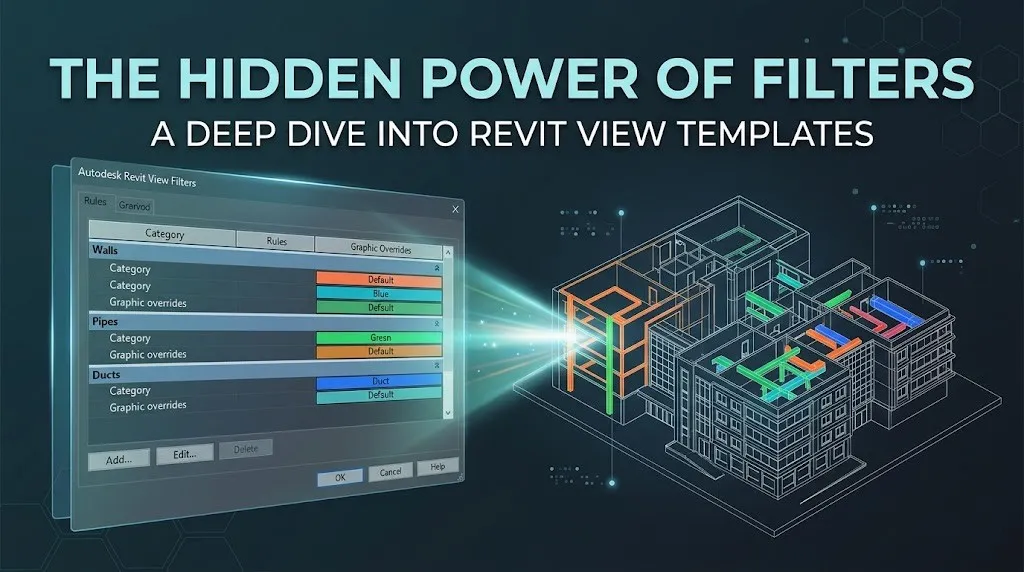

Did you know that according to recent industry benchmarks, BIM coordinators spend nearly 35% of their day simply managing view consistency and manual graphic overrides? In a high-stakes project, that’s not just "admin time"—it’s a massive drain on your profit margins. We often talk about View Templates as the "holy grail" of Revit efficiency, but there is a secret engine running under the hood that many professionals barely scratch the surface of: Rule-Based Filters.
While a standard View Template handles the "what" (e.g., showing walls or doors), filters handle the "why" and "how" (e.g., showing only fire-rated walls in red or hiding mechanical equipment under a certain horsepower). If View Templates are the steering wheel of your project’s documentation, Filters are the GPS, guiding your data to the right visual destination.
The AEC Landscape: From Graphics to Data-Driven Logic
The AEC industry in 2026 has shifted. We are no longer just "drawing buildings"; we are managing complex databases. With the rise of digital twins and advanced BIM workflows, the demand for automated, error-free documentation is at an all-time high.
Industry reports from firms like McKinsey highlight that digital transformation in construction could boost productivity by 14-15%. However, that boost only happens when we move away from manual "Right-Click > Override Graphics in View" and toward systemic, template-driven logic. This is where filters within your View Templates transform from a "nice-to-have" feature into a critical production asset.
Why Filters are the "Brains" of Your View Templates
If you are looking to master the foundational settings of your model, it is essential to first understand what a view template is and how to create it to ensure your project stays organized. Once that baseline is set, filters provide a layer of granular control that categories alone cannot match.
1. Beyond Category-Level Control
Imagine you are working on a massive healthcare project. You need a partition plan. A standard View Template can turn on all "Walls." But what if you only want to see new walls, or specifically acoustic-rated walls? A filter allows you to write a rule:
“If Wall Type contains 'Acoustic,' then override color to Blue.”
2. Enhancing BIM Coordination and Safety
Filters are a secret weapon for clash prevention. By using filters to color-code systems—such as distinguishing high-pressure supply ducts from return air—you create a visual "heat map" that helps engineers spot potential issues long before Navisworks ever runs a clash report. In fact, projects utilizing advanced visual filtering have reported a 10% reduction in onsite RFIs related to coordination errors.
Strategy: How to Build "Smart" Filters for Large-Scale Projects
Implementing filters isn't just about making things look pretty; it's about Standardized Automation. Here is how the pros structure their filter logic within View Templates:
- The Parameter Power-Up: Filters rely on parameters. To get the most out of them, ensure your project utilizes high-quality Revit Family Creation to provide the necessary data fields. If your families don't have the right data, your filters have nothing to "read."
- Performance Optimization: In large models, having 50+ filters in a single View Template can actually slow down view regeneration. The trick? Use "OR" rules (introduced in recent Revit versions) to combine multiple criteria into a single filter.
Actionable Takeaways: Level Up Your Templates Today
Ready to stop manual overrides and start automating? Here’s your 4-step checklist:
- Audit Your Overrides: Look at your most recent set of drawings. Anywhere a team member manually colored an element is a prime candidate for a View Filter.
- Standardize Your Content: Ensure your library is "Filter-Ready." If you’re struggling with inconsistent data in your components, professional Revit Family Creation services can help standardize your shared parameters.
- Link, Don't Copy: Don't create new filters for every view. Build them once in your Project Template and embed them into your global View Templates.
- Use the "Enable Filter" Toggle: Remember, you can keep a filter in a template but turn it off. This allows you to "bake in" diagnostic tools (like a "Clash Check" filter) that users can toggle on only when needed.
The Future: AI and Data-Driven Graphics
As we look toward the future of AEC, the integration of AI within Revit will likely automate the creation of these filters based on historical project data. We are moving toward a "Self-Healing Model" where the software recognizes a fire-rated wall and automatically applies the correct template and filter logic based on the local building code.
The "Hidden Power" of filters isn't just about the lines on a screen—it's about the integrity of the data those lines represent. By mastering filters within your View Templates, you aren't just a drafter; you're a data architect, ensuring that every pixel of your BIM model serves a purpose.




























Sign in to leave a comment.