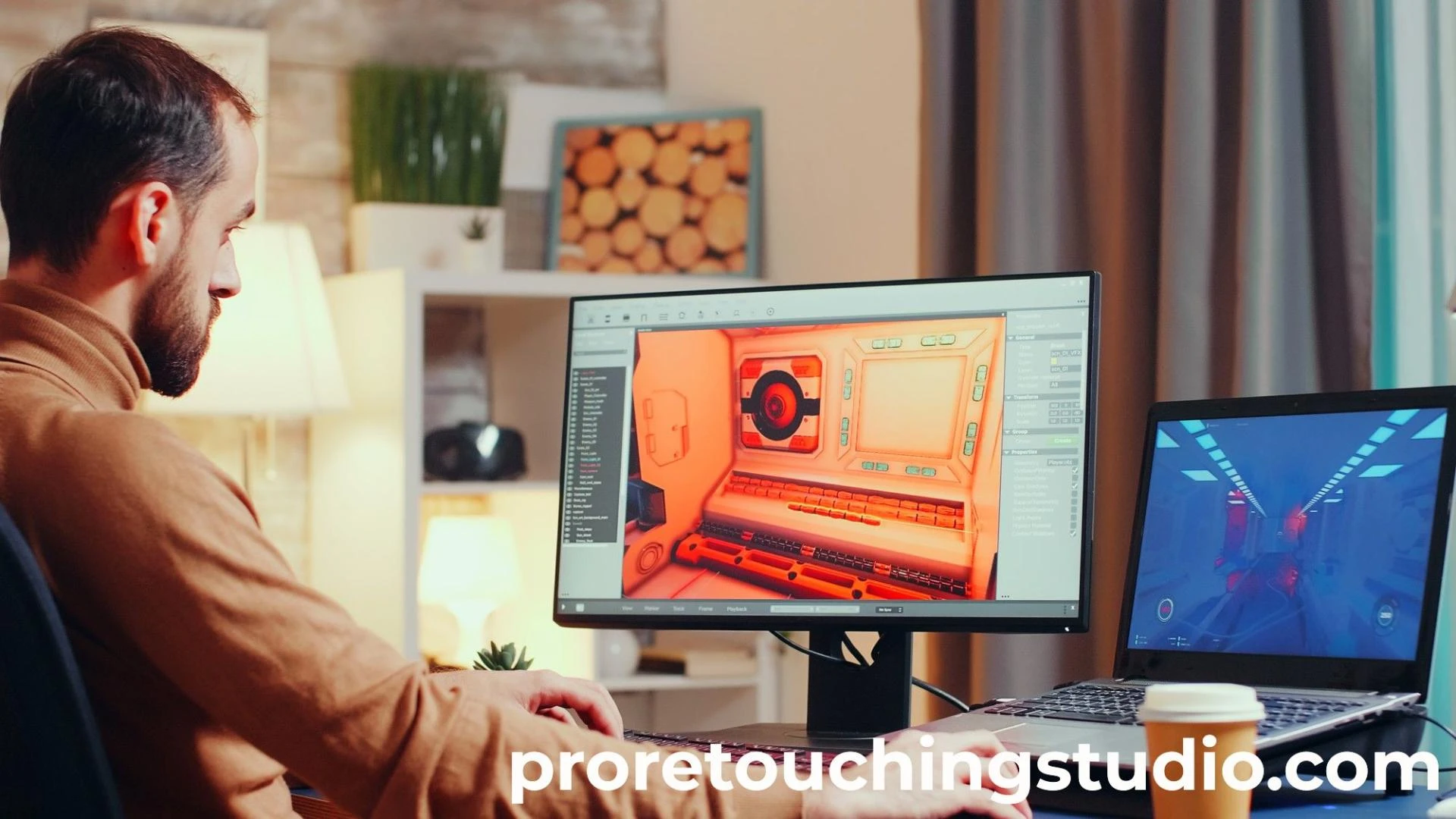

Are you looking to take your photography skills to the next level? Adding a background to a photo can be a great way to enhance the overall look and feel of an image. In this step-by-step guide, we'll show you how you can add a background to your photos like a pro. From selecting the right background, to adjusting the colors and lighting, this guide will provide you with all the tips and tricks needed for creating stunning images with backgrounds. So let's get started!
What is Image Background Removal and Why It's Useful?
Image background removal is a process of removing the unwanted or add a background to a photo and replacing it with a transparent or a solid-color background. This technique is used to enhance the visual appeal of an image, to isolate the subject for further image manipulation or to make the image better suited for a specific use case, such as e-commerce product displays. It is useful because it helps to draw the focus to the subject and make the image more appealing and professional-looking.
How To Add a Solid Color Background To A Picture
To add a solid color background to a picture, you can use photo editing software such as Adobe Photoshop, GIMP, or Canva. Here's a simple process for adding a solid color background to a picture using Adobe Photoshop:
Open the image in Photoshop.Go to the Layers panel and select the layer with the image.Right-click on the layer and select "Duplicate Layer."Right-click on the duplicated layer and select "Flatten Image."Go to the menu "Image" and select "Canvas Size."In the Canvas Size dialog box, increase the canvas size to include the desired amount of solid color around the image.Select the color you want to use for the background in the color picker.Go to the "Paint Bucket" tool, click on the image to fill the background with the desired color.Tips On How To Change the Background Of A Photo Using Photoshop
Here are some tips on how to change the background of a photo using Adobe Photoshop:
Isolate the subject: To change the background effectively, you need to isolate the subject from the background. You can use selection tools like the Magic Wand, Lasso, or the Pen tool to make a selection around the subject.Refine the selection: After making a selection, you may need to refine it to make sure the edges are smooth and natural. You can use the Refine Edge tool to improve the selection.Cut out the subject: Once you have a good selection,Using Online Tools To Add Customized Backgrounds To Photos Easily & Quickly
There are several online tools that allow you to add customized backgrounds to photos easily and quickly. Some popular online tools for this purpose are:
Canva: Canva is a graphic design platform that allows you to add backgrounds to photos and edit them with ease. You can choose from a variety of customizable templates or create your own design.Fotor: Fotor is an online photo editor that offers a variety of tools for editing photos, including adding a custom background. You can upload your photo and choose from a selection of background templates or upload your own background.PicMonkey: PicMonkey is another online photo editor that provides a simple interface for adding backgrounds to photos. You can upload your photo and select from a variety of solid-color or patterned backgrounds.BeFunky: BeFunky is an online photo editor that offers a range of tools for editing photos, including adding backgrounds. You can choose from a selection of solid-color or patterned backgrounds, or you can upload your own custom background.These online tools provide a convenient and user-friendly way to add customized backgrounds to your photos quickly and easily.
0
0











Sign in to leave a comment.