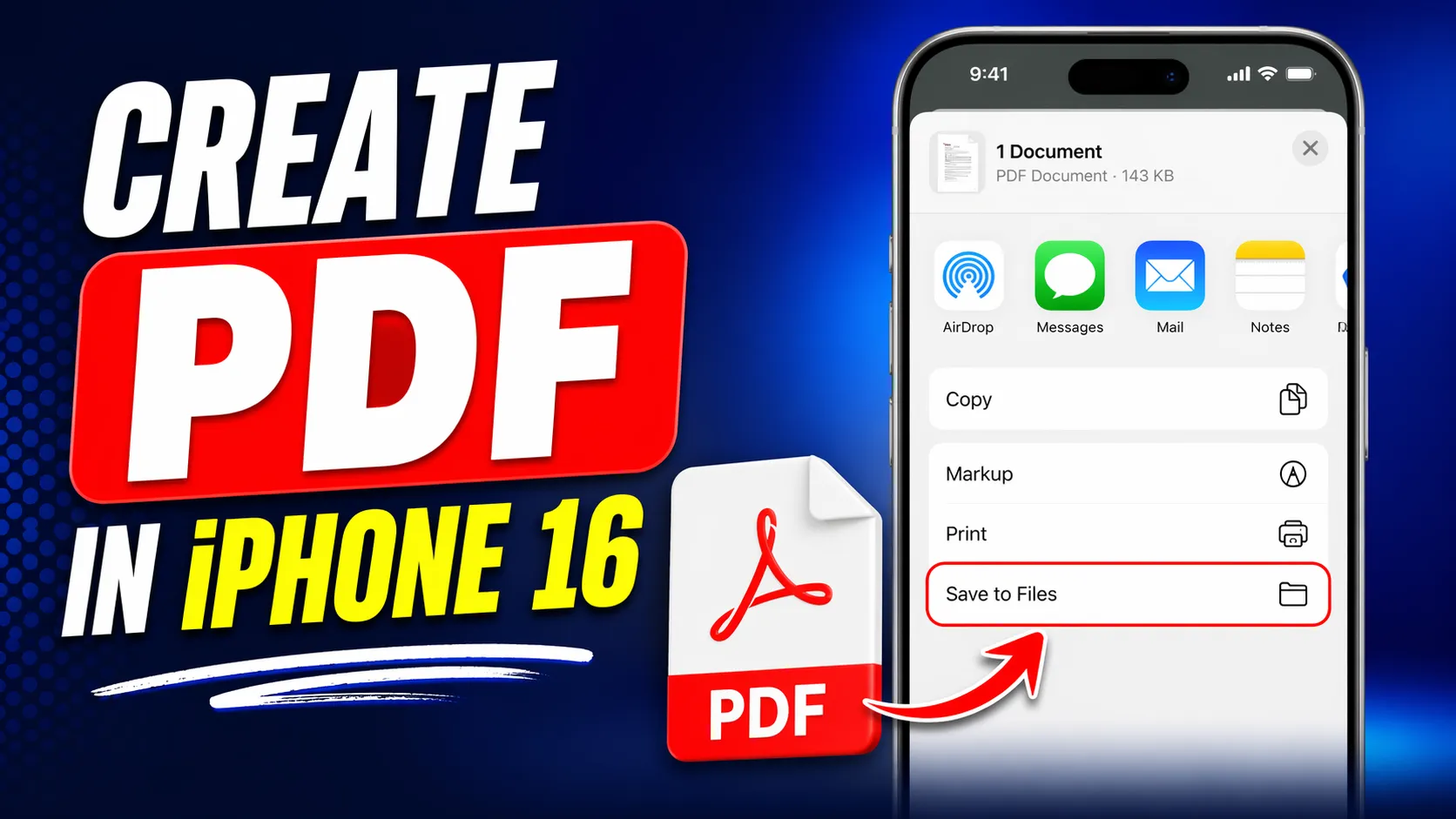

The iPhone 16 has solidified its place as a powerhouse for productivity, blurring the lines between a mobile device and a pocket-sized workstation. One of the most common tasks users face today is the need to convert various file formats—images, emails, spreadsheets, or web pages—into PDFs. Whether you are signing a contract on the go or saving a recipe for later, the ability to turn any file into a PDF is a fundamental skill.
With the enhanced processing power of the A18 chip, even the most document-heavy tasks feel instantaneous. This efficiency is a major reason why many savvy tech enthusiasts are looking for an iphone 16 refurbished to get flagship performance at a more accessible price point. At EasyPhones, we see a growing trend of users choosing these sustainable options to manage their digital lives without compromise.
Transforming Photos and Images into Professional Documents
We’ve all been there: you snap a photo of a physical document, but sending a JPEG feels unprofessional. Fortunately, iOS makes it incredibly simple to convert these images into polished PDFs without needing third-party software.
To do this, open the Photos app and select the image you wish to convert. Tap the Share button (the square with an upward arrow) and scroll down to select "Print." While you aren’t actually going to print the file, the Print Preview screen is the secret gateway to PDF creation. Once the preview appears, use two fingers to "pinch out" or zoom in on the image. This action instantly converts the photo into a PDF format. From there, tap the Share icon again to save it to your Files app or send it via email.
Converting Web Pages for Offline Reading
Safari on the iPhone 16 offers a seamless way to capture entire web pages as PDFs. This is particularly useful for researchers or students who need to archive online articles. When you are on a webpage you want to save, take a screenshot as you normally would by pressing the Side button and the Volume Up button simultaneously.
Tap the screenshot thumbnail that appears in the corner. At the top of the editing screen, you will see two options: "Screen" and "Full Page." Selecting "Full Page" allows you to capture the entire length of the website, not just what was visible on your screen. Tap "Done" and select "Save PDF to Files." For those who handle high volumes of research, the extra screen brightness and ProMotion technology found on an iphone 16 pro refurbished makes reviewing these long-form PDFs a strain-free experience.
Managing Documents within the Files App
The Files app is the central hub for document management on iOS. If you have a Word document, a text file, or a Keynote presentation stored in your folders, converting it to a PDF requires only a long press.
Simply locate the file, long-press on its icon, and select "Quick Actions" from the contextual menu. Within that submenu, you will find the "Create PDF" option. The iPhone 16 creates a duplicate of the file in PDF format, leaving the original untouched. This native feature eliminates the need for potentially unsecure online converters, keeping your sensitive data local to your device.
Using the Notes App as a Portable Scanner
The Notes app is perhaps the most underrated tool for PDF creation. Instead of just "converting" a file, the Notes app allows you to "create" one from physical paper using the document scanner.
Open a new note, tap the camera icon, and select "Scan Documents." The iPhone 16 camera automatically detects the edges of the paper, corrects the perspective, and removes shadows. Once you save the scan, it exists within the note as a high-quality PDF. You can then tap the document to share it or "Markup" the file to add a digital signature. Many users looking for second hand iphones online in india prioritize models with high-quality cameras specifically for this scanning capability, and EasyPhones ensures every device is tested to meet these productivity standards.
The Power of Shortcuts for Batch Conversion
For power users who need to convert multiple files at once, the Shortcuts app provides an automated solution. You can create a simple "Make PDF" shortcut that appears in your Share Sheet.
By setting up a workflow that accepts "Files" as an input and "Make PDF" as the action, you can highlight ten different images in your gallery and convert them into a single, multi-page PDF document in seconds. This level of customization is what makes the Apple ecosystem so robust for entrepreneurs and students alike.
Why PDF is the Standard for Mobile Productivity
The PDF format remains the universal standard because it preserves formatting across all devices. Whether the recipient is opening your file on a Windows PC, an Android tablet, or a Mac, the layout remains exactly as you intended.
On the iPhone 16, these tasks are not just possible; they are intuitive. The integration between the hardware and iOS 18 ensures that your workflow remains uninterrupted by lag or complex menus. By utilizing these built-in tools, you transform your smartphone from a communication device into a comprehensive document management system.
Maximizing Your iPhone Experience with EasyPhones
Mastering the "Print to PDF" trick or the "Quick Actions" menu allows you to stay productive regardless of your location. At EasyPhones, we believe that high-end technology should be available to everyone. By offering meticulously tested and certified devices, we help you access the latest features of the iPhone 16 series without the flagship price tag.
Whether you are converting a single receipt or archiving an entire website, your iPhone is equipped to handle the task with ease. Embrace these built-in shortcuts and native features to streamline your digital life, ensuring that your documents are always professional, accessible, and perfectly formatted.

























Sign in to leave a comment.