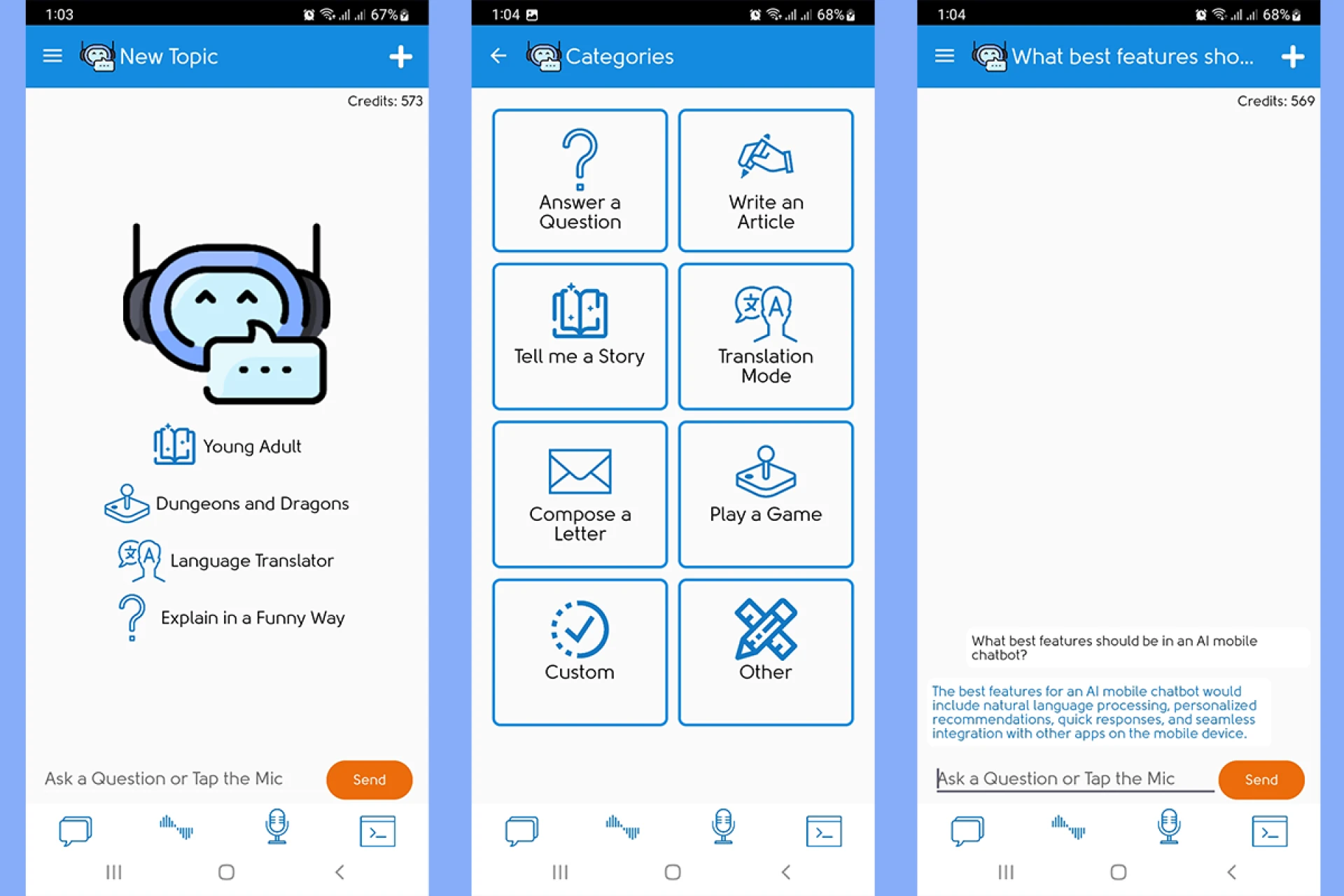

Voice drafting inside the car must be fast, hands-free, and reliable. JenAI Chat is built for that exact flow. It offers two-way voice conversation, Custom Commands for repeatable tasks, support for multiple top models, and a credit-based system that avoids mandatory subscriptions.
The product site explicitly notes Android Auto use with an example workflow for writing letters in the car and sending them by email, which is the perfect foundation for safe voice-drafting habits.
What JenAI Chat is and why it suits Android Auto
JenAI Chat is an ad-free mobile AI chat app for Android that connects to GPT-class models and Google Gemini. It emphasizes conversational voice, a clean interface, and reusable Custom Commands so you can turn common prompts into one-tap tools. The Google Play listing confirms support for OpenAI and Gemini models, plus an ad-free, credit-based experience.
Using Android Auto matters because it minimizes distraction while you capture ideas. Instead of typing, you speak your prompt, hear the response, and iterate by voice. JenAI’s own homepage mentions Android Auto usage for creating letters and sending them onward, which maps directly to voice drafting for notes, outlines, and emails.
The voice drafting workflow in your car
Below is a practical sequence that aligns with how JenAI Chat describes Android Auto usage. Keep your hands on the wheel and eyes on the road. Pairing the app with an AI dash cam for hands-free driving adds another layer of safety by keeping your vehicle monitored while your voice handles the rest. Interact only through voice while the car is in motion.
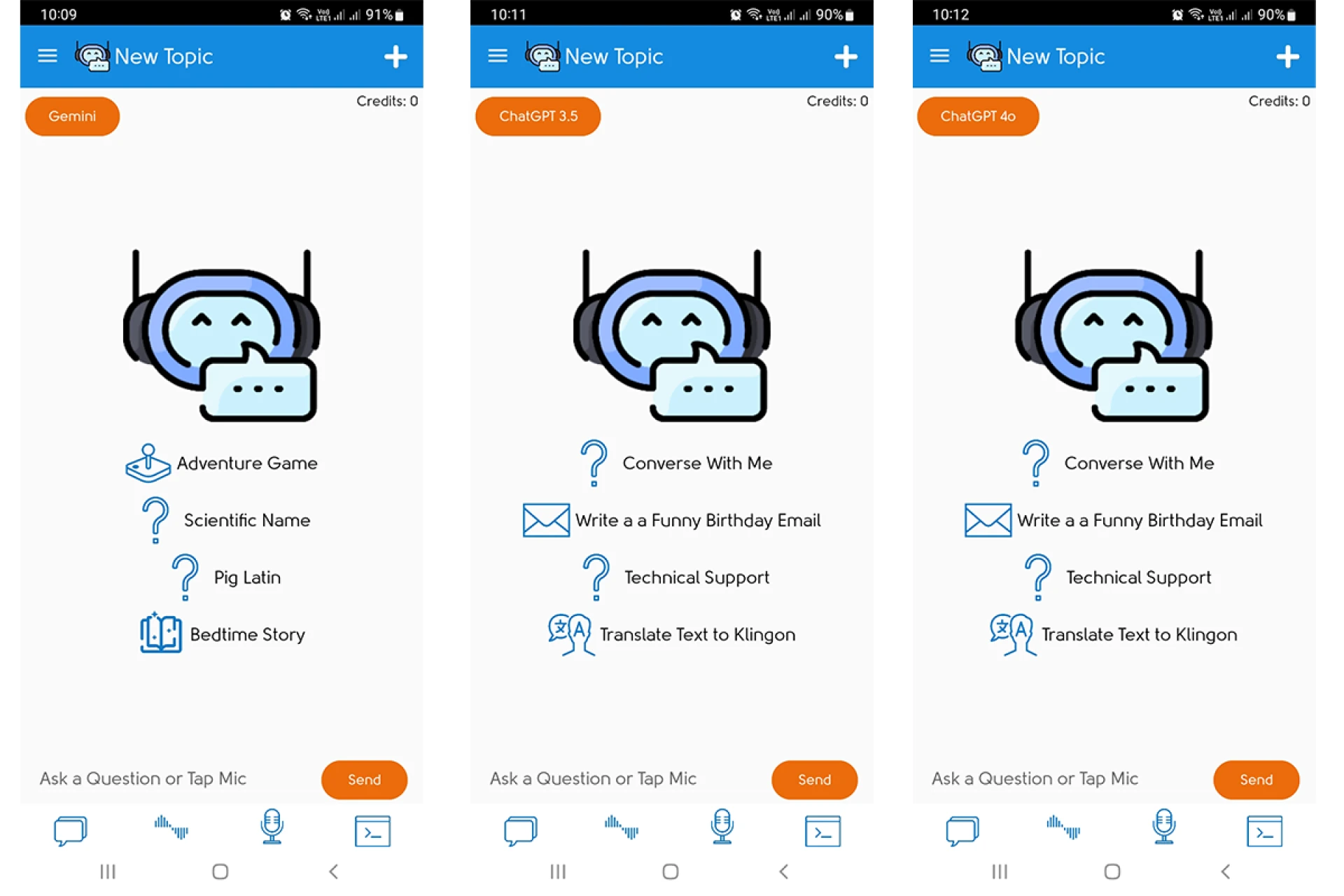
- Prepare your phone before driving: Open JenAI Chat and confirm that voice mode works as expected. Select your preferred model. The app supports Google Gemini and OpenAI GPT variants, including recent GPT-4 class options.
- Connect to Android Auto: Start your trip with the phone connected. The product site’s example focuses on composing a letter by voice while using Android Auto, then transferring that output into an email. Treat this as a template for your voice drafting sessions.
- Draft by speaking naturally: Begin with a clear instruction such as: “Draft a professional follow-up email to confirm tomorrow’s call. Keep it under 150 words and include three agenda points.” The app’s two-way voice lets you listen to the draft, request changes, and iterate without touching the screen.
- Refine with Custom Commands: Save frequent tasks as Commands: email outlines, blog introductions, or meeting notes. One tap before you drive, then voice only during the trip, keeps your process consistent and safe.
- Send or save when stopped: When parked, copy the final text into your email app or notes. The homepage’s example mentions sending letters by email after creation, which makes the drafting pipeline concrete and repeatable.

Reliable models and a bring-your-own-key option
Model reliability matters on the road. JenAI Chat allows you to use Google Gemini, and the official JenAI guide explains how to add your own Gemini API key. Bringing your own key can reduce shared rate limits and improve responsiveness during busy hours. The process is documented on the JenAI site, and Google’s developer page explains how to create a Gemini key in Google AI Studio.
When should you add a key?
- Frequently receive rate-limit messages.
- Depend on voice drafting during commute windows.
- Your team shares the app, and you want a dedicated quota.
Credits, cost control, and why this helps teams
JenAI Chat uses a credit model with no pestering ads, which simplifies budgeting. The Play listing outlines the ad-free approach and clarifies that OpenAI usage incurs cost while offering a free experience for Gemini text usage, with small credit usage for text-to-speech. For teams that draft frequently but do not want another monthly subscription, this pay-as-you-go structure is practical and predictable.
Tips for cost control:
- Choose lighter models for exploratory drafts.
- Reserve heavier models for final wording or sensitive client messages.
- Store high-value prompts as Custom Commands to reduce back-and-forth.
Best practices for safer voice drafting
Even with a smooth app, habits make the difference.
- Plan your prompt before you start the car: A short planning note, such as “Follow-up email, confirm time, share agenda,” reduces mental load once you are on the road.
- Use clear, short instructions: Simple phrases reduce misrecognition and cut down revisions.
- Iterate in small steps: Ask for one change at a time: “Shorten to 120 words” or “Add a polite closing.” Short steps keep the conversation focused.
- Pause and review when parked: Final review should happen at a complete stop. That is the appropriate time to copy the text to email or messaging.
- Respect local driving laws and guidelines: Follow all regulations regarding mobile use in vehicles. Treat voice drafting as a tool for capturing ideas, not as a reason to multitask visually.
Custom Commands that work well in the car
Custom Commands are reusable voice macros. They are ideal for Android Auto sessions because they cut friction.
- Email follow-up: Prompt the app to create a concise follow-up that confirms time, adds three agenda bullets, and proposes two alternate time slots.
- Idea capture: Creates a bullet list of five blog ideas with one-line angles per idea.
- Meeting recap: Builds a brief recap with action items and next steps.
- Subject line variants: Generates five subject lines tuned to a given audience.
- Quick outline: Produces a three-section outline with intro, body points, and a call to action.
All of these begin with a prewritten prompt you trigger by voice. JenAI’s emphasis on Commands makes this setup straightforward.
Troubleshooting common voice issues
- The model stops mid-response: Switch to another available model and retry. If you use Gemini frequently, consider adding your own key through the documented steps.
- Responses feel generic: Enrich your prompt with specifics: audience, length, tone, and constraints. Save the improved prompt as a Command for future trips.
- Playback volume is low: Adjust the car audio mix before driving. Test a short prompt to confirm clarity.
- Latency is noticeable during rush hour: Try bringing your bring-your-own Gemini key for a dedicated quota, or schedule long dictation for less congested times.
FAQs: Use JenAI Chat with Android Auto for Voice Drafting
Q1: Does JenAI Chat officially support use with Android Auto
A: Yes. The product homepage calls out Android Auto use and gives a concrete letter-drafting example that ends with sending the result by email.
Q2: Which models can I use for voice drafting
A: The app supports Google Gemini alongside OpenAI options like GPT-3.5 and GPT-4-class models, per the Google Play listing. Choose the model that balances speed, quality, and credit usage.
Q3: Can I avoid rate limits during busy times
A: Adding your own Gemini API key is a recommended approach. The JenAI guide explains the steps, and Google’s documentation shows how to create the key.
Q4: Is JenAI Chat ad-free
A: The Play listing emphasizes that there are no pestering ads and describes the credit-based approach for paid APIs.
Q5: Does JenAI Chat require a subscription?
A: The model is credit-based. You purchase credits as needed instead of committing to a required monthly plan, according to the Play Store description.
Conclusion
Android Auto transforms idle commute time into productive drafting sessions when you combine it with a capable voice assistant. JenAI Chat provides two-way voice, model flexibility, Custom Commands, and a credit system that keeps costs visible.
The developer’s site explicitly points to Android Auto use for creating letters and moving them into email, which maps naturally to blog outlines, meeting notes, memos, and social captions. Add a personal Gemini API key if you rely on predictable performance during peak hours. With a few well-designed Commands and a safety-first routine, voice drafting becomes simple, repeatable, and remarkably effective.


























Sign in to leave a comment.