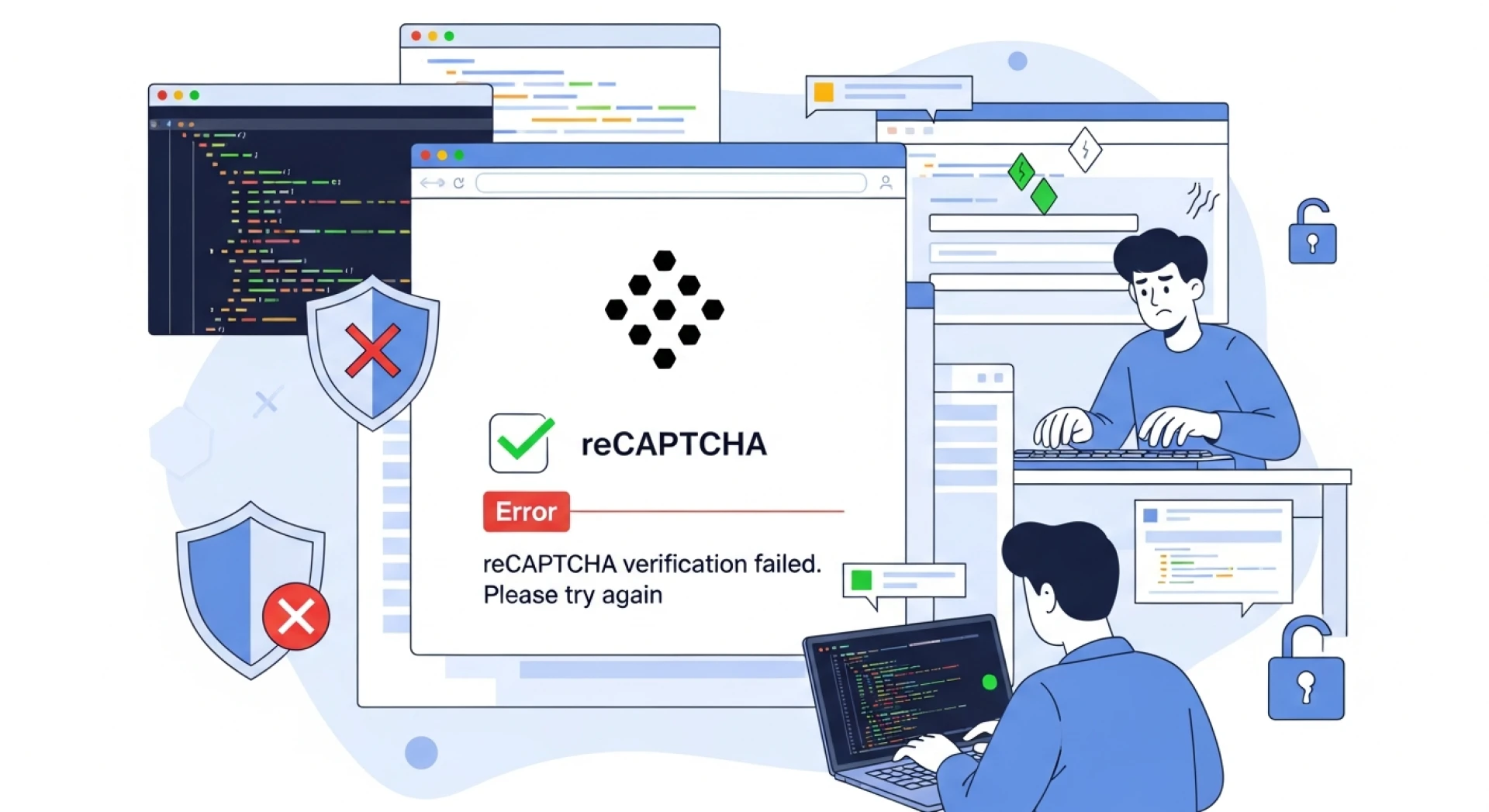

You're not the only one who has trouble with reCAPTCHA not working on your website. Website owners, developers, and even regular users regularly have problems with Google reCAPTCHA not loading, not verifying users, or blocking real traffic. This may be really annoying, especially when it stops people from filling out forms, logging in, or buying things.
What is good news? Once you know what's causing the problems, most reCAPTCHA problems are trivial to figure out and correct. This detailed article will show you why reCAPTCHA stops working, how it affects your website, and how to restore it right now. At the end, you'll know exactly how to fix your site while keeping it safe and easy to use.
What Is Google reCAPTCHA and Why It Matters
Google reCAPTCHA is a free security tool that keeps websites safe from spam, bots, and automated abuse. It works by looking at how people act and figuring out if a visitor is a person or not.
There are a few different kinds of reCAPTCHA, such as:
- reCAPTCHA v2 (the "I'm not a robot" box)
- reCAPTCHA v3 (score-based, no user interaction)
- Invisible reCAPTCHA
When reCAPTCHA works, it makes websites safer without making them harder to use. But when reCAPTCHA doesn't work, it can make things hard to use and make people less likely to trust you.
Common Signs That reCAPTCHA Is Not Working
It's crucial to know how to fix reCAPTCHA errors before you remedy the problem. Here are the indicators that happen most often:
- The reCAPTCHA box won't load at all
- The loading spinner never stops
- "ERROR for site owner: Invalid key type"
- Message saying "Invalid domain for site key"
- Users caught in loops of verification
- Forms that don't go through after being checked
If any of these sound familiar, it's likely that reCAPTCHA isn't operating right on your site.
Top Reasons Why reCAPTCHA Not Working
1. Incorrect Site Key or Secret Key
Using the wrong API keys is one of the most typical reasons. A reCAPTCHA key is linked to a certain domain and version.
Fix: Make sure that:
- The keys match the version of reCAPTCHA you have installed
- The keys are copied without any unnecessary spaces
2. Domain Mismatch Errors
You can only use reCAPTCHA on domains that you have given permission for in the Google reCAPTCHA Admin Console.
Fix:
Sign in to the reCAPTCHA dashboard and:
- Add your exact domain (with or without www)
- Include subdomains if you need to
- Save changes and clear the cache
3. JavaScript Errors or Conflicts
It there are conflicting scripts or JavaScript issues, reCAPTCHA may not load.
Fix:
- Look for issues in your browser's console
- Turn off plugins or scripts that are causing problems
- Make sure that https://www.google.com/recaptcha/api.js loads properly
4. Browser Extensions Blocking reCAPTCHA
reCAPTCHA can be messed up by ad blockers, privacy tools, or script blockers.
Fix:
- Turn off browser extensions for a short time
- Check reCAPTCHA in Incognito mode
- If necessary, ask people to add your site to their whitelist
5. Outdated Plugins or CMS Issues
Outdated plugins often cause reCAPTCHA issues if you use WordPress, Joomla, or another CMS.
Fix:
- Update the core of your CMS
- Update reCAPTCHA plugins or form builders
After updates, change If reCAPTCHA problems keep coming back, it may be time to consider a website redesign to clean up outdated code, plugin conflicts, and security gaps that interfere with proper verification.
6. Server or Firewall Restrictions
Some firewalls accidentally block queries for Google reCAPTCHA.
Fix:
- Add Google reCAPTCHA IPs to your whitelist
- Make sure that outbound requests are allowed
- Check the security settings of your hosting
7. reCAPTCHA v3 Score Threshold Too Strict
If the score barrier is too high, real users can be marked as bots with reCAPTCHA v3.
Fix:
- Lower the scoring threshold (for example, from 0.9 to 0.5)
- Check different values for accuracy
How to Fix reCAPTCHANot Working (Step-by-Step)
- Check the settings for your API keys and domain
- Make sure you're using the right version of reCAPTCHA
- Look for faults in the JavaScript console
- Turn off any plugins or extensions that are causing problems
- Update your CMS, themes, and plugins
- Change the settings for the reCAPTCHA v3 score
- Test on different devices and browsers
Most of the time, following these steps will fix problems with reCAPTCHA not working.
Best Practices to Prevent reCAPTCHA Issues
- Make sure your site uses HTTPS
- Keep your scripts and plugins up to date
- After making changes to your site, test reCAPTCHA
- Don't load more than one version of reCAPTCHA
- Check the Google reCAPTCHA Admin Console often
It's usually easier to stop something from happening than to fix it later.
Conclusion: Fix reCAPTCHA Issues for a Secure, Smooth Website
If reCAPTCHA doesn't operate, it can make your website less useful and less secure. Most problems are caused by simple mistakes in settings, old plugins, or conflicts between browsers. If you follow the solutions and best practices in this article, you can rapidly get reCAPTCHA working again and keep your site safe without making users angry.
Your website should work properly, keep bots out, and make users happy. That's what a good reCAPTCHA does.






























Sign in to leave a comment.