

Better 3D‑scan results depend more on proper technique than expensive hardware. These 7 practical tips help both beginners and experienced users achieve cleaner data with less extra work.
Tip 1: Avoid over‑scanning the same area
Re‑scanning already‑captured regions adds noise and floating points. Once an area is fully captured, move on. One quality pass normally suffices.
Tip 2: Plan object placement before scanning
Choose smart angles based on what geometry you actually need to capture. Adjust object orientation to reduce hard‑to‑reach surfaces before you start scanning.
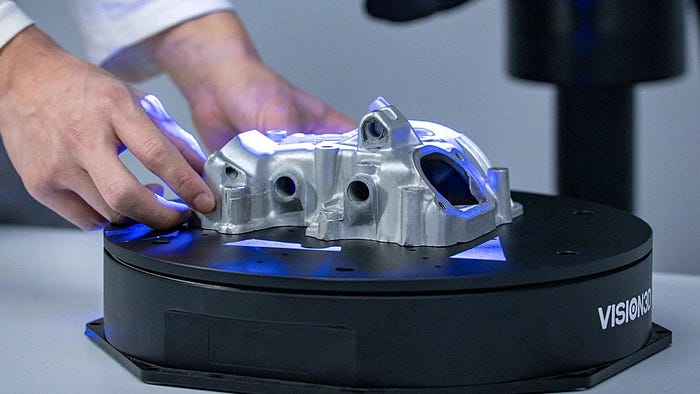
Tip 3: Match accuracy settings to project requirements
Do not always run maximum‑accuracy mode. Use fast mode for simple shapes to keep file sizes small. Switch to high‑accuracy mode only for fine textures and critical details.
Tip 4: Scan complex parts in separate passes
Split complicated workpieces into sections. Use suitable modes for different zones and merge datasets in‑software. This balances file size and detail performance.
Tip 5: Prepare challenging surfaces upfront
Shiny, dark or transparent surfaces cause tracking instability. Pre‑treat these surfaces and use soft, even lighting to minimize glare before scanning.
Tip 6: Scan spray is helpful but not mandatory
Professional matte spray delivers great results, yet low‑cost alternatives work for non‑critical tasks. Always test coatings first on sensitive materials. Add 3D scanning markers to improve tracking on difficult geometry.
Tip 7: Enable automatic background removal
Turn on software background‑cleanup functions. Automated plane‑removal saves hours of tedious manual post‑processing work. Keep scanner calibrated and maintain stable scanning conditions.
Conclusion
Great 3d scanning performance starts with workflow basics, not costly equipment upgrades. Following these habits reduces noise, shortens post‑processing and delivers more consistent 3D models.
If you’d like to improve 3D scanning accuracy, follow VoxMeta.
















Sign in to leave a comment.