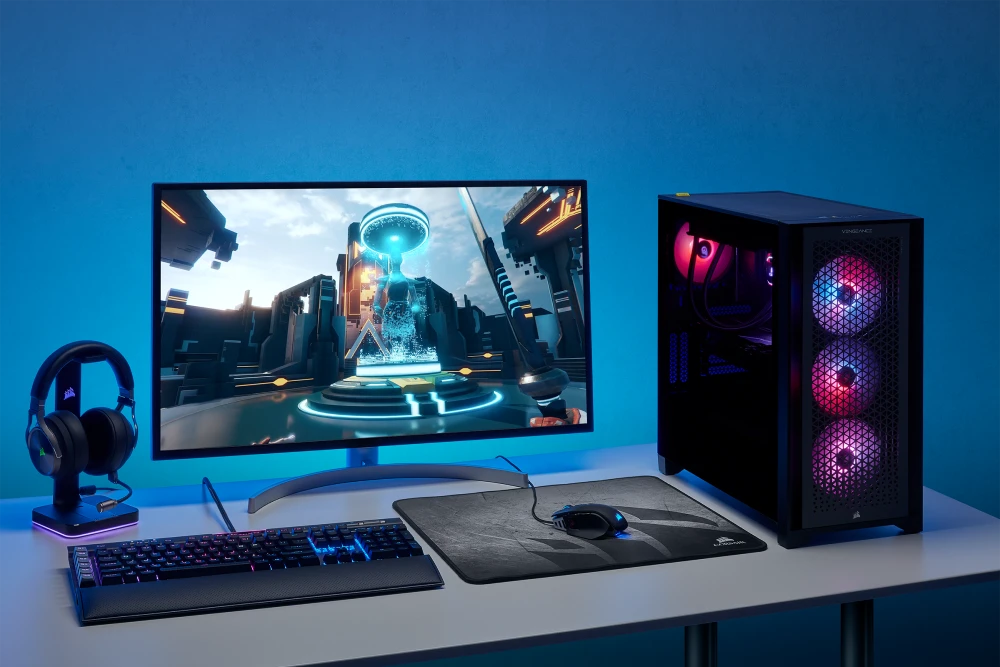

Gaming on PC is ultimate fun. However, nothing is worse than a slow PC. Lag frustrates users and also makes the games feel uninteresting. Many gamers spend hours playing, but miss simple ways to make their PC faster. A good gaming computer is not only designed to enhance speed, but it also improves graphics and loading of games. No one likes to play games that have interruptions. Slight adjustments can greatly enhance any game. You do not have to spend a fortune now or ever. You can perform minor adjustments, and the PC will feel like it's newly built.
In this guide, we will share seven insider secrets. So, let's talk to understand in detail!
1: Upgrade Your RAM for Smooth Gaming
Your PC memory or RAM controls how fast your games run. More RAM means your computer gaming PC loads faster and handles multiple tasks without slowing down, while giving smoother gameplay and fewer lags.
- Check how much RAM your PC has using system settings.
- Add RAM if it is below 16GB for modern games.
- Use dual-channel RAM for better speed.
- Match RAM speed with the motherboard for best results.
Upgrading RAM improves multitasking. You can run games and apps without slowdowns. This also prevents crashes during heavy gaming sessions.
How RAM Affects Gaming
RAM stores temporary game data. More RAM means smoother gameplay. Less RAM causes lag and stuttering.
2: Make Your GPU Settings Better
A good graphics card is everything a true gamer needs for the utmost computer gaming PC performance. Optimizing GPU settings increases frames per second. Better frames mean smoother gameplay and fewer freezes.
- Update GPU drivers regularly.
- Turn on performance mode in the GPU software.
- Enable hardware acceleration in games.
Optimized GPU settings make visuals sharper. You can play demanding games without overloading your system.
Choosing the Right Resolution
High resolution looks good, but it needs more GPU power. Lowering the resolution slightly increases speed. Keep a balance for the best visuals and performance.
3: Always Keep Your PC Clean and Cool
Overheating reduces performance. Dust and heat make your PC slower. Cooling keeps your system fast.
- Frequently, dust off fans and vents.
- Utilize a cooling pad for your laptop.
- Replace the thermal paste on your CPU if it is required.
- Avoid blocking airflow around the PC.
4: Upgrade Storage to SSD
Old hard drives are slow. They make games load longer and reduce FPS. Solid-state drives are known for their next-level speed and reliability.
- Move games over to an SSD to get faster load times.
- Go for an NVMe SSD to get the very best performance.
- Leave at least 20% of the drive free to get the most out of it.
- Monitor disk errors frequently.
SSD upgrades make a big difference in speed. Windows and games start quickly. Overall, gaming feels smooth.
5: Update Drivers and Software
Old drivers slow your PC.
- Update Windows regularly.
- Keep GPU, sound, and network drivers current
- Use official manufacturer sites for updates.
- Avoid automatic updates that may cause errors.
Updated drivers help games run smoothly. They also fix glitches and crashes. New market predictions show that the worldwide PC gaming market is always growing. However, the total market value is forecasted to reach US $129.93 billion by 2030.
Use Software Tools
Use software tools to check outdated drivers. Some tools alert you when updates are available. Keeping software fresh is simple but effective for performance.
6: Limit Background Applications
Excessive applications will slow down your gaming performance. They are utilizing RAM, CPU, and disk space. Limiting background applications releases the power of the resources to be used for gaming.
- Closing any unused applications before starting a game is highly recommended.
- Do not make exceptions for the apps that you do not want to run.
- Check power-intensive applications with the task manager.
- Keep only necessary apps running.
Fewer background apps mean faster FPS and smooth gameplay. It also prevents freezing and crashes.
7: Overclock for Extra Performance.
Overclocking increases CPU or GPU speed. It gives extra frames and better performance.
- Use official software for overclocking.
- Gently raise clock speed and check stability.
- Do not overclock unless you have proper cooling.
Overclocking can provide a speed increase without having to buy new parts. It requires careful steps but rewards gamers with higher FPS.
Conclusion
Optimizing your computer gaming PC is not as tough as you think it is. All you need to do is pay attention to minor details. Upgrading your RAM, graphics card (GPU), and storage results in improved speed. Cleaning your computer and cooling it down are two great ways to help avoid slowdowns. Updating your drivers helps keep your system running smoothly. Closing background applications frees up memory and processing resources. By using these tips, you will have an extremely powerful gaming PC ready for any new game.


























Sign in to leave a comment.