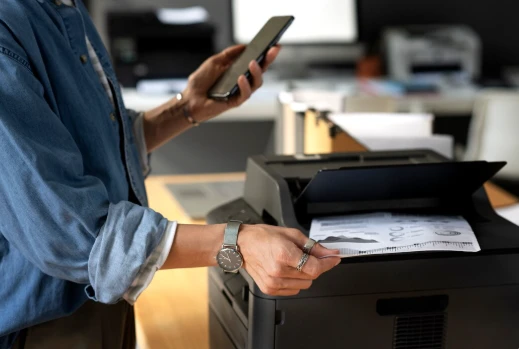

Whether you need to print important documents, photos, or reports, having a properly installed printer is essential. Installing a printer can seem intimidating if you’ve never done it before, but with the right steps, it’s a straightforward process. This guide will walk you through the basics of setting up your printer at home or in the office, ensuring a smooth and hassle-free printer installation.
Understanding Printer Types
Before you begin, it helps to know what type of printer you have. Most common printers fall into these categories:
- Inkjet Printers: Ideal for photo printing and color documents.
- Laser Printers: Great for fast, high-volume black-and-white printing.
- All-in-One Printers: Combine printing, scanning, copying, and faxing.
- Wireless Printers: Connect via Wi-Fi for easy sharing.
- USB Printers: Connect directly to a computer with a cable.
What You’ll Need
- Your printer and all included accessories (power cable, USB cable if applicable).
- Computer or device where you want to install the printer.
- Internet access to download drivers, if no installation CD is available.
- Wi-Fi network information, if using a wireless printer.
Step-by-Step Installation Guide
Step 1: Unbox and Prepare Your Printer
- Remove packaging materials carefully.
- Insert ink cartridges or toner as instructed.
- Load paper into the printer tray.
- Plug in and turn on the printer.
Step 2: Connect Your Printer
For USB Printers:
- Connect the printer to your computer with the USB cable.
- Most operating systems will detect the printer automatically.
For Wireless Printers:
- Use the printer’s control panel to connect to your Wi-Fi network.
- Some printers offer a setup app to simplify this process.
- Ensure your computer or device is on the same Wi-Fi network.
Step 3: Install Printer Drivers and Software
- Use the installation CD that came with your printer or download the latest drivers from the manufacturer’s website.
- Follow the installation wizard’s prompts to complete setup.
- Drivers help your computer communicate effectively with the printer.
Step 4: Add the Printer to Your Computer
- Windows: Open Settings > Devices > Printers & scanners, then click Add a printer or scanner.
- Mac: Go to System Preferences > Printers & Scanners, then click the + button to add your printer.
Step 5: Print a Test Page
- After installation, print a test page to verify everything is working properly.
- Check print quality and confirm the printer responds to commands.
Troubleshooting Tips
- Printer Not Found: Make sure cables are secure or that both printer and computer are on the same Wi-Fi network.
- Driver Issues: Reinstall or update drivers from the manufacturer’s website.
- Paper Jams: Clear any stuck paper carefully following the printer manual.
- Poor Print Quality: Check ink or toner levels and run printer head cleaning utilities.
Conclusion
Installing a printer at home or in the office doesn’t have to be complicated. By following this simple guide, you can set up your printer quickly and start printing your documents with ease. Keeping your drivers updated and performing regular maintenance will help keep your printer running smoothly for years to come.




























Sign in to leave a comment.