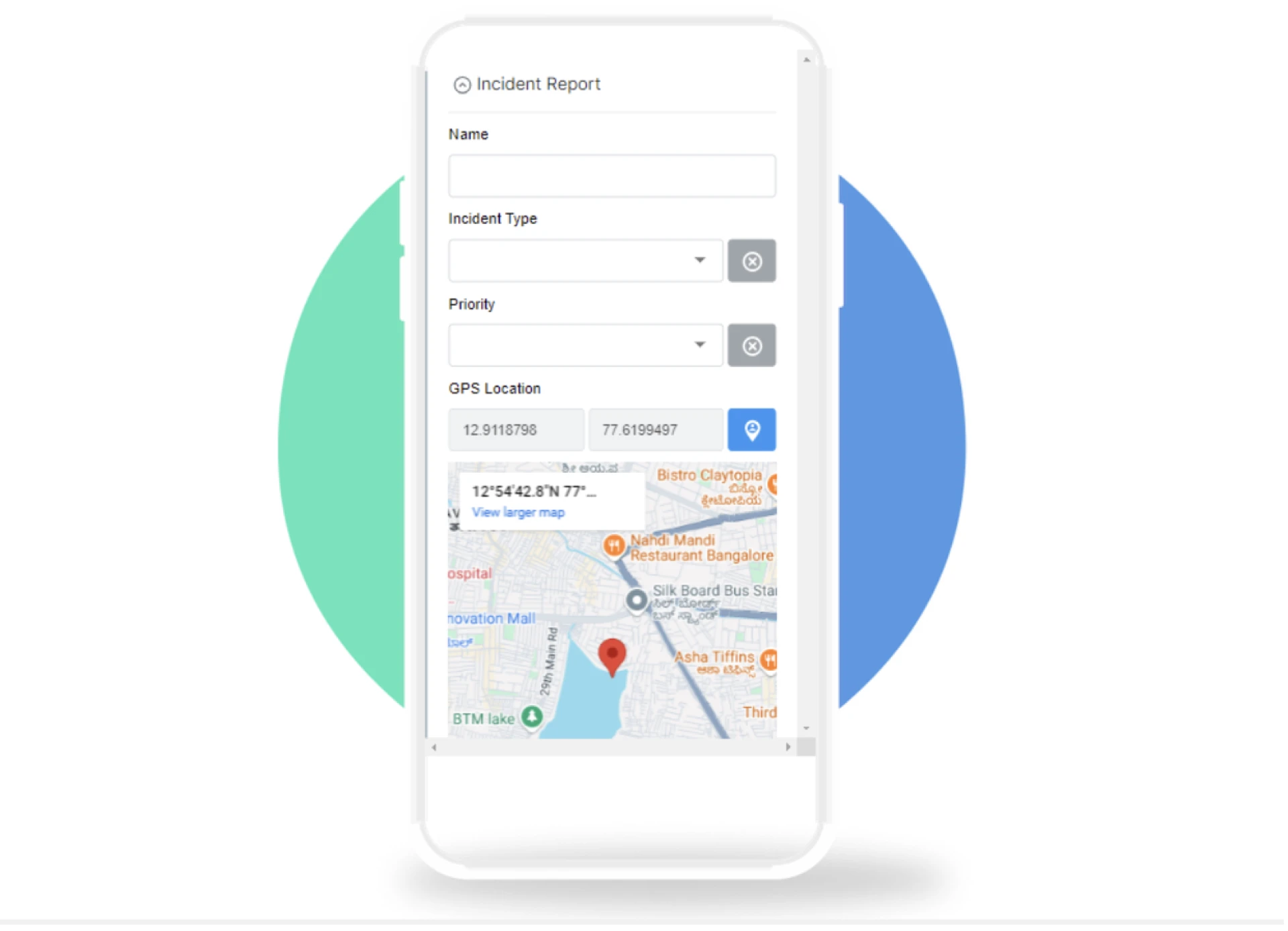

How GPS Location Tracking Works in Forms
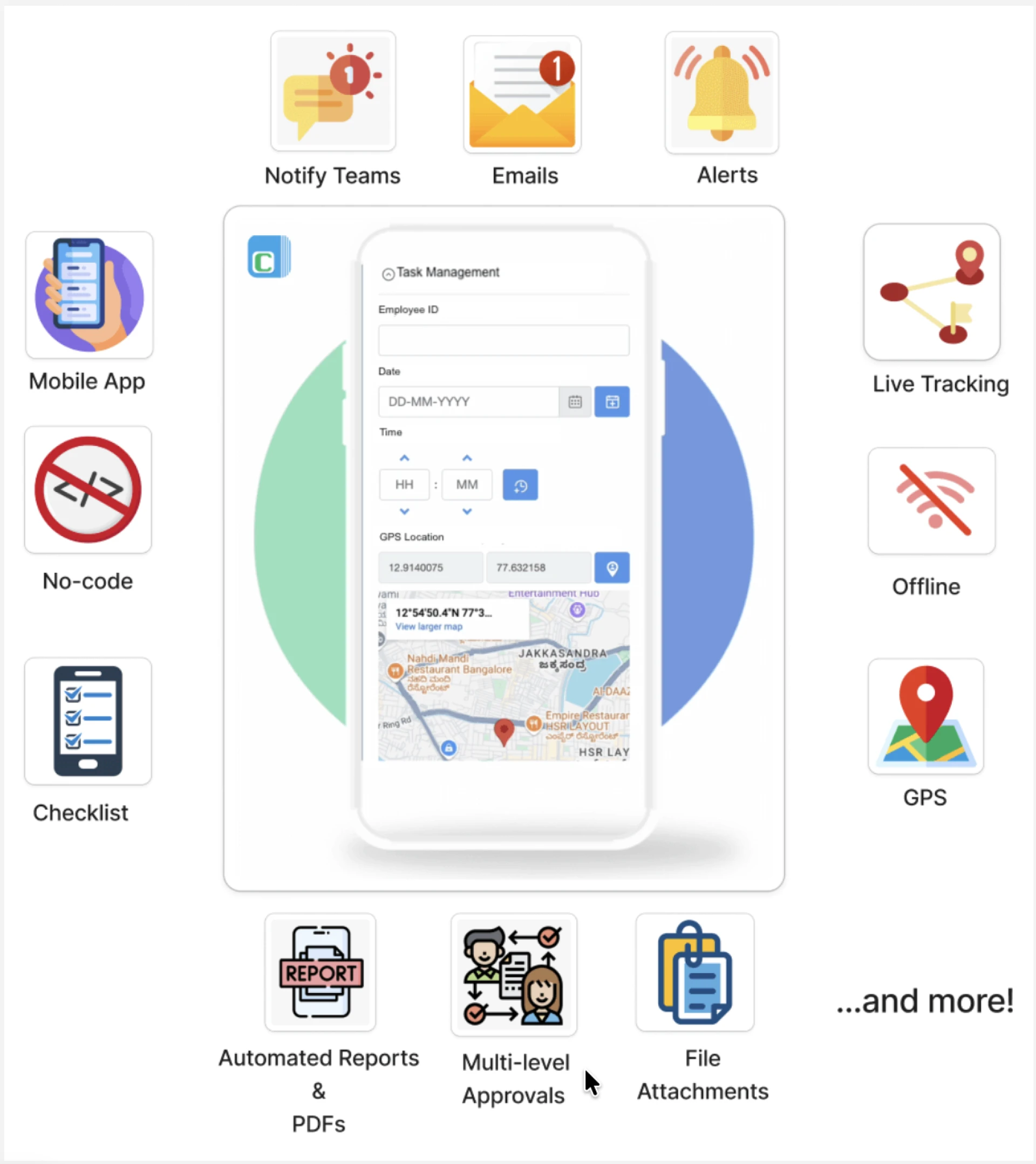
GPS location tracking automatically captures latitude and longitude coordinates when someone submits a form. The location appears as an interactive map pin with the exact address. This works for field attendance, site inspections, delivery tracking, customer visits, surveys—any scenario requiring location verification.
- Setup Time: 5 minutes
- Technical Skills: None required
- Works: Mobile and web, online and offline
Why Add GPS to Your Forms?
Manual location entry is unreliable. People type wrong addresses, forget street names, or intentionally submit false locations. GPS coordinates provide proof of physical presence with accuracy down to 5 meters.
Step 1: Access the GPS Location Block (30 seconds)
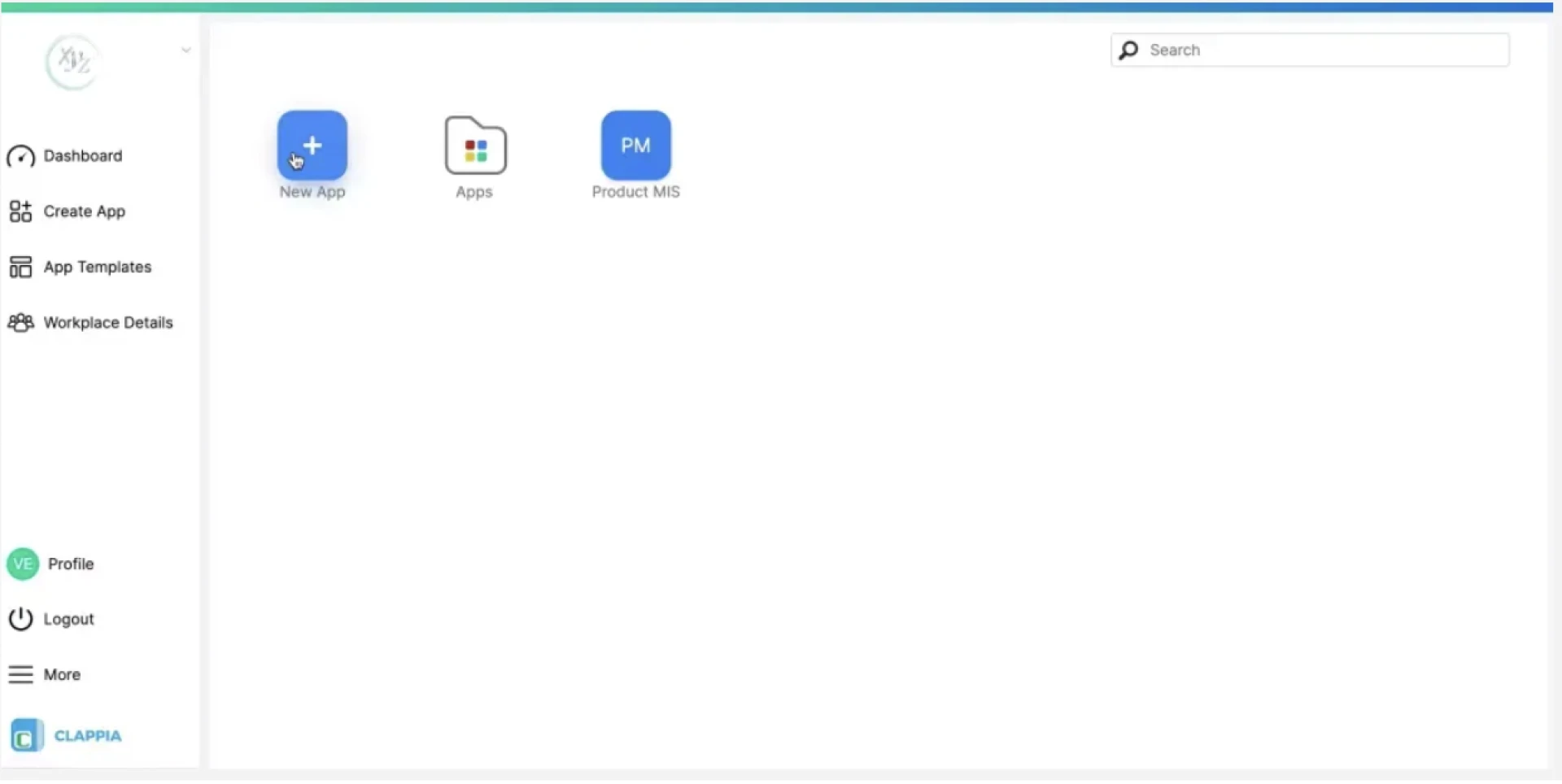
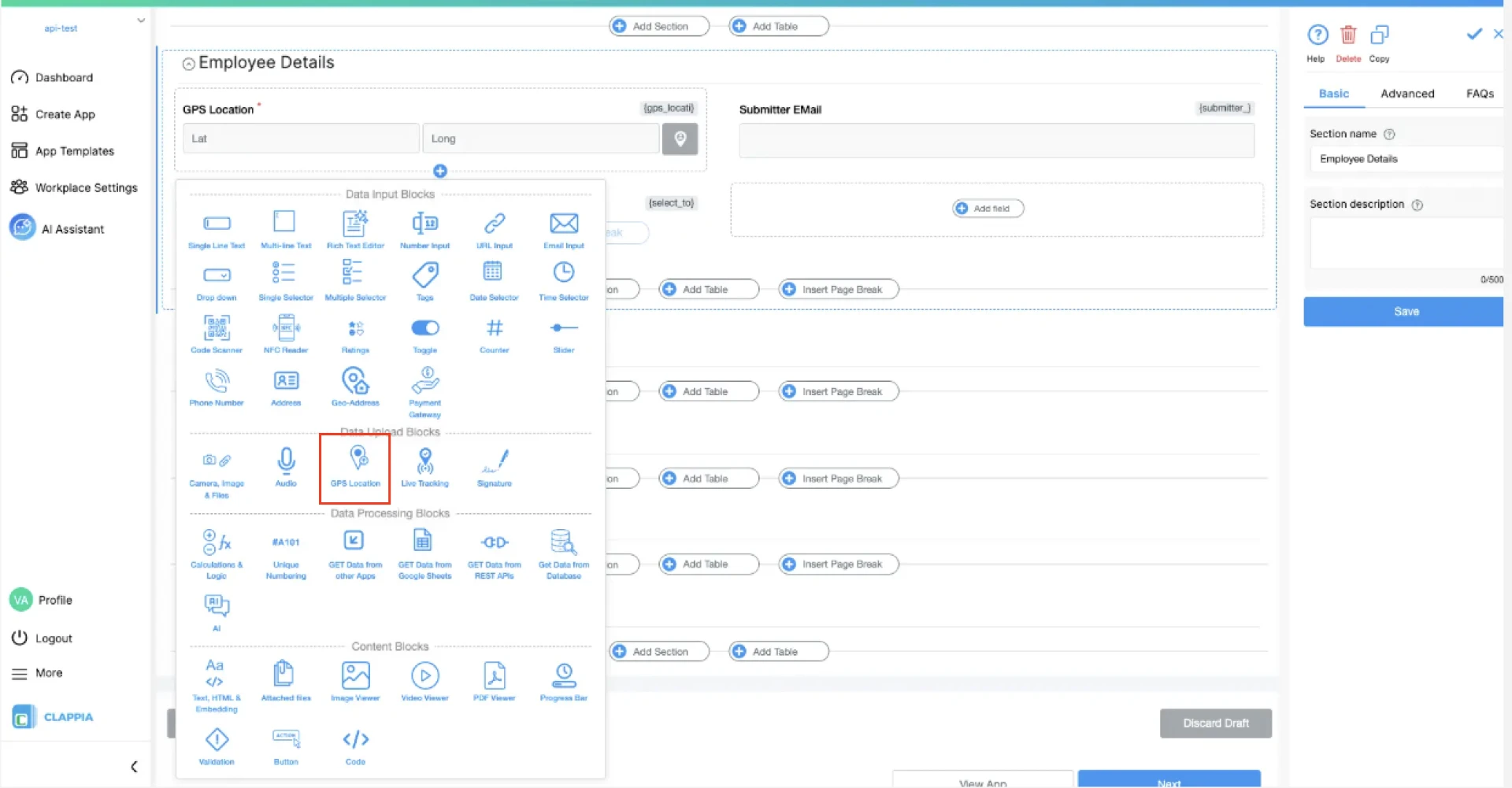
Create a new app or open an existing form. Find GPS Location in the Data Upload Blocks section and drag it into your form.
The block works independently—add it to any form regardless of other fields configured.
Step 2: Configure Automatic Location Capture (1 minute)
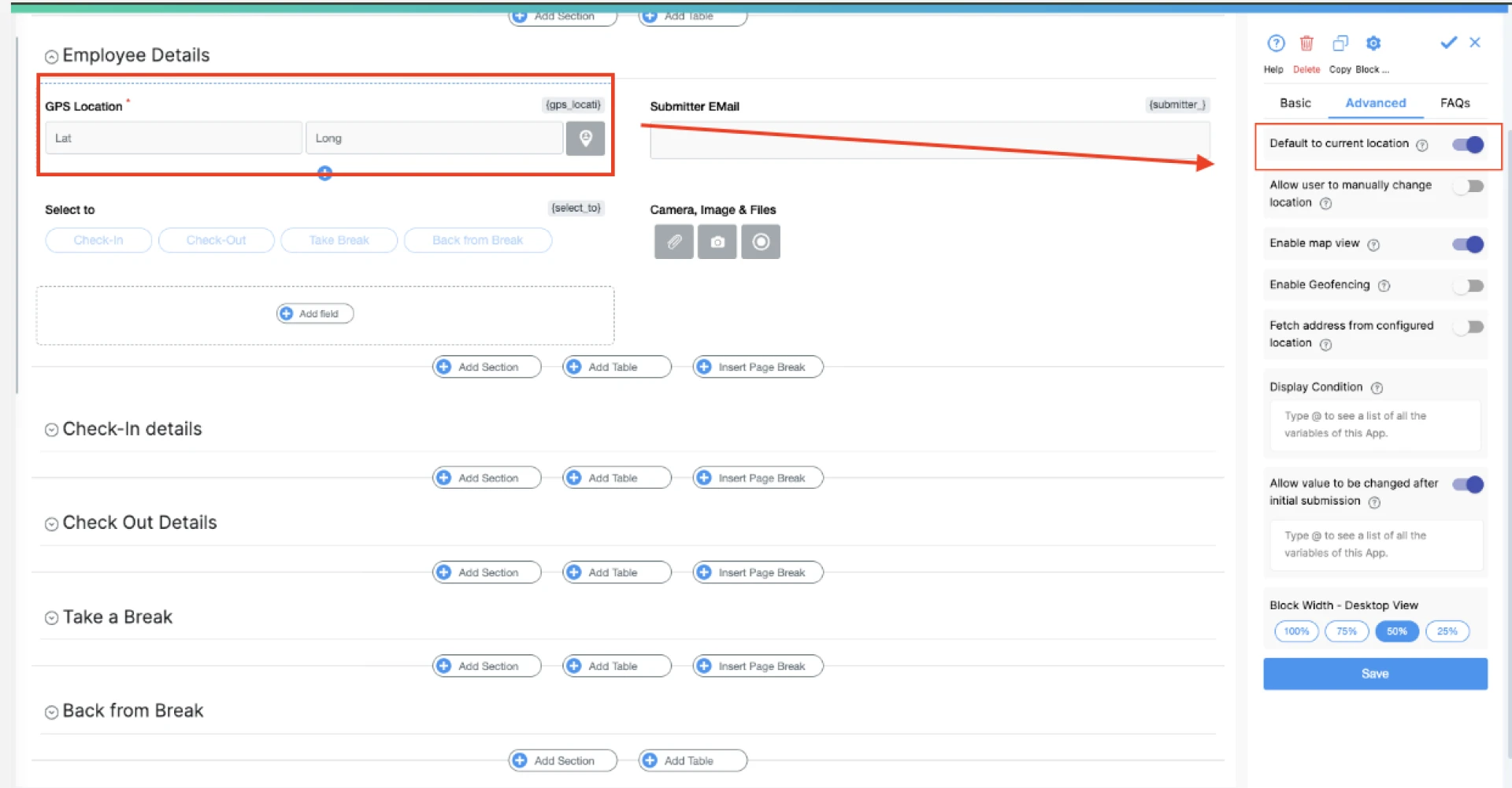
Click the GPS Location block to open settings.
Automatic Capture: Toggle ON to grab GPS coordinates when users open the form. Location updates continuously as they move.
Manual Refresh: Keep enabled so users can update coordinates if they've moved or GPS signal was weak.
Display Format: Choose coordinates only, address only, both, or interactive map view. Map provides visual confirmation of exact location before submission.
Step 3: Set Up Geofencing for Location Restrictions (2 minutes)
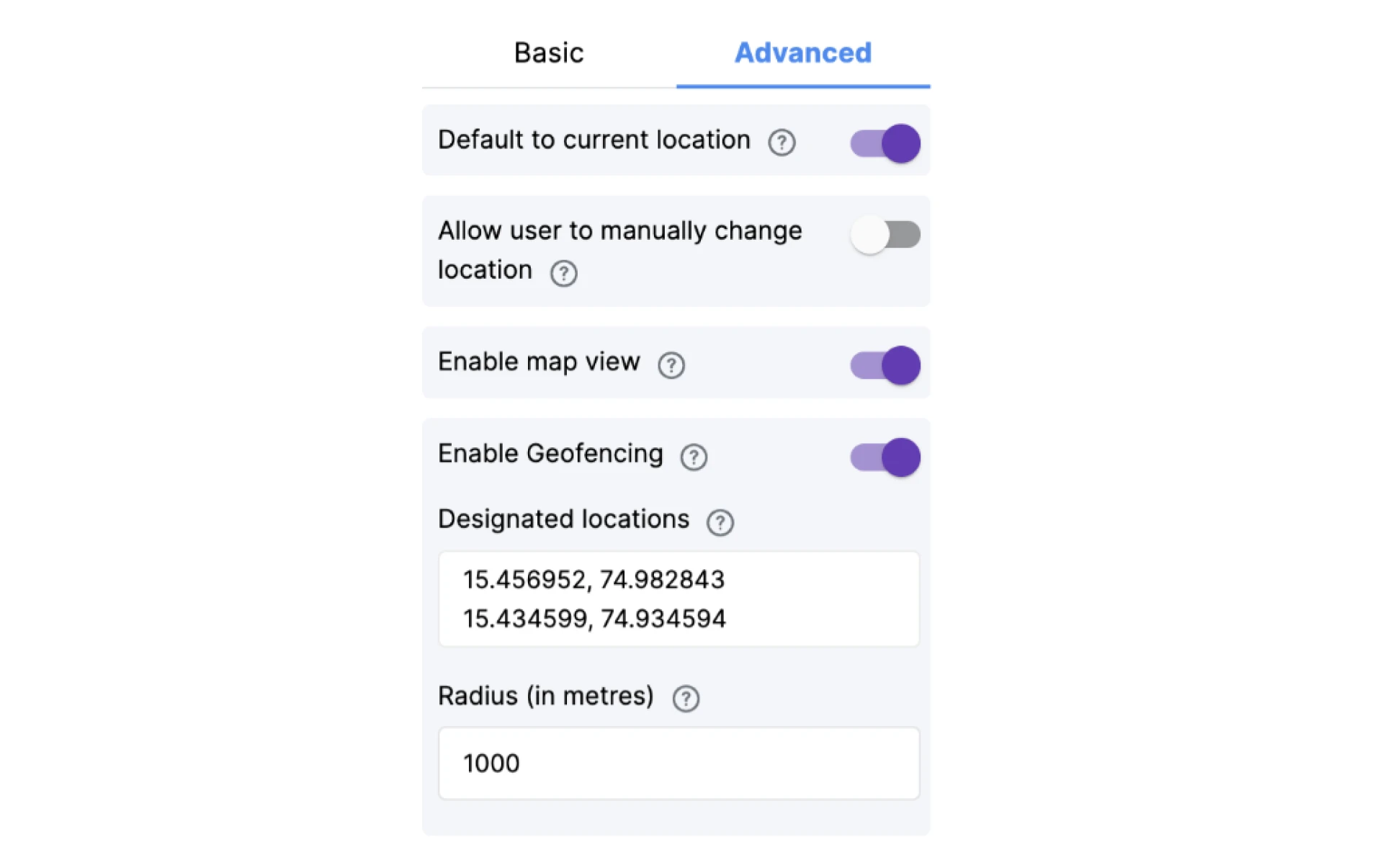
Geofencing prevents form submissions outside designated areas. Essential for attendance verification, site inspections, or ensuring employees are physically at job locations.
Enable Geofencing:
Toggle ON in GPS Location block settings.
Add Allowed Locations:
Enter latitude and longitude coordinates for your designated area. Use Google Maps to find exact coordinates: right-click any location → select coordinates → copy the numbers.
Set Radius:
Define how far from the center point submissions are allowed:
- 50 meters: Very strict, for precise locations like building entrances
- 200 meters: Moderate, covers small office complexes or stores
- 500 meters: Flexible, allows for GPS drift and large campuses
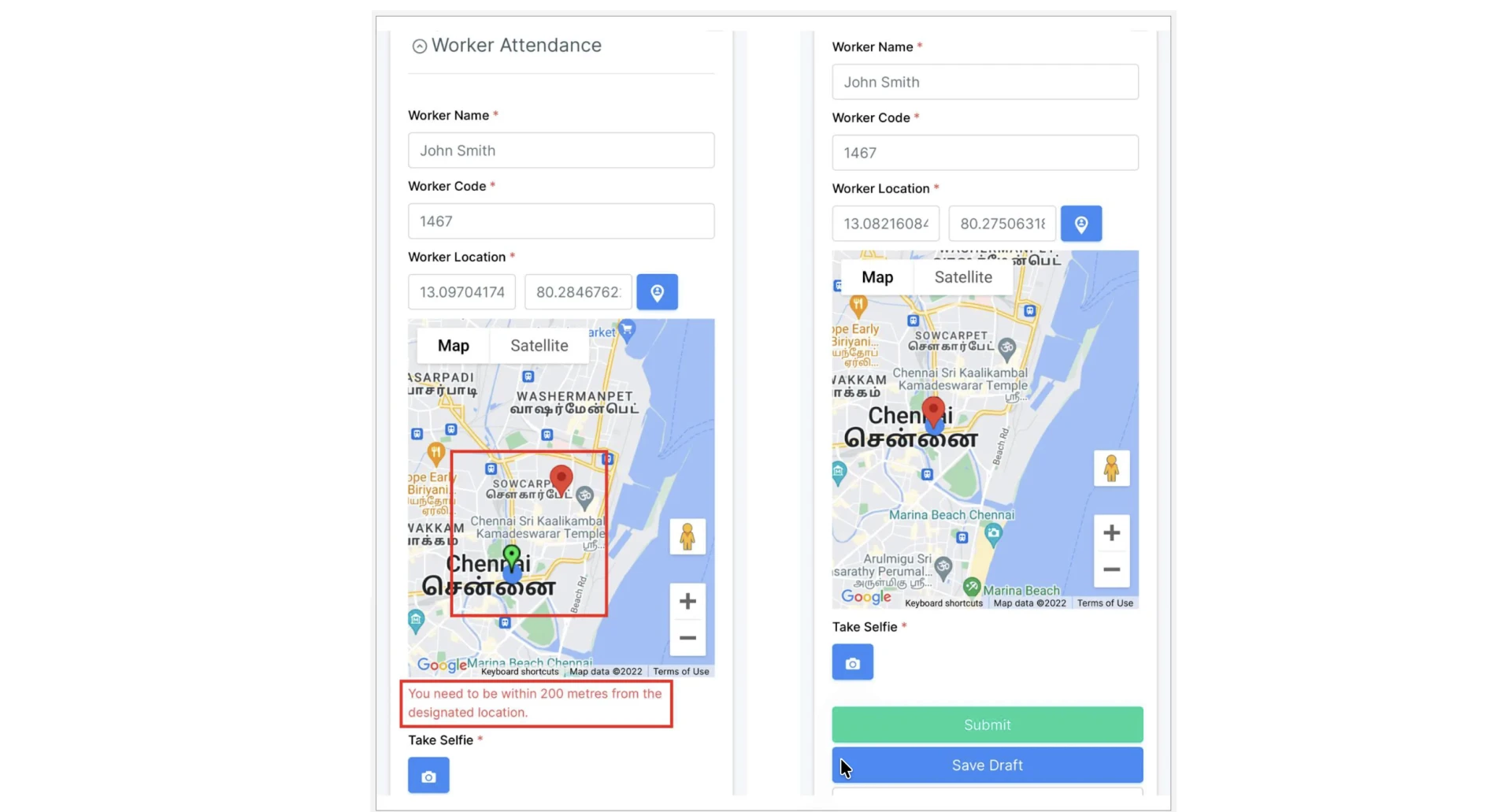
Multiple Geofenced Areas:
Add several locations if you have multiple offices, warehouses, or job sites. Users can submit from any designated area.
When someone tries to submit outside the geofenced area, they see an error: "You must be within [X] meters of the designated location to submit this form."
Step 4: Enable Offline GPS Capture (0 seconds)
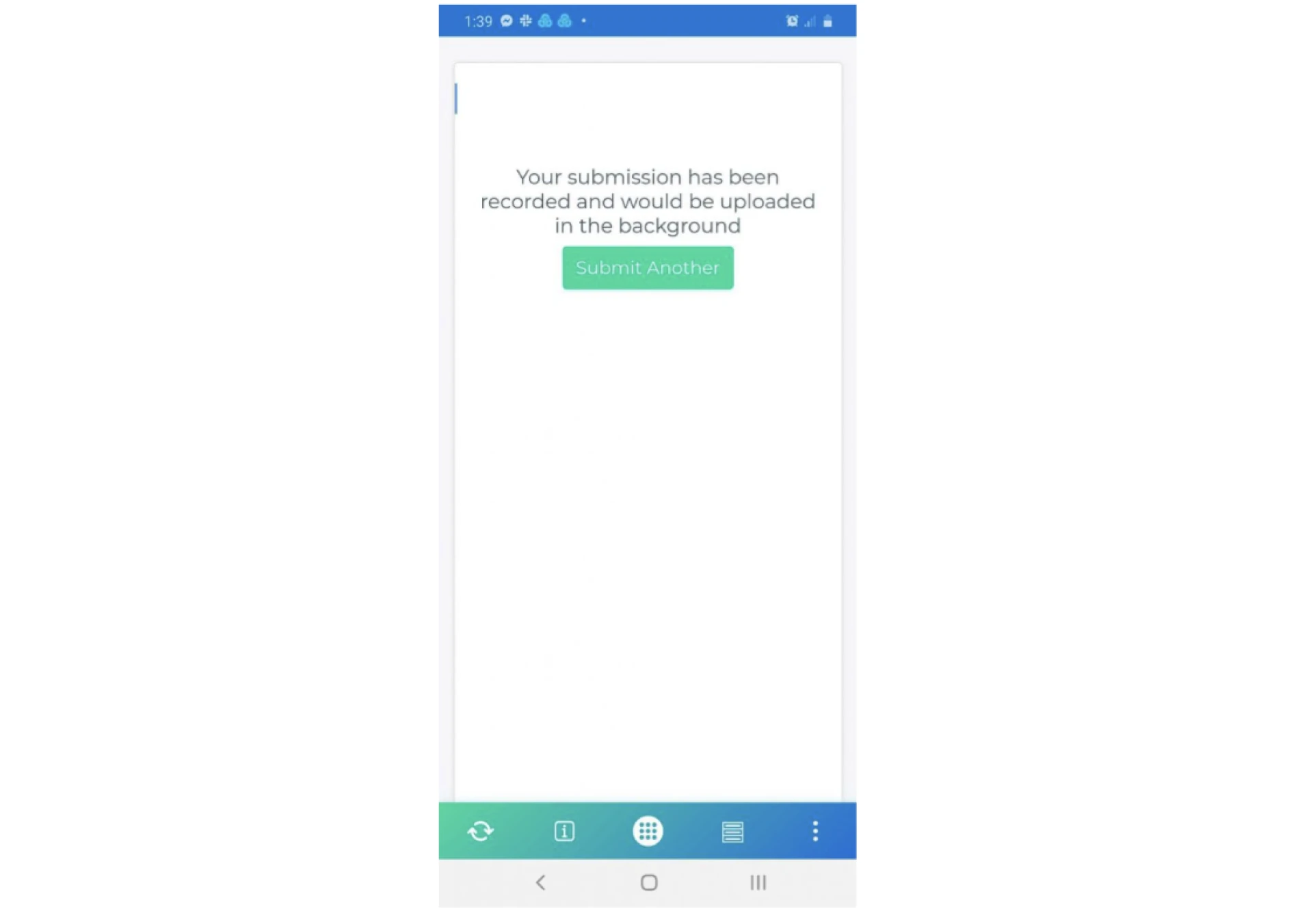
Field workers often operate in areas with poor connectivity. Offline mode captures GPS coordinates without internet, storing data locally until connection returns.
Offline mode is automatically enabled for all forms. No additional configuration needed. The app shows a sync indicator when pending submissions are waiting to upload.
GPS works offline because it's satellite-based, not internet-dependent. Only the form submission requires internet.
Step 5: Combine GPS with Photo Verification (1 minute)
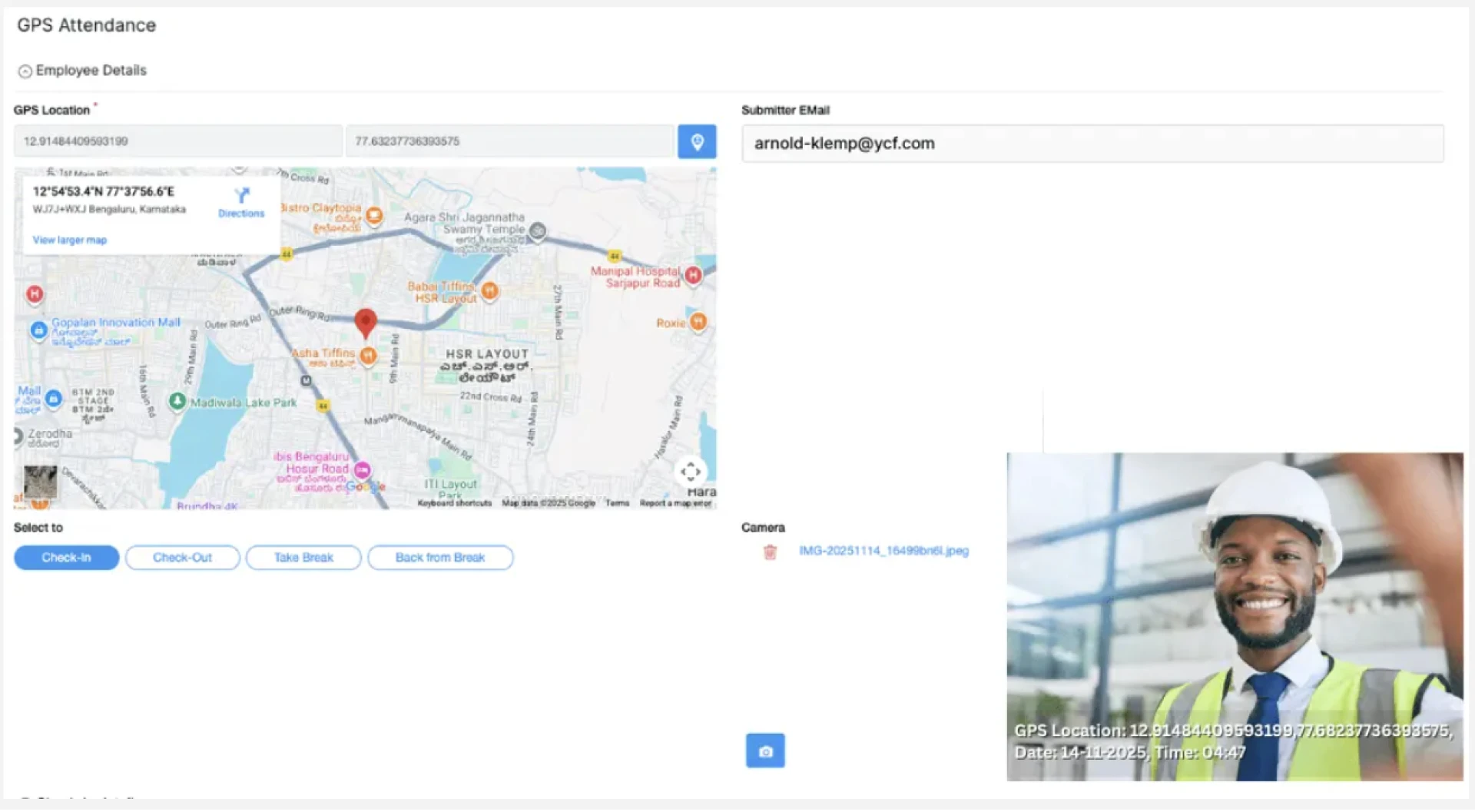
GPS coordinates plus timestamped photos create irrefutable proof of location. Add a Camera/File Upload block below your GPS field.
Configure camera settings:
- Camera Only mode: Prevents users from uploading old photos from their gallery
- Required field: Forces photo submission along with GPS coordinates
- Multiple photos: Allow 2-3 images for documentation
This combination—GPS location + photo + timestamp—eliminates disputes about whether someone was actually at a specific location.
Advanced GPS Configuration Options
Location Accuracy Requirements
Set minimum accuracy thresholds in GPS block settings:
- 5 meters: Very precise, takes 20-30 seconds to acquire signal
- 10 meters: Balanced accuracy and speed (recommended)
- 20 meters: Fast acquisition, acceptable for most use cases
Higher accuracy drains battery faster but provides better verification.
Reverse Geocoding
Automatically converts GPS coordinates into readable addresses. Instead of showing "12.9352, 77.6245," users see "123 Main Street, Whitefield, Bangalore, Karnataka 560066."
Enable this in Third-Party Integrations settings by adding your Google Maps API key.
Distance-Based Validation
Use formula blocks to calculate distance between submitted location and expected location. Flag submissions where employees are too far from designated sites.
Example: If an employee submits from 5 km away when they should be at a client office, the system triggers an approval workflow before accepting the entry.
Historical Location Tracking
Every GPS submission stores in a database with timestamp. Access via reports to:
- View all submissions on a map with color-coded pins
- Filter by date range, user, or geographic area
- Identify patterns like frequent visits to specific locations
- Export coordinates to CSV for external GIS analysis
Real-World GPS Use Cases
- Field Sales: Reps check in at client locations with GPS and photo proof. Managers track visits via dashboard.
- Delivery Tracking: Drivers capture GPS at drop-off with customer signatures. Auto-sends confirmation SMS with location.
- Site Inspections: Inspectors submit reports with GPS-verified locations. Geofencing ensures physical presence.
- Employee Attendance: Workers clock in/out with GPS and selfie. Auto-marks late arrivals and flags check-ins outside geofence.
- Survey Data: Researchers capture GPS with responses for geographic analysis and mapping.
Automation with GPS Data
- Location-Based Notifications: Send WhatsApp alerts to managers when staff check in from specific territories.
- Approval Routing: Route submissions to different approvers based on GPS location automatically.
Testing GPS Functionality
Test on mobile device—GPS works best on phones with dedicated GPS chips. Verify coordinates populate automatically, update when moving, geofencing blocks outside submissions, and offline storage works in airplane mode.
Desktop testing uses IP-based location (less accurate). Always test on actual mobile devices.
Deployment Options
- Public Link: Share URL via WhatsApp/email for anyone to submit.
- User-Based Access: Add specific users with login credentials for tracking.
- Mobile App: Works as mobile web app. Users add to home screen or download native Clappia apps from app stores.
Troubleshooting GPS Issues
- Location Not Capturing: Enable location permissions in Settings → Privacy → Location Services.
- Low Accuracy (100+ meters): Move to area with clear sky view. GPS requires line-of-sight to satellites.
- Geofence Not Working: Verify coordinates are correct. Check coordinate order (lat/long vs long/lat).
- Offline Not Syncing: Ensure device has storage space. Connect to WiFi for faster sync.
Pricing for GPS Forms
- Free Plan: Unlimited apps with GPS tracking, 100 users, 400 submissions/month, geofencing, offline mode, and mobile apps. No credit card required.
- Paid Plans: Start at $6/user/month (scales to $2.81/user/month). More submissions, advanced workflows, and API access.
Test your complete use case on the free plan before upgrading. Most small teams stay on free tier indefinitely.
Summary
Adding GPS location tracking to forms requires one block, five minutes of configuration, and zero coding. The block works with any form type—attendance, inspections, deliveries, surveys, site visits.
Configure automatic capture for convenience, add geofencing for security, enable offline mode for reliability. Combine with photos and signatures for complete verification.
Your GPS-enabled form is production-ready immediately. No servers to maintain, no security updates to manage—the platform handles infrastructure automatically.
























Sign in to leave a comment.